1
Many of the item operations that can be used in the DiskTracker catalog window (see chapter
two) can also be performed in the search result window. For instance:
• Getting information on an item or group of items in the search result window/label
list:
1.)
Select the items to get information for.
2.)
Select “Get Info” from the Item menu (or press
).
• Launching an item or group of items from the search result window/label list:
1.)
Select the items to be launched.
2.)
Select “Launch” from the Item menu (or press
).
• Displaying an item or group of items in the Finder from the search result window/label
list.
1.)
Select the item or group of items to be shown.
2.)
Select “Show in Finder” from the Item menu.
Printing and exporting
The contents of the search result window/label list window may be printed.
• To print the contents of the search result window/label list:
1.)
To print only certain items, select those items.
2.)
Make sure that the page setup settings are correct (select “Page Setup…”
from the File menu).
3.)
Select “Print…” from the File menu.
4.)
Make sure that the settings within the print dialog box are correct.
5.)
Select either to print all of the items or just the selected ones.
6.)
Click “Print” to start printing or “Cancel” to abort.
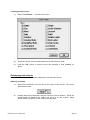
• To export the contents of the search result window/label list to a text file:
1.)
To export only certain items, select those items.
2.)
Select “Export as TEXT…” from the File Menu.
DiskTracker User Manual
Page 43