1
Please make sure that all of these items are present before you upload unregistered copies of the
program to online services or internet FTP sites. We would be most grateful, however, if you
would simply distribute the DiskTracker Installer, as you might download it from the
DiskTracker web site.
Installing DiskTracker
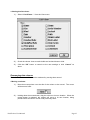
Installing DiskTracker 2 is really very simple - run the DiskTracker Installer and, making
sure that “Easy Install” is selected in the pop-up menu, choose a drive for install, and click
“Install”. If you would like to install only the DiskTracker application or extension, choose
“Custom Install” from the pop-up menu, click the appropriate check-boxes, choose a drive for
install, and click “Install”. If you choose to install the extension (Classic Mac OS only), you
will need to reboot your Mac.
Running DiskTracker
Classic Mac OS
Mac OS X
To run DiskTracker, simply double click on the program icon. Shortly thereafter, the program
will present an empty catalog window into which disks can be scanned.
Registering DiskTracker
For instructions on how to register DiskTracker, please see the Registration read me file in the
“Register DiskTracker” folder. Please support shareware and register DiskTracker!
Some important terms
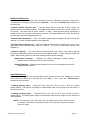
Before using DiskTracker, there are some terms that need to be defined:
•
Disk Catalog - An “image” of the directory structure of a disk (hard drive,
CD-ROM, file server, removable media disk, etc). Disk catalogs are the
primary focus of DiskTracker, which creates, searches, and manages disk
catalogs.
•
Catalog File - A file which contains disk catalogs of one or more disks.
•
Disk List - The collection of disk catalogs contained in a catalog file.
•
Scanning a Disk - The process by which a disk (or volume) is examined and
a disk catalog is created from its file structure.
DiskTracker User Manual
Page 5