1
User Manual
BlackStar SPLURF for Cinema 4D
SPLURF Selector Tool
Especially if you want to create more than one Spline Surface Object in a short
time (i.e. from an existing spline model) the Selector Tool offers a lot of comfort.
When selecting it from the SPLURF plugin menu you can specify directly in the
editor where to create a spline patch. A what-you-see-is-what-you-get preview
shows you which surface will be generated.
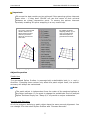
The Selector Tool works by projecting the visible objects in the editor to a 2D
plane. No information about the Z-value will be regarded to achieve a much
better performance. Thus you have to provide a correct viewing angle to make
sure the surface can be clearly recognized after the projection. This means that
there must not be any overlaying splines in z-direction in the current view when
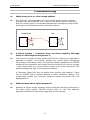
using the Selector Tool. The following figures give a few examples of how to use
this tool. There is also a video tutorial available at http://www.blackstarsolutions.de/c4d_splurf.php#sec_vid which shows how to quickly build spline
surface models by using the Selector with a more complex scene.
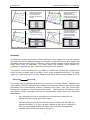
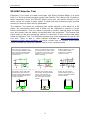
From the cursor position rays
are travelling at different angles
in the projected viewing plane.
The splines being hit will be
colored green.
Also a red surface will be drawn
to show how the result is going
to look like. If it matches your
intension you can go on with
further selecting.
With the Selector you can
create multiple spline
surfaces from existing
models very fast.
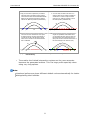
The Selector works with a 2Dprojection and thus relies on
the first contact with a spline in
the plane perpendicular to the
current viewpoint.
With the right viewing angle
the Selector finds the desired
splines. Be sure that no
"unwanted" spline overlays
the ones of the intended
surface.
Again, the red preview
surface always shows you
how the generated surface
would look like.
[Fig. 5: Creating Spline Surfaces with the Selector Tool]
9