1
5 CONFIGURATION
5
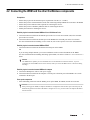
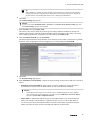
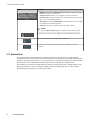
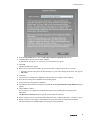
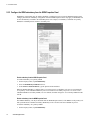
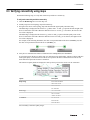
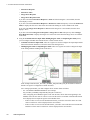
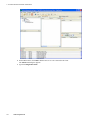
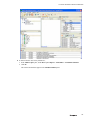
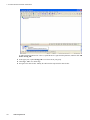
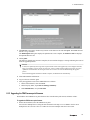
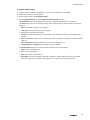
On the ribbon bar, in the Filter group, click Device Status > Un-Provisioned.
6
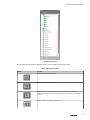
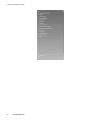
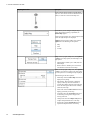
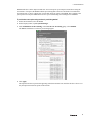
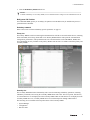
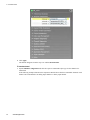
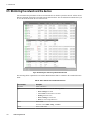
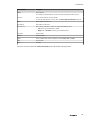
Expand the extended Selection Panel to view the available device parameters.
7
Select the required access point in the Selection Panel or the map view and then click Accept on the ribbon
bar.
Attention
•
•
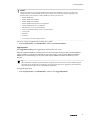
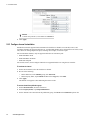
You can select multiple access points using the Selection Panel or the map view. Use SHIFT+click to select
multiple items in a successive list. Use CTRL+click to select multiple items not in succession.
It is recommended that you select and accept only 10 devices at a time.
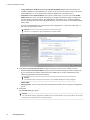
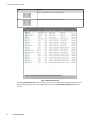
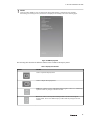
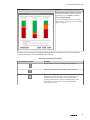
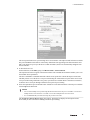
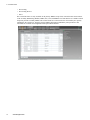
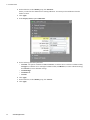
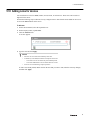
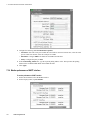
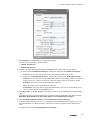
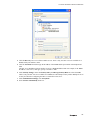
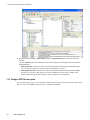
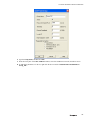
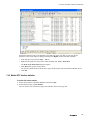
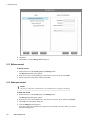
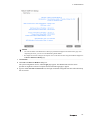
The Accept Over the Air Devices dialog box appears. The dialog box displays all the unprovisioned access
points that you have selected for enabling over-the-air provisioning.
8
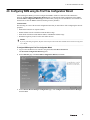
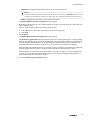
Click Accept.
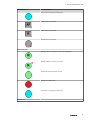
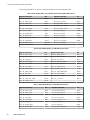
The Progress column displays the status as In Progress, Provisioning, and then Completed when
complete. Do not close the dialog box when over-the-air provisioning is initiated for devices.
9
Click Close.
The Accept Over the Air Devices dialog box closes.
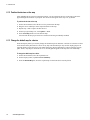
To provision line-powered FDAP routers/ field devices using over-the-air provisioning method
62
1
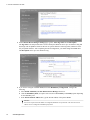
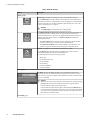
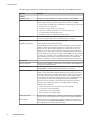
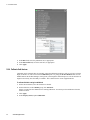
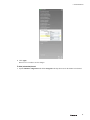
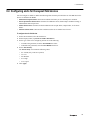
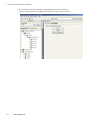
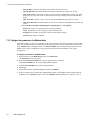
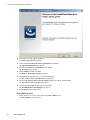
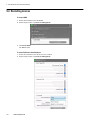
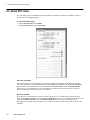
On the Selection Panel, select the access point.
2
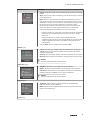
On the Property Panel, expand Device Management.
3
Under Over The Air Provisioning, click Enable for 60 Minutes.
www.honeywell.com