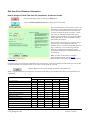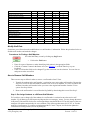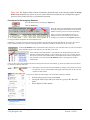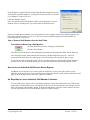
1
E-Com Administrator’s
Manual
©
v. 6.7
Washington State’s
Special Education Forms Manager and
Electronic Compliance System
Website: http://ecomforspecialed.com/
©2000-2013 Portage Bay Solutions, Inc.
©2000-2013
Portage Bay Solutions, Inc.
TABLE OF CONTENTS
Chapter 1: Overview of System and ESM Duties................................................................................. 5 Overview: What is E-Com? ................................................................................................................................... 5 How to Use This Manual ....................................................................................................................................... 5 Duties of the E-Com System Manager.................................................................................................................. 5 Chapter 2: Staff and Password Maintenance....................................................................................... 6 How to Add a New Staff Member .......................................................................................................................... 6 Edit User ID and Password Information ................................................................................................................ 7 Modify Staff Data................................................................................................................................................... 8 How to Remove Staff Members ............................................................................................................................ 8 How to Access Individual Staff Service Roster Reports...................................................................................... 10 An Easy Way to List an Individual Staff Member’s Students............................................................................... 10 Chapter 3: Student Screen Features................................................................................................... 11 Screen Overview ................................................................................................................................................. 11 Information & Settings ......................................................................................................................................... 11 School, Staff and Notes Settings......................................................................................................................... 12 Student Access Data........................................................................................................................................... 12 Forms Tab ........................................................................................................................................................... 13 Notes Tab............................................................................................................................................................ 13 Placement Tab .................................................................................................................................................... 14 Special Tab ......................................................................................................................................................... 15 Staff Tab.............................................................................................................................................................. 16 Assessment Tab.................................................................................................................................................. 16 Merge Students ................................................................................................................................................... 16 Delete Students................................................................................................................................................... 17 Chapter 4: Forms List........................................................................................................................... 18 Accessing the Forms Database .......................................................................................................................... 18 Form Detail Screen ......................................................................................................................................... 18 Duplicate Value Lists....................................................................................................................................... 19 Required or Default Text Fields ...................................................................................................................... 20 Previewing and Printing Blank Forms ................................................................................................................. 20 Chapter 5: Admin Screen..................................................................................................................... 21 Due & Compliance Alert Items ........................................................................................................................ 21 Reports............................................................................................................................................................ 21 Admin Tools: Control Panel Items................................................................................................................... 22 Selecting the Admin Screen as Your Default Screen...................................................................................... 22 Chapter 6: System Maintenance ......................................................................................................... 23 Set and Change System Preferences ................................................................................................................. 23 General Preference Options ........................................................................................................................... 23 Forms Preference Options .............................................................................................................................. 23 Copyright © 2000-2013, Portage Bay Solutions
www.portagebay.com
Page 2
Printed: 11/07/13
Other Info Preferences.................................................................................................................................... 24 District Info/Headers Tab..................................................................................................................................... 24 Lists Tab.............................................................................................................................................................. 24 Lists 2 Tab........................................................................................................................................................... 25 Lists 3 Tab........................................................................................................................................................... 26 Staff Tab.............................................................................................................................................................. 26 Control Panel Tools............................................................................................................................................. 26 Access Log...................................................................................................................................................... 27 Text Editing ..................................................................................................................................................... 28 Batch Editing ................................................................................................................................................... 29 Form Data Editing: Undelete ........................................................................................................................... 31 Form Data Editing: Create Batch Buttons ....................................................................................................... 32 Schools ........................................................................................................................................................... 33 Calendar.......................................................................................................................................................... 35 Increment Grades ........................................................................................................................................... 35 Staff Password Report .................................................................................................................................... 35 Student Update ............................................................................................................................................... 35 Import Preferences Tab .................................................................................................................................. 36 District Preferences Tab.................................................................................................................................. 37 WesPAC Tab .................................................................................................................................................. 37 Backup Procedures ............................................................................................................................................. 39 Form Layout Editing ............................................................................................................................................ 40 Adding Required Fields or Default Text to Fields................................................................................................ 41 Form Lists Editing................................................................................................................................................ 42 Chapter 7: Tips, Help System & Troubleshooting ............................................................................. 45 Quick Tips ........................................................................................................................................................... 45 Support................................................................................................................................................................ 45 Trouble-Ticketing System ............................................................................................................................... 45 Troubleshooting Forms ....................................................................................................................................... 46 Areas of Service .............................................................................................................................................. 46 Staff Unable to Type in Forms ........................................................................................................................ 47 Unable to Activate a Form............................................................................................................................... 47 Duplication Dialog issues ................................................................................................................................ 47 Summary of Services Matrix ........................................................................................................................... 47 Edit Value Lists ............................................................................................................................................... 47 Typos .............................................................................................................................................................. 48 Forms Printing Blank ....................................................................................................................................... 48 Deselecting Drop-Down List Choices.............................................................................................................. 48 Troubleshooting Student Records....................................................................................................................... 48 Special Tab – LRE Code Calculation.............................................................................................................. 48 Program History Error Message...................................................................................................................... 48 Appendix: 504 Program ....................................................................................................................... 50 Staff ..................................................................................................................................................................... 50 Forms and Batches ............................................................................................................................................. 50 Students .............................................................................................................................................................. 51 Reports................................................................................................................................................................ 52 Copyright © 2000-2013, Portage Bay Solutions
www.portagebay.com
Page 3
Printed: 11/07/13
Appendix: Glossary.............................................................................................................................. 53 Copyright © 2000-2013, Portage Bay Solutions
www.portagebay.com
Page 4
Printed: 11/07/13
Chapter 1: Overview of System and ESM Duties
Overview: What is E-Com?
E-Com is a multi-user relational database. Multi-user means that staff across a network can gather all of a
student’s forms in one location for easier review and auditing of student history. Though E-Com does not
eliminate the requirement of printed forms stored in permanent student records, it does greatly simplify the
process of creating and managing the forms.
E-Com helps special education staff quickly create, store, and print special education forms, thereby helping
to eliminate inconsistencies and promoting compliance. The purpose of the E-Com system is to allow special
education teachers, psychologists, and other professionals to:
• Better collaborate in a team environment and provide improved student support.
• Create, store, and print special education forms required by the State of Washington for Special Education
students.
• Organize and store student, parent, school, and staff information related to students.
• Promote compliance with state and federal requirements
This manual will provide the E-Com System Manager (ESM) with system information and instructions for
tasks involved in maintaining the E-Com system.
How to Use This Manual
•
•
•
•
Use the Table of Contents to find a topic quickly.
The “Glossary” section at the back of this manual explains terms associated with the E-Com system and
referred to in this manual.
A list of do’s and don’ts called “Tips from the Trenches” appears in Chapter 7, along with
troubleshooting tips.
Most of the specific task instructions are listed in tables with pictures of buttons and other screen
elements you need to work with along. Be sure to do each step in the order shown.
Duties of the E-Com System Manager
The E-Com System Manager (ESM) has the following duties:
• In cooperation with Portage Bay Solutions, to add new forms and to change or delete existing forms to
conform to new state requirements or district standards. The ESM also maintains the E-Com system’s list
of active forms.
• To add new staff members to the staff table and to add or change staff member data.
• To add new schools to the school table and to add or change school data.
• To assign and change user IDs, passwords, and access levels.
• To insure that E-Com data is appropriately backed up and to test restores of backups.
• To help users search for and correct data entry problems such as incomplete records.
• To install the E-Com system for new users as needed, in cooperation with district technical staff.
Copyright © 2000-2013, Portage Bay Solutions
www.portagebay.com
Page 5
Printed: 11/07/13
Chapter 2: Staff and Password Maintenance
How to Add a New Staff Member
A new staff record should be added to the Staff table before a User ID, password, or any students are assigned to
that staff member.
Procedures for Adding a Staff Member:
Go to the Staff Entry screen by clicking any Staff button.
Add a new Staff member by clicking the Create New Staff button (under “Actions” on the left-hand
side of the screen).
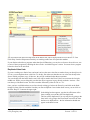
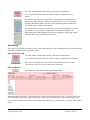
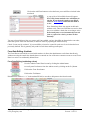
The only fields required to have data entered are the staff first and last name
fields. However, it is good policy to add an email address and a default
screen for each staff member. Please note: If you enter a phone number into
the Phone field, it may be copied automatically to some forms. Do not use
the first Phone field for home phone numbers! If you want to list home
phones, use the Phone 2 field; that doesn’t populate in any forms.
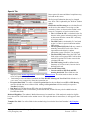
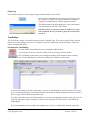
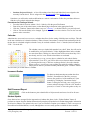
Select a Default Screen from the Default Screen drop down list (item #1
right). This will be either the Student tab, the To Do tab, the Admin Screen
(for level 2 users only), or the Student List screen (showing all students
assigned to the staff member).
Note: E-Com automatically assigns the Staff ID number (item #2 right). If
you use E-Com’s student import function, and you want case manager
information to be imported from the Skyward system, the staff ID in E-Com
must match the staff ID in Skyward in order for that information to appear
properly. Also, staff ID numbers should only be changed when entering a
new staff member – if you change the ID for already-existing staff members,
you will break the connection between the staff and their currently-assigned students.
Note: New staff members default to having the ‘Include Staff in Pop-Up Lists’ checkbox checked. You would uncheck this for a
staff member who is no longer with the district and/or if you no longer want them to appear as active staff. If the checkbox is
unchecked, the staff member will NOT be able to log into E-Com.
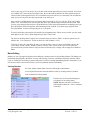
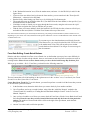
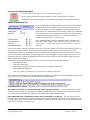
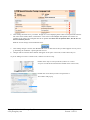
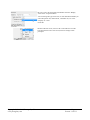
Then, on the Schools/Programs tab, you can add the new staff member
to the schools and programs he or she will be working with. Clicking
on the large red X will remove the program or school from the staff
record.
Schools – Not all districts use this functionality. If no schools are
added, the staff member will be able to see all students in all schools
(unless they are restricted to their assigned students on the Admin Pref
“Staff” tab). To add schools, simply place your cursor in the first
available line and select the school from the drop-down list; continue
till all applicable schools have been added.
Programs – Under the programs section, a staff member can be defined
as 504 only, special education only, or both. Staff assigned to only one
program will not be able to access documents for the other program. In the image shown, the staff member will be able to see
both special education and 504 forms for all students. If a program is removed, then the staff member would no longer be able to
see or access that program’s forms or batches on any student. Please note: Your district may only use E-Com for Special
Education, in which case, only Special Education will be available here. If you do not list Special Education under Programs,
staff members will not be able to see or add Special Education forms and batches.
Copyright © 2000-2013, Portage Bay Solutions
www.portagebay.com
Page 6
Printed: 11/07/13
Edit User ID and Password Information
How to Assign or Edit E-Com User IDs, Passwords, and Access Levels.
Go to the Staff Entry screen by clicking any Staff button.
Click on the Edit Login/Password button to bring up the screen below.
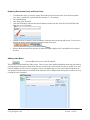
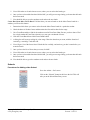
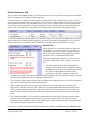
For a new staff person to have access to E-Com, you
must define a user ID and password for them on this
screen. We recommend first initial, last name, but
you may use whatever pattern you prefer – please
note, however, that there should be NO spaces;
hyphens can be problematic as well and we suggest
leaving them out (so, Ann Jones-Smith would be
ajonessmith, for instance).
For new users, it is good policy to assign a generic
password, such as new1234# and select the
checkbox next to “User must change PW upon next
login.” That way, as soon as they log in the first
time, they will be asked to change the generic
password to something more complex and specific
to themselves.
Note: You may set the status of “Complex
Password Enforcement” from the System
Preferences. If this option is on, the password is required to contain a minimum number of characters and combine letters as
well as numbers.
Choose an access level for the new staff member. See the list below, or the one provided to the side of the login entry screen
for more information on what the various access levels can and cannot do in E-Com.
Click the Save button to save any changes and return to the Staff Screen.
There is a general description of each level in the password edit dialog box. The table below shows a more complete list of
capabilities.
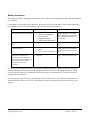
Capabilities
Access Level
6
5
4
3
2 (Admin)
View forms/batches
Y
Y
Y
Y
Y
View student records
Y
Y
Y
Y
Y
Find students
Y
Y
Y
Y
Y
Print/email/PDF forms & batches
Y
Y
Y
Y
Add/delete own forms & own batches
Y
Y
Y
Y
Run reports
Y
Y
Y
Y
Edit unlocked forms
Y
Y
Y
Y
Transfer forms to other batches
Y
Y
Y
Y
Mark forms as done
Y
Y
Y
Y
Add Notes/To Dos to student
Y
Y
Y
Y
Delete own notes
Y
Y
Y
Y
Duplicate form/batches
Y
Y
Y
Y
Insert text on forms
Y
Y
Y
Y
Y
Y
Y
Add/delete (own) documents to student
Copyright © 2000-2013, Portage Bay Solutions
www.portagebay.com
Page 7
Printed: 11/07/13
Edit student records
Y
Y
Add student records
Y
Y
Y
Add/edit programs for student
Y
Y
Add Areas of Service to student
Y
Y
Lock batches
Y
Unlock forms/batches
Y
Add/delete staff and schools
Y
Import/export data
Y
Edit locked forms
Y
Force password changes
Y
Modify program for forms/staff
Y
Modify district forms
Y
Reassign students to staff
Y
Set system preferences
Y
Delete/merge student records
Y
Run student updates
Y
Undelete forms & batches
Y
Modify Staff Data
Sometimes you will need to make modifications to a staff member’s information. Follow the procedures below to
find the staff member and make the changes.
Procedures for Finding a Staff Member:
Go to the Staff Entry screen by clicking any Staff button.
•
•
•
•
•
Click on the Find button.
Enter all or part of the name or other identifying information in the appropriate fields.
Click the “Continue” button in the Status Area (see “Glossary”), or hit the Enter key on your
keyboard.
Click or Tab into the field(s) to be changed. Type the correction over the selection. You can also cut
and paste to make corrections.
How to Remove Staff Members
There are two steps to follow in order to remove a staff member from E-Com.
1. Transfer the students in the staff member’s caseload to one or more other staff members. Because the
Staff Entry screen for the staff member contains a list of his or her students, it is easier to transfer the
students to another staff member before you remove the original staff member from the E-Com
system. See Step 1 below.
2. Remove the staff member’s record from the Staff table by deactivating their record. See Step 2.
Step 1: Re-Assign Students to a Different Staff Member
E-Com allows you to change all of the students in a staff member’s caseload to any other active staff
member. If your district uses SIS imports and imports the case managers’ names, you may change the names
in Skyward; if the staff IDs for the new staff assigned there match staff IDs in E-Com, the names of the case
managers will update automatically for active students. This will not update names for OT, PT, or Teacher
under any circumstances. If you have not implemented the E-Com 6.7 Import, it will also not update the
evaluation case manager name (SLP or Psychologist).
Copyright © 2000-2013, Portage Bay Solutions
www.portagebay.com
Page 8
Printed: 11/07/13
Please Note: The ‘Replace Field Contents’ functionality described in this section has the potential to change
data in every record in your system. If you are unsure about these instructions, ask a Portage Bay support
person to assist you the first time you perform this operation.
Procedures for Re-Assigning Students:
Go to the Staff screen by clicking any Staff button.
Click the Find button.
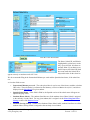
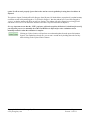
Enter the name of the staff member whose students
are being re-assigned. When the entry for that staff
member comes up, select one of the role buttons.
Note: If you have staff members who serve in
different roles (as case manager and as SLP, for
example), you will have to do separate operations
to reassign students assigned to the staff’s different roles.
Determine if you want to reassign only the active students currently assigned to this staff member. If so, leave the “Active
Only” checkbox checked. If you want to reassign all active and inactive students, uncheck the “Active Only” box.
Click the My Students button at the bottom of the staff screen. You will then be able to view the records of
those students assigned to the staff role you searched, in List view.
If the students in the staff member’s case load are to be divided among several staff
members, decide which students you will reassign first. In list view, you may use the
blue circle to the left of the student name to omit students who will be reassigned in a
later operation. You will reuse the My Students button to reassign these omitted
students later.
Once you have a list of the students who will be reassigned to the new staff member, go to the first student record in the list
by clicking on the blue name link.
Reassign this record to the new staff member by clicking in the yellow box next to
the staff role. A list of staff members will appear. Select the name of the new staff
member for this student.
Then you can make the same change to all of the other students as follows:
•
•
•
Go back to the pop-up list you just changed.
Leaving the list box open with your cursor in it, go up to the “Records”
menu;
Select “Replace Field Contents.”
Copyright © 2000-2013, Portage Bay Solutions
www.portagebay.com
Page 9
Printed: 11/07/13
In the dialog box, confirm that the selected field should be changed to the new
staff member’s staff ID number by verifying that it references the correct field
(Case Manager, Teacher, SLP, etc.).
Click the “Replace” button.
Note: The default button in the Replace Field Contents dialog box is Cancel.
Read the choices carefully before you click a button or hit the Enter key.
Repeat as needed until all students to be reassigned have been reassigned, and no active students appear in any
roles on the old staff member’s screen. You may leave inactive students assigned to the staff member for
historical purposes, if you prefer.
Step 2: Remove Staff Members from the Staff Table
Procedures for Removing a Staff Member:
Go to the Staff Entry screen by clicking any Staff button.
Click the “Find” button.
Enter all or part of the name or other identifying information in the appropriate fields. Hit the Enter key.
Once the staff record is found, uncheck the box next to “Include Staff in Pop-up Lists.” This will
remove the staff name from any staff pop-ups. The staff member will no longer be able to log in.
If you wish to clean up old staff records, you may also delete inactive staff using the “Delete” button on
the staff screen. We recommend waiting for 2-3 years after deactivation before deleting staff records.
How to Access Individual Staff Service Roster Reports
In addition to accessing the service roster report for the district, you may also print, email or export
individual staff service rosters to an excel document. Simply do a find for a staff member, and on their staff
page, go up to the Reports item, and select “My Service Roster.”
An Easy Way to List an Individual Staff Member’s Students
To easily find, print or export a list of all students assigned to a particular staff member, do a find for that
staff member. On their Staff screen, select the tab for the role you are interested in (case manager, teacher,
other) and click the “My Students” button. From the list that appears, select the “Print” button. From here,
you can export the list as an Excel document, email it as a PDF, or print it.
Copyright © 2000-2013, Portage Bay Solutions
www.portagebay.com
Page 10
Printed: 11/07/13
Chapter 3: Student Screen Features
Screen Overview
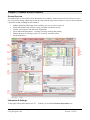
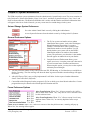
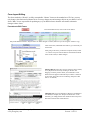
The Student Entry screen is where all the information for a student is entered and stored. From this screen, users
can access and/or manage (depending on their privileges and the setup at their district) a variety of items related to
a particular student, including but not limited to:
•
•
•
•
•
•
Student identifying information such as address, age, area of service needs, etc.
School information such as home, serving, and other non-district schools.
Teacher, case manager, and other staff assignments
Forms and batch management – Creating, accessing, emailing and printing
Printing shortcuts for envelopes, labels, cover sheets, and other reports.
Parent information.
Information & Settings
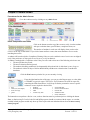
To the right of the website shortcut (Go To …) buttons, you will find the Student Information area.
Copyright © 2000-2013, Portage Bay Solutions
www.portagebay.com
Page 11
Printed: 11/07/13
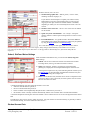
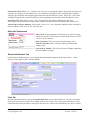
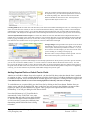
From this section, users can view:
1) Student demographic data – address, phone, “Active” status,
disabling condition, language, etc.
If your district uses SIS imports to update your student records,
administrative users may refresh student info by removing and
retyping the last digit of either the student number or the SSID,
depending on which you use to match Skyward records to E-Com
records.
2) Student’s Areas of Service – this is a view of the services defined
for the student.
3) Quick “keyword” classifications – For example: “Transport”
denotes whether a student requires transportation in order to receive
services.
4) Eval and IEP dates – Any updates made to these fields after the
forms/batches have already been added to a student may be updated
by using the Refresh button on the Batch listings.
Note: Some districts import data nightly from the school’s Student
Information System (SIS). If your school uses imports, many changes made manually on the Student screen will be
overwritten by the data imported from SIS. Please see the appendix on Student Imports to find which data fields are
imported.
School, Staff and Notes Settings
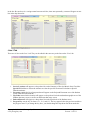
Under the Student Information area, you will find the School, Staff and
Notes settings.
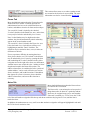
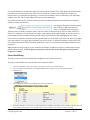
1) Schools: This section contains the schools associated with a student
including: Home, Serving, and other Non-District schools.
2) Staff: Case managers, teachers, psychologists, speech/language
pathologists, and physical and occupational therapists can be set here.
Selecting the triangle next to any of the staff assignments will take you to
the Staff Screen for that individual. Staff members listed here may also
be emailed by selecting the envelope icon.
3) Notes: Like the Staff screen, this field can be used as a notepad for notes
of any kind. There is also a Notes tab, for more specific notes on actions
taken or that need to be taken.
4) Alerts & Warnings:
A checked Compliance Alert box means the student is active and
• either the next IEP date has passed; or
• the next evaluation date has passed; or
• his/her condition is developmentally delayed and s/he is older than 9 years old; or
• the student is within 120 days of his/her third birthday and the next evaluation date is outside that timeframe.
A checked Compliance Warning box means the student is active and the areas of service are not aligned with the current
IEP.
The Delete box may only be used by Admin level users. Very few districts use this functionality, as generally a student
record should be kept, even if the student becomes inactive.
Student Access Data
Copyright © 2000-2013, Portage Bay Solutions
www.portagebay.com
Page 12
Printed: 11/07/13
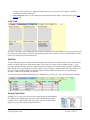
This section allows users to see when a student record
was created or the last time it was modified. The same
information can also be viewed from the Special tab.
Forms Tab
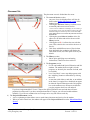
More detailed information about the Forms tab can be
found in the User manual. Common questions for
administrators here have to do with locked forms or
batches, and address selection for forms and envelopes.
You can tell if a batch is locked by the checked
“Locked” checkbox in the Batch view area. At this time,
it may only be locked or unlocked by level 2 users.
Note: Locked batches may be duplicated to other
students; they should automatically unlock when they
appear on the second student record.
You can tell if a form is locked in the Form view area
below the batch view; a locked form will have red
highlighting around the “Done” checkbox. The
checkbox may be marked as done, or not; it makes no
difference to the lock.
If users experience difficulty in entering data into a
form, please check to see if it is locked. Locked forms
may be unlocked by level 2 users by opening the form
and unchecking the “Locked” checkbox in the yellow
navigation area to the right of the form, near the bottom.
Another item to note on this tab is the “Address to Print”
drop-down located in the Parent Info section. The
address selected here is considered to be the “preferred
student address,” and as such, will be the one used on
forms, envelopes, and in other locations. If the address
that appears on a form is incorrect, please check the
address selected here, and correct the selection as
necessary.
Notes Tab
More detailed information about the Notes tab can
be found in the User manual.
The Notes tab is a convenient place to keep track of
things that need to be done for a particular student.
Notes may be assigned to any active staff member.
If the note is marked as a “To Do” item, the To Do
tab of the staff member assigned will be the top tab shown each time they log into E-Com, until the item is
marked as done.
In addition, the student name on every staff screen that student is assigned to will appear highlighted in red until
the To Do item is marked as done.
Copyright © 2000-2013, Portage Bay Solutions
www.portagebay.com
Page 13
Printed: 11/07/13
Placement Tab
The placement screen is divided into four areas:
1) The Areas of Service section
• Any area of service displayed here will also be
listed on the Student Information section of the
Student Screen.
• Clicking the Add Area* button (1a) allows a user
to manually add a new Area of Service.
* Areas of service added here will display an error warning a
user that doing so may cause discrepancies between the areas
identified during the evaluation process and the IEP. Only
users with level 2 or level 3 access may edit areas of service
from this tab.
•
•
•
Clicking the green Delete & Archive circle (1b)
allows user to delete and archive the area to the
History section.
Clicking the red X (1c) allows the user to delete
areas. This selection does not archive the Area of
Service.
Goal forms with different Areas of Service than
those defined by the evaluation will display the
alert shown in red (1d) if this option is set in your
district.
2) The History section
• Shows prior qualifying areas and testing
information, if those have been archived.
3) The Programs section
• E-Com can handle both Special Education and 504
students. The student shown at right is in both
programs (as shown by the start date for both, with
no end date).
• Level 2 and level 3 users may add programs with
the “Add Prog” button or delete them by clicking
the red X.
• A start date (with either no end date, or an end date
in the future) is required for a checkmark to appear
in either the Special Education or the 504 program
box on the student screen. When an exit date has
past, the program check box will uncheck.
If you have implemented the E-Com 6.7 Import, the Special Education start and end dates will autopopulate from Skyward. If you have not implemented the 6.7 Import, you will need to add end dates
manually. If you do not, students who are no longer active may still activate each day.
4) The Projected Placement section
• Acts as a planning tool that allows users to track future placement and services for the student.
• When you add a school here, the student will appear in the Projected School list on the School Data Entry
Screen.
Copyright © 2000-2013, Portage Bay Solutions
www.portagebay.com
Page 14
Printed: 11/07/13
Special Tab
Data required for state and federal compliance may
be found on this screen.
The Projected Graduation date may be changed
here. Note: This is updated by the WesPAC student
update.
LRE Codes and Percentages are calculated based
on all services the student is receiving as of the
current day’s date, as shown on the student’s most
recent 14.1 (summary of services matrix) form.
• The % of Time in GE is a calculated value for
the time in the general education setting, based
on data entered on the current IEP’s summary
of services matrix.
• The LRE Code is calculated by E-Com based
on the % of time in special education and the
LRE setting.
• The Exception LRE Code field may contain a
manually entered LRE code or the code as
imported from the district’s student
information system (WesPAC, for example).
• The Final LRE Code reflects the LRE Code
field, unless an Exception LRE Code has been
entered. Exception LRE Codes overwrite the
calculated LR code.
• The LRE setting should be defined on the
Summary of Services matrix, but can also be
defined on this tab.
•
•
•
•
Eval and IEP date fields:
• Current and Next IEP/Eval and IEP
meeting date fields: These fields are also
displayed on the Student Information section on the Student Screen. Revisions made to dates on either
screen will update dates on the other.
Conforming to state and federal standards, the Next IEP/IEP Meeting and Next Eval fields default to 1 or 3
years minus a day (respectively) from the current date set.
Exception Date fields: To create a default Exception Date for the next Eval or next IEP or IEP Meeting,
enter the desired date in one of these fields. Adding an Exception Date will also modify its respective
Next/Due field entry.
Due Date field: The date that an IEP is due may be entered here.
Other information, such as referral date, parent consent date, and the like may also be added below the
Eval/IEP date fields.
Medicaid Eligibility: The student’s Medicaid status may be entered here. If the student is marked as eligible
here, there will be a red header on the student screen. If an expiration date is entered here, it will appear in that
header.
Template For field: Use of this field ties the student being viewed to the listed staff member’s My Template
button.
Copyright © 2000-2013, Portage Bay Solutions
www.portagebay.com
Page 15
Printed: 11/07/13
Staff Tab
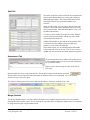
The names in the first section of this tab are assigned at the
bottom of the Student data entry screen, and can only be
added and deleted there. The General Education Teacher
field will be filled if you get student updates from
WesPAC.
In the second section, you can specify other E-Com staff
members. Click in the yellow popup box and click on the
desired staff member. Title and email address, if any, will
be added automatically.
To remove a staff member from this area of the Student's
record, delete the staff number and the rest of the fields
will automatically blank out.
Adding staff members to the student on this portion of the
screen will cause the student to appear on that staff
member’s screen, under the Other tab.
In the third section, you can add information about other
staff persons who may not be in E-Com for one reason or
another, but who are involved with the student in question.
Assessment Tab
An assessment tab has been added to the student screen
to allow administrators to track assessment information
for a particular student.
Entries may be deleted using the red X at the end of
each entry.
Data from this area may be exported using the “Export Data” button near the bottom of the tab.
This will allow you to export the data in a number of different formats; we recommend .csv or .tab as these
formats are easy for Excel to open.
The values in the drop-down lists can be edited in the Admin-> Pref area, under the Lists 3 tab.
Merge Students
The Merge Students feature is used to combine the forms of two students and place them on one record while
deleting the other from the system. This is useful in the case when there are duplicate students and you would like
to merge the forms into a single student record.
Copyright © 2000-2013, Portage Bay Solutions
www.portagebay.com
Page 16
Printed: 11/07/13
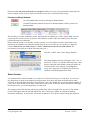
Please note that only forms and batches are transferred. If there are notes or assessment data connected to the
inactive student record, you may wish to transfer these to the active account before the merge.
Procedure to Merge Students
Go to the Student Entry screen by clicking any Student button.
Click the Find button and enter the criteria to find the students, either by name or by
student number.
This will bring you to the Student List screen, displaying the two students you wish to merge. Note: You may
only merge two records at a time. If you have more than two records for the same student, you will need to
perform the merge more than once.
Please check the records over carefully, to make sure they are in fact duplicate records, and not that a staff
member has accidentally overwritten the student name on one record. Once you are sure they are duplicate
records, mark the one you wish to keep as “Active” and deactivate the one you wish to delete. We
recommend you keep the one with the most data (notes, etc.).
From the “Admin” menu, select “Merge Students.”
This Merge Students message will appear. Click “Yes” to
proceed or “Cancel” if you wish to abort the merge. Notes
that are connected to the deleted account will need to be
transferred to the active student’s record before the
merge. Once the merge is completed, placement areas
should be verified and updated as needed.
Delete Students
You should not have to delete students very often, but if it becomes necessary, it is easily done. A level 2 user
may delete them by going to the student record in question. Once there, pull down the drop-down list under
“Records” on the main menu and select “Delete Record.” Note: This should only be used for students added to ECom in error; there should be no batches or other items in the record. If there are, think carefully before deleting
the student record – you are deleting history you may need.
The student record will be deleted, and an entry to that effect will be recorded in the Access Log. The student
record will disappear from all staff and student lists, but E-Com keeps a hidden record with all pertinent
information and history. If you need to re-enter this student into E-Com, please contact Portage Bay Solutions.
Copyright © 2000-2013, Portage Bay Solutions
www.portagebay.com
Page 17
Printed: 11/07/13
Chapter 4: Forms List
Accessing the Forms Database
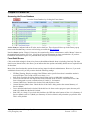
Go to the Forms Database by clicking the Forms button.
Active forms are indicated with an X in the Active check box. These forms will show up in the Forms pop-up
menu on the Student Entry screen as well as being accessible for Batch Editing.
Note the Owner option. “District” forms may be customized by district Administrators, while “Master” forms are
the standard form versions of E-Com. (See page 40 for more information on form customization.) If you have
both Master and District copies of a particular form, only one version may be active.
Form Detail Screen
Click on the black triangle in front of any form to edit additional details about it, including form help. The form
detail screen (shown below) also allows you to indicate the form options and modify default text or required fields
for that form.
Most of the form functionality options do not need any input from district administrators. However, if you work
with district forms at all, you may want to check the following settings:
•
•
•
•
•
•
•
IEP Date Warning: Displays warning if the IEP date on the specific form doesn’t match the student’s
current IEP date. This is used on IEP cover forms (11.x).
Indiv Eval: Check this box if the district form is being used as an Individual evaluation form.
Team Eval with Adverse Edu. Impact and Team Eval with Areas of Service: Check these boxes if the
form is being used as a team evaluation form (4.5 and 4.51, for instance).
Current G&O Form: Check this box for the Goals and Objectives form.
Current Summary Matrix form: Check this box if the form is being used as the current Summary of
Services Matrix.
Leave unlocked when batch is locked: Check this box for forms such as progress reports, that may still
need to be edited after the batch is locked.
Print LRE (14.1 Only): If you check this checkbox, the LRE data at the bottom of form 14.1 (Summary of
Services Matrix) and 14.11 (Multi-year Summary of Services Matrix) will print when you print the form.
This is off by default.
Copyright © 2000-2013, Portage Bay Solutions
www.portagebay.com
Page 18
Printed: 11/07/13
Any text entered into the Form Help field, on the Details tab, will be displayed when a user chooses ‘E-Com
Form Help’ from the Help menu when they are working on this form for a particular student.
If your district subscribes to programs other than Special Education, you can also set forms to be used in one, two
or more of these programs by checking the boxes in the “Available Program” section. You must select a program
before the form can be activated.
Duplicate Value Lists
If you are working on a district form, and want it to have the same value lists as another form you already have in
E-Com, you can duplicate those value lists. To do this, first make sure that there are no value lists already in the
form to which you plan to copy; if there are, they will be combined rather than overwritten.
You can do this from the forms detail screen; lists will be noted in the Form Value Lists section at the far right,
middle row. While you are doing this, note the form ID as it appears in gray directly under the “Actions... item
near the top of the detail screen. It will be a number followed by either an ‘M’ or a ‘D.’
Once you have verified that there are no lists already existing, go back to the Forms list, and click on the black
triangle in front of the form with the lists that you want to duplicate. Once in that detail screen, you can click on
the blue “Dup VL” button at the upper right.
In the dialog box that appears, type the form ID/owner of the
form to which you want the value lists duplicated.
The lists will be duplicated. You can verify this by going to the
form itself, or by going to the Form Detail screen for the form
the lists were duplicated to – the list information should now
appear on the detail screen.
Copyright © 2000-2013, Portage Bay Solutions
www.portagebay.com
Page 19
Printed: 11/07/13
Required or Default Text Fields
If you have set any default text or required fields on the form, you may also edit those here, by clicking on the
Default/Required Fields tab. Once there, you will find a list of all the set fields in the form. Click on the red X to
delete a field you no longer want set. You may also edit the default text or the error message here.
Previewing and Printing Blank Forms
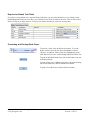
To preview a form, click on the blue form name. To see the
district version, select the one where the Owner is listed as
“District”. In addition, Master forms are highlighted in green,
while District forms have a white background in the Forms List.
To print an individual blank form, click on the Printer icon next
to the desired form.
To print a blank copy of all the forms in the current form listing
(the current found set), click the Blank Forms button.
To print a list of the forms, click the Print List button.
Copyright © 2000-2013, Portage Bay Solutions
www.portagebay.com
Page 20
Printed: 11/07/13
Chapter 5: Admin Screen
Procedures for the Admin Screen
Go to the Admin screen by clicking on any Admin button.
Due & Compliance Alert Items
Click on the buttons near the top of the screen to easily view the students
with past evaluation dates, past IEP dates, compliance alerts, etc.
The number of students in each area will display when you hover the
cursor over the top of each button. If you click a button and hear a tone, that means that there are no records
matching that search.
A student will be marked with a Compliance Warning if they are active and their areas of service are not aligned
(only if the preference of 'limit goals to eval' is set to yes in your district).
A student is marked with a Compliance Alert if they are active and at least one of the following criteria are met:
• The next IEP date has passed;
• The next Evaluation date has passed;
• The student’s disabling condition is developmentally delayed and s/he is older than 9 years of age; or
• The student is within 120 days of his/her third birthday and the next evaluation date is outside that
timeframe.
Click the Print button to print the list you are currently viewing.
Reports
From the right-hand section of the page, you can go to the Reports page, or select either
a CEDARS or a generic export. The Generic Export button will create an export file
containing the fields listed below. It will be up to district personnel to remove specific
columns to create required or desired files.
•
•
•
•
ID #
name (last, first/alpha)
state count age
grade
•
•
•
•
building
disability code
LRE
current entry date
•
•
•
•
•
current IEP date
current assessment date
referral date
withdrawal date
reason withdrawn
The button does not perform a find or a sort, so those functions must be performed prior to clicking the button.
Note: A district using E-Com for both 504 and SpEd programs should use caution with the report, as a student
enrolled in both programs would only show up in the export with start/withdrawal dates from the most recently
started program.
Copyright © 2000-2013, Portage Bay Solutions
www.portagebay.com
Page 21
Printed: 11/07/13
Admin Tools: Control Panel Items
The Admin Tools drop-down gives you quick and easy access
to the most frequently used Admin Control Panels. Simply click
in this box and select from the options available to go
immediately to that panel.
More information may be found in Chapter 6.
On the Staff Data Entry screen, you may select the default screen. Admin users may select Admin as their default
screen.
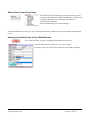
Selecting the Admin Screen as Your Default Screen
Go to your Staff Entry screen by clicking the Staff button on any screen.
From the drop down list, Default Screen, select “Admin”.
Next time you log into E-Com, this will be the screen that you land on.
Copyright © 2000-2013, Portage Bay Solutions
www.portagebay.com
Page 22
Printed: 11/07/13
Chapter 6: System Maintenance
The ESM can perform system maintenance from the Administrative Control Panel screen. The screen contains six
tabs (Preferences, District Info/Headers, Notes, Lists, Lists 2, and Staff). System Preferences, Lists, Lists 2, and
Staff are discussed below. The District Info/Headers tab is used to edit the Headers and District information that
will appear in the forms. In the Notes tab, you may create notes for needed changes in the system.
Set and Change System Preferences
Go to the Admin Control Panel screen by clicking the Admin button.
Access System Preferences from the Admin screen by clicking on the Pref button.
General Preference Options
1. The E-Com system can handle various student
identification data systems, such as the Washington
School Information Processing Co-operative
(WSIPC) or PowerSchool. These systems assign
identification numbers to each student. You can
decide whether your system will use the WSIPC
identification numbers or numbers from another
system. The preference you select here is the number
that will appear on student forms in your district.
2. Complex Password Enforcement allows you to
require users to use “complex passwords” that consist
of a mix between letters, numbers and characters.
When using this option, you may also set the required
minimum password length.
3. You may select the number of days out from the next IEP, IEP Meeting, or Eval date that you would like to
display a warning. The first warnings will show the dates in green text and the second warnings will appear
in red text.
4. Allow SIS Export: This is not yet fully implemented. It will allow for the export of student information
from E-Com to WesPAC (Skyward).
5. Current Subscribed Programs lists the programs in E-Com to which your school district subscribes. Current
programs that may be subscribed to include Special Education and 504.
Forms Preference Options
Allow Form Deletion: When “Yes,” all users except Level 6 will be
able to delete forms. When “No,” only users at Level 3 and above will
be able to delete forms.
Allow Form Duplication: When “Yes,” all users except Level 6 may
duplicate forms. When “No,” no one may duplicate forms except
Admins.
Check for User Initials: When “Yes,” and a user accesses a form they did not create, a warning will pop up.
When “No,” the warning will not appear.
Copyright © 2000-2013, Portage Bay Solutions
www.portagebay.com
Page 23
Printed: 11/07/13
Limit Goals to Eval: When “Yes,” and the Areas of Service are not aligned with the current goals and objectives,
warning text will appear on the student screen , the compliance warning box will be checked, and Compliance
Alert pop ups will appear when assigning goals from the Goals and Objectives forms. When “No,” none of the
warnings will appear, but a reminder will pop up when assigning an area from the Goals and Objectives form.
Strict Goal Text: If this option is set to “Yes,” the goal forms will require staff to use the “Set Goal”
functionality described in the user manual under “Features for Special Forms: IEP Measurable Annual Goal.”
Allow Forms to Inactive Students: If this option is set to “Yes,” users may add or duplicate forms or batches to
inactive student records. If set to “No,” they may not.
Other Info Preferences
School Year: At the beginning of each school year, enter the current
school year into the E-Com system. It must be in the format of YYYYYY (2013-14, for instance).
State Count Date: This is set by the state and changes yearly.
Federal Count Date: This is set by the federal government and
changes yearly.
Current WAC Number: This is set by the state. Change it only when
the state mandates a change.
District Info/Headers Tab
On the District Info/Headers tab, you can change the information that appears on the form headers – school
district(s) name, address, phone, and fax numbers.
Lists Tab
This tab contains lists that are used on the Student Data Entry screen as drop-down lists. You may also edit the
areas of service that can be defined for a student on this screen. To edit a list, simply click inside the box of the
desired list and scroll to the bottom. Then type in the next value. The list will automatically save what is entered
Copyright © 2000-2013, Portage Bay Solutions
www.portagebay.com
Page 24
Printed: 11/07/13
in the box. Be sure there is a carriage return between each line; items not separated by a return will appear on one
line in the drop-down list.
Lists 2 Tab
There are six lists on the Lists 2 tab. They can be edited in the same way as the lists on the “Lists” tab.
1. Service Locations will appear as a drop-down list on the Summary of Services Matrix form. Check the
Special Ed checkbox to ensure the minutes served at the specific location will calculate as Special
Education minutes.
2. Programs contains the list of programs that will appear on the Projected Placement area of the Student
screen, under the Placement tab.
3. Zip Codes entered in this location will appear as a drop-down list in the student demographic area of the
Student data entry screen, as well as on the Parent data entry screen.
4. Referral Reasons will appear as a drop-down list on the Special tab of the Student screen.
5. Progress Key sets the key for forms 13.1, 13.2, and 13.3. The key appears below the goal area and above
the progress notes. If you change the key here, you should change the drop-down list shown under the
Copyright © 2000-2013, Portage Bay Solutions
www.portagebay.com
Page 25
Printed: 11/07/13
“Progress” label to match. To change the drop-down list, you can use the File Options-> Edit List
functionality from the form itself.
6. Text Categories allows you to set the items in the drop-down lists under “Text Categories” in the Text
Editing area.
Lists 3 Tab
The Lists 3 tab allows you to modify the entries in the drop-down lists on the Student screen Assessment tab, and
as well as some entries in the “Set Goal” functionality for goal forms (useful if you have implemented the “Strict
Goal Text” setting in the Forms Preferences).
Staff Tab
The staff tab allows you to see the list of all staff, both active and inactive, and their titles. (Active staff members
will have a check in the box in front of their names.) Here you may restrict access to student records – if you
select the “Restrict Students” box for a staff person, they will only see the records of those students assigned to
them in their role as Case Manager, Teacher, or Other. They will also see students where they have an active “To
Do” item. They will not be able to use the Find function to find students if they are not the Case Manager,
Teacher or Other for the student(s) in question.
You may also keep staff from duplicating forms and batches, by checking the “No Form Duplication” checkbox.
Control Panel Tools
Starting in v6.5, an easy way to access the Control Panels has been added to
the Admin screen. Simply place your cursor in the drop-down box under
“Admin Tools...” and select the item you wish to access from the list that
appears. You may also follow the directions below.
Copyright © 2000-2013, Portage Bay Solutions
www.portagebay.com
Page 26
Printed: 11/07/13
Go to the Admin Control Panel screen by clicking the Admin button.
Access System Preferences from the Admin screen by clicking on the Pref
button.
The toolbar to the left of the Administrative Control Panel contains buttons for
editing static and commonly used data information in E-Com, as well as buttons
that allow the ESM to update and view login information, update students from
web based systems, and increment grades.
Please note that most of these items have not been set up for printing. If you want
to print them, you can change the page setup from portrait to landscape, or
change the scale to allow printing on one page, by using the “Page Setup” option
under the “File” menu on the topmost menu bar.
Access Log
The Access Log maintains a records of many actions performed in E-Com, including user logins, work with forms
and batches, and the deletion of student records.
View the Access Log:
Go to the Admin Control Panel screen by clicking the Admin button.
Access System Preferences from the Admin screen by clicking on the Pref button.
The Access Log button shows a screen with a list of detailed activity records.
The most recent activity appears at the bottom of the page.
Find Log Entries
Click the green “Find” button on the upper Status toolbar.
When the find screen appears, you should be able to select a number of different criteria. You can select a Type
from the drop-down list, enter a date, a staff name, a form name, a student name, or any combination of these.
Once you have entered your criteria, you can either hit the Enter key on your keyboard, or click the “Find” button
again.
Copyright © 2000-2013, Portage Bay Solutions
www.portagebay.com
Page 27
Printed: 11/07/13
Purge Log
First, find the records you want to purge. Purges cannot be undone, so be careful.
Once you have found the set of records you wish to purge, click
the “Purge Log” button. The purge log dialog box will appear,
asking you to confirm that you want to purge the records.
The default button in the delete dialog box is the Cancel button.
You must manually select the “OK” button.
Remember that a records purge cannot be undone once it has
been confirmed. Be sure you want to purge the records before
you do so!
Text Editing
The Text Library consists of commonly used text entries, including Tests. Users can access the library and copy
entries out of it by clicking on the Insert Text button on any form. Admin may edit the text library, insert new
entries, and delete old entries.
Procedure for Text Editing
Go to the Admin Control Panel screen by clicking the Admin button.
Access System Preferences from the Admin screen by clicking on the Pref button.
The Text Editing screen allows you to manage commonly used text that has been created by
users; most frequently this is used for tests that may be added to various forms.
If you need to modify an already-existing entry, you may use the Find button. Once the search screen comes
up, we recommend entering as much text in the large text field at the bottom to identify the entry you want. If
there is a typo, enter the incorrectly-spelled word.
If you have more than one record in the found set, you can move through them using the small gray arrow set
in the top right corner, until you find the record you were looking for (or until you have corrected all the
found entries).
We recommend that you run a search before adding a new test, to (1) verify that the test does not already
Copyright © 2000-2013, Portage Bay Solutions
www.portagebay.com
Page 28
Printed: 11/07/13
exist in your copy of E-Com and (2) to get an idea of the names that similar tests may be named. If two tests
are available in E-Com with the exact same name, the test that will be added to the form when that name is
selected is the test that appears first in E-Com (and that may not be the test you want used). Be sure that the
name you use for any new tests does not already occur in this area.
Once you have verified that the test you want to add is not already in E-Com, click the “New Text” button.
Select “Test” and enter the test area from the drop-down list, and the unique test name into that field. Then
you may copy and paste the text from a Word document. Tables will not maintain their formatting, but if you
have lined up text in Word using tabs, that formatting will be retained. You cannot copy and paste from
Excel documents. You may also type the text in, if you prefer.
You may format the text using the ruler and the text formatting menu. If those are not visible, you may make
them appear via the “View” menu along the top of the E-Com screen.
The items in the drop-down Category lists (viewable when you choose “Other” as the text option) may be
edited in the “Text Categories” section on the Lists 2 tab in Admin-> Pref.
To delete an entry, do a search for the entry you wish to delete. Once you have verified that you have the
correct entry, use the “Delete” button to remove it from E-Com. It may not be recovered. It will not be
removed from any location where it may have been used in the past; it simply will no longer be available in
future.
Batch Editing
Batches are sets of grouped forms that can be added to a student screen via the Add Batch button. The batches are
maintained and grouped by the ESM. You may edit existing, create new, and delete old batches. District admin
users are in charge of activating or deactivating forms as well as creating and updating batches. Remember, if you
activate new forms or deactivate old ones, you must update the batches individually.
Viewing Batches
Go to the Admin Control Panel screen by clicking the Admin button.
Access System Preferences from the Admin screen by clicking on the Pref button.
Click on the Batch Editing button.
From the list, click on a black triangle to
view details of an existing batch.
NOTE: Batches will not be available to
staff members unless the ‘Active’ checkbox
is checked.
Copyright © 2000-2013, Portage Bay Solutions
www.portagebay.com
Page 29
Printed: 11/07/13
Replacing Deactivated Forms with New Forms
•
•
•
•
To find batches where you need to replace deactivated forms, first make note of the old form number
(say, form 7) and the new replacement form number (7.1, for instance).
Go to Batch Editing.
Once there, open any batch.
Click the Find button, and enter the deactivated form number into the “form ID” field. Hit Find or the
Enter key on your keyboard.
•
When the search is complete, check the number of batches found, in the top right corner. You can move
through the batches found using the back and forward arrows here.
•
Remove the deactivated form from the list inside the batch using the red X, and add the new version of
the form.
Adding a New Batch
From the Batch List screen, click New Batch.
This will bring up the Batch Data Entry screen. Here you may enter detailed information about the new batch by
selecting the type and typing a batch name. Be sure to select a type for the batch. The choices are IEP, Eval, and
Other. In addition, be sure to select a program; even if your district only uses E-Com for Special Education, be
sure the Special Education box is checked. Staff will not be able to add the batch until you have made it active by
clicking the Active checkbox.
Copyright © 2000-2013, Portage Bay Solutions
www.portagebay.com
Page 30
Printed: 11/07/13
Click on the Add Form button to select the forms you would like to include in the
new batch.
A pop-up list of all available forms will appear.
Note: Only forms marked Active will display in
this list. If your desired form does not appear,
return to Form Editing and mark that form as
Active.
Note: Sometimes forms may appear in the batch
without a title. These are forms that were active when
they were added to a batch, but are no longer active.
Deactivated forms are not automatically removed
from or replaced in a batch; you must do that
manually.
You may select whichever form you want to add. Once added, you have the ability to determine the sort order;
delete the specific form from the batch; or add more forms by repeating the Add Form step.
Check “Create one for each area” if you would like a form to be created for each area of service that has been
previously defined. This is generally only used for Goal forms and Progress Reports.
Form Data Editing: Undelete
The Form Data area should be accessed with caution as it allows the administrator to edit form data directly,
without accessing the actual form that the data was entered on. One of the more common reasons to access Form
Data is to retrieve an accidentally deleted form.
Form Data Editing (undeleting a form)
Go to the Admin Control Panel screen by clicking the Admin button.
Access System Preferences from the Admin screen by clicking on the Pref button.
Click on the Form Data button.
Click on the Find button.
Deleted forms will have a “-1” in the student ID field, so use this to help narrow the found records.
Copyright © 2000-2013, Portage Bay Solutions
www.portagebay.com
Page 31
Printed: 11/07/13
•
•
•
•
•
•
In the "Student Information" area, fill in the student name, and enter -1 in the ID field (#1 and #2 in the
figure above).
If just one form was deleted, and you know the form number, you can enter that in the "Form Specific
Information" – otherwise leave this blank.
Run the find by either hitting your Enter key or by clicking the Find button again.
The records that come up should be either all (if you didn't fill in the form number) or the specific (if you
did) deleted forms for that student.
If multiple records are found, you can page through the form records, using the tool next to the “Quit”
button in the navigation bar, until you find the one you want.
Find the form you want to undelete (check the batch info, the IEP info, the date, whatever will tell you),
and while in that record, hit the "Undelete Form" button at the top of the screen.
If an entire batch was deleted, you do basically the same thing, only filling in batch information (third or fourth box over,
depending on your version of E-Com) rather than form specific information. Use the “Undelete Batch” button instead of the
“Undelete Form” one.
If you want to go to the related student record directly from the
Form Data screen, you can click on the blue link “First/Last” next
to the student name. Note: This will not take you to student
records that have been deleted. You will get an error message in
that circumstance.
Form Data Editing: Create Batch Buttons
Districts who have switched from Form view to Batch view on the Student screen may have some difficulty in
batching older forms. In order to help with this, there are two buttons on the Form Data screen that can assist in
creating batches. Please do not use these buttons unless you have checked with Portage Bay Solutions first!
When you go to Admin-> Pref-> Form Data, you should see the following menu bar:
The two buttons that will aid in batching are the right-most two in the “Actions” row, Create Batch from Found
Set and Create Batch from Other Forms Batch.
Create Batch from Found Set: To use this button, you must first perform a search for all the forms that you want
in one batch for a particular student.
1. In the Student screen, determine which forms you want to batch, by form number and date.
2. Go to Form Data, and set up a search for them, using either the “Add New Request” method or the
“Extend Found Set” method (see “Finding Records that Match Multiple Criteria” in the E-Com User
Manual, Chapter 6).
3. Once you have found the set of forms you want to batch in Form Data, click the Create Batch from Found
Set button. Please be sure that you have found all the forms, and only the forms for that particular
student. The number of forms found will be visible to the right of the Quit button, under the little
navigation icons.
4. Answer Yes to the search verification question.
Copyright © 2000-2013, Portage Bay Solutions
www.portagebay.com
Page 32
Printed: 11/07/13
5. You will be taken to a batch chooser screen, where you can select the batch type.
6. Once you have selected the batch and clicked OK, you will get a message letting you know that the batch
has been created.
7. You should be able to go to the student record and see the new batch.
Create Batch from Other Forms Batch: If all the forms you want to batch are in the Other Forms batch for a
student, you can use this button.
1. Determine which forms you want to select from the Other Forms batch for a particular student.
2. Check the dates of all those forms and determine the first and last date for the range.
3. Go to Form Data and do a find for the student record in Form Data. Note: Be sure you have done a Find
for a single student in Form Data; otherwise you may get a mishmash of forms.
4. Click the Create Batch from Other Forms Batch button.
5. A dialog box will come up asking for a date range. Enter the dates that you want, with the formula of
“mm/dd/yy...mm/dd/yy” and click OK.
6. You will get a list of the forms found. Check this list carefully, and omit any you don’t want before you
create the batch.
7. Once you have the list of forms that you want, click OK.
8. You will be taken to a batch chooser screen, where you can select the batch type.
9. Once you have selected the batch and clicked OK, you will get a message letting you know that the batch
has been created.
10. You should be able to go to the student record and see the new batch.
Schools
Procedures for Adding a New School:
Go to the Admin -> Pref screen.
Click on the “Schools” button in the list to the left. This will
take you to the School Data Entry screen.
Copyright © 2000-2013, Portage Bay Solutions
www.portagebay.com
Page 33
Printed: 11/07/13
Click the Create New button.
The Name, School ID, and District
(highlighted in yellow here) are the
only required fields. All others are
optional. Note: If your district uses
the SIS import, the School ID listed
here must match the School ID in
Skyward in order for the school to
appear correctly on student records in E-Com.
We do recommend filling in the Instructional Minutes per week and the Spanish school name, if the school has
one.
A few other fields to note:
•
Instructional Minutes per week – The value placed here is used as one of the factors needed to calculate
LRE codes. That calculation is performed on the Summary of Services Matrix form (#14.1) and is then
displayed on the Special tab for a given student.
•
Spanish School Name – If this field is filled in, the Spanish version of the school name will appear on
Spanish language forms.
•
Students (Home School) – The students listed here are all the students whose Home School is assigned
as the currently viewed school. For any given student, this is assigned via the School, Staff and Notes
Settings section of the Student Screen.
•
Students (Serving School) – Similar to the Students (Home School) table, students listed here are all the
students whose Serving School is assigned as the currently viewed school.
Copyright © 2000-2013, Portage Bay Solutions
www.portagebay.com
Page 34
Printed: 11/07/13
•
Students (Projected School) – A list of all students whose Projected School has been assigned as the
currently viewed school. This is assigned via the Placement tab of the Student Screen.
Sometimes you will need to make modifications to a school’s information. Follow the procedures below to
find the correct school and make the changes.
Procedures for Finding a School:
• From the School screen in Admin-> Pref-> Schools, click the green Find button.
• Enter all or part of the school name or other identifying information in the appropriate fields.
• Click the “Continue” button in the Status Area (see “Glossary”), or hit the Enter key on your keyboard.
• Click or Tab into the field(s) to be changed. Type the correction over the selection. You can also cut and
paste to make corrections.
Calendar
Administrative users now have access to a calendar that allows for the setting of holiday/non-work days. This aids
in the auto-calculation of evaluation due dates. When a Parent Consent date is entered on the student Special tab,
the due date is calculated using this calendar. It may be reached at Admin-> Pref-> Calendar (last item under the
“Edit...” list at the left.
The calendar comes pre-loaded with standard “no school” dates, but will need to
be modified for your specific district. Yellow-highlighted dates on the calendar
are non-school dates; clicking on a date will turn it into a non-school day if it is
not already, and vice versa. Peach-colored dates are weekends.
If your district is a co-op, you may have a calendar for each school district
represented in E-Com. If so, you will be able to move between district calendar
by selecting the blue text (“Click here to change district’) above the calendar.
When you do so, you will get a pop-up dialog box with all available calendars.
Simply choose the one you want to modify and hit the green “Continue” button.
This will take you to that district’s calendar.
Increment Grades
For districts that do not import student data from
WesPAC, PowerSchool or the like, you must
increase the grade level of the students in E-Com
manually by clicking the “Increment Grades”
button. A dialog box will ask you to verify that you
want to make this change. Click the “OK” button to
proceed, or “Cancel” to leave the grades as they are.
Staff Password Report
Click on this button to print a detailed list of all passwords and access levels for all users.
Student Update
Some districts have arranged for the importation of student data, done via the “Update Student” button. It
performs an import from the Student Information System that will update basic student demographic information
for all active students. The options below are if you use WesPAC to update your students. E-Com is set up to use
PowerSchool and SchoolMaster, as well, although there are not as many options available for those methods.
Copyright © 2000-2013, Portage Bay Solutions
www.portagebay.com
Page 35
Printed: 11/07/13
Procedure for Updating Students
Go to the Admin Control Panel screen by clicking the Admin button.
Access System Preferences from the Admin screen by clicking on the Pref button.
Clicking on Goto Update brings up a screen displaying student records import preferences.
Import Preferences Tab
If you use SIS Import to update student records in E-Com, the Student
Import Preferences screen allows you to select your preferences as to
the data you import, as well as whether the import should be run on
upon login or at a scheduled time each morning. Note: If at a scheduled
time, the login user must be logged in at that time. This means leaving
a computer up and logged into E-Com. It is not advised unless the
computer in question is in a secure location.
For a scheduled update, click the “Schedule Import” checkbox and
enter a time in the “Import Time” field. Files are not available on the
server prior to 5:30 AM, so the import time should not be set earlier
than that.
You will also need to enter the user name of a level 2 user in the “Import User” field on the District Prefs tab (see
next section for further details). This is the account that must remain logged in for the import to run at the
scheduled time. If the user is not logged in at the scheduled time, the import will run when the import user next
logs in. If you do not want to leave a computer up and an account logged in, you may simply enter a level 2 user
name in the Import User field on the District Prefs tab (see below), and leave the Scheduled Import data on the
Import Preferences tab blank.
Further down on the Import Preferences tab, you may also select the following import options:
• Import Home School;
• Import Serving School;
• Import Active (imports the active or inactive status of students in Skyward);
• Import Disabling Condition.
Note: The “Import Case Manager(s)” setting has moved to the District Prefs tab.
Also on the General Preferences tab, the Student Update Activity Log displays the automated update progress and
errors. There are several different messages that may be displayed here.
Import WesPAC successful – the update ran successfully and completed at the time stated.
SIS update has already run successfully today. Please try again tomorrow. – If you attempt to run a second
import on a particular day, by just clicking the Update Students button, this is the error that will appear. In order
to circumvent this, hold down the CTRL key while clicking the Update Students button.
Import WesPAC failed: The WesPAC records were not available in the SIS file. – The files for export were
not on the server at the time the import tried to run. Please contact Portage Bay Solutions via the ticketing system
if you get this message. We can either contact WSIPC to get the file if we do not have it, or we can refresh the file
on the server so that it is available to you.
Copyright © 2000-2013, Portage Bay Solutions
www.portagebay.com
Page 36
Printed: 11/07/13
District Preferences Tab
The second tab in the Student Update area is for district preferences. Here you can set the import user, and decide
if the Case Manager(s) from Skyward will be imported.
To set the Import User, simply click in the Import User field (shown below) and enter the user name of a level 2
user. The user name is the one they use to log into E-Com, and may be found on their staff screen, next to the blue
Edit Login/Password button. The user must be a level 2 user; level 3 or higher cannot access the student import
process. Note: Unless your district is a coop, the Import Pref to the left of the import user name should be set to
Auto-Update. If your district is a coop, please contact Portage Bay Solutions before changing this setting.
If you select the checkbox labeled “Import CM” next to the Import User field, you will import either (1) the name
entered in the IEP case manager field in Skyward (if you have not selected the “Implement E-Com 6.7 Imports”
on the WesPAC tab) or (2) the IEP and the Evaluation case manager names from Skyward (if you have).
WesPAC Tab
On the WesPAC tab, you have the options to import 504
case managers, if your district uses E-Com to track your
504 students. You may also choose to import the current
IEP and Evaluation dates from Skyward (they will not be
imported if you are exporting data to Skyward).
There are two additional options here, as well. The first is
an option to implement E-Com 6.7 Imports. If you select
this:
1. You will get both the IEP and the Evaluation case
manager from Skyward. We have added a new field on
the Student screen to allow the evaluation case manager
in E-Com to be designated as either the school
psychologist or the SLP. If neither is selected, the
evaluation case manager name will be imported into the Psychologist field. The IEP case manager value from
Skyward will be imported into the Case Manager field in E-Com.
2. The “Current Evaluation Parent Consent” date on the Special tab, student screen, in E-Com will be populated
from current evaluation parent consent date in Skyward.
3. When a student who has been receiving special education services is exited from special education in
Skyward, the “End Date” and “Exit Code” fields in E-Com on the Student Placement tab, Program section
will be populated from the current IEP record in Skyward. This will automatically remove the check from
both the Active checkbox and the Special Education enrolled program checkboxes at the top of the student
screen.
4. The “Initial Referral Date” in E-Com will be populated from the referral date in Skyward, after the student
has been activated in Skyward. In the meantime, you can keep a student active in E-Com by manually
selecting the Active checkbox at the top of the student screen, and by manually entering a referral date in this
field – that will keep the student active for 60 days.
You may also select the Evaluation WIP option available on the WesPAC tab. Please use care with this second
Copyright © 2000-2013, Portage Bay Solutions
www.portagebay.com
Page 37
Printed: 11/07/13
option! It will not work properly if your district does not have a strict guideline for using these checkboxes in
Skyward.
The option to import Evaluation Work In Progress from Skyward, if checked here, means that if a student has any
evaluation record in Skyward flagged as ‘Eval Work in Progress’, then the student in E-Com will be flagged as
‘Active’ so that the student will show on staff case listings. The student will not be flagged as receiving special
education services in E-Com unless the student is also active in special education in Skyward.
It is very important to note that the “WIP” preference will not be useful to all districts. It should only be used if
your Skyward process is to manually check the Eval WIP box in Skyward for active evaluations and to
manually uncheck it when the evaluation is complete.
Clicking on Update Students will perform an on-demand update from the preset Information
System. If an update has already run, you can run a second one by holding down the Ctrl key
while clicking on the Update Students button.
Copyright © 2000-2013, Portage Bay Solutions
www.portagebay.com
Page 38
Printed: 11/07/13
Backup Procedures
The backup procedure is designed to minimize the risk of data loss while keeping costs down and user disruption
to a minimum.
Listed below are events that result in data loss, their causes, and how to protect the E-Com system against data
loss from these events. The events appear in order from the most to the least likely:
Event
Possible Cause
•
•
•
•
•
Corruption of data in one data file
Accidental deletion of records by
user
•
User error
•
Crashed hard drive
•
Inoperable computer due to
catastrophic event, such as fire,
flood, or theft. In this scenario, all
local tapes or disks would be
destroyed as well as the
computer.
•
Power failure at the server
Bad spot on hard drive
System crash
Application error
Minor power fluctuation
Bad segment on hard
drive
Severe power fluctuation
Bad juju
Solution
Regular backups on local hard
drive. The speed of the backup is
more important the location of
backup data.
Regular backups on local hard
drive
Daily backups to external media
(tape, external drive, CD, DVD,
etc.)
Copy of backup maintained off
site.
E-Com servers are configured to back up to multiple redundant backup sets on the E-Com server computer.
District technology staff must integrate the backup of these files into the overall backup strategy for district
servers so that the same level of redundancy and off-site storage is maintained for E-Com data as for other
systems in use at the district.
If you are using E-Com in its peer-to-peer sharing mode (5 or fewer users) or in single user mode, there is no
automated backup. In this case, it is very important that you have a backup strategy in place and follow that
strategy.
Copyright © 2000-2013, Portage Bay Solutions
www.portagebay.com
Page 39
Printed: 11/07/13
Form Layout Editing
The forms marked as “District” are fully customizable. “Master” forms are the standard set of E-Com; you may
only change value list items for Master forms. You may change text and rearrange objects on your district’s set of
forms. Note: You are responsible for updating any of your District forms when the state makes substantive
changes to those forms.
Procedure to Edit Forms
From the Student screen, click on the Forms button
Only forms marked “District” may be edited. To make changes to a form, make sure you are using the “District” copy.
Click on the blue, underlined form name to go to the form you
wish to edit.
After going to the form, you must be in layout mode (Control
+ L or select “Layout” from the menu at the bottom left hand
corner of the screen) to make changes.
Moving Objects: From here you may select text boxes, fields,
or any object on the screen by clicking on the box and
dragging it into the position where you would like it. Four
black boxes will appear around the object when it is selected
(as seen left, where the text box containing “Purpose of this
notice:” is selected).
Changing Text: If you would like to changes to standard text
of a form (for example, the “Purpose of this Notice” in the
form left), you simply double click inside the box and you are
then able to edit the text within that box.
Copyright © 2000-2013, Portage Bay Solutions
www.portagebay.com
Page 40
Printed: 11/07/13
If the text continues off the printing area (the dotted line on
the left hand side), you will need to reposition the text box to
fit inside the printing area. Select the text box and use the
black box handles to resize the text box. You may have to
reposition other objects to have it fit.
Creating Fields (fields are what users enter data into): Look at the boxes labeled something like Text 131 in the image in #6
above. You can select one of these (or click on one and hold down the shift key while clicking on others to select multiple)
and duplicate it by clicking Control + D or choosing Duplicate from the Edit menu. Do not select fields with names rather
than a number. The field(s) will be duplicated. It can be rearranged and resized to fit into the space(s) at the new location(s).
Note: Each field number must be unique. To ensure this, double click on each field that has been duplicated and select a
number that is not already in use on the form in question. You can check this after you save the form and are back in Browse
mode by typing something into each box, one at a time. If what you type appears in another box elsewhere on the form, that
box shares the same number as the one you typed into, and one of them must be changed.
Saving Changes: Changes made to the layout screen are NOT
automatically saved. If you wish to save them, you can select
“Save Layout” from the Layout Menu or Control + S. If you
do not wish to save the changes, you can exit out of the screen
you are working on. A dialog box will pop up.
Hit “Don’t Save” and your changes will be ignored. You can
then return to the layout if you will to start over.
Previewing changes: If you have made changes to text and object placement on the layout and you wish to preview the form,
you can view it in Preview Mode (Control + U or select “Preview” from the menu at the bottom of the screen). You will
have to save the changes in order to view in Preview mode. Here you can flip though the pages (by clicking on the pages on
the panel on the left side of the screen) and scroll to view how the form will look when printed. If objects are not appearing
correctly, you can switch back to Layout mode, make further changes and preview again.
Adding Required Fields or Default Text to Fields
Admins can set fields in Master forms to be required – the check will be done at the time that the form is marked
as complete or done – as well as adding default text to fields in forms. Note: If a field has default text, while it can
be marked as required, if users do not touch the text that appears, the “Required” warning will not be triggered. ECom administrators should use care when entering default text that they want users to change.
To set default text or a required field, go to the Forms list by clicking on the Forms button. Find the form you
want to set up, and click on the blue link. Once on the form, put your cursor in the field that you want to make
required, or where you want default text to appear. Then, go up to Form Options and select “Set Field
Default/Req.” You will get a dialog box like the one below.
Leave the field name as is; E-Com fills this in
automatically. In the “Field Title” area, enter
information that will make it clear which field this
is. The title will appear on the form detail screen,
so if it is not clear, you may have difficulty later
determining which field on the form is being
referred to.
Copyright © 2000-2013, Portage Bay Solutions
www.portagebay.com
Page 41
Printed: 11/07/13
If you want default text entered in the field, place that text in the “Default Text” field. Make sure that the default
text makes sense in the context of the field, in case it remains as is on the form. Default text is useful in an
instance where you want particular phrasing on a form for most students. Staff can still change it for individual
students, if need be, but for most students the text can remain unchanged.
If you want to make sure the field has an entry specific to the individual student, you should use the Required
checkbox instead of default text.
Checking the “Required” checkbox means
that if staff leave that particular field
empty, a warning message will appear
when the form is marked as complete or done. The text of this warning message is what you enter in the Error
field. If it is a long form, it is good policy to supply a page number for the required field, so staff don’t have to
hunt through the form to find the field in question. Empty required fields will be highlighted in pale yellow.
Forms cannot be marked as complete until all required fields have been filled. If you choose to make any fields on
any forms required, we suggest that you instruct your staff to use the “Completed” checkbox. If they turn in IEP
or Evaluation documents with the checkbox unchecked, you have no assurance that all required fields have been
populated.
Note: Default text will not appear on any form that was added to a student record prior to the default text being
added to the form detail. It will not appear on the form in the form list; it will only appear when the form is
assigned to a student.
Form Lists Editing
The pop-up lists on most forms (both Master and District) can be edited as follows:
The pop-up and checkbox lists on most forms can be edited as follows:
1.
2.
3.
Verify that the form is active, as noted by a check in the Active box on the Forms list
Go to your Staff screen and click on the My Template button. Add the form to your template student.
Open the form.
4.
Choose Edit Lists from the Form Options menu in the top menu bar.
5.
From the Forms List, you can view or edit existing lists by clicking on the black arrow to the left of the list. You can
add or modify a description in the “List Descriptor” field to indicate where the list is used on the form.
Copyright © 2000-2013, Portage Bay Solutions
www.portagebay.com
Page 42
Printed: 11/07/13
6.
After clicking the black arrow, you will be brought to a screen displaying all the values for that particular value list.
The values can be added, edited, or deleted here. If the form is in both English and Spanish, there will be two
columns for the values, one for English and one for Spanish. You must enter the Spanish values; E-Com does not
have a translation function.
Note: Do not use carriage returns within line items.
7.
After making changes to the list, click Go to Form. Check to make sure the list you edited appears correctly. If not,
go back using the “Edit Lists” option again and correct it.
8.
Changes made in value lists in this manner will appear on all copies of the form, no matter where they are.
If you are adding a new list to a district form, continue on to the next step.
District forms only: Go to Layout mode (Control + L or select
“Layout” from the menu at the bottom left hand corner of the screen).
Double-click on the field you wish to assign the list to.
This window will pop up.
Copyright © 2000-2013, Portage Bay Solutions
www.portagebay.com
Page 43
Printed: 11/07/13
Be sure to select the appropriate List Number from the “Display
values from:” drop down menu.
You can change the type of list here, as well. Determine whether you
want a drop-down list, radio buttons, a checkbox set, etc. in the
“Display As:” field.
Click OK.
Return to Browse mode. (Control + B or select Browse from the
bottom left-hand corner of the screen) and save changes when
prompted.
Copyright © 2000-2013, Portage Bay Solutions
www.portagebay.com
Page 44
Printed: 11/07/13
Chapter 7: Tips, Help System & Troubleshooting
Quick Tips
Delete Dialog Boxes
Please read the delete dialog buttons carefully. The default button is ‘Cancel’, so if you
automatically hit Enter, it won’t delete the record, just cancel the request.
Finds
If you start a “Find” operation, but then change your mind, don’t click the “Quit” button. Instead,
click the small “Find” button at the bottom of the window. You will get a list box of modes.
Highlight “Browse” to return to Browse Mode.
You can also navigate to another screen and back to clear Find Mode.
Deselecting DropDown List Choices
On drop-down lists, you can choose one option from among a number of different options. If you
decide to make another choice, you can select that choice from the drop-down, but if you decide to
clear the field of an already-selected choice, the easiest way to do so is to go back into that field,
and hit either your Backspace or Delete key. The field should blank.
Saved User Names/
Passwords
We do not recommend that individuals save their user names or passwords, as this makes E-Com
less secure. If they save their credentials, the dialog box for login may not appear, which also makes
it more difficult for others in log in under their own credentials on that computer. In order to make
it appear, the user should hold down the Option (Mac) or Shift (Windows) key while opening the
file.
There are more tips online at http://www.ecomforspecialed.com/index.php?page=tips-2 - be sure to check out our
video help, as well!
Support
Support is available in a number of ways. You can check the user manual and the administrator manual, which are
available at http://www.ecomforspecialed.com/index.php?page=support-2 in PDF or in a searchable online
format. You can click the onscreen Help button within E-Com; this will show question marks that you can hit to
access additional information on that topic, or filmstrips that you can view that show you how to handle the item
in question.
In addition, we have a troubleshooting guide with the most frequently asked questions from all districts using ECom. Checking here to see if others have had the same question may solve the problem immediately. If it is not
covered in any of these locations, you can access the trouble-ticketing system.
Trouble-Ticketing System
The easiest way to do this when you’re in E-Com is to go up to the Help menu and select “Create Support Ticket”
from the drop-down list. This will automatically create an email with some of the information that we need, along
with an area for you to write the specifics of the problem. (If you are an E-Com administrator, this email will be
generated and sent to the support ticket system. If a non-administrative user creates a support ticket, they will
have to fill in the address of their local E-Com administrator since administrators are the first line of support.)
Another easy way, especially you are not in E-Com at the time, is to send an email directly to
[email protected]. This will create a new ticket in the ticketing system, in the same way that
selecting “Create Support Ticket” does inside E-Com. Once again, non-administrative users should first contact
the local E-Com administrator; it may be resolved in-house more quickly and easily.
Copyright © 2000-2013, Portage Bay Solutions
www.portagebay.com
Page 45
Printed: 11/07/13
Both these ways are preferable to sending an email directly to a Portage Bay Solutions staff person, as the support
tickets are available to all staff members, and the ticketing system is always monitored by at least one staff
person. (You may also call, but the phone is not monitored in the same way that the email system is.)
When we receive a ticket, we generally want to immediately check out the situation. We are greatly helped in this
endeavor by any information you can give us. A sentence along the lines of “My forms are not working” does not
give us enough information. Which forms? On what student? What exactly is happening (Areas of service not
carrying over to the student screen from a 4.5 form? Demographic data not appearing correctly when a form is
duplicated to another student? [Again, what form, which students?]) If the report came from a staff member, did
you try it yourself? What happened for you? Any of this information will speed up the answer; please help us help
you.
Any information you give us up-front will be one less thing we won’t have to come back and ask you for. For
security purposes, we suggest referencing students by student number, rather than by name, in support requests.
Sample ticket: When we print some of the forms come out blank. It is very inconsistent. We do not know
which ones they will be.
What we needed to know: What forms, by number, did this happen with? Was it all forms of that
particular number, or was it just with certain students? If certain students, which students? Was it all
forms with that student? Was it all forms that a particular staff member printed? Some forms that a
particular staff member printed? At any point along the line, was there an error message? If so, what did
the error message say?
Additional useful knowledge: Was it a particular printer? What things did you try when you were
troubleshooting this? A screenshot of any error message is wonderful and hugely appreciated.
Sample ticket: [Staff member name] can not log in. He is getting a message that his login has been
disabled. I did a find so that I could his user ID and password and try logging in on a computer here in my
office. I get a screen with one question mark in each field for staff information.
This is great information. There’s a user name and error message text. The admin tried it and got the
same result, with additional information about question marks in the fields. It allowed us to know
immediately that the staff file had somehow been corrupted, and we were able to recover it and get all
staff members logged in with a minimum of fuss.
Troubleshooting Forms
Areas of Service
If areas of service don’t appear on the student record, it may be because there is another form 4.5 in the
student’s forms (perhaps in a different batch) that is more recent that the one where the areas of service
are being listed. The areas of service from the most recently added 4.5 form are the ones that appear on
the student record. You can search in Form Data (Admin-> Pref-> Form Data) for the student name and
4.5 as the form number; this will tell you how many 4.5 forms this student has, and which one is most
recent (please note that the search may turn up deleted 4.5 forms, as well).
Copyright © 2000-2013, Portage Bay Solutions
www.portagebay.com
Page 46
Printed: 11/07/13
Staff Unable to Type in Forms
If staff members (level 5) are unable to type in forms, but admin level users can, check to see if the forms
are locked for some reason. Locked forms will appear in the batch list with a red highlight around the
“Done” box in the batch view on the Student Screen.
Unable to Activate a Form
Check to make sure that the form has been assigned to either the Special Education program or the 504
program (or in rare instances, both). Click the black triangle in front of the form number. The "Available
Programs" are mid-screen, above the large text box for Form Help. Simply check the appropriate
checkbox(es) and you should now be able to activate the form, add it to batches, and use it in E-Com.
Duplication Issues
If the student name is not in pop-up list, or you get an “Invalid Information” message when typing the
student name in the duplication dialog box, make sure the student record has a student number.
Depending on the version of E-Com you are using, the student may also need to be active in order to
duplicate forms or batches to him or her.
Summary of Services Matrix
If a student doesn’t appear on a service roster when he or she should, you should check the student’s
summary of services matrix form (14.1) carefully. In order for the minutes to appear on the service roster:
•
•
•
•
The student must be active,
A staff member must be assigned to the service, and
The summary form in question must be the most recent summary matrix form in the student’s record.
The “as of” date on the form must between the start and end dates of the services. The services must
start before and end after the “as of” date in order to calculate correctly on the matrix form.
If the above data is correct and the minutes still do not calculate correctly, the next step is to check that
the service location is listed as being a Special Education service location. This is determined by a
checkbox in the “Service Location” list on the Lists 2 tab in the system preferences. Click on the Admin
button on any screen, then on the Pref button. When the systems preferences screen appears, click on the
Lists 2 tab. The first area in the upper left on this tab defines the service areas available on the summary
matrix form, and determines whether they are counted in the special education minutes.
Edit Value Lists
The pop-up and checkbox lists on most forms can be edited by the district as follows:
1.
2.
3.
4.
5.
Make sure the form you wish to edit the lists on is marked as active in the Forms list.
Go to your Template Student and add the form to the Other Batch.
Open the form on your Template Student record.
Choose Edit Lists from the Form Options menu along the menu bar at the very top of the window.
You'll go to a list of the value lists available for that form. (Note: You can add text in the “List
Descriptor” field to indicate where the list will be found on the form, if it's not already noted there.)
6. Click the black arrow in front of the list you wish to edit. This will bring you to a screen displaying
all the values for that particular value list. Values can be added, edited, or deleted here.
7. After making changes to the list(s), click the Go to Form button.
8. Check here to make sure the changes appear as you wish.
Copyright © 2000-2013, Portage Bay Solutions
www.portagebay.com
Page 47
Printed: 11/07/13
Typos
If there are typos on District forms, or in the value lists of any form, you should be able to correct those
yourself. If there are typos on Master forms, please submit a support ticket with the form number,
approximate location of the typo, and what you believe the correct spelling or grammar to be.
Forms Printing Blank
When a form prints blank with no student data, it may be that the option “Print Blank Record” has been
selected in the print dialogue box. To correct this, change the selection to “Print Current Record.” This
will correct the problem.
Deselecting Drop-Down List Choices
On drop-down lists, you can choose one option from among a number of different options. If you decide
to make another choice, you can select that choice from the drop-down, but if you decide to clear the field
of an already-selected choice, the easiest way to do so is to go back into that field, and hit either your
Backspace or Delete key. The field should blank.
Troubleshooting Student Records
Special Tab – LRE Code Calculation
If your district uses form 14.1 for the summary of services matrix form, the LRE code fields on the
Special tab will calculate the LRE code as of the current date, using the LRE setting and the percentage of
time in the General Education classroom based on the most recent summary matrix form in the student’s
record. The IEP date on the student record, and the IEP date on the most recent summary matrix form
must match. This calculation may be overwritten by the LRE Exception Code field.
There may be a number of reasons that the LRE code on the Special tab does not calculate correctly.
1. Check the LRE setting at the bottom of page 2 on the most recent 14.1 form in the student record. Be
sure it is correct, and that the total minutes are calculated correctly.
2. Check the IEP date on the student record against the IEP date on the most recent form.
a. If the IEP listed on the student record is a past due date, and the IEP date on the 14.1 form is the
new one, the IEP dates don’t match, and so, even if the matrix is completed, that form will not be
used for the calculation.
b. If the most recent 14.1 form is one with the old due date, and the IEP date on the student record is
past due, the end of services date on the form will have passed, and the LRE code on the Special
tab will be ‘1’ automatically, no matter what the 14.1 form shows. The 14.1 form calculates
minutes as of a day that you may set, while the LRE Code field on the Special tab calculates as of
the current date.
c. If the IEP date field on the most recent summary matrix form is blank, any minutes listed will not
be found.
d. If the IEP date on the student record is a future one, the services listed on the new summary matrix
will not have started yet, and the LRE code on the Special tab will be ‘1’ automatically.
Program History Error Message
3/5/2013 11:00:13 PM
Error: At least one program history record exists that is unrelated to a program.
Severity: 2
Copyright © 2000-2013, Portage Bay Solutions
www.portagebay.com
Page 48
Printed: 11/07/13
If one morning when you log in, you get an error message that says “At least one program history record
exists that is unrelated to a program” (see text above), what it means is that there is a student record that
has an entry on the Placement tab, in the Program section, that does not list a program. This happens more
frequently in districts that use E-Com for both 504 and Special Education students, but it can occur in any
district.
In order to fix it, go to any student screen, and click on the Find button. Once the find screen appears,
select the Placement tab. In the program section, type an equal sign (=) in the field directly under the
word Program (in black type). Click Find again, or hit your keyboard return key.
As a result, you should get any student records that include a blank Program field. You cannot enter a
program into the field now, so add a new entry (being sure to select a program this time), add any dates
that might have been added to the original, blank program entry, and delete the entry with the empty
program field, using the red ‘X’ to do so. Be sure to copy over dates and other information to the new
entry before deleting the old one.
Copyright © 2000-2013, Portage Bay Solutions
www.portagebay.com
Page 49
Printed: 11/07/13
Appendix: 504 Program
When a district opts to use E-Com to track their 504 program students, there are a few decisions that must be
made, as well as some differences from the Special Education program that must be noted.
Staff
Once Portage Bay has activated the 504 program for the district, the first thing the E-Com administrator must do
is to determine which staff members will be allowed access to the 504 forms and batches. These staff members
must be added to the 504 program. This can be done by adding “504” to their programs on the Schools/Programs
tab on the Staff screen. Simply select the 504 program from the pull-down menu:
You may want to make sure that your own staff record is added to the 504 program; depending on your district’s
settings, you may not be able to add students to the 504 program, or see 504 forms and batches, unless you do so.
Staff may be SpEd only, 504 only, or both 504 and SpEd.
Staff members assigned to students as 504 case managers will have those students appear on their Case Manager
tab on the Staff screen. Please note that if the students have IEP or evaluation dates, those dates are what will
appear on this tab. In order to see the IAP (504 program) dates, staff should click the “My Students” button at the
bottom of their Case Manager tab. This will take them to a student list that will show the 504 Next Plan date.
There is a blue “504 Print” button that will format the page for easy printing.
Forms and Batches
504-specific forms are in the 81.xx range. Please look through the forms and decide which you want to use before
activating them, as there are some that vary only slightly. In addition, there are some forms that may be useful in
both the 504 and Special Education programs, such as 75.5, Parent Consent to Email Communication, or 19.1,
Request for Medical Information for Evaluation (although there is a 504-specific request for diagnosis form, 81.9,
some districts prefer to use the other).
The best way to activate the forms is to click on the black triangle in front of the form you wish to activate. Once
on the Form Detail screen, check both the Active Form checkbox and the Available Program checkbox, as shown
below. If you want the forms to be available for both Special Education and 504, please check both Available
Program boxes.
Copyright © 2000-2013, Portage Bay Solutions
www.portagebay.com
Page 50
Printed: 11/07/13
Once you have activated the forms, you can add them to a “504” batch. Some districts have just one 504 batch,
others have a 504 Manifestation, a 504 Annual Plan, and a 504 Initial Evaluation batch. Whatever you decide, the
batch or batches must be designated as 504 in order to be visible to 504 staff members. This means you must be
sure to select both the Active checkbox and the 504 checkbox (under Programs) as shown below.
When that has been done, 504 staff will be able to assign the batch to their students.
Students
The 504 fields that are currently imported from WSIPC include the 504 case manager name, the IAP start date,
and the next IAP date. We do not currently receive a field from Skyward that would allow us to reliably toggle
students into active 504 status in E-Com, so that must be done manually on the part of the 504 administrator, even
if you use SIS Imports to update your student records.
To activate a student in the 504 program, you must add 504 as a program under the Placement tab, with a date
(generally the IAP date) in the “Start Date” field. This will activate the 504 checkbox under the Active Programs
list, as well as the Active checkbox at the top of the student screen (if the student is not already active).
If you do not have the IAP date at your fingertips, it may already be in your E-Com. Once Portage Bay has
activated the 504 program for your district, you should be able to see a new tab under the Areas of Service on the
Student screen. In addition to the SpEd tab, there will now be a 504 tab. This is where the 504 case manager, the
IAP date, and the next IAP due date will appear, if you use the SIS import to update your E-Com. To see the data,
click on the 504 tab. You can copy the IAP date that appears here over to the start date field in the Program
section of the Placement tab.
Copyright © 2000-2013, Portage Bay Solutions
www.portagebay.com
Page 51
Printed: 11/07/13
This should toggle the 504 program checkbox as well as the Active checkbox.
Reports
There is currently one report for the 504 students, the 504 Roster. Among other information, this report lists the
IAP date, the next due IAP date, and the 504 case manager, as well as any other staff members who may be
assigned to the student. You must do a find for the desired students before running this report.
Copyright © 2000-2013, Portage Bay Solutions
www.portagebay.com
Page 52
Printed: 11/07/13
Appendix: Glossary
Browse Mode: Browse mode lets you enter data and look at records. Browse mode is the default mode of the ECom system. See “Mode” in this glossary to find out how to change modes.
Button: A button is a picture of a button on a screen, that, when clicked, will perform an automated function.
Three types of buttons are used in the E-Com system:
• Navigation button: You bring up E-Com’s screens by clicking the appropriate button. Navigation buttons
include “goto” buttons and buttons that bring you to a new blank screen, such as the “New Student”
button on the Student Data Entry screen.
• Task button: Some common E-Com tasks, such as printing, have been assigned buttons.
• Radio button: A button that looks like a two-dimensional circle instead of a three-dimensional button. It is
a toggle switch between two opposing conditions, such as “true” and “false” or “show” and “hide.” You
toggle between the two conditions by clicking the button with the mouse. When the button is in “true” or
“on” position, a black dot appears inside the circle. When the button is in the “false” or “off” position, the
circle is empty. Examples of radio buttons are the buttons that set preferences on the forms system
preferences screen. Only one choice is possible from a set of radio buttons.
Check Box: A field that, like a radio button, acts as a toggle switch between two opposing conditions, such as
“true” and “false.” When you click in an empty check box, an “X” appears in it. This is the “true” or “yes”
position. When you click in a check box showing the “X,” the “X” disappears. This is the “false” or “no” position.
More than one choice is possible from a set of check boxes.
Data Area: The part of every E-Com screen in which data is entered or viewed. The data area of the screen is
always visible. Most of the work done in the E-Com system is done in the data area.
Database: The entire collection of information pertinent to the E-Com system. The information in the E-Com
database is organized into separate files called tables, which are based on data type. In addition, the E-Com
system contains a separate table that functions as a template for each special education form.
E-Com System Manager (ESM): The system operator for the E-Com system. Also called “you” in this manual.
ESM: See “E-Com System Manager” above.
Field: A field is a component of a record. Each field stores one piece of data. Fields can store text, numbers,
dates, times, or calculation results. Fields can take the form of a text box, a list box, a check box, or a radio
button.
Find Mode: A User mode designed to help you locate one or more records in a particular table. Clicking a “Find”
button takes you into find mode. See “Mode” in this glossary to find out how to change modes.
Layout Mode: A user mode designed to help you change the way the screen appears or is organized and the way
your data is organized when printed. See “Mode” in this glossary to find out how to change modes. Users can not
access the layout mode. See Form Layout Editing for directions on making simple changes to the layout screens.
Layout: The arrangement of data fields, buttons, graphics, and other elements of a screen or printed document.
Each table can have different layouts for different functions. A layout has one or more parts, such as a header,
footer, and body.
Link: An arbitrary number, usually invisible to users, that links one table in the E-Com system database to
another.
List Box: A field which contains a list box of data entry choices from which to choose. E-Com system list boxes
have a text box above the list. If the entry you need is not on the list, E-Com will usually allow you to type in an
entry.
Copyright © 2000-2013, Portage Bay Solutions
www.portagebay.com
Page 53
Printed: 11/07/13
Mode: The E-Com database gives you four interfaces (depending on access level) in which to work with data.
They are browse mode, find mode, preview mode, and layout mode. Modes are shown in a pop-up window at the
bottom of the table window and in the mode menu at the top of the screen. In both places, the current mode is
marked. Simply click on one of the other modes to make a change.
Preview Mode: A User mode that shows you what the page will look like when printed. See “Mode” in this
glossary to find out how to change modes.
Portal: A list of data from the related table that appears in a record. Examples are the list of forms that appears on
the right side of the Student Data Entry screen, or the list of students that appears on the right side of the Staff
Data Entry screen. Data shown in a portal comes from a different, related table.
Radio Button: See “Button.”
RCW: The Revised Code of Washington, the state statutes that govern Washington State. You will find
references to RCW chapters and sections in the WAC table.
Relational Database: A database made up of more than one table that can be used together to provide
information needed by users. Although each piece of data is entered once and stored in one table in the database,
the construction of the database allows users to access that data from other tables. If the data in the original table
changes, all other appearances of that data will change.
Record: All the information about one subject in the E-Com database. For example, the information on a
particular student that appears on the Student Data Entry screen is that student’s record.
Screen: An area in which users can view, search for, or change data pertaining to a particular topic (students or
schools, for example). The interface mask acts as a guide for working with data. Please note that the data shown
on a particular screen may not all be stored in the same table (see Portals).
Script: A sequence of one or more written commands that automate E-Com system actions or tasks. Scripts direct
the actions that result from clicking buttons in the E-Com system. Additional scripts can be accessed by clicking
on the Script menu.
Status Area: The gray area to the left of each screen that shows the number of records, and whether the records
are sorted or unsorted. The flip cards at the top of the status area allow you to move back and forth from one
record to another.
Table: A subset of the data in the E-Com database. The tables contained in the E-Com database are discussed in
“E-Com system Components”. Another name for a table is file.
Text Box: A field that appears as an empty box on the screen, into which information can be typed. Some text
boxes are equipped with list boxes from which you can select the correct entry.
User or End User: A special education teacher, psychologist, assistant, or special education administrator who
has or should have access into the E-Com system. Please note that not everyone listed in the Staff table is a User.
WAC: The Washington Administrative Code, the code of state regulations that governs Washington State.
WSIPC Data: Data on special education participants compiled by the Washington School Information Processing
Co-operative (WSIPC). Updates to WSIPC data are imported into the E-Com system by the ESM.
Copyright © 2000-2013, Portage Bay Solutions
www.portagebay.com
Page 54
Printed: 11/07/13