1
2.2. Serial RS232 Controller
ProE-X Controller (Win Vista, XP, 2000, ME, 98, 95, NT4.0, Linux.)
If there is a previous Magic Touch driver or other touch screen’s driver installed in your system, uninstall them first.
All Windows and Linux drivers are included on one CD, and can be downloaded at
www.magictouch.com/support_proe_x.html. For NT 4.0 & Linux user: please see readme file for setup instructions.
2.2.1. MUST log-on with administrator’s password for Vista, XP, 2000 & NT 4.0.
2.2.2. Insert the setup CD. The setup window will display on the desktop. Click to select ProE controller. Then click
Install. (Windows may require your permission to allow setup to run.) Note: If setup window does not open, the CD
Rom’s autorun may be disabled. Click START\RUN to run the setup from the driver CD.
2.2.3. When the system prompts “must reboot Windows to complete the installation”, plug in the ProE controller to a
“free” Com port*, click OK to reboot. *Free Com port means there is no other device configured to use this Com port.
2.2.4. After reboot, the Detect New Hardware Wizard opens. Click next and continue anyway at Digital Signature
prompt.
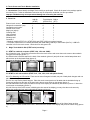
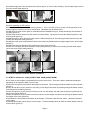
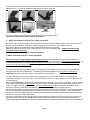
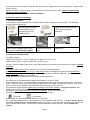
2.2.5. Two new icons are created on desktop.
Touch RS232
Swap Button
2.2.6. Double click TouchRS232 to open touch control panel.
2.2.7. Click the Calibration button, choose either 5 or 25 point calibration then click ‘GO!’ Touch and hold the center
of each circle for a full second to complete the calibration. Use the stylus for better accuracy. Repeat the
calibration if necessary. Click OK to close.
See C. Settings and Options.
3. Install driver on Mac OS:
For Macintosh with USB port (a quick guide file is included in the CD)
Plug in the controller to USB port and plug in the touch screen cable to controller.
3.1. Insert the installer CD*. Double click to open the Magic Touch CD icon.
3.2. There are 7 folders for OS 9.2.x, 10.1.x, 10.2.x, 10.3.x, 10.4x, 10.5x & 10.6x.
3.3. Open the folder that matches your OS version. (see Apple->About this Mac)
3.4. Double-click MagicTouch icon to run installation. If a LOCK icon appears on the lower-left corner, click and type in
the administrator’s password.
3.5. After installation is completed, restart the computer.
3.6. Calibrate the screen: For OS 10.x, click Go\Application\Magic Touch Utility\Magic Touch. For OS 9.x, click
Apple\Control Panel\Magic Touch Utility\Magic Touch. Before entering the calibration screen, you will be prompted for
“lift-off” mode selection. (This appears as a check box in OS X) In lift-off mode the mouse click is activated when touch
is lifted from the screen. Please see quick guide for details. Once the selection is made, the calibration screen is
shown. Touch the centers of the X or circle (depending on the OS**) with stylus provided (for better accuracy) to
complete the calibration. Check the accuracy, repeat if necessary. Press cancel to exit.
* The Windows and Linux drivers are normally not included with the touch screen sold as Mac version, but they can be
downloaded at www.magictouch.com/support_usb_xd.html for free.
** 9.2-10.4 has 3-X calibration points without multi-monitor option. 10.5-10.6 has 5/25-circle calibration points with
multi-monitor option.
C. Settings and Options of Magic Touch Control Panel (Windows version):
1. Mouse or Tablet: When using Windows 7 or Vista, there are options of choosing tablet or mouse mode. When
tablet mode is selected, you will be able to use Windows tablet gestures. The response speed is relatively slower in
tablet mode than in mouse mode.
2. Mouse speed::Control the tracking speed of mouse cursor.
3. Double click speed: Control the time interval between two clicks to activate a double click. Slow speed makes
double click easier. Test the double click by tapping the K logo twice. If successful, the logo rotates.
4. Lift Off: When this option is enabled, the click is activated when touch is lifted away from
Page 5