1
Exporting to OpenOffice.org format
53
default, the summary field is left empty. (Older versions of eZ Publish and installations
without the Website Interface installed refer to this as the intro field.)
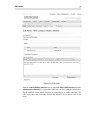
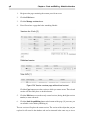
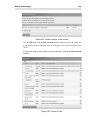
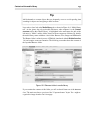
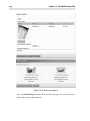
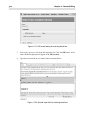
In edit mode (after clicking the Edit button on the Website Toolbar, we can add content
to the empty fields, edit the other fields, then save and publish a new version of the article.
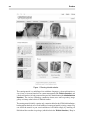
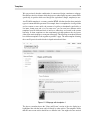
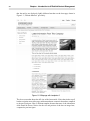
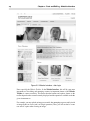
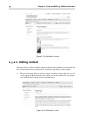
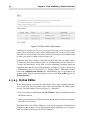
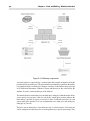
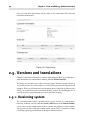
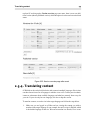
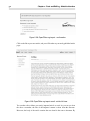
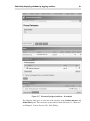
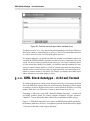
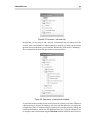
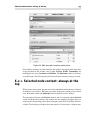
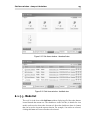
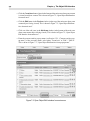
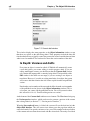
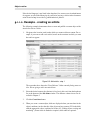
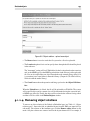
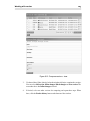
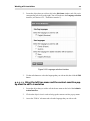
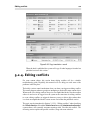
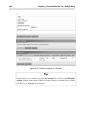
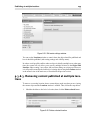
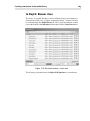
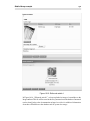
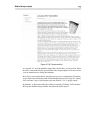
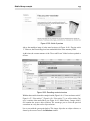
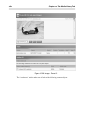
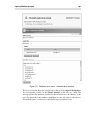
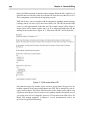
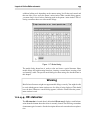
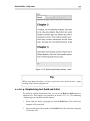
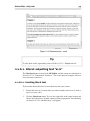
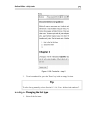
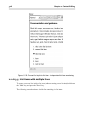
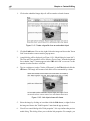
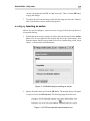
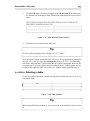
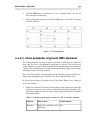
The result is shown below. Note the changed title and the bold summary changed from
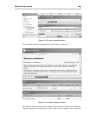
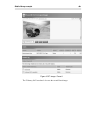
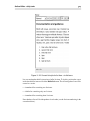
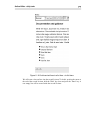
Figure 2.29, “OpenOffice.org import result - article full view” above.
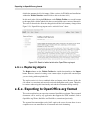
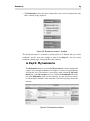
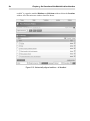
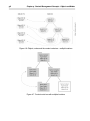
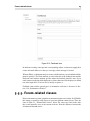
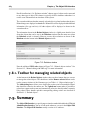
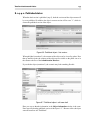
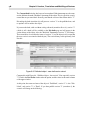
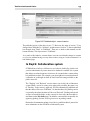
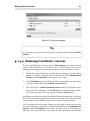
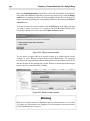
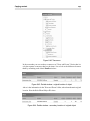
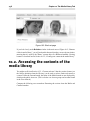
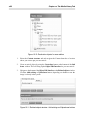
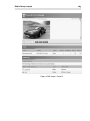
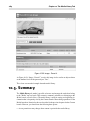
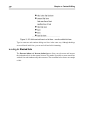
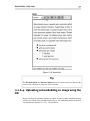
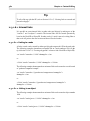
Figure 2.30. Result of edited article after OpenOffice.org import
2.6.1.1. Replacing objects
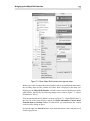
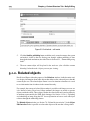
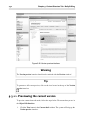
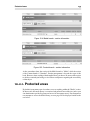
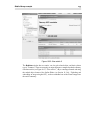
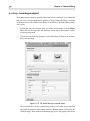
The Replace button on the Website Toolbar has similar functionality to the Import
button. However, instead of creating a new content object, it replaces the current object
you are viewing with an uploaded file.
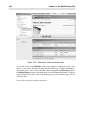
The replace action is in fact a combined delete and import action. Because of this, the
old content is overwritten and cannot be retrieved through the trash system. Therefore,
be cautious when using this functionality and read the confirmation dialog carefully.
2.6.2. Exporting to OpenOffice.org format
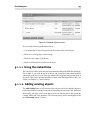
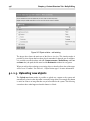
This section explains how to export site content to OpenOffice.org format. These exported
documents can be read by any application that supports the ODF standard, such as
OpenOffice.org Writer, StarOffice and NeoOffice, as mentioned previously.
The exported document might not be 100% equal to the source, because there is not a
complete one-to-one translation for all structural and visual formatting.