1
COMPARING CREATING
DOCUMENTS
PDFs
Learning Outcomes
By the end of this module, you will be able to:
Identify the different components of the compareDocs interface
Compare documents using a variety of methods, including drag and
drop, right-click integration with Windows Explorer and a Document
Management System
Save, email and print the Comparison Report directly from MS Word
Compare documents within other applications and systems, for
example MS Word or a Document Management System
Select the appropriate Comparison Report type based on source
document and output
Use the Selection Window to select which document(s) to compare
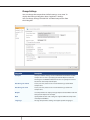
Modify default compareDocs settings for Compare, Rendering Sets,
Output, Optical Character Recognition and Language
Prerequisites
Before commencing this module, you should be comfortable with:
Navigating in Windows Explorer to locate a file
Accepting/rejecting changes using the MS Word Track Changes
toolbar
Navigating a PDF document using the Bookmarks and Comments
palettes
Duration
The estimated time for completion of this module is 60 minutes.
COMPAREDOCS QUICK STEP GUIDE
1