1
COMPARING CREATING
DOCUMENTS
PDFs
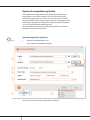
Printing the Changes Only Report
The Changes Only Report contains only those pages from the
Comparison Report that have differences. This report is printed to the
DocsCorp PDF Printer. Therefore, this report is always in PDF.
For example, if a comparison resulted in changes to pages 1-3 of 5,
then the Changes Only Report will contain 3 pages in total, ie pages 1,
2 and 3.
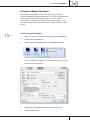
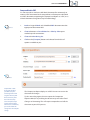
Print the Changes Only Report
How to!
1.
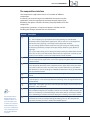
Make sure you have a Comparison Report open in MS Word.
2.
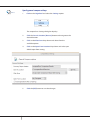
Click the DocsCorp Ribbon.
3.
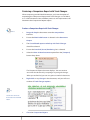
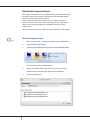
Click the [Print Changes] button on the MS Word toolbar.
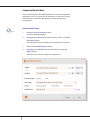
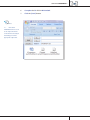
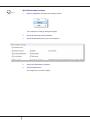
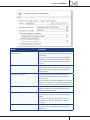
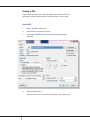
The Print dialog box displays. The DocsCorp PDF Printer is selected
automatically as the printer.
4.
Select your printer from the Printer Name drop-down.
5.
Click the [OK] button.
COMPAREDOCS QUICK STEP GUIDE
27