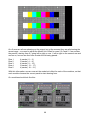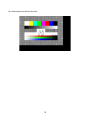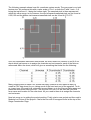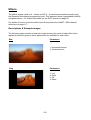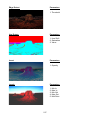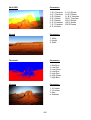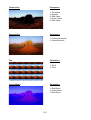
1
USER MANUAL VERSION 8.X By Arran Rothwell-Eyre December 2014 with Additions by Dave Green & Ciaran Abrams 1 Table of Contents AI Quick Start Guide....................................................................................12 The User Interface........................................................................................13 Stage Construction Page..............................................................................................13 Screen Fixture.............................................................................................................14 Projector Fixture..........................................................................................................14 Modular LED Fixture....................................................................................................15 Led Lighting Fixtures...................................................................................................15 Human and Structure Fixtures....................................................................................16 Surface Modelling Page................................................................................................17 Canvas editor page........................................................................................................20 Performance Page.........................................................................................................22 Scene Triggers............................................................................................................25 Timeline Page.................................................................................................................26 Output Page....................................................................................................................29 Output Page – Screen Fixture.....................................................................................30 Region mapper tool.................................................................................................30 Masking tool............................................................................................................31 Save & Load regions...............................................................................................31 3d import options.....................................................................................................31 Output Page Projector Fixture.....................................................................................32 Mapping editor.........................................................................................................32 Soft edge blending..................................................................................................33 Output Page Modular LED Fixture..............................................................................34 The Patching Page.........................................................................................................36 The Project Browser......................................................................................................38 System Settings.............................................................................................................39 Controlling AI...............................................................................................42 Timecode Triggering.....................................................................................................43 Procedure for triggering clips with timecode:..............................................................45 Procedure for triggering to multiple fixtures simultaneously with timecode:...............46 Sapphire Media Controller............................................................................................47 Connecting The Sapphire Media Controller to your Ai Server....................................47 Connecting the main touch screen monitors...............................................................47 Connecting the preview screens.................................................................................48 Connecting Sapphire Media Console to Ai Server via USB........................................48 Calibrating the Touch Screens for Sapphire Media Console......................................48 Sapphire Media Functionality......................................................................................49 Optical Encoders.....................................................................................................49 Scene View Buttons................................................................................................49 2 Transport Control Buttons.......................................................................................50 Numeric Keypad......................................................................................................50 Fader Pages............................................................................................................51 FX Buttons 1 to 8.....................................................................................................51 T Bar........................................................................................................................51 Trackball & Mouse Controls ...................................................................................51 Tap Button...............................................................................................................52 Main Faders & Buttons............................................................................................52 Preview Monitor Buttons & Preview Menu Buttons................................................52 Pre-mapped Interface Instructions..........................................................................52 Blend Mode Buttons................................................................................................52 Layer Select Buttons:..............................................................................................53 Connecting the custom buttons/faders........................................................................54 Troubleshooting...........................................................................................................56 50Hz Operation.......................................................................................................56 Preview Screens.....................................................................................................57 Power Supply..........................................................................................................57 MSC1...............................................................................................................................58 Setting up MSC-1 with Ai server..................................................................................58 Pre-mapped Interface Instructions .................................................................................................................................59 Optical Encoders .................................................................................................................................59 Blend Mode Buttons .................................................................................................................................59 Layer Select Buttons...............................................................................................60 Scene View Buttons................................................................................................60 Transport Control Buttons.......................................................................................61 Numeric Keypad......................................................................................................61 Fader Pages............................................................................................................61 FX Buttons 1 to 8.....................................................................................................62 Lighting Console Control .............................................................................................63 ArtNet/DMX control......................................................................................................63 ArtNet parameters.......................................................................................................63 MIDI..................................................................................................................................65 Advanced Use..............................................................................................66 Multi Unit LED Config....................................................................................................66 Mapping the output from the Modular LED Fixture in the Stage Patch...................71 Mapping Moving Scenic Elements...............................................................................75 Soft Edge Blending........................................................................................................80 User Effects And Blendmodes.....................................................................................83 Auto blend......................................................................................................................85 Volumetric Arrays..........................................................................................................86 Motion Tracking.............................................................................................................88 Further Concepts.........................................................................................90 3 An Introduction To 3D modelling.................................................................................90 Media Preparation..........................................................................................................92 Using the AiM codec....................................................................................................92 Transparency: Discard Alpha Channel / Include Alpha Channel............................92 Optimize For: Quality / Performance / Superstream...............................................92 Audio............................................................................................................................93 Optimising Files To Reduce Size.................................................................................93 System Optimisation.....................................................................................................94 Resolution....................................................................................................................94 Media Storage.............................................................................................................94 Texture memory / canvas size.....................................................................................95 GPU accelerated playback..........................................................................................95 Suitable codecs...........................................................................................................95 Fixture load..................................................................................................................96 Amount of layers..........................................................................................................96 Multiple Graphics cards...............................................................................................96 Software and Drivers...................................................................................................97 Performance Units.........................................................................................................98 Pre-Production Check List..........................................................................99 Tutorials......................................................................................................100 Tutorial 1 -Working with Regions...............................................................................100 Tutorial 2 – Widescreen Projection and Blending....................................................102 Tutorial 3 – working with LED screens......................................................................104 Tutorial 4 – The Mapping Editor.................................................................................106 Tutorial 5 – Modular LED Fixture...............................................................................108 FAQ..............................................................................................................110 Software........................................................................................................................110 What is Ai?.................................................................................................................110 Which video formats can Ai play?..............................................................................110 What is the AiM codec?.............................................................................................110 How do I achieve the optimum performance from the Aim codec?...........................111 How do I encode my media files using the AiM codec?............................................111 Which screen resolutions can I use?.........................................................................111 What format effects can be used in Ai?.....................................................................111 I’ve installed Ai, but when I click on the icon, it doesn’t seem to run?.......................111 When I run Ai, the program starts, but the user interface is black?..........................112 How do I get live video into Ai?..................................................................................112 Is the software and OS on 64 bit?.............................................................................112 Is the system still based on the DXV Codec used by UVA and Resolume and is it an Intraframe codec or an Mpeg based codec?.............................................................112 Are the Freeframe plugins still implemented and can they be used on the live input? ...................................................................................................................................112 Can 3d objects be imported and textured?...............................................................112 4 Can I use external controllers with Ai?......................................................................113 Do I have to use an Avolites console to control AI?..................................................113 My screen outputs come up in the wrong order – how can I fix this?.......................113 Hardware.......................................................................................................................114 What are the minimum requirements to run the Ai software?...................................114 Graphics................................................................................................................114 Storage..................................................................................................................114 What are the delays on the BMD or LFG cards?......................................................114 The software works with OpenGL, will cards like Quadro FX 6000/5000 help the performance? In other words, will a customized very heavy system be worth the money? We noticed in Fusion that a double Quadro 600 setup could be limiting.... 114 Will CUDA be implemented for certain effects?........................................................115 What are the ways of controlling the server besides the Avolites consoles, is it all DMX and MIDI triggerable?.......................................................................................115 How do I make new screen shapes?.........................................................................115 Which 3d model formats can I use in Ai?..................................................................115 Can I use audio in Ai?................................................................................................115 What is the best audio format for Ai?.........................................................................115 Where Can I get further information?........................................................................116 ArtNET / DMX Channel Definitions...........................................................117 40 channel personality................................................................................................117 80 channel mode: additional channels.....................................................................120 100 channel mode: additional channels...................................................................122 Module Definitions.....................................................................................123 Audio.............................................................................................................................124 Master Volume Adjust................................................................................................124 Sync Offset................................................................................................................124 Capture.........................................................................................................................125 Active Silicon Phoenix...............................................................................................125 Dalsa Genie Camera.................................................................................................125 Color..............................................................................................................................126 HSBA.........................................................................................................................126 Hue Rotate Matrix......................................................................................................126 Image Color...............................................................................................................126 RGBA.........................................................................................................................127 RGB Color Curves.....................................................................................................127 Controller......................................................................................................................128 Ai Controller...............................................................................................................128 Auto Select................................................................................................................128 Buffer Select..............................................................................................................129 Calender Trigger........................................................................................................129 Camera......................................................................................................................130 Constant....................................................................................................................130 Constant With Text....................................................................................................130 CV To Clock...............................................................................................................130 5 Drop down Store........................................................................................................131 Dynamic Store...........................................................................................................131 Store Values..............................................................................................................131 Latch..........................................................................................................................131 LFO............................................................................................................................132 Monitor.......................................................................................................................132 Ramp.........................................................................................................................132 Sequence...................................................................................................................132 Smooth......................................................................................................................133 Switch........................................................................................................................133 Vector.........................................................................................................................133 Vector Smooth...........................................................................................................133 Display..........................................................................................................................134 Ai Output Renderer....................................................................................................134 Easy Blend................................................................................................................134 Model Morph Output..................................................................................................134 Template Generator...................................................................................................135 Video Out...................................................................................................................135 Drawing Primitives......................................................................................................136 Arc.............................................................................................................................136 Binary Circle..............................................................................................................136 Circle..........................................................................................................................137 Line Generator...........................................................................................................137 Repeated Line Generator..........................................................................................137 Particle System..........................................................................................................138 Quad Generator.........................................................................................................138 Textured Quad Region..............................................................................................139 DSC...............................................................................................................................140 Texture Receive.........................................................................................................140 Texture Send.............................................................................................................140 Effects...........................................................................................................................141 FreeFrame.................................................................................................................141 FreeFrameGL............................................................................................................141 Linear Spread............................................................................................................141 Radial Spread............................................................................................................142 SVFX.........................................................................................................................142 File IO............................................................................................................................143 CSV File Reader........................................................................................................143 String Present............................................................................................................143 GL..................................................................................................................................144 Ai Layer Mixer............................................................................................................144 Ai Layer Output..........................................................................................................144 Ai SDI Input...............................................................................................................144 Ai SDI Output.............................................................................................................144 BindTexture................................................................................................................145 BlendMode................................................................................................................145 Camera......................................................................................................................145 Clear..........................................................................................................................145 Crossfade..................................................................................................................145 6 DepthTest...................................................................................................................146 Desktop Texture.........................................................................................................146 DisplayList.................................................................................................................146 GLGetVector..............................................................................................................146 GLSL Program/Shader..............................................................................................147 GLSL Program Switch...............................................................................................147 GLSetVector..............................................................................................................147 Iterator.......................................................................................................................147 Light...........................................................................................................................148 MultMatrix..................................................................................................................148 MultiTexture Demux...................................................................................................148 Render Counter.........................................................................................................148 Render Delay.............................................................................................................149 Render Display List...................................................................................................149 Render Merge............................................................................................................149 Render Resolution.....................................................................................................149 Render Target............................................................................................................150 Render To Texture.....................................................................................................150 Rotate........................................................................................................................150 Scale..........................................................................................................................150 TexMode....................................................................................................................151 TexRotate...................................................................................................................151 TexScale....................................................................................................................151 TexTranslate..............................................................................................................151 Texture Bank..............................................................................................................151 Texture Switch...........................................................................................................152 Translate....................................................................................................................152 Vector Font Switch.....................................................................................................152 Video Texture.............................................................................................................152 Window......................................................................................................................153 Generator......................................................................................................................154 Cubes........................................................................................................................154 Lights Rays................................................................................................................154 Quad Mapping...........................................................................................................154 Rectangle...................................................................................................................155 Text............................................................................................................................155 Texture Warp.............................................................................................................155 Tunnel........................................................................................................................155 Wave Pool.................................................................................................................156 Import............................................................................................................................157 3D Model...................................................................................................................157 3D Morph Model / Ai 3D Morph Model......................................................................157 AI Vector Art...............................................................................................................157 AI Vector Font............................................................................................................158 Layer Texture Reference...........................................................................................158 Live Audio..................................................................................................................158 Live Video..................................................................................................................159 Media Bin...................................................................................................................159 Media Player..............................................................................................................159 Media Player FF Selector (File and Folder)..............................................................160 Texture.......................................................................................................................160 7 TextureList.................................................................................................................160 Video File...................................................................................................................160 Keyboard......................................................................................................................161 Key Detect.................................................................................................................161 Math...............................................................................................................................162 Const Diff...................................................................................................................162 Counter......................................................................................................................162 Formula......................................................................................................................162 Noise..........................................................................................................................162 Projector Locator.......................................................................................................163 Trig.............................................................................................................................163 Vector Formula..........................................................................................................163 Vector Join.................................................................................................................164 Vector Math...............................................................................................................164 Vector Select.............................................................................................................164 Vector Split................................................................................................................164 Midi................................................................................................................................165 ExtClock In................................................................................................................165 Midi CC In..................................................................................................................165 Midi CC Out...............................................................................................................165 Midi In Device............................................................................................................165 Midi Key In.................................................................................................................166 Midi Key Out..............................................................................................................166 Midi Key Range In.....................................................................................................166 Midi Out Device.........................................................................................................166 Motion Control.............................................................................................................167 Kinesys Listener........................................................................................................167 Network.........................................................................................................................168 Artnet Input Small......................................................................................................168 Artnet Input Large......................................................................................................169 Artnet Remote Control ..............................................................................................170 Artnet Remote Master...............................................................................................170 Artnet Sample Grid....................................................................................................171 Artnet Server.............................................................................................................172 Artnet Video...............................................................................................................172 Artnet Sample Strip...................................................................................................173 Artnet Structure.........................................................................................................174 BlackTrax...................................................................................................................174 CITP...........................................................................................................................175 E-Mail Sender............................................................................................................175 Ethernet Command...................................................................................................175 Ethernet receive........................................................................................................176 KiNET Server.............................................................................................................176 NatNet Client.............................................................................................................176 Peer Asset Manager..................................................................................................177 Patch.............................................................................................................................178 Patch Clock...............................................................................................................178 Patch IO.....................................................................................................................178 Patch Short Cut.........................................................................................................178 8 Port Pack / Unpack....................................................................................................178 Read Patch Constant................................................................................................179 Read Patch String.....................................................................................................179 Shared Constants Input.............................................................................................179 Shared Constants Output..........................................................................................180 UI Lock.......................................................................................................................180 Write Patch Constant.................................................................................................180 Scripting ......................................................................................................................181 Javascript...................................................................................................................181 System..........................................................................................................................182 Ai System Control......................................................................................................182 Run Batch File...........................................................................................................182 Text................................................................................................................................183 Convert To String.......................................................................................................183 GPU Vendor..............................................................................................................183 Notepad.....................................................................................................................183 String CAPS..............................................................................................................183 String Combine..........................................................................................................183 String Compare.........................................................................................................184 String Finder..............................................................................................................184 String Length.............................................................................................................184 String Parser..............................................................................................................184 String Present............................................................................................................185 String Switch..............................................................................................................185 String Texture.............................................................................................................185 String Ticker...............................................................................................................185 String To Number.......................................................................................................186 Sub String..................................................................................................................186 Time...............................................................................................................................187 Clock Tick..................................................................................................................187 Random Scrub...........................................................................................................187 Scheduled Quit..........................................................................................................187 TimeCode..................................................................................................................187 TimeCode LTC...........................................................................................................188 TimeCode Master......................................................................................................188 TimeCode Minion.......................................................................................................189 Timeline Day Scheduler............................................................................................189 Value History..............................................................................................................189 UI....................................................................................................................................190 AiHexSphereTrigger..................................................................................................190 AiMediaTileTrigger.....................................................................................................191 Clear Layer................................................................................................................191 HexTrigger.................................................................................................................192 Time Code Widget.....................................................................................................192 Video.............................................................................................................................193 Sampler.....................................................................................................................193 Switch........................................................................................................................193 Vision............................................................................................................................194 Binary Pattern Read..................................................................................................194 9 Color Tracker.............................................................................................................194 Greyscale Sample.....................................................................................................195 Human Tracker..........................................................................................................195 Levels Adjust.............................................................................................................195 Motion Detector.........................................................................................................195 Peak Colour Finder....................................................................................................196 RGB To Grey.............................................................................................................196 Raw Buff Read..........................................................................................................196 Raw Buff Save...........................................................................................................197 Texture Histogram.....................................................................................................197 Texture Sample..........................................................................................................198 Video Average...........................................................................................................199 Video Blob Tracker....................................................................................................199 Video Replay.............................................................................................................199 Video Subtract...........................................................................................................199 Video Temporal Displacement...................................................................................200 System Patches..........................................................................................201 2 x 8bit Receive............................................................................................................201 2 x 8bit Send.................................................................................................................201 Ai Patch Output............................................................................................................201 ArtNet Tester................................................................................................................202 Auto Blend....................................................................................................................202 Auto Map.......................................................................................................................202 Beyer Conversion........................................................................................................203 Bezier Edge Mask........................................................................................................203 Fade Output Region....................................................................................................203 Hue Saturation Contrast Adjust.................................................................................204 Layer Container...........................................................................................................204 LED Output with Position and Scale.........................................................................204 Mapping Editor.............................................................................................................205 Mask Texture................................................................................................................206 Media Container...........................................................................................................206 Mesh Warper................................................................................................................207 Multiply Shader............................................................................................................207 MultiTexture Select......................................................................................................207 MultiView......................................................................................................................208 Pixel Checker...............................................................................................................208 Quad Mapping..............................................................................................................209 Quadrant Select...........................................................................................................209 Sample Texture Region Flex LED..............................................................................209 10 Sample Texture Region Simple Rotate......................................................................210 Sample Texture Region Simple..................................................................................210 Sample Texture Region...............................................................................................211 SDi Output....................................................................................................................211 Shared Constants Input..............................................................................................212 Soft Edge Adjustments...............................................................................................213 Text Patch.....................................................................................................................213 TextureCoordsEditor...................................................................................................214 Capture Patches.........................................................................................215 LiveVideo.....................................................................................................................215 LiveVideoASPhoenixWithAdjustments....................................................................215 LiveVideoDatapathDVI...............................................................................................215 LiveVideoDatapathSDI_CH1_Interlaced...................................................................215 Live Cam Override......................................................................................................215 Effects.........................................................................................................216 Descriptions & Example images................................................................................216 Blend Modes...............................................................................................226 Descriptions & Example images................................................................................226 Transitions..................................................................................................229 Descriptions & Example images................................................................................229 Keyboard and Mouse Shortcuts...............................................................232 Performance Page.......................................................................................................232 Timeline Page...............................................................................................................233 Stage Construction Page............................................................................................234 Stage Modelling.........................................................................................................234 Surface Modelling......................................................................................................234 Canvas Editor Page.....................................................................................................235 Output Page..................................................................................................................236 Salvation (Node Based Programming Patches).......................................................237 Credits.........................................................................................................238 11 AI Quick Start Guide Make sure all video or controller connections are made before running the software. • Start Ai, then on the stage construction page ( the truss icon in the top right ) delete all existing fixtures - select the fixture icon at the bottom of the screen with the mouse and press delete. Delete the fixtures from right to left. • Add a screen fixture – thats the third icon from the left at the top of the screen. • In the fixture properties box on the right ( the grey box ) enter 1.6 in scale width, 0.9 in scale height 1920 in CanvasResX and 1080 in CanvasResY. • Now go to the performance page – the piano icon in the bottom right. • Now create a new bank of media by clicking on the plus sign at the bottom of the media banks on the right and enter a name. • next, drag some media in from the windows browser into the middle area of the Ai interface. • Select the screen fixture icon at the bottom to see the layer widget on the left and make sure that the top layer is selected by using the left mouse button ( the selected layer has flashing blue handles ) • now left click one of your media tiles to play that content on the selected layer. • Select layer 2 and trigger a different piece of media to that layer • on layer one, select Additive from the blend mode drop down menu on layer one and then adjust the layer intensity value either numerically or with the vertical fader. • Right click on the layer to see the quick layer properties and add an AiColourise effect and adjust it with the parameter controls • go to the output page - the coaxial connector icon at the bottom left. • Select the screen fixture, the press the number 2 to send video to output 2. • in the tools bar on the left, choose the second option down ( the region tool ) • in the left window drag a region and then double click it to expand it to cover the full canvas. In the right hand window draw a region and then hold shift + click it to to convert it to a triangle based region. • Select the transform tool from the left hand bar and in the right window, click and drag the corner points to apply keystoning to your image. • You should now see the combined, effected layers being played on your outputs. 12 The User Interface Stage Construction Page Build your Stage On this page we can choose the fixture types to use in the project. We can also enter the correct positions and relationships for each fixture to create a representation of the real world installation. Along the top of the screen we can see the icons which give us our different fixture types. From the left to the right we have: LED lighting, LED battens, Screen fixture, Moving Head lights, Projector fixture, the Modular LED fixture used for pixel mapping, a human character to give an idea of scale and a stage model to put the components in context. Regardless of the model type used, the fixture itself offers options to independently adjust the position, scale and rotation of the used model on all three axes as well as being able to set the texture resolution, the texture scale and the texture position and also gives options to display the screen in wireframe mode and the option to always show the fixtures texture when selected. Whilst the majority of the functionality is shared across the fixture types, there are some properties which are specific to certain fixtures. 13 Screen Fixture This is the most commonly used fixture type and is used as the starting point for projection mapping, led screens and more traditional video output. You can either use the default screen model and deform it as needed, which for most jobs is fine, or you can import a 3d model simply by dragging it onto the fixture icon at the bottom, allowing you to work with highly complex projection targets such as cars, buildings and very organic curved surfaces which would be otherwise very difficult to work with using more traditional methods. The benefits of this approach are many fold, but primarily the use of 3d models allows for very flexible and editable screen designs and the use of UV maps ensures reliability in terms of accurate reproduction of video content onto stage technology. Currently Ai supports the use of several 3d model formats: 3ds, obj, blend, lwo, lws, lxo. Of these 3ds and obj are the most regularly used as they are supported by the majority of 3d software’s regardless of the platform in use. Projector Fixture This fixture should be used when you want to do video mapping or vertex editing using a 3d model. In order for Ai to produce something that is as close to the real world as possible, it is very important to enter the real world projector values such as aspect ratio and lens ratio to ensure that the images generated from Ai have the correct amount of distortion that will be seen on the real world lenses used for the project. When your real world and virtual settings match up, everything can fall into place very easily for you. 14 Modular LED Fixture The Modular LED fixture allows you to perform pixel mapping within Ai. In previous versions of Ai it has been necessary to import both a 3d model and a CSV sheet to make full use of Ai's pixel mapping facilities. Whilst this functionality still exists for the more advanced users who require the ultimate precision given by this approach, it is now possible to work with this fixture purely inside Ai without the need for the accompanying files by just using the Output page's new LED mapper options. As well as the standard attributes available to all fixtures, the Modular Led fixture also has options to offset the starting universe and channel. Led Lighting Fixtures The Light fixture, LED Batten and Moving Head fixture all share a very similar working method. Essentially, by using the fixture quantity and fixture spacing options you can create a grid of fixtures, then you can specify how many channels the device has by using the channel per fixture option and if required you can offset the colour channels, base universe and base channels. Once you have set the ranges for a single fixture, pressing the Auto Assign DMX button will then apply these ranges to all fixtures by giving them sequential addresses. If you need to alter any of the position or rotation amounts you can either use the group options to affect all or the fixture options to alter just the selected fixture. When using these fixtures it is better to run at a resolution close to reality otherwise Ai will be performing a lot of unnecessary work – if for instance you specify a 1920 x 1080 canvas , then Ai will have to convert 2073600 pixels to ArtNet every single frame, but in reality you are exceptionally unlikely to see an array of 2 million physical fixtures. Ai will downscale your image to fit the resolution that you specify, so you don’t need to worry about a resolution mismatch between the media and the fixture values. 15 Human and Structure Fixtures Both of these fixture types are used for visualisation purposes – the human character is great for putting things into an understandable scale and the structure fixture allows you to load a model of your stage or venue to give a greater concept if how the project will look in situe – both are very helpful when trying to get a client to understand how the show will look. The real benefit to both of these is that they don’t carry the usual facilities to playback media which means that they have much less strain on the system. 16 Surface Modelling Page. We have for some time been able to see the need for our own 3D editor with the ability to generate primitive geometry within Ai and modify existing model files as well as carrying out some simple functions like cloning and duplication. Whilst we still recognise the advantages of a dedicated modelling package, we decided to give the user access to a set of common functions appertaining specifically to our industry – allowing every Ai user to have greater control over the screen models they use and to be able to generate new and modified geometry when required. The modelling page itself is a sub window of the Stage Construction page – to access it, first click on the truss icon ( Stage Construction page ) and then look to the top right of the interface for the icon that looks like a square with one corner cut out and give it a click. Many of the functions and icons on the surface modelling page are carried across from other areas of Ai, so will seem familiar or obvious, but just to be sure, lets run through them all. By default the surface Modelling page is set up in a four way split view with default camera positions already located for each view. These are set up with 3 orthographic viewpoints viewing the front, side and top respectively. Add in one perspective view and that gives us our four windows. The views are treated in the same way that the stage construction page is. Where shift + click/dragging will rotate your view and alt + click/dragging will pan it. Defaulted viewpoints have been integrated into the surface modelling page and by pressing the number keys, 1 through to 6 will automatically interpolate the camera to the desired position. The positions are as follows: 1 = Front, 2 = Back, 3 = Left, 4 = Right, 5 = Top, 6 = Bottom. In order to change between orthographic and perspective the number 0 key will toggle between the different projection views. 17 Using the mouse to click and drag will create a selection rectangle that will allow you to select vertices. Whilst selecting vertices 'A' will append to the current selection. Whilst 'C' will remove/clear from the current selection. The surface modelling page will show you the geometry of the current fixture selected and supports multiple fixtures. If multiple fixtures are selected then you will be able to edit the models accordingly and it will allow you to save the multiple models into one. The surface modelling page does not update on the outputs live nor does it retain information about models. Changing between fixtures in the surface modelling page will re-load the geometry and therefore any changes that you have made and not saved will be lost. You can not work independently on multiples of fixtures. The left hand column of icons gives us tools to manipulate our selection. The first icon, that looks like a mouse pointer, is our selection tool. This will allow us to select / deselect vertices within the 3D model. Below this is the translate tool. This will translate based on where you first click the mouse and where you release your click. Next is the rotate tool (right-clicking this icon changes the axis of rotation). Furthermore: scale, mirror on x axis, mirror on y axis, mirror on z axis, invert selection and draw method. The draw method changes the way that the objects are displayed (vertex points, solids, wireframe, bounding boxes or textured objects). For numerical entries you can shift-click on the translate, rotate, scale icons. Along the top of the screen we have several more new icons which allow us to generate a plane, generate a cube, create duplicates along a straight line, create duplicates along a curve and finally a button to save the newly edited model as an .obj file – any updates to your screen model are only applied once it has been saved. If multiple fixtures are selected when modelling, the saved model will have all the geometry from the selected fixtures and will load the newly saved model into the first selected fixture. You will have to delete the according fixtures on the stage construction page. The linear repeat function allows you to set the amount of duplicates you wish to generate and specify the spacing between them, whereas the curved repeat lets you set a centre 18 point to curve around, specify the end angle of the final duplicate and set how many are within that range. The interface itself can be switched between a four way view ( as traditionally seen in most 3d modelling packages ) and a single full screened view – this can be done using the F button on the keyboard. Its worth paying attention to the position of your pointer when changing screen modes as whichever window the mouse pointer is sat within when the F button is pressed will become the view that is maximised. Press F again in a maximised window to return to the four way view. Additionally the interface of a selected view can be locked by pressing the L button. This will disable panning / rotating but will still allow the selection of vertices and the manipulation of geometry. This is a useful feature if you navigate to a useful viewpoint and don't want to accidentally change that. The view that is locked is dependent on where the mouse is in the same regards as full screening views. For information on Keyboard shortcuts which can be useful whilst surface modelling please see page 234. 19 Canvas editor page Decide how your media should be mapped onto your Stage When making use of a 3D model for a screen, there are two important parts to the process – the 3D geometry of the model itself and also how your image is applied to this geometry, also know as the UV Map. UV mapping is a term used to describe the process of placing your screen shape within a defined texture area and generating coordinates for it based on this information. The U and V are used to mean horizontal and vertical as X and Y are already used for referring to position. The advantage of using this approach is that it allows you to have absolute control over which part of your image falls on which surface of your screen model, which in turn allows for a much greater level of accuracy and placement when creating content, leaving your team more time to focus on making beautiful content and less on trying to make it work. The main uses for the Canvas Editor will usually be in a situation where you are working on site and an update needs to be made to your mapping due to either a change in plan or a new update from your team, but it is also commonly used when generating a new screen model from the Surface Modelling page as any newly generated screen will most likely not have the appropriate UV map layout for your requirements. On the left side of the screen we have the tool bar for modifying how your canvas is applied to the model, allowing you to translate, rotate, scale flip horizontally or vertically, invert your selection or revert to the last saved state and on the right side of the screen we have the selection methods which allow you to work with either vertex points, edges , polygons faces and toggle object mode. When in object mode, the two arrows let you 20 select which mesh you are working with and the toggle button swaps the screen focus between your canvas layout and your 3d preview of how the canvas will appear. The bar at the top of the screen offers some useful and interesting layout options. The first 3 buttons let you apply either a flat, cylindrical or spherical mapping to your object. By right-clicking these buttons it allows you to change the axis of the unwrapping. The fourth button, remap from projector, will automatically map the object from the point of view of a selected projector. This allows for the creation of perspective illusion mapping from the sweet-spot point of view (generally the audience). This function is particularly useful if you cannot put the projector in exactly the same place for each show, meaning that your content doesn't need to be re-rendered each time. The button with the camera icon allows you to export the current layout as an image file, which can then be provided to content makers as a template so that they know where the different elements of their work will fall on the model. Next we have the CSV export option which can look at the geometry of your screen model and based on its UV coordinates, generate a list of values which can be used for advanced programming with the modular led fixture and finally we have the save button which lets you export the modified screen and layout data. New in version 8, when using your screen models with projectors, any changes that you make on the canvas editor will be automatically updated on your projectors. It is important to note though that the model will have to be saved before you quit and start Ai again otherwise your changes will be lost. When saving the model, Ai will automatically load the new model and add it to the list of the chosen fixture. A nice way to make use of canvas layouts, especially when using a modular screen set-up made of multiple sections, can be to have several models with differing UV maps which can be used to develop a show by swapping between them during the performance instead of sticking with one static look throughout the event - this can add interest and a real feeling of development to the overall performance. 21 Performance Page Trigger your media and control your show The performance page itself is roughly split into 5 main areas : On the left hand side we have the Layer Widget – this gives us an easy way to choose how our images are mixed, whether they have effects, adjust position and size and control many other functions. In the lower middle area you will see groups of rectangular boxes known as Media Tiles – these are individual pieces of media ( Video / Live Input / Generative Patch ) that can be dragged in and laid out as required and can have unique settings which will override the layer settings when played back. At the bottom we have the fixture icons – here you can select which of the fixtures you are working with and in turn which set of layers are displayed in the layer widget – you can select more than one fixture by dragging your mouse across multiple fixtures with the left button held down. On the right hand side we see the Media Banks – each of these is a unique collection of media which includes all of the media tile specific settings and can be saved and imported into any project just by dragging it into the list, making it quick to share an existing media library across projects. Towards the top of the screen you will usually see your 3d stage visualisation – this gives you a real time 3d representation of your show allowing you to know exactly 22 what’s happening at all times from any angle, which is really useful whether you are pre-programming at home or running a full show in front of a big crowd. At the top of the screen we are presented with some information such as the Performance Units Meter which allows you to have a good grasp of the power available to use in your project. You can also see a memory readout which tells you how much of your graphics memory is in use – the more red the number becomes, the less free graphics memory you have. Many of the commonly used layer controls can be found on the layer widget. Using the dedicated controls you can choose the play mode, adjust the layer intensity via a number, alter the speed between 0 % and 1000 % ( 100% is the original speed of the media ), choose the blend mode from a drop down list, or control the layer intensity with a fader. The X icon clears the layer and the colour wheel allows you to adjust the hue of the layer. At the bottom of the widget are two icons – a plus which adds a layer to the selected fixture and a trash can which deletes the selected layer. The widget itself can be scrolled up and down by dragging it whilst holding the left mouse button. Right clicking on the layer preview shows the Layer Controller. ( double left click the layer to expand and collapse the preview ) which allows for further control of whichever fixtures are currently selected and includes access to the 2 effects units on each layer which make use of Ai's own SVFX format (see page 83) further layer controls and buttons to reset the layer parameters or open the mixer, ArtNet layer ( the central hub for assigning ArtNet or midi to the full layer parameter set ) and colour curves window. These settings can easily be stored and recalled using editable scene triggers which are created by pressing the Tab button on the keyboard (see page 25). Right clicking any of our media tiles brings up the properties window for that specific instance. In the centre of the window you can see a large preview of the clip or patch and below that a play head with manually adjustable in and out points and some reference information which tells you the current position, the clip name, resolution and format and also the total clip length. The right side of the window allows you to adjust clip specific parameters such as brightness, contrast, gain, colour, position, size cropping and per clip soft edging all of which can be quickly reset by using the button at the bottom. On the left side you can see the control and triggering options. The first two boxes tell you the name of the clip and the location in which Ai last accessed the clip. Below this we have 2 buttons, one to open the folder containing the media and one to open the media in an external player such as Quicktime – both of these can be really useful if you need to confirm your media plays ok or need to locate it to pass on to someone else. The label box allows you to enter a name which will show on the media tile itself which makes it easier to tell which clip to use if you have several with very similar thumbnails. The ArtNet ID allows you to specify a channel which can be used to trigger the clip remotely from a console. The media speed slider lets you set an alternate speed which will override the layer speed when triggered. Thumb Frame lets you manually set which frame is used as the thumbnail for the media tile – by default this is set to the 25 th frame of the video and Playmode allows you to set a clip specific playback mode which will also override the layer playmode ( the playmode can also be selected from the list at the bottom of the cell properties window ) Buddy Group is a very useful feature – it lets you assign several media tiles to the same group, and when one of them is triggered, all clips in that group will trigger to their pre23 allocated layers and fixture – fantastic for times when you need several clips triggered at the same time without the use of a console or sequencer. MIDI trigger Note lets you set a note value that will also trigger the clip – great for more standard midi controllers and keyboards or music sequencers when time code isn’t an option. If Time code is required, then a trigger time can be set in this next box – the format is hours, minutes, seconds, frames – a “safe” time of 24:00:00:00 can be set as a 24 hour clock never reaches this number, so anything set to that value will not trigger. ( if a time code trigger is set, it is important to remember to set the play mode to MTC ) The in and out frames determine the start and end frame from which the video will be played back – alternatively you can drag the in / out points on the play head bar just below the main preview. Ai can perform a fade on the layer as standard, the default time for which can be set in the system settings (see page 20), however the Transition Period box allows you to specify an alternative amount of time to the system default cross fade period – when its set to -1 it will use the system value set in the system settings, otherwise it uses the value set here ( in seconds ) and Transition Mode lets you set a specific blend type for that clip to use when cross fading on the layer. Fixture lock lets you tell a media tile to only playback on a certain fixture when triggered, regardless of which fixture is selected, very useful to make sure certain clips always go to the right place in your mix. Follow On Actions allows you to create a sequence of clips within the performance page without the need to use a timeline. Each clip can have an action assigned to it that it will perform after it has played the clip through such as: first, last, up, down, left, right, random or goto_XXX ( where XXX is the ArtNet channel set to trigger that clip ). when using follow On Actions, the play mode needs to be set to play once ( play mode 4 ) Playing On Layers is purely for visual feedback and will tell you which layers and fixtures the clip is currently playing on. Trigger on Layer lets you give a clip a specific layer as its destination regardless of the layer selected – when used in conjunction with buddy groups and fixture lock you can do some very powerful assignments for multiple clips which can all be triggered with a single click. 24 Scene Triggers A powerful feature within the performance page of Ai is the ability to memorise your current state, save it as a single Scene Trigger, and then return to this look at any point simply by activating the Scene Trigger ( a scene trigger has all the standard triggering options of normal media ) To save a state, simply press the tab button at any point. This will create a media tile with an icon that looks like a sun which will be added to your current media bank. A scene Trigger will remember all of the layer properties such as blend mode position and effects as well as the media being played, but if for some reason you wish to only recall certain properties you can right click on the scene trigger to open its control panel and then choose which of the parameters are enabled ( will be recalled when triggered ) or Disabled ( will not be recalled when triggered ) the following image shows an example of the editable functions of a scene trigger with some of the options enabled and some disabled : 25 Timeline Page. Pre-Sequence your show There are many times when it becomes important to exactly reproduce a show from venue to venue – it could be that there are highly choreographed sections which require precise timing or simply because the performer wants to be able to deliver the same performance to all crowds across every show of a tour. This is where the timeline page can become a very useful tool, allowing you to create precise and measured shows which can be highly accurate to the frame. Anyone familiar with the use of video editors or audio sequencers should find the approach familiar and understandable – the timeline is a sequentially ordered set of events running from the top of the screen to the bottom or from left to right depending on your chosen layout configurable within the system settings (see page 39), with the option to display up to 4 layers per timeline ( pressing + and – will add or take away layers ) and within those layers the ability to place media and control points which in turn control the parameters associated with the media. Once created, a timeline file can be exported which can then either be triggered manually or locked to timecode to ensure frame accurate reproduction of any playback and automation you have created. Lets take a closer look at the timeline window and the tools found on the page: 26 As you can see, the main work area for the timeline which is where we place the media and control changes runs either down towards to the fixture icon when on vertical mode or across to the fixture on horizontal mode – this makes it easy to tell which fixture the timeline belongs too. If we have more than one fixture, we can multi select them to display all timelines at the same time or we can select just one and it will use all of the space provided by the fixture icons ( using some dummy fixtures can be a good way to expand your working area if required – just remember to delete them once you are done programming ). In most cases, it is preferable to edit on a timeline which in timecode terms, starts at 00:00:00:00 and then trigger the timeline at the required time instead of trying to work out the precise timeline position to program and then all of the relevant offsets – in this way of working, the values in the timeline are essentially offsets from your original trigger time. Media and patches can be dragged into the main section of the timeline from either the built in Ai browser or from the windows browser itself, and audio files can be dragged into the smaller section either next to or below the timeline ( depending on the timeline orientation ). Being able to import a .WAV file and work to that means that you can very easily create frame accurate video accompaniments for your show. To make this even easier you can input marker points by pressing the home either when the timeline is playing or static. The marker point which is created can then be used as a reference point for positioning media or parameter automation – the most common way to use this is to playback the timeline with the audio file and whilst it is playing give the home key a press at points you wish to have important changes such as verse chorus and once complete use these points as your placement markers. Once marker points have been placed ( if required ) and media has been dragged onto the timeline, one of the first thing you might want to do is change the position of the media or how long it loops for. Firstly click on the media on the timeline and the ends of the clip should change to a lighter blue colour to confirm it is selected. Now press M ( move ) on the keyboard and the clip becomes locked to the mouse, letting you to move it to the position you require and then place it by pressing the left mouse button. If you have any marker points, you will find that the media will snap into these locations once it gets within a few frames of the marker. To change the amount of time that the media loops for, hold the Alt button and then drag the end using the left mouse button until it is in the place you require. Once you are happy with the positions of the clips along the timeline, you may want to automate some of the parameters which control that piece of media. To access the available parameters, left click the media on the timeline and the to the left ( or above in horizontal mode ) you should see a drop down menu with the word Parameter List. Clicking this shows you what can be controlled, and choosing one of these options then allows you to manually enter automation points by right clicking within the timeline area covered by the media file itself. Its worth remembering that the value range for keyframes is from -1 to +1. The reason for this is that some parameters ( such as rotation or position ) require a negative value as well as a positive one compared to some values ( such as intensity or hue ) which will work within a 0 to 1 range. For this reason, regardless of the parameter selected, a value of 0 is always in the middle of the timeline. Once keyframes have been placed, they can then be selected and moved by either left clicking a single keyframe or by holding shift and dragging a box around multiple keyframes and then dragging them to their new position. When a keyframe is selected or moved, its current value is displayed next to it to allow you to precisely alter the value. 27 The tools menu to the right side of the timeline window gives you some options to control the playback both inside of the timeline page and when triggering timelines from the performance page. Working from the top down, we have the play and pause buttons which control the playback within the timeline page. Following those we have the system clock option which allows you to use the current time on your system clock instead of waiting for a timecode signal – this is very usefull for permanent installs that may have regular times to display advertising or to let people know the exhibition ends in 30 minutes, but don’t have the requirement for true timecode. Following that we have the embed timecode option – if you are going to playback your timeline under timecode control then this option needs to be chosen. The fifth button down returns your playhead to 00:00:00:00 on the timeline – the timeline will remember the position of the playhead when it is exported – for most applications it makes sense to save your timeline at 00:00:00:00. The trash can icon will delete the selected media or keyframes and the icon after that will set how the media performs after the timeline has passed – whether the media stops playing at the end of the programming or keeps looping the last file until a further command is received. The very last icon on the list is used to export the timeline so that it can be imported as a single trigger onto the performance page ( remember to set the playhead to 00:00:00:00 and to activate timecode if required ) Once saved and imported into the performance page, a timeline trigger can be treated in the same way as media with the same trigger and control options available. It is also worth noting that whichever timeline is selected on the performance page determines the one which is shown on the timeline, which means that you can easily go back, edit and resave a timeline with minimum effort. For a full list of keyboard shortcuts please see the Keyboard Shortcuts Section (See Page Error: Reference source not found) 28 Output Page Configure your outputs The output page in version 8 of Ai gives you an easy but powerful way to address your outputs regardless of the fixture type chosen. Depending on the selected fixture type, a different set of options will be made available to you giving you quick and easy access to the relevant tools for that fixture type. Whether working with Screens, Projectors or Modular LED fixtures, the interface has some basic similarities. The main window is split into two sections – the left side always shows your source canvas and the right hand side shows your output, allowing you to easily keep track of every stage of your working process. This can be resized if required by dragging the middle bar left or right and can then be reset by simply right clicking on that bar. Along the bottom of the screen we can see all fixture types that can be edited and controlled from the Output Page and in the top right we can see our output assignment section which varies a little depending on whether you are outputting video or Modular LED data over Artnet (or similar) but essentially allows you a simple way to assign to the required system video output or ArtNet universe with simple a to understand system of visual feedback. When using the screen or projector fixture the numbers near the top right of the screen represent the system outputs – simply select the fixture of choice, then select the output number – for the screen fixture you can then just start drawing regions on the source canvas and then onto your selected output. For the projector fixture you must click within the output area once you have selected the projector you wish to route to the chosen output. The following pages will discuss the functionality of each of the fixture types on the output page in more detail. 29 Output Page – Screen Fixture Lets look a little closer at those fixture types and which tools are available to each of them. Firstly we will look at using the Screen Fixture. Working directly with this fixture type is like using many of the more traditional video systems – the geometry of the 3d model is not used on the output, instead you work directly with the 2d texture itself – its the same as working with the green ports within the Salvation patching environment. On the left we can see the main set of tools for using with this fixture. Starting from the top we have the selection tool, the region mapper, translate selected regions, rotate region 90 degrees, free rotate region, flip horizontally, flip vertically and masking. Most of these make are self explanatory, but a couple of these options are worth looking at a little more. Region mapper tool In its basic form, the region tool allows you take rectangular sections from anywhere within your texture and place them anywhere on your outputs. These regions can be manually drawn using the region tool and if needed they can then be adjusted using the info box below the left section to adjust the sampled section or the info box below the right section to adjust the output section. This operates much like the Livemap module does within Salvation. If you right click the region mapper tool icon, it changes from a rectangular image to a multi sided shape – this will now allow you to individually specify each point of your region and use as many points as you require to create any shaped region. Once a region has been created, it is possible to adjust its position in the output as well as alter which part of the texture is being sampled – simply select the translation tool, then click on one of the corner points which will turn green when selected, and drag it to its new position 30 or using either the canvas properties or region properties data box. If you wish to change a rectangular region into a more flexible triangle based region, you just need to hold down shift and then left click on one of the corner points for the region. Once you have set-up your regions, duplicating them becomes very easy by using the standard key commands for copy ( ctrl + c ) paste horizontally ( ctrl + v ) and paste vertically ( shift + ctrl + v ) the regions can then be manualy adjusted using the tool, the data box or by using a combination of the following keys: Arrow keys moves the region on the right 1 pixel. Arrow keys + shift moves the region on the right 10 pixels. Arrow keys + ctrl key moves the left region 1 pixel. Arrow keys + shift + ctrl moves the region on the left 10 pixels. Masking tool There is often a need to mask led screens to give the feel of a non square panel. For this reason we have included a selection of mask shapes which can be individually applied to each square region you make use of. Currently we offer triangles, pentagons, hexagons, octagons and circles in different orientations where applicable. Save & Load regions Once you get yourself into a position that you are happy with your regions and their positions within your output and any masking, you can save the layout to use in any project by using the icon at the top with the downwards pointing arrow. The next icon with the upwards pointing arrow allows you to load a previously saved set of regions. The third icon opens up the Region File Selector which allows you to have multiple region layouts available and dynamically switch between them in real time by either pressing the button for the layout you require or even assigning ArtNet or MIDI to trigger your choice. When entering the name for a region file, it is important to remember to enter the name followed by the extension .air ( Ai regions ) 3d import options The fourth icon on this upper strip allows you perform a special task with a prepared 3ds or obj file. Using your preffered 3d modelling package it is possible to create geometry where 1 unit in x & y = 1 pixel with respect to your output. Each pixel can then be uv mapped with an appropriate uv coordinate or range or coordinates. This is a very powerful feature, especially useful when pixel mapping very complex structures. Scripting languages can also be used within your 3d package of choice in order to create the uv mapped geometry in an automated manner. The fifth and final button which looks like a Screen Fixture icon, allows you to import your model directly from the fixture itself and automatically convert the separate pieces of geometry into individual regions which can then be manipulated and adjusted as required – this can be a great time saver. 31 Output Page Projector Fixture Next we shall take a look at how the output page is laid out for the the Projector Fixture. The first and most obvious thing is that we are presented with a different set of tools – by choosing a projector fixture, Ai has given us the most relevant tools for tasks associated with projectors – on the left there is the Mapping Editor and Automap and in our right hand window we have easy access to soft edge blending. Mapping editor The editor itself is the standard mapping editor included with the build, but using it in conjunction with the output page allows you to make use of a separately navigable mapping editor window on the left side of the Output Page. Using the standard navigation controls in the left window – shift + left drag to rotate, alt + left drag to pan and the mouse wheel to zoom – it becomes simple and trouble free to view your 3d model from precisely the angle that you want making it very easy to select exactly the vertices you wish to edit. In order to adjust your model with the mapping editor, you must remember to first press the button marked Edit Mesh which can be found at the top of the editor module itself. In situations where you have an accurate 3d model which represents your projection target, it can be possible to make use of Auto Map to accurately align and dramatically reduce your set-up time. To make use of Automap, press the relevant button at the top of the mapping editor and you can now see the familiar interface, allowing you to choose 4 points from your model and specify where you would like them to be placed within your output. 32 Soft edge blending Within the output page windows that are shown for the projector fixture it is now possible to control soft edge blending. The window gives you two sets of adjustable borders – the green is the inside of your blend and the red is the outside and the falloff of the gamma curve on each edge can be adjusted by dragging within the small square window next to the edge. 33 Output Page Modular LED Fixture Working with Modular LED Fixtures in version 8 has is a much simplified and more visual approach compared to previous Ai releases. No longer do you need to work with a complicated set of external models and CSV sheets, now you can completely work out of the Ai interface using a simple system of drag and click placement. The available tools are the same as those provided for the screen fixture, with the region tool being the most commonly used one with the led mapper. Dragging a region across the canvas side of the output page determines the area you wish to sample and convert to ArtNet. The amount of sampling point within that region is specified by adjusting the value in the horizontal rows and vertical rows section of the PixelMapper Sample info box below the left panel. Using this box you can also fine tune the position and size of the sampling area as well as specify the fixture type you wish to address such as Mono, RGB, RGBA, CMY or RGBW and based on this selection, Ai will determine how many channels are used to send the data for each sampling point. Once these values have been chosen, you can then select the universe you wish to output to in the grid at the top right and then left click in the channel grid to choose a starting channel – again, these values can be fine tuned using the Pixel Mapper Personality box below the right pane of the output page. This box also allows you to set the order in which the sampling points are read by Ai such as Horizontal left right, Vertical top to bottom, Snake left right and several other configurations. The universe that this selection will go to is determined by what universe is selected in the top right hand corner. Here there are 256 boxes that relate to the available universes. Alternatively there is a text box that you can enter the number in automatically. The current universe that you are in will make the associated box a solid colour, whereas universes with data in will pulse to let you know they are active. If you find yourself with many selections on one universe, it can be difficult to know which selections go to which channels. You can shift + click on the artnet channels, and this will automatically select the 34 corresponding placements. It is important to note that Ai does not support wrapping of multiple universes for one selection. If your selection would take up more than 512 channels then on the channel visualisation page it will flash red and will not output. The data itself can be displayed in several ways in the LED Mapper with the options for these display methods being found in the right hand tool section. The first option allows us to show or hide the channel numbers on the individual squares, the second option lets you choose between 3 different ways to display the data – vertical bars which represent the value with a high bar being a high value, solid squares with a brighter square representing a high value and coloured squares. The first two options individually display each of the values being sent to each channel where as the coloured squares show the resulting colour being sent by the combined channels, so in the case of an RGB fixture each of the 3 boxes will show the same colour. The following image shows the different display methods seen when using the LED Mapper output page – we can see individual levels, solid squares, colour samples and channels legend overlays: the last 2 options in the right hand tools menu are to help with viewing multiple universes and fixtures to make it easier to prevent any channel clashes or double assignments. The third icon that looks like a lighting fixture allows you to view multiple fixtures at the same time – you can do this by dragging across both fixtures and clicking this icon so that it shows three fixtures instead of one – and the fourth icon allows you to show all regions in all universes at the same time within the canvas area of the page with one globe showing the current universe and three globes showing all universes. 35 The Patching Page Customize your system using the node based engine. Under the hood of the main Ai interface, is the node based programming system known as Salvation. This gives you access to a wide range of inter connectible modules, each of which represent a different function or feature. You have the opportunity to create precisely the result you want – whether that’s a generative content patch, a new set of layer functions or an output system that’s just too complex for the output page. The Patch Configuration Page gives you a way to access the inner workings of the Salvation engine without needing to leave the Ai interface. To navigate around the patches use the arrow keys, zoom in and out using ctrl + and ctrl – and open up a module by double left clicking on it. If at any time you want to return back to the fixtures, just press the page button in the corner. In Salvation, we talk about modules and patches – a module is a single grey box used for a specific command and a patch is a group of these to collectively create a new function or perform a task - A module will have a blue header bar and a patch will have a grey header bar. On the modules and patches there are coloured ports with cables connecting some of them together. Green is GL Texture – Shares image data stored as OpenGL textures between modules. Typically this is seen by the user as a 2 dimensional image file ( .jpg, .tga, .png, etc ) or a video file ( .mov ) The Fixture Output node of a module contains geometry (mapping) information in addition to the media. The Canvas Output just contains the raw media as an open GL texture. This can be used when 36 the media itself needs to be modified, for example in a soft edge effect where two projectors overlap. Yellow is GL Render – Routes rendering streams from one module to another. The drawing commands represented by a graphics stream are not executed unless the stream is connected to an on-screen window. Blue is Control Value / Vector – Routes control data between modules using 64-bit floating point values. A control value port is commonly used to route a single numerical value from one module to another (such as rotation angles, brightness and contrast)Vectors can also be passed through the control value port. A vector is a group of control values stored as an ordered list of numerical values which can be sent from one module to another (such as XYZW location in space, or RGBA colour information). The ports themselves are shaped like triangles which either point up (an input) or down (an output). To connect two ports, left click and drag from one port and drop the cable into a second port. Just before you drop it in, your pointer will change into an arrow – good connection – or show a no entry sign – invalid connection. You can also see what is being passed through a specific connector by holding the mouse over it to see a moving preview of the video or data in real-time, which can be very useful for troubleshooting or chasing your signal through the system. Arrow keys Ctrl + / Ctrl G move window contents zoom in / out group modules into sub patch 37 The Project Browser Open previously stored project files The Ai project browser gives you quick access to all of the projects stored on your system. Within the page, you can see three sections - smaller rows at the top and bottom and a larger row in the middle. The largest row of icons in the middle of the screen are all of the projects on your system. You can navigate them by either using the left and right arrows either side of the main area, by swiping the main area left or right or by entering the first letter of the project name – the projects are in alphabetical order. The row at the bottom is your recently saved projects and the top row is a selection of template projects. Template projects give you a useful starting point when you are working regularly in the same venue or touring a show which might not be identical from venue to venue but uses a common base. When you select one of the template projects, Ai will ask you to enter a new name – this is to make sure that you don't overwrite the original template. If you need to, you can add your own template projects to the folder, you just need to make the project as normal and then save it to the Projects/Templates folder. If you wish to save a thumbnail image for your project, whilst in the main interface simply right click the disk icon to save instead of using the left button as you usually would. Alternatively there may be occasions when you wish to save a file with an alternative name, in which case, you must first click on the top level window and then from the menu bar, select “save as...” navigate to the location to save too and enter your chosen project name. 38 System Settings Configure your system The system settings window in Ai allows you access to many of the underlying settings which don’t need to be controlled during a live show but may need to be setup differently for each project. When we open the system settings window, we can see that its split up into 7 main sections. The first set of options relate to ArtNet control and allow us to set an ArtNet and CITP adaptor separately, specify the ArtNet control type ( the v6 profiles are for backwards compatibility, all modern projects will use v7 control ), choose whether the current machine runs as master or slave and then set the universe and channel to transmit and receive master / slave control data. The initialise button is used at the appropriate time when first connecting your Ai server system to a lighting console allowing for the requisite data to be shared via the CITP protocol. The triggering method determines whether media is selected and triggered from the Ai interface or via the file and folder system used on many lighting consoles. The three personality options are set as a system wide option depending on the level of control you require for your layers and show. When using the file and folder 39 triggering method it is possible to specify an alternative folder instead of the media folder by locating your chosen destination using the set global mixer path button. The second section of options relates to MIDI and MIDI time code. The drop down menu allows you to select your master midi device for midi control input or MIDI time code input. Then we have several buttons which appertain to MIDI time code specifically – the first button reveals the time code widget in the main interface. This widget has numerical values below it to show the current frame and any offset that has been applied to the timing. Inside the widget there are a series of 4 bands - each of which related to frames, seconds, minutes and hours – which fill up as time progresses. Next we have the Time code Active button which activates the widget ( red is inactive, blue is active ). An alternative way to activate the widget is to click on the widget itself once it is exposed within the main interface. If your machine has an LTC port ( as found on the Infinity 8 and EX models ) then pressing the Use LTC button makes your system listen to that port regardless of the one specified in the drop down. Enabling or disabling Freewheel time code gives you two methods for the clips to synchronise with Time code. When enabled, time code serves purely as a trigger for the media – once a certain time is reached the clip is triggered and will play on regardless of the time code. When this option is disabled, the clip will listen for time code at all times and will only play as long as time code is being received – if the time code stops, so does the playback. Both of these approaches have pros and cons depending on the environment you wish to use them in. the option to use the system clock as the time code generator can be very useful in a situation where you wish to have timed events, but a time code generator is not available or appropriate to run a show. For instance in a bar you might always know that at 8pm you want to advertise drinks offers and can therefore just use the system clock regardless of the time it is started instead of making sure your time code generator starts at the same time each day. The time code base rate needs to be set at the same value as that which is being received in the time code – a mismatch can result in missed triggers and unexpected behaviour. For more information on using time code in Ai please see page 43. The general section is focussed more on how the system works. The default cross fade period is the value used by all clips when fading on the layer unless an alternative value has been set for that clip in the right click properties and the Stage Page Grid brightness allows you to adjust the visibility of the background grid in the stage construction page. Layer preview mode either enables an always on preview in the layer preview, regardless of the intensity value of the layer – it is worth remembering that having this active will use a little more system power as AI will always be rendering those outputs. Layer Render Order lets you choose whether the top layer in your stack is shown above or below the following layers – this is to make the working order more familiar to people used to working from the bottom up instead of from the top down. The Use Gl Finish option will alter the way Open GL is rendered, and in some situations can give a noticeable performance improvement when selected. Optimal 1.0 speed playback changes the way video playback clocks are calculated to trust output monitor refresh rate when clip speed equals 1.0, or to use the system clock as the trusted clock source. Last frame behaviour has two options, black and hold last frame, which allow you to choose how the last frame is held when using a relevant playback mode. TGA Sequence Memory Path is a useful option when using TGA image sequences – it determines whether Ai uses a section of GPU memory to store the sequence, which can 40 improve efficiency when using a compatible AMD card. The next two options relate to using TGA image sequences in Ai – TGA Sequence Memory Path...... and TGA Sequence Frame rate allows you to specify how many of these frames are played back per second. Sync offset and continuous sync are two options for files which contain audio as well as video. When enabled, continuous sync allows the system to adjust the video forwards or backwards to maintain synchronisation with the clock in the embedded audio stream. Sync Offset sets an offset between the Audio playback and the video playback to allow for any delay between audio playback and video playback. The Show Mouse On option allows the user to select which screens the mouse should be shown on. And finally the User Interface GPU Mode allows you to block textures which are currently being sent to the 2nd GPU from being shown in the main UI window. This can offer significant performance improvements, in projects where large textures are being sent to outputs 4-8 (on the 2nd GPU), with the compromise of having the UI window not show the textures routed to the 2nd GPU. This option basically reduces the amount of data being transferred around the PCIe bus to the minimum required to service the systems outputs appropriately. The timeline box only has a couple of options here – the first allows us to choose either a horizontal or vertical layout for the timeline to suit the approach that you prefer and the second section allows you to assign the allocated layers programmed within a timeline, routing them to the appropriate layers within your mixer. The number shown in the box is the layer that will playback the respective channel from the timeline – this can be really useful if you have programmed a complicated timeline but still need to manually override or busk a section of your show. The Distributed Show Control section gives you full control over which parameters and visualiser components are shared between machines making use of the Virtual Network Fixture function, whether they are being sent or received and also gives you options to choose the network adaptor in use as well entering security passwords to make sure that only approved machines can share and receive. The remote folder synchronisation section is to allocate and setup up to sixteen source and destination folders and when activated can look for media which is either present or missing from these folders and distribute the content accordingly. The last set of options in the system settings panel are for Canvas Editor control, allowing you to alter the colours used for edges and vertices as well as a control panel to allow you to alter your canvas properties numerically instead of by using the mouse as you usually would. 41 Controlling AI In addition to using the graphical user interface with a keyboard and mouse, there are several further options for controlling Ai externally. • Timecode Triggering of media by specifying hours/minutes/seconds/frames • Sapphire Media and MSC1 controllers giving unrivalled flexibility in assignment and integration with Ai making use of multi touch screens, faders, buttons and rotary controls. • Lighting Console Control – all of Ai's controls are open to every console, just use the current personality for your platform. • MIDI control – easily assign functions in Ai to your favourite MIDI controllers • Follow on actions – setup sequences of media without using the timeline. The following pages will go through each of these triggering methods in detail. 42 Timecode Triggering Timecode triggering and playback within Ai allows you to have frame accurate playback of the video elements of your show to ensure show critical playback occurs at just the right time, giving a tighter, more dynamic feel as well as a show that can be reproduced perfectly every time. When using Timecode in Ai, it can either be run fully locked to the master timecode signal, in which case if the clock signal is interrupted or stopped, then the playback of the video will stop. Alternatively, it can be run in freewheel mode which means that the master clock controls the playback of the media, but if it is interrupted or stops, then the clip will switch to the internal clock and keep playing until it then receives the master signal again. Timecode itself is represented by a series of numbers, for instance: 02:34:17:03 which when read from left to right reads as 2 hours, 34 minutes, 17 seconds and 3 frames. To assign a timecode trigger to a specific clip, you can either enter the value directly in the performance page or from within the right click properties of a specific media in your media banks. Here we can see media tiles on the Performance page showing their assigned timecode trigger values: When on the performance page, pressing the Home key will show each media tiles assigned timecode trigger. An individual tiles timecode value can easily be adjusted by using the following keyboard shortcuts: • • • • page up / down adjusts frames shift + page up / down adjusts seconds alt + up / down adjusts minutes shift + alt + page up / down adjusts hours. Alternatively, if you’d rather enter your chosen timecode value with a keyboard, right click a specific tile and halfway down the Cell Properties panel on the left, there is a value box that you can use either the mouse or the keyboard to adjust. 43 Once timecode triggers have been assigned to media, it is necessary to then make a few decisions as to how your timecode will be operating within Ai. Open up the System Settings window, the second section is devoted to Midi and is where we can make any system changes related to midi timecode such as the method , source and running mode. here we can see the different options given by the buttons both unchecked and checked: • • • • • • • Master Device : select the master midi device for timecode. Show Time Code Widget : hides or displays the timecode widget within the Ai interface. Time Code Active : allows timecode to function within Ai. Use LTC Timecode : disabled – MTC is clock source, active - LTC port is clock source. Free Wheel Time Code : disabled – exclusively use master clock for playback, active – switch to internal clock when master clock is interrupted. Use System Clock As Tc : uses the onboard system clock as the timecode master. Time Code Base Rate : Set the base rate at which your timecode system is running. The following image shows the timecode widget as seen in the Ai interface , on the left we see the widget when it is deactivated, recognised by the red border and on the the right the active widget, recognisable by the blue border. Both show the current value of timecode below them, as well as visually in rings making up the widget itself which build up as time increases. 44 The timecode widget can be activated either by selecting the option from within the system settings window or by using the mouse to click on the widget itself in the main Ai interface. Timecode can also be selected as a playmode for layers – allowing you to playback any media without needing a predetermined trigger, but still receive the benefit of being frame locked for playback. To set this for a layers playback mode choose MTC from the playback modes list. Within the layer personality it is also possible to find some ArtNet controls related to timecode. When using Ai in file and folder mode clip playing mode, channel 73 adjusts the offset in hours, 74 adjusts minutes ,75 adjusts seconds and 76 and adjusts frames. Ai needs to be set in 80 or 100 channel mode for this to function. Now that we have had a look at all of the related features, lets have a look over what is involved in making use of timecode triggering within Ai. Whether you want to trigger a single piece of media to one screen or several pieces at the same time to multiple fixtures, the process is fairly simple: Procedure for triggering clips with timecode: 1. Layer lock each clip in the clip properties ( right click on media tile ) if you wish to Timecode trigger to a certain layer. 2. Set each clip to MTC play mode if you wish to lock the clip to the MTC clock in the clip properties. ( right click on media tile ) 3. Set your Timecode Trigger times in the clip properties. ( right click on media tile ) 4. Make sure your System Settings/Midi timecode options are set appropriately. 45 Procedure for triggering to multiple fixtures simultaneously with timecode: 1. Fixture lock each clip you wish to trigger with timecode to the relevant fixture (select fixture, select clip, then ctrl click clip). 2. Layer lock each clip in the clip properties if you wish to TC trigger to a certain layer. 3. Set each clip to MTC play mode if you wish to lock the clip to the MTC clock in the clip properties. 4. Set your Timecode Trigger times in the clip properties. 5. Buddy all of your clips which you wish to trigger simultaneously together (shift click to multi select and then ctrl B, or enter manually in clip properties) 6. Make sure your System Settings/Midi timecode options are set appropriately. Once you have gone through the relevant process, you can then show the timecode widget, activate it and then once timecode is sent to your machine, your clips will playback at the appropriate times. 46 Sapphire Media Controller A unique industry first, the Sapphire Media console offers video operators an intuitive live, hands on, show control surface enabling seamless integration of all visual elements. The Sapphire Media control surface connects to Ai Media servers and highlights include 2 generous, wide screens, touch surfaces for easy access to the User Interface and Salvation Engine control. Additionally, 4 switchable and assignable, touch preview monitors are available to the system operator. These preview monitors may be mapped to any inputs, outputs or video layers. The system also features: • 15 motorised faders for live control • Smooth T-Bar for traditional vision mixing • Direct access buttons, pre-assigned to popular features and functions • All consoles may be user configured to produce fully customised functionality Connecting The Sapphire Media Controller to your Ai Server Connect the video preview monitors, the touch screens and the USB cable to the Ai media server. Connecting the main touch screen monitors To connect the main touch screen monitors on the Sapphire, connect your Output 1 and 2 from your server to Input Left (1) and Right (2) on the Sapphire. 47 Connecting the preview screens To connect the preview monitors on the Sapphire, connect your Outputs 3, 4, 5, 6, 7 and 8 from your server to Inputs 1, 2, 3, 4, 5, Connecting Sapphire Media Console to Ai Server via USB After connecting the Sapphire Media to the server using the provided USB cable, you can monitor the communications between the Sapphire Media Console and the Ai Server by running the USB Expert program. This can be found in Program Files (x86)/Avolites/UsbExpert/UsbExpertConsole. Click on the Tools menu and choose Acw Service and Start. After a moment, the connection should be made. This can be verified by moving a fader or pressing a button – values should then appear in the middle pane. You can now close the UsbExpert software. The ACW service will be automatically run by the Ai server program so this step is not a requirement for general operation. With the connection made, you can now load Ai and your Sapphire Media should be connected. A number of the Sapphire Media's functions should already be pre-mapped to the software, meaning you can use it straight out of the box. However, some functions (such as the faders) will need mapping manually. This will require accessing Salvation and creating a few basic connections. Salvation is the powerful node-based programming system that allows full customisation of the Ai software. Calibrating the Touch Screens for Sapphire Media Console With the Sapphire Media console attached to the computer, go to the start menu in Windows, click on All Programs and click on Pen Mount Universal Driver, then Utility and choose Pen Mount Control Panel. Click on the multiple monitors tab and check the box marked Multiple Monitor Support, then press Map Touch Screens. It will inform you to touch the panels as indicated on the following screens, then click OK. Press the indicated screen on your Sapphire, then the next one. Press the S key on your computer keyboard for any screens connected that do not have touch support, e.g. the top preview screens. Then go to the device panel, double click the first icon on the left, and then click Standard Calibration. Simply touch and hold as prompted on the right screen of your Sapphire – it will ask you to touch and hold in each corner of the screen. Finally it will ask you to touch in the indicated area in the middle of the screen. Back in the device panel, click ok and then double click the second screen (the icon on the right) and choose Standard Calibration. Repeat the process as above to calibrate the second screen. Once completed, your touch screens should be calibrated and working correctly. 48 Sapphire Media Functionality Out of the box, the Sapphire Media Controller will communicate with the Ai software, giving you a large amount of control over various parameters. In the next section, we will describe the function and application of the controller. Optical Encoders (Stage Construction Page) The ultra-smooth optical encoders allow us to move our fixtures around in the 3d space without having to use the mouse or trackpad of your computer/laptop. The three encoders relate to the X, Y and Z planes of our 3d space, and can allow us to move position or rotate our fixture smoothly and accurately. Simply select the fixture you wish to move in Ai, and turn the optical encoder to see the changes in realtime. To rotate the fixture, simply click the Pos/Rotate button once next to the encoder – now the encoder will rotate the fixture in 3d space. Press the Pos/Rotate button twice and this will allow you to change the position of the fixture. If you hold the Pos/Rotate button, this will change the size of the fixture. Sensitivity of the movements can be adjusted using the Sensitivity buttons. This can allow for a finer degree of control. Pressing the Sensitivity Up once will allow increments of 0.1; pressing Sensitivity Up twice will move in 0.01 increments. Blend Mode Buttons (Performance Page) These can be used to change the blend mode on the current layer, allowing for different visual styles with other media playing. There is a choice of Alpha, N.A.M., Luma, Lighten, Add, Difference, Wipe, Multiply, Darken, Screen, Subtract & Custom. Layer Select Buttons: (Performance Page) These allow us to choose which layer we want to work on. Simply hit the layer you require and you can then use other modes on your chosen layer, such as the Blend Mode Buttons or FX Buttons. Scene View Buttons (All Pages) The view buttons jump to 3 stored viewpoints in the 3d space. You can choose the custom viewpoints by moving the 3d space, then holding the Ai button (on the numeric keypad) and pressing either View 1, 2 or 3. Once stored, you can use the buttons to flick between the viewpoints. The PAN VIEW button interpolates between the 3 stored viewpoints in a 49 fluid motion. 16 Interface Function Buttons The function buttons allow us quick-access to some commonly used functions within Ai. Rotate Scene – Using this button in conjunction with the mouse will allow you to rotate the 3d world. Move Scene – Holding this button while using the mouse allows you to move (pan) the 3d world. Move Hex – This feature is specific to version 6 and allows you to move the hexagons within a cluster bank. Tap Widget – Brings up the Tap Tempo widget. To set the tempo, either use the tap button (transport controls) or use the mouse to click in the area marked “Tap”. Layer Info – this is a feature from version 6 that allowed you to bring up information about the layer. This is not required in version 7 as the layer information is now in the front end of the GUI. Cluster Zoom – (Motion Page & Performance Page) This button changes the Roller Cue to a Hex Ball and back again. EQ Trigger – (Performance Page) This button brings up an orange EQ display that reacts to an audio input, such as your computer's microphone. This feature is not currently implemented, but will be coming soon. Stage Patch – Brings up the Stage Patch if not already visible. F1-F8 - The remaining 8 buttons require patching in to be used as custom buttons. This can be done by using the Ai Controller Module/Alternate Skin/F1-F8. For connecting custom buttons and faders, please see the Connecting The Custom Buttons/Faders section. Transport Control Buttons STOP button – stops media on currently selected layer. PLAY button – plays media on currently selected layer. FF button – sets the play mode to forwards. REW button – sets the play mode to reverse. PAUSE button – pauses media on currently selected layer. REC button – this should be called the “Go” button and it will scroll through and play the media on the currently selected layer. Numeric Keypad (All number entry boxes) Enter numerical values using the keypad. 50 (Stage Construction Page) CLEAR button deletes a fixture group. (Performance Page) ENTER button will pause all playing media on all layers. CLEAR button will delete currently selected media on Roller Cue. SET button will pause all playing media on all layers. (Timeline Page) ENTER & SET button – both will start/stop playback of timeline. (Patch Windows) CLEAR button deletes currently selected patch. The Ai button works like the Shift key on your computer's keyboard. The A1 to A8 buttons require patching in to be used as custom buttons. This can be done using the Ai Controller Module/Alternate Skin/A1-A8. (See Connecting The Custom Buttons/Faders section) Fader Pages (Performance Page) The Page +/- buttons allow you to move up and down through the media banks. FX Buttons 1 to 8 These buttons are assignable and designed to be used to trigger effects. T Bar The T Bar allows for ultra smooth traditional vision mixing. By default, the T Bar is set up to fade to black, but it can be custom mapped to any parameter you wish to control (See Connecting The Custom Buttons/Faders section). Trackball & Mouse Controls The trackball and mouse controls allow the user to navigate Ai without the need for an external mouse. To activate the trackball simply press and hold the Assign key then press the Left mouse button. 51 Tap Button The Tap button is used in conjunction with the Tap Tempo feature within Ai. Turn on the Tap Tempo widget in Ai either from within the software or using the Tap Widget function button on the Sapphire, then hit the Tap button four times to set the tempo you wish to work with. Main Faders & Buttons Using the Avolites Controller Template Project (found in the project browser of Ai), the Sapphire's 15 faders refer to the currently active row on the Roller Cue and allow the user to trigger and fade in media on the selected layer and fixture. With the fader set to zero, the blue buttons act as a momentary trigger, starting the media clip and setting the intensity to full. The grey buttons work similarly, but in reverse, e.g. with the fader set to maximum the button will stop the clip and set the intensity to zero. To custom map the faders and buttons, please refer to the Connecting The Custom Buttons/Faders section of this manual. Preview Monitor Buttons & Preview Menu Buttons The preview monitor buttons allow you to switch between the connected inputs. For example, the first preview screen addresses inputs 1 and 5 so using the button the user can easily switch between their input sources. The preview menu buttons allow the user to change the monitor settings, and include features such as Colour, Image Settings, Position, OSD Menu and Language. Pre-mapped Interface Instructions Out of the box, the Sapphire Media Controller will communicate with the Ai software, giving you a large amount of control over various parameters. In the next section, we will describe the function and application of the controller. Blend Mode Buttons (Performance Page) These can be used to change the blend mode on the current layer, allowing for different visual styles with other media playing. There is a choice of Alpha, N.A.M., Luma, Lighten, Add, Difference, Wipe, Multiply, Darken, Screen, Subtract & Custom. 52 Layer Select Buttons: (Performance Page) These allow us to choose which layer we want to work on. Simply hit the layer you require and you can then use other modes on your chosen layer, such as the Blend Mode Buttons or FX Buttons. 53 Connecting the custom buttons/faders This section will describe advanced functionality for users who wish to customize the operation of their Sapphire Media Console. It is intended for Ai Experts only. To connect the assignable faders to the software, you need to first determine what it is you want to control. For example, you may wish to use fader 1 to control intensity (opacity) on your first layer, with fader 2 controlling the speed of the playback media. This can be achieved with a few simple connections, which we shall describe below. Note: with Salvation, there can sometimes be a number of different ways of accessing required modules. We will show you the simplest route to achieve what you need. Access the Performance Page in Ai. Select layer 1 on the left-hand side and right-click to enlarge the area. Then double-left-click in the large preview area. This will open up a patch from Salvation called Layer 1. This patch window shows us the Artnet personality for layer 1 and is where we can make our connections. Layer 1 Personality Screen: We can extend this screen by grabbing the right-hand side of the window and dragging. This will show a number of new modules and connections. Press the Up Arrow key on your computer keyboard repeatedly to create space at the top of the patch window. Here we are going to add a couple of patches that will get our faders controlling what we want. Right-click in the empty area and choose Insert Module/Controller/AiController. This will give us a yellow outline that we then left-click into place. This patch contains the 15 assignable faders and the T Bar of the Sapphire Media. Also, right-click in a blank area and select Insert Module/Controller/Auto Select and place this to the right of the Ai Controller module. For our example, we want to connect Fader 1 to the opacity of the media. On the ArtNet Inputs module locate the Intensity parameter (by default this is numbered 22) and hover your mouse over the blue out port. This will show where the current connections are going to. As we can see in the picture below, the Intensity of the ArtNet inputs is being sent to the Intensity on the Media Player module and the Intensity of the Strobe module. We need to connect the Fader 1 output of the AiController module to the In 1 on the Auto Select module. Next, we need to take the output of the Intensity from the ArtNet module and connect that to the In 2 of the Auto Select module. With these in place, we then need to connect the Out of the Auto Select to the Intensity of the Media Player module and the Intensity of the Strobe module (see picture below). This now means Fader 1 on the Sapphire Media is now connected to the Intensity (Opacity) of Layer 1 in Ai. Trigger some media in Ai and move the fader – you should now see the media change with the fader movements. (Note: currently the layer preview window's Opacity slider does not update with fader movements.) To setup fader 2 to control the speed of the media, we need to make the following connections:With the Layer 1 properties page open, add an Auto Select module as before. Then locate the Play Speed parameter on the ArtNet Inputs module (numbered 7 by default). 54 Connect the Fader 2 output of the AiController module to the In 1 on the Auto Select module. Next, we need to take the output of the Play Speed from the ArtNet module and connect that to the In 2 of the Auto Select module. With these in place, we then need to connect the Out of the Auto Select to the DMX Speed of the Speed Params module (see picture below). 55 Troubleshooting If your Sapphire Media Console screens seem to not work correctly when connected to the Ai server. Connect the Sapphire Media console via USB and ensure the outputs from your Ai media server are set up as follows: Output 1 (Infinity) to Left input (Sapphire) Output 2 (Infinity) to Right input (Sapphire) Output 3 (Infinity) to 1 input (Sapphire) Output 4 (Infinity) to 2 input (Sapphire) Output 5 (Infinity) to 3 input (Sapphire) Output 6 (Infinity) to 4 input (Sapphire) Output 7 (Infinity) to 5 input (Sapphire) Output 8 (Infinity) to 6 input (Sapphire) Open USB Expert. Click on the Tools menu/ACW Service/Start Wait a moment and the controller should then be connected. Test this by moving a fader or pressing a button – you should then see values appear in the central panel. In the right-hand panel, you should see Inifinity Edid Panel 1 – click on this and then the panel on the right-hand side should change. Select the Edid tab on the panel. (See picture below) From the drop down menu on the right-hand side, select EDID 1, then click on the Upload button. This should open a Windows dialog. If you navigate to C Drive/Master/Edid you should find some .bin files. If you have a first generation console with 1366 x 768 screens then you need to load up either the [email protected] (for 50Hz mode) or [email protected] (for 60Hz mode) . If you have a 2nd generation console with 1920 x 1080 screens then you should use the EDID files located here: %Ai Install dir %Distrib\System\EDID Manager\EDID Pool\1920 x 1080\[email protected] or the 60p variant if you prefer (see notes below). This should give you the correct resolution for the 2 main display screens on the Sapphire Media Console. Special Considerations 50Hz Operation For productions which use cameras synced at 25 frames per second it is often desired to run the media server at 50Hz, therefore on the server all EDID data needs to be loaded as 56 50Hz. The server has dedicated EDID files for the 1366 x 768 screens both at 50 and 60Hz. Preview Screens The four preview screens can display up to 1920 x 1200 at 50 and 60Hz. The preview screens have a scaler built in that detects the supplied resolution and scales it to the native 800 x 480 resolution of the screen. If a resolution is not supported, the preview screen will turn black with the screen menu visible and the detected resolution in the bottom. This may be 0 x 0 pixels if the scaler can not determine the resolution. Power Supply PSU is auto-ranging and can operate from 120 – 240V AC. The unit earth connection must be made at all times. The console will power up when connected to the server via USB. For testing purposes the console can be connected to a PC or laptop with USB Expert to power it up. For any other problems, please contact [email protected] 57 MSC1 The MSC-1 Ai Media Server Controller provides hands on live control in a compact, userfriendly interface. Connecting directly to any Ai system, the MSC-1 gives access to effects, layers and clips. • 3 Axis control using smooth optical encoders • 10 assignable faders • 16 fader pages • 4 easy access Layer Select buttons • 8 Blend Mode select buttons • 7 Transport Control buttons • 8 assignable custom buttons • 16 interface function buttons • 8 FX buttons • 4 quick access Scene View buttons • Numeric keypad • 4 DMX in/out ports • MIDI in port • USB interface (Unit is bus-powered) Setting up MSC-1 with Ai server After connecting the MSC-1 to the server using the provided USB cable, you can monitor the communications between the MSC-1 Console and the Ai Server by running the USB Expert program. This can be found in Program Files (x86)/Avolites/UsbExpert/UsbExpertConsole. 58 Click on the Tools menu and choose Acw Service and Start. After a moment, the connection should be made. This can be verified by moving a fader or pressing a button – values should then appear in the middle pane. You can now close the UsbExpert software. The ACW service will be automatically run by the Ai server program so this step is not a requirement for general operation. With the connection made, you can now load Ai and your MSC-1 should be connected. A number of the MSC-1's functions should already be pre-mapped to the software, meaning you can use it straight out of the box. However, some functions (such as the faders) will need mapping manually. This will require accessing Salvation and creating a few basic connections. Salvation is the powerful node-based programming system that allows full customisation of the Ai software. Pre-mapped Interface Instructions Out of the box, the MSC-1 will communicate with the Ai software, giving you a large amount of control over various parameters. In the next section, we will describe the function and application of the controller. Optical Encoders (Stage Construction Page) The ultra-smooth optical encoders allow us to move our fixtures around in the 3d space without having to use the mouse or trackpad of your computer/laptop. The three encoders relate to the X, Y and Z planes of our 3d space, and can allow us to move position or rotate our fixture smoothly and accurately. Simply select the fixture you wish to move in Ai, and turn the optical encoder to see the changes in realtime. To rotate the fixture, simply click the Pos/Rotate button once next to the encoder – now the encoder will rotate the fixture in 3d space. Press the Pos/Rotate button twice and this will allow you to change the position of the fixture. If you hold the Pos/Rotate button, this will change the size of the fixture. Sensitivity of the movements can be adjusted using the Sensitivity buttons. This can allow for a finer degree of control. Pressing the Sensitivity Up once will allow increments of 0.1; pressing Sensitivity Up twice will move in 0.01 increments. Blend Mode Buttons (Performance Page) These can be used to change the blend mode on the current layer, allowing for different visual styles with other media playing. There is a choice of Alpha, N.A.M., Luma, Lighten, Add, Difference, Wipe, Multiply, Darken, Screen, Subtract & Custom. 59 Layer Select Buttons (Performance Page) These allow us to choose which layer we want to work on. Simply hit the layer you require and you can then use other modes on your chosen layer, such as the Blend Mode Buttons or FX Buttons. Scene View Buttons (All Pages) The view buttons jump to 3 stored viewpoints in the 3d space. You can choose the custom viewpoints by moving the 3d space, then holding the Ai button (on the numeric keypad) and pressing either View 1, 2 or 3. Once stored, you can use the buttons to flick between the viewpoints. The PAN VIEW button interpolates between the 3 stored viewpoints in a fluid motion. 16 Interface Function Buttons The function buttons allow us quick-access to some commonly used functions within Ai. Rotate Scene – Using this button in conjunction with the mouse will allow you to rotate the 3d world. Move Scene – Holding this button while using the mouse allows you to move (pan) the 3d world. Move Hex – This feature is specific to version 6 and allows you to move the hexagons within a cluster bank. Tap Widget – Brings up the Tap Tempo widget. To set the tempo, either use the tap button (transport controls) or use the mouse to click in the area marked “Tap”. Layer Info – this is a feature from version 6 that allowed you to bring up information about the layer. This is not required in version 7 as the layer information is now in the front end of the GUI. Cluster Zoom – (Motion Page & Performance Page) This button changes the Roller Cue to a Hex Ball and back again. EQ Trigger – (Performance Page) This button brings up an orange EQ display that reacts to an audio input, such as your computer's microphone. This feature is not currently implemented, but will be coming soon. Stage Patch – Brings up the Stage Patch if not already visible. F1-F8 - The remaining 8 buttons require patching in to be used as custom buttons. This can be done by using the Ai Controller Module/Alternate Skin/F1-F8. 60 Transport Control Buttons STOP button – stops media on currently selected layer. PLAY button – plays media on currently selected layer. FF button – sets the play mode to forwards. REW button – sets the play mode to reverse. PAUSE button – pauses media on currently selected layer. REC button – this should be called the “Go” button and it will scroll through and play the media on the currently selected layer. Numeric Keypad (All number boxes) Enter numerical values using the keypad. (Stage Construction Page) CLEAR button deletes a fixture group. (Performance Page) ENTER button will pause all playing media on all layers. CLEAR button will delete currently selected media on Roller Cue. SET button will pause all playing media on all layers. (Timeline Page) ENTER & SET button – both will start/stop playback of timeline. (Patch Windows) CLEAR button deletes currently selected patch. The Ai button works like the Shift key on your computer's keyboard. The A1 to A8 buttons require patching in to be used as custom buttons. This can be done using the Ai Controller Module/Alternate Skin/A1-A8. (See Connecting The Custom Buttons/Faders section) Fader Pages (Performance Page) The Page +/- buttons allow you to move up and down through the media banks. 61 FX Buttons 1 to 8 These buttons are assignable and designed to be used to trigger effects. Connecting the custom buttons/faders To connect the assignable faders to the software, you need to first determine what it is you want to control. For example, you may wish to use faders 1 and 2 to control opacity on your first two layers, with faders 3 and 4 controlling the speed of the playback media. This can be achieved with a few simple connections, which we shall describe below. (Note: with Salvation, there can sometimes be a number of different ways of accessing required modules. We will show you the simplest route to achieve what you need.) Access the Performance Page in Ai. Select layer 1 on the left-hand side and right-click to enlarge the area. Then double-left-click in the large area. This will open up a patch from Salvation called Layer 1. This patch window shows us the Artnet personality for layer 1 and is where we can make our connections. Layer 1 Personality Screen We can extend this screen by grabbing the right-hand side of the window and dragging. This will show a number of new modules and connections. 62 Lighting Console Control The interface to your Lighting Console is configured through the System Settings menu (click the System Settings button in the top-level menu window). ArtNet Adaptor – select which physical network adaptors we are using for the ArtNet inputs and outputs. The system IP address in windows needs to be set to a valid ArtNet range, usually 2.0.0.x where x is a unique number for each system in the network. CITP Adaptor - select which physical network adaptors we are using to send commands to and from a CITP compatible lighting console to Ai. CITP is used to pass media thumbnail images back to the lighting console. ArtNet control type – Lighting desk - use a standard desk / AI remote (now called V7 UI Control) select when using multiple servers in a master slave configuration. Master or Slave mode - Master mode allows you to control multiple servers together from this server – one server will control all of the others. Slave mode is used when this server is to be controlled by another server (the Master). ArtNet/DMX control Setting up a lighting console to control Ai The console will need a personality for the Ai server – you can patch as an active fixture (uses CITP to retrieve thumbnails of the media clips) or a normal fixture (no thumbnails). If using Active Fixture, on the Ai System Settings menu click CITP initialise (wait), the Ai server should then be visible on the lighting console as an active fixture. (if not you may need to restart the Ai software or the lighting desk, for further assistance please contact Avolites Media support team) On Avolites consoles, the Ai Server is then controlled using the Attribute Editor window. ArtNet parameters For a complete list of ArtNet Channel definitions please see page 117. In summary the parameters are: Folder/file selections (may be numeric, alphanumeric or ID numbers) In/out points Play mode/speed Rotation xyz Image size/position/aspect Movement speed (smoothing) Intensity RGB (multiply values, e.g. 0 remove all red 255=full red) 63 Strobe Colour fx – sets blend mode Visual fx – selects SVFX. extra user effects may be stored in Distrib/modules/svfx. 2 parameters. (FX opacity must be up to show fx) Keystone The 80 channel mode adds the following controls: Additional 14 params for fx1 Fx2 effect and 16 params MTC- set timecode offset for trigger Xfade period/mode sets xfade for layer Aspect mode – old aspect mode from v5 software. 100 channel mode adds the following: Hue, saturation, contrast Colour adjust – sets how RGB works – if 0, works as above. If 1, multiplies up to 50% then adds colour in above that ie 0=no red 50%=100% red in media 100%=add red By expanding the ArtNet window to the right, you can link ArtNet channels to other Ai parameters using the blue nodes to enable further controls. You can also insert a module into the Node Based windows such as Network/Artnet Input Small which will allow you to route custom parameters from your lighting console to any control parameter of Ai. 64 MIDI any of the parameters or controls found within the Salvation patching engine can be mapped to midi, but often the most commonly used place is the ArtNet layer window. Within the window, alongside each of the layer parameters is an on screen controller, right clicking on one and choosing Edit MidiMap opens a window where you can select a midi device and channel, use midi learn to assign channels or key ranges and an output range option should you ever need to work with custom ranges. Another option for MIDI control is to use the modules found in the MIDI section and patch them directly in to ports in Salvation - there are modules for keys and cc's for both inputs and outputs allowing you to create complex MIDI patches and operations. Controlling by MIDI You can use MIDI input to control almost any parameter of Ai. The simplest control is to use MIDI notes and controllers to trigger buttons and faders, but using the stage patch window even numerical fields can be controlled. Example : Controlling a layer intensity by MIDI Open the Mixer_0 window (double click) from the stage patch Right click the I parameter of Layer 1 (you can right click on most objects to MIDI control them) On the context menu click Edit Midi Map Choose MIDI device to be used, and the MIDI channel to listen on Select Learn CC#, then operate a controller on the midi device to link the fader to the controller. Example: trigger a clip from a midi note (first select your Master MIDI device in the System settings) In Performance page, select clip to be controlled Press Ctrl-M The clip turns pink Send the desired MIDI note The clip turns green You can also place a MIDI module on the Stage Patch screen to enable different control functions. 65 Advanced Use Multi Unit LED Config. From Version 8 of Ai onwards most users will choose to use the Output Page in Ai to perform the following functionality. But there is also a wealth of functionality within the node based programming part of Ai which can be a very powerful and flexible way to configure your system, It is not for novice users though as a basic understanding of node based programming is assumed. Traditionally, it is normal practice to send your full video output to your LED processing unit and inside that environment you would remap the sections of the output to be shown on individual panels within your LED screen. Ai removes the need for complicated re-mapping to be done from the processor by sending just the pixels that should be shown on the panels and leaving out any gaps found within the model making it much more easy to make creative and interesting setups as well as allowing you to get a greater quantity of screen addressed from each video output. After starting a new project, we first add a screen fixture. For this tutorial we are going to use the model called Multi Unit LED Config.3ds which can be found in the Distrib/Models folder of your Ai installation. For this process to work, your screen model must be a multi sectioned model as Ai will use the different sections to address the LED panels. After importing the model, we need to set the resolution for the screen in the canvas X and canvas Y boxes as follows: Canvas Res X = 1920 & Canvas Res Y = 1080 We can leave the Scale Width and Height both set to a value of 1 as this model has already been made to the correct proportions. 66 Now import the template for this screen ( Multi Unit LED Config Template 01.jpg ) and trigger it to the fixture so that each panel is a single colour. Next, go to the stagepatch to add the Multi-Unit LED Config modules to the project. Right click in an empty area of the Stagepatch, choose Insert Module/Display/Video Out. Then after placing the module, right click, choose Load Alternate Skin and choose Multi Unit LED Config from the pop up list. To connect the module, left click and drag a link between the Canvas Out on the screen Fixture and the Fixture Texture Input on the Multi Unit LED Config and also between the Screen Fixture Output and the Screen Fixture Input. This should now look like the following: Before we go any further, lets have a look at the different parameters of the module. Multi Unit LED Config button at the top activates the module. Output Unit Count allows us to specify how many panels we wish to address with the module. Model Unit Offset lets us decide from which section of the model we start to draw panels. Rotation lets us adjust the output angle for the panels. Screens 1-9 lets us choose which of our video outputs we are sending video data to. Output X / Y is used to specify the starting point for drawing our panels. Unit X / Y lets us specify the size or amount of pixels for each panel. Unit Sort Type determines the order in which Ai addresses the panels Unit Draw Order changes the direction the panels are drawn on the screen. First of all, activate the module by pressing the button at the top, then select screen 2 so that we can see an output. Next we need to set the panel resolution - for this example I am going to use dimensions of 100 for the X resolution and 100 for the Y resolution. We then need to decide how many panels we want each module to address, we will use 5 modules ( one per row ) to address all 22 panels, so first row the module needs to draw 4 panels – enter 4 into Output Unit Count. 67 We should now see the following: We now have 4 panels, all of which have the correct dimensions, but the order in which they are displayed is mixed up. This is where the Unit Sort Type comes in useful. Depending on how the panels have been cabled up will determine the order which you choose, but for most jobs we find that the 4th option in the drop down list – TtoB LtoR ( top to bottom, left to right ) - works well. If that one doesn’t suit how your screens have been cabled, just flick through the other options and one of them will work for you. With TtoB LtoR selected, we should have something like this: we can start to see the module doing as it should and only drawing the image that should be shown on the panel – this is most obvious if you follow the circle on the test pattern – we can see that Ai has not drawn the pixels which fall within the gaps of the screen model. Now that we have the first row set, we just need adjust the other 4 rows to complete the output for this screen. Simply copy and past the Multi Unit LED Config module 4 times so that we have 5 of them in total and then adjust the values for Output X /Y so that each row is drawn under the previous one. We chose a height of 100 pixels for each panel, so we need to add 100 pixels to the Output Y value for each successive row. This now looks like: 68 Our 5 rows are all now showing on the output, but at the moment they are all showing the same image – we need to adjust the Model Unit Offset for rows 2,3,4 and 5. if we number the panels ( starting from 0 ) going left to right on row 1, left to right on the second row and and so on, we can see that rows contain the following panels : Row 1 Row 2 Row 3 Row 4 Row 5 4 panels ( 0 – 3 ) 5 panels ( 4 – 8 ) 4 panels ( 9 – 12 ) 5 panels ( 13 – 17 ) 4 panels ( 18 – 21 ) With this information we can now set the model unit offset for each of the modules, so that each module chooses the correct panel to start drawing from. Our modules should look like this: 69 Our final output should look like this: 70 Mapping the output from the Modular LED Fixture in the Stage Patch From Version 8 of Ai onwards most users will choose to use the Output Page in Ai to perform the following functionality. But there is also a wealth of functionality within the node based programming part of Ai which can be a very powerful and flexible way to configure your system, It is not for novice users though as a basic understanding of node based programming is assumed. The Modular LED fixture is designed to take a lot of the hard work out of interfacing with and controlling large amounts of led fixtures. Ai can analyse a specific pixel's colour value and determine its equivalent DMX value and send that to an attached fixture, allowing you to share the same colour, movement and feel across both your video and lighting fixtures which in turn brings together all of your different elements to give a tighter and more integrated feel to your show. A few important points to remember: All connections, layer adjustments and channel / universe reassignments should be performed before making the connection to the DMX Listener within the Stagepatch otherwise the values can end up conflicting with the default Ai settings and result in unexpected behaviour. The channels and universes chosen must differ to those already assigned within Ai – often it is quicker and easier ( assuming no programming has been done ) to just adjust your layer assignments in AI by going into Stagepatch/Mixer The 3d model used on the Modular LED Fixture is for visualisation purposes only – the fixture itself draws its data directly from the texture as dictated by the accompanying CSV sheet which determines the pixels to be analysed and converted to DMX value as well as the universe and channel to send this resulting data to. Whilst the model used is largely irrelevant to the software itself, we would recommend using a model made of multiple small sections – one for each LED - as this helps to get a greater feeling for how it will look and makes it much easier to discern between standard screen and Modular LED fixtures within Ai. Before we start working on the project, lets take a quick look at an important component when using the Modular LED Fixture – CSV data sheets The use of CSV ( comma separated values ) sheets within Ai allows us to have real time access to large amounts of reference data. Many people are already used to working with CSV data sheets and the benefits they bring, but for those who are new to them, don’t be put off, they become very intuitive after a while. With the Modular LED Fixture we use a CSV sheet to store references to each pixel we want to sample and a destination DMX channel and universe for this data to be sent to. Working this way may initially seem strange, but when working with large numbers of fixtures it becomes much more easy to access and update data quickly using this format. 71 The following example shows how Ai's coordinate system works. The grey area is our total texture size. We measure this with a value scale of 0 to 1 on both the X and Y axis – 0,0 being the top left and 1,1 being the bottom right. The sampled pixel is then represented within this value range, so for instance, the top left squares sampled pixel can be found at 0.25,0.25 and the bottom right squares sampled pixel can be found at 0.75,0.75 once our coordinates have been determined, we enter those into columns 3 and 4 of our sheet which just leaves us to assign the channels and universes for each of the fixtures referenced within the sheet, which will give us something that looks like the following: Many people prefer to make CSV sheets manually, however Ai now has the ability to create a CSV data sheet for you, taking much of the hard work out of the equation. To do so, import your 3D model into a standard screen fixture, go to the Canvas Editor page and press the sixth button along the top – the one with CSV on it. Ai will then ask you for a save name and location for the new sheet. All you need to then do is assign the channels and universes. Now lets move on to getting the project working. Firstly, start a new project and then add a Modular Led Fixture to the project – that’s the icon with 3 hexagons found at the top of the Stage Construction Page. 72 Before we do anything else, we need to make sure that the channels and universes within our CSV sheet do not conflict with the assigned control channels and universes used by the layer engine within Ai. We can see here that I have just offset them within Stagepatch/Mixer but it could also be done with a bit of sensible pre-planning and setting your external fixtures to use values which are outside of the normal range of Ai control settings. Once the offsets have been made, we can drag our 3d model onto the Modular LED Fixture icon on the Stage Construction page followed by our CSV sheet. With our assets now included in the project, all that is left to do is connect the Modular LED Fixture to the DMX Listener within the Stagepatch – this forms our connection between the fixture itself and any attached ArtNet devices. If you cant already see the DMX listener, simply stretch out your Stagepatch window a little and look below your primary fixture. 73 Once setup you can treat this fixture as though it was a normal screen fixture, applying media, transitions and effects as you would to any other fixture within Ai. 74 Mapping Moving Scenic Elements With a little preparation and accuracy, complex video mapping of moving scenery can be quickly and easily achieved from within Ai – a good example of Ai doing this is can be seen on Bon Jovi's 2013 “Because We Can” tour. For each element of moving scenery we have in the project, we use a module called “3d Morph Model”. This module lets you load multiple models at the same time and then use a controller or system of your choice to interpolate between the models within a 16 bit 0 to 1 range. If the models used are saved with different positions or XYZ coordinates, the resulting interpolation will give a smooth movement between the different positions. Working with modules instead of using an independent fixture for each component allows us to work with a higher amount of moving components, provides much better system performance and becomes much easier to perform live playback control. First of all, we add a screen fixture to our project. The way we construct this project means that we don’t get a fixture icon for the moving components within Ai, so we use the screen fixture itself to supply the texture and retain the benefits of the media tiles and layers and then send the resulting video to our components. Once the correct size and resolution has been set for the screen fixture, we can just push it off to the side – a value of -100 on X should be adequate - its still within the project, we just don’t need to see it. We also need to add a projector to the project and set its values according to the specification of your real world projector. Now open the Stagepatch. firstly, we need to create an empty patch – do this by right clicking the mouse in an empty area and choosing “Insert Empty Patch”. Once placed, rename this new patch to something more memorable such as “models”, then drag a connection from the canvas out of the main screen fixture onto “models”. Next, expand the patch, and within the new window, right click and choose “Insert Patch IO”. This will allow us to take the texture directly from the screen fixture and apply it to the moving scenery components. Insert the first 3d Morph Model – right click and choose Insert Module/Import/3d Morph Model. Place the module and connect the Canvas Out port on the Patch IO to the Texture port on the 3d Morph Model. Then add a controller – for now we will use a vertical fader – right click Insert Module/Controller/ Constant, place the module, right click it – choose Load Alternate Skin and select Vslider – connect this to the Morph Control port on the 3d Morph Model. Select both the 3d Morph Model and the vertical fader and duplicate them as many times as needed to allow for every moving component in your project. Press the Load button on the first module and navigate to your saved models and multi select the first pair of models by holding CTRL and left clicking and then press Open. Here we can see three 3d Morph Model modules within the patch each with a different value on the vertical fader so that we can see the lower , mid and upper positions of the 3 projection targets. 75 This view of the Stage Construction Page shows the models, again showing their lower, mid and upper positions. Note that the projector has been positioned so that the full range of the interpolated movement always falls within the projectors beam. When a change in value is received at the Morph Control port, the model can be seen to move within the Stage Construction and Performance pages, the result cannot however be seen on any of you system outputs yet. Normally a fixture would be connected directly to the projector using the Screen Fixture Output / Input ports, but as we have worked outside of the fixture, we do not have these ports available to us. In order to resolve this, we need to tell the projector where to look within our project to find the models it needs to show. In the Stagepatch, right click on the projector fixture, choose Load Alternate Skin and choose SubPatches. The SubPatches skin allows us to specify the name of a patch that can be found within the Stagepatch, so that the projector can then see the models inside of it. In the first box, enter the name defined earlier - “models”. Its important to remember that the naming in these boxes is case sensitive. The Stagepatch should now look something like this: 76 Fundamentally, the project is now setup and ready to work by using the vertical faders assigned to the 3d Morph Models, however, much better results can be made by using an external control system to send a value to the Morph Control port to ensure a higher level of synchronisation of movement between the projection target and the projection itself. Systems such as Kinesys or Navigator are designed for tasks such as these – they are essentially motor systems used to move stage elements which also give out digital values so that it becomes possible to know very accurately just how much movement has been made and on which axes, then feedback this information to Ai so that its own output reflects those changes in real time. A major benefit these systems have is a 16 Bit value ranges ( 0 – 65535 ) unlike the 8 Bit range of DMX (0 – 255 ) or 7 Bit MIDI ( 0 - 127 ) - in terms of smoothly moving projection mapping, the higher the Bit value of the controller, the better. A Bit depth which is too low will make the projection stutter as the distance between steps is greater and much more obvious to the eye and you have far less accuracy in terms of precise placement of your projections. This project specific and really comes down to the distance over which the movement will make, some projects will require a more fluid control– especially when dealing with large scale projections or curved movement paths. 77 Other control options could be combining 2 streams of DMX to create a 16 Bit value range to send to Ai – a patch for making use of values created like this this can be found in System Patches/ 2 x 8bit Receive, extracting data from a UDP based network message using Insert Module/Network/Ethernet Receive. With a highly rehearsed show it is possible to work without real time feedback and use well programmed cues and chases from a console or sequencer – this approach can be problematic if the projection targets have much scope for deviation from the planned movement. Key points to remember: • All models loaded within an instance of 3d Morph Model must have the same amount of vertex points. • Every 3d Morph Model will need at least 2 differently positioned models loaded at the same time, otherwise it will appear to do nothing. • 3d Morph Model's can have more than 2 models loaded at the same time. The total amount of files loaded are always spread across a value range of 0 to 1 and will be interpolated between in a linear progression. 78 • Try to model as accurately as possible – correctly sized screens in real world positions all set in metres can be very easily dealt with, out of scale models can still work, but it can be become very difficult to find the right values. Make sure that metres is your chosen unit when exporting your 3d models from your modeller of choice. • How you UV map your different models can open up creative results when morphing between them. 79 Soft Edge Blending From Version 8 of Ai onwards most users will choose to use the Output Page in Ai to perform the following functionality. But there is also a wealth of functionality within the node based programming part of Ai which can be a very powerful and flexible way to configure your system, It is not for novice users though as a basic understanding of node based programming is assumed. When using multiple projectors to produce an ultrawide screen, one of the common problems encountered is the area of overlap between the projectors. When overlaid on top of each other, the light from the projectors is added together creating an area which is brighter than the rest of the image. The solution to this problem is known as edge blending. To put it simply, edge blending is the act of balancing the brightness of the overlapping areas so that the total brightness is never greater than that of the rest of the image. Ai has several patches available to allow you to perform edge blending regardless of the screen shape of type. For this example, I have first created a screen using the default Ai screen which is the total size of my projection target both in pixels and scale – in this case a scale width of 3.2 and a scale height of 0.9 and an X canvas resolution of 3840 and a Y canvas resolution of 1080. The next step is to add the projectors to the project. First of all add one projector and find the correct position for it, I have used settings of -0.7 for X position, 3.4 for Z position, an aspect ratio of 16/9 and a lens ratio of 1.8. Then after adding a second projector, select the first, press ctrl+c to copy the values, reselect the second projector and press ctrl+v to paste the values and take the minus off of the second projector. This gives us two projectors in mirrored positions as shown in the following image. Now we need to connect everything together in the Stagepatch and add our edge blending patches. Open the Stagepatch and drag connections from the Screen Fixture output on the screen fixture to the Screen Fixture input on both of the projectors. We will also add a Video Out module for each projector - Insert Module/Display/Video Out – and also a preview window for both – Insert Module/GL/Window. These need to be connected to the 80 Output port for the respective projector. Finally we need to add the edge blend patches, again, one for each projector in the project. Ai has several different Edge Blending patches available and the type you choose depends on your setup. The blends can either be horizontal or vertical, one sided or two sided or the Free Edges version which has four sides and has the option to alter the angle of the blend – this is ideal for creating wedges more suited to domes and non standard screen shapes. Some of the blends also have a number in the name, either 5 or 10. a blend for one side has 5 bands of adjustment, so if the number 5 is in the name, it is a one sided blend and if the number 10 is in the name it has blending on two opposing sides. To add a blend to the project, right click in an empty area of the Stagepatch and choose Insert System Patch/Soft Edge Vertical 5 and then place it using the left mouse button. The blending patch has 2 ports which need to be connected to both the screen fixture and the projector fixture – drag a connection from the screen fixture Canvas Out port to the Canvas In port of the Soft Edge patch and then drag a second connection from the Canvas Out of the Soft Edge patch to the Texture port on the projector. This should now look like the following: What we are doing here is sending the model data between the screen fixture output and input and independently adjusting the brightness of the texture itself in the Soft Edge patch and then recombining them inside of the projector. Working like this makes it much easier as we are working on a flat texture instead of a 3d object, making it much more simple to make precise alterations and adjustments for the blending. The next step is to get the correct values into our Soft Edge patches. Firstly open up your preview windows and you should notice the image is a little squashed and then open the Soft Edge by either double left clicking or right clicking and choosing Expand Patch. At the top of the newly opened window we can see a resolution – by default it is set to a value of 1920 x 1080 – this needs to be set to the same values as the resolution we have specified on our screen fixture – in this case 3840 x 1080. The image we see in our preview windows should now be the correct ratio and no longer be squashed. 81 Underneath the resolution boxes, we can see a highlight bar – this makes our blending bands disappear once we have settings we are happy with. The Blend Width can be altered by using either the manual slider or by using the number boxes just below which are in percentages of the total screen resolution. Your choice here depends on the amount of overlap you have specified when designing your setup. We can see that some of the percentage buttons have a minus in front of them, and these ones are quite simply a blend going in the opposite direction, which means we can use the same patch whether we are using it on our left or right projector. The Blend Position slider allows us to change the placing of the blend on our texture. Lastly we have one slider per blending band – dragged all the way to the left, it makes the image darker and all the way to the right makes the image brighter. Should you ever need to, you can actually chain multiple soft edge blend patches together to create complex blend shapes. Simply pass the canvas out from the screen fixture into the first blend patch, then instead of connecting the output directly to the projector fixture, connect it to the input of the next soft edge blend. You can chain as many as required, but must always remember to connect the final blend to the texture port on the projector fixture. 82 User Effects And Blendmodes As of version 8 of Ai, we have created a system which allows the user to define their own blend modes and effects ( known as SVFX ). Both systems still retain the option to use the node based modular approach seen across the board in Ai and have access to the full range of Salvation functions and features which means that wether you are new to patching or very experienced in more complex elements such as shader code, there is a way to work with custom blend modes and effects that will suit you. This first image shows us two windows – in this case 2 separate blend mode patches. We can see from these windows two different approaches to creating your own blendmodes – the upper one is made by purely using existing Salvation modules to determine the functions and the order in which they occur, where as the lower window has an example which uses shadercode inside the GLSL program module. This secondary approach does require a greater knowledge of coding itself ( specificly GLSL shader language ) but does give the greatest amount of access to the core functionality of both Ai and OpenGL itself. This next image shows us a typical SVFX patch. On the left we see the main window for the SVFX – its much like the media container used on the timeline in that our effect runs within the patch and lets us standardise the way in which the SVFX communicate with Ai. The smaller window on the right is the shader code found within this particular effect, but 83 as with blendmodes you can use standard Salvation modules instead of or even together with the shader code – it really comes down to how deep you wish to go. When creating your own blendmodes and SVFX there are a few things to remember : Both SVFX and blendmodes need to have a number before the name, such as 001_Alpha or 016_AiRGBMultiply – this allows for remote selection via ArtNet of effects and integration with existing SVFX or blendmodes In the SVFX patches the names entered into the parameter boxes are the ones which will show within the effects engines. Within distrib/modules/effects there are folders for SVFX and blendmodes – this is where any user generated effects or blendmodes should be placed. You can find template patches in both the blendmode and SVFX folders. if you’d like to learn a bit more about shader code, the majority of our included effects are shader code, so can form a great set of examples to learn from, or alternatively a couple of good websites to start looking at are: http://www.opengl.org/documentation/glsl/ http://www.wikipedia.org/wiki/OpenGL_Shading_Language 84 Auto blend As of version 8 we are have launched 'Auto blend' a new camera based warp and blend feature to add to the Ai tool kit. Quite simply, a camera based warp and blend allows you to setup your projectors, then aim a webcam at the projection target, then the software will project and analyse a series of test patterns and from this information it will generate warp and blend files to automatically adjust your projection to match the target. This has been successfully used on planetariums, very large projections using multiple servers and traditionally challenging mapping projects. First of all, position your projectors and remove any projector based warping / keystoning, so that your projection is as flat and aligned as possible and then position your webcam so that as much of its view is filled with the projection area as possible. It is not necessary to use a specialised webcam for this process, although the higher the resolution the better as the test pattern analysis will give much more accurate results – preferably it will be an HD webcam. Next, after running Ai, go to your patching window and for each output that you wish to address, add an Auto blend system patch. Each of these system patches needs to receive a texture from the canvas out port on the screen fixture and then have its yellow GL output connected to a video out module. When these connections have been made, click on the configure button on any of the Autoblend patches which should open up the calibration tool. Look for the Calibrate button towards the bottom left of the calibration tool software and give that a press. Keep pressing next until you get to the Camera Adjustment window and press the options button and then using the available controls you need to adjust your image settings so that your black and whites are clearly visible – generally this will involve adjusting the frame rate so that there is sufficient exposure in each frame, although the exposure control can also help with this. Once this is done, if you already have an existing mask, then it can be applied via the Load Mask button. Press the next button when requested and take the calibration tool through the test pattern projection and analysis steps until you get to the final window which allows you to adjust how your image is applied to your screen and once you are happy with the results find the option to “Save Settings And Export”, select a name and accept and then choose “Export Calibration”. From the display list that appears, choose “Display Compound”, make sure that Generic Export Format is selected, export your files and then close the Vioso interface. Back in Ai, on the first Autoblend system patch select the button corresponding to which output this module needs to represent. Repeat this process for each Autoblend patch. Once this has been done, you should now be able to turn on all of the output modules connected to the Autoblend patches and start mixing media to see the fully warped and blended results. 85 Volumetric Arrays Using the ArtNet Structure, Strip and Grid modules found within the Salvation environment it becomes very easy to setup complex systems and even to take 2d content and treat it as 3d by transforming, scaling, rotating and extruding in different ways within the specified space. As with the moving scenery based projects, we will use a dummy fixture to supply the texture – that is to say that the array is created by modules in Salvation, so they themselves have no fixture icon, but we will use a standard fixture to playback the media, then pass this texture to the array modules whilst pushing the dummy fixture to one side so that it is out of view. Whilst we will look at using the grid module in this project, the strip module works in the same way, but just addresses a single line of fixtures at a time. You can of course combine the use of Strip and Grid modules within a single project. Once a standard screen fixture has been added to the project, go to your patching window and add an empty patch, drag a connection from the screen fixture's canvas out port to the empty patch and also from the DMX Send port on the PatchIO to the empty patch. Within the new patch firstly add a Patch IO and then an ArtNet Structure module which can be found in the network section. This module allows you to take the existing texture, analyse it and then apply it to a user defined selection of grids and strips which in turn send out the relative ArtNet values for the pixel in question. The grid can be defined in 3 dimensions ( you can work in 2d as well, but the new LED Output page may be easiest for more standard work ) First of all we shall take a quick look at the module. We have the option to define the personality in use – mono, RGB, RGBA and CMY – this will make sure that we have the correct amount of channels allocated per fixture. Next we have the resolution boxes – which allow us to setup our work area in 3 dimensions – even when working on a single 2d set of fixtures, you must still have a minimum z resolution of 1. we then have translation and rotation options which allow you to control positioning within the work area. Extrude, Extrusion Type and Max Extrusion are all related and control the amount to extrude by, what kind of analysis the extrusion is based on ( luma, chroma, saturation, Alpha, R, G, B or RGB average ) and the maximum limit the the extrusion amount. Now lets add an ArtNet Sample Grid module to the patch. This module needs to receive the prepared data from the structure module, so make a connection between the Structure Output port on the Structure module and the Structure Input port on the grid module. We also need to send texture data to the Structure module, so connect the Canvas out port from the PatchIO to the texture port on the Structure module. We also have a yellow GL port on the module and as a Yellow port must ALWAYS be connected for the GL chain to function, we can add a render merge module in between the screen fixture and the relevant mixer and then connect the Structure module to the remaining port on the Render Merge. Our initial connections have now been made, so this would be a good time to setup the workspace for our array. In the ArtNet Structure module, enter the following values: Resolution X Resolution Y 10 10 86 Resolution Z 10 now on the grid module we need to define the pixels in use within this 10 x 10 x 10 area – we do this separately for each grid or strip. Remembering that we start counting from zero we need to enter the following values into the Grid module: Start X Pos Start Y Pos End X Pos End Y Pos 0 0 9 9 The pixel count is how many pixels are being referenced in total by this module ( not the total work area ) - so as we have defined a 10 x 10 grid we need to enter the following : Pixel Count 100 If we wish to push this into three dimensions, we need to add more Grid modules – one for each extra plane we want within the 3d array. The easiest way to do this is to duplicate one of the existing Grid modules and simply adjust its Z coordinates accordingly, so our second plane will have: Start Z Pos End Z Pos 1 1 It is important to make sure the channels and universes for each module are setup before making any DMX connections to avoid any conflicts with layer or fixture controls, so once applicable values have been chosen for each of the grid modules, you can then make a connection between each of the grid modules DMX Sender Input ports and the DMX send port which can now be found on the Patch IO. With all connections now made, all that remains is to choose the Extrusion type you want to use for the array, trigger some media and enjoy the show. Some very nice effects can be achieved by adjusting position and rotation values in real time - a very simple texture can be turned into complex, organic swarming effects with the minimum of fuss or you can create very solid 3d looking visuals by using a greater extrusion value. 87 Motion Tracking Ai can make use of several different types of tracking data straight out of the box via dedicated modules in the Salvation environment. Tracking systems such as Blacktrax, Kinesys or Optitrack generally give out data which relates the current position or movement to a set of coordinates within3d space, generally as an offset from a starting or neutral point, which in turn can be connected to fixtures or models in Ai so that the position and rotation are adjusted accordingly. If you are connecting your tracking data to a single fixture, the first thing to do is to change the skin of the screen fixture to the one named Dynamic Adjustment – this will expose all of the ports needed to control the position, rotation and scale of the screen in three dimensions. The next step would be to choose your motion tracking type and add the relevant module into the Stagepatch – the Blacktrax module can be found in the Network section, the Kinesys module can be found in the motion control section and the Optitrack module can be found in the network section listed as NatNet Client. Each of these three systems has its own benefits: Blacktrax uses a single unit with an led marker which strobes and using the result of the strobe it can determine the area to track. This system is really quick to setup but can lack some of the finer control required to do complex multi object tracking and morphing. Optitrack is a multi point tracking device capable of tracking complex point systems and multiple objects such as skeletons or jointed objects. Optitrack gives a very high level of control and detail but can have a more complicated and indepth setup process to get it functioning correctly. Kinesys is a motor control system generally used to control truss position but is often used for hanging screens or even to control lateral motion. When the motor is used a data signal is also sent so that the whatever is tracking the movement can adjust its position in real time to match the motors output. Kinesys is most suited to lifting and pulling. Whether you control a single fixture or multiple 3d objects really comes down to the project itself and its requirements – for multiple objects it is best practice to make use of sub patches and separately controlled 3d models all of which are independently connected to your tracking system. Regardless of the chosen approach, if controlling fixtures, you are likely to use the Dynamic Adjustments skin for the screen fixture as this gives access to all of the translation, rotation and scale parameters needed, although a similar set of ports can also be exposed on the Morph Model module. It is worth baring in mind that the use of Blacktrax and Optitrack will require a reasonable understanding of 3d modelling and working within a 3d environment as each of the systems will involve calibration based on 3d position and will generally need to be reset to a repeatable centre point, where as due to kinesys being used for 2d movement on the whole it requires less complex calibration and centering. Blacktraxx is very fast to setup and is the most suited towards a touring production 88 where time for alignment and calibration may be limited. Optitrack is capable of very complex tracking but does need to be properly calibrated which can take some time and maybe even some project modification for each new venue. Kinesys is great for controlling stage elements and objects which will move along a set path and for these types of object, it is very quick to setup and will only really require recalibration if the trim heights have been changed since the last show. We would advise that for any tracking project, to avoid specifying the wrong system and taking a less efficient approach, to get in contact with us so that we can talk you through your options and work out the solution which is best for your show. 89 Further Concepts An Introduction To 3D modelling Many users are not familiar with the concepts involved with 3d modelling and in turn are therefore not aware of the benefits that using them can bring to your workflow. A 3d model does not contain information about the shape of the model or faces themselves – it defines the positions of the vertex points which form the corners of the objects and places a skin between these points. The model file also contains the UV mapping information. UV mapping is the process of applying a texture to the faces of your object, which in turn generates coordinate data that tells the software which pixel needs of the graphics to be on which face by using a relative scale of 0 to 1 for the coordinates. A relative scale is used instead of absolute pixel values so that flexibility in terms of altering resolutions may be maintained instead of needing to remake the model for each different size of texture. U and V are used to describe the horizontal and vertical position within the coordinate range – you might expect X and Y to be used instead of U and V, but as they are traditionally used in relation to the physical position of the object U and V are used to avoid any confusion. In Ai terms, there are two major benefits to using 3d models: vertex editing : as only the vertex point locations are stored within the model, the faces are calculated in real time which means that the points can be moved to adjust the placement of corners and edges and the software will always make sure the faces are complete whether untouched or altered. UV Mapping : as the texture uses a relative coordinate system instead of absolute pixel values, any modification of the model structure itself will not result in the loss of image integrity or placement of pixels - the correct part of the image will stay on the correct face at all times. 90 These two key properties of 3d models allow Ai to make use of realtime adjustment in the model without destroying the hard work of the content creators and can even allow for processes like morphing between models to be used – particularly useful when working on projects which require moving stage elements to change shape or position during a show. Once a model has been created and UV mapped, it is generally possible to export what is known as a UV template – quite simply, this is a map of the screen shape laid flat across our texture area which gives an outline of all faces in use and can be passed onto content creators to then use this as a guide to where to place the graphics they are working on which can allow them to carry out complex image creation techniques such as perspective illusion and create impressive shows. When creating your 3d screen model its worth considering a couple of things which can make your workflow easier and your project function more smoothly. On the model itself, its generally a good idea to delete any faces which will not be used. For instance, it is only possible for a person to see three sides of a cube and depending on your stage placement, this could be true for a whole audience – removing these unwanted faces will simplify your model, making it less complicated to use in the mapping process. UV unwrapping can often give results which are spread across your texture leaving a lot of unused areas. This is less than ideal in terms of both resolution – lots of the pixels are unused – and texture size – running a larger canvas size than necessary. Whether you want to use all the pixels or reduce your canvas size, it makes sense to place the faces within your UV map as close to each other as possible whilst respecting any faces or edges which need to stay connected for animation purposes. The following image shows three examples of the uv layout for a cube – the first is just unwrapped and unoptimised, the second uses the same size faces but can be drawn in texture a quarter of the size and the third uses the same overall texture size, but maximising the faces to increase the pixel resolution available to each. To make things easier for everyone involved in the project, it makes sense to give out a template of how your texture is applied to your screen model – it can be a valuable tool both for those making content for the screens and whoever does the final mapping. Whilst everyone has a personal preference to creating a template, its generally common practice to try to use visibly different colours on adjacent faces and to add some kind of naming convention to make it easier to refer to specific components. In the following example we can see an example of the Eric Prydz Cubic show with the template applied to the 3d model and also laid out flat: 91 Media Preparation Ai supports many different formats found within the overall Quicktime engine, however for the best performance it is advisable to make use of our own AiM codec as this has been programmed specificly with Ai in mind. An understanding of the features and settings of the codec can help you to get the best performance from your system depending on your project requirements. Using the AiM codec Ai's own specialised GPU accelerated codec will give the best playback performance within Ai as the hardware acceleration makes use of the graphics processor to decode the file instead of using the main computer processor as many of the more standard codecs do. When encoding a media clip to AiM format, regardless of the encoder used,you are presented with a few basic options: The following image shows the standard codec options for AiM as presented in Adobe After Effects. Whilst the presentation of the control panel may differ in other software, the codec options themselves will be the same in any Quicktime based encoding software. Transparency: Discard Alpha Channel / Include Alpha Channel. An alpha channel is a special layer within video which marks an area as transparent. Its a little like luma or chroma keying, but instead of removing a specific colour or range of luminosity from the media it removes a predefined section of the image. An alpha channel can only be defined when the video is created or can be added at a later point by editing and re saving the video – it does however need to be done externally of Ai. Not including an alpha channel will reduce the size of the file to a certain extent, but not greatly so. Optimize For: Quality / Performance / Superstream This setting has the greatest effect on both quality and file size. Quality is a 24 bit encoding with good colour reproduction which stands up very well against the uncompressed original of the clip it is encoded from. The size of the resulting 92 clip is dependant on the content being compressed. Quality is the option chosen by most people when encoding to AiM. Performance reduces the encoding to 16 bit, thereby reducing the file size and data rate of the final clip. Its results are very comparable to the DXV codec which means that for very graphic content its great, but due to the reduced bandwidth, banding artefacts can often be seen in elements such as lighting or real world scenes. The size of the resulting clip is dependant on the content being compressed. Superstream is the final option in this box and offers the best quality and guaranteed playback performance – it is most suited towards very high resolution playback as it does all image decompression on the GPU. Unlike quality and performance modes, superstream will produce files of a calculable size, it offers a compression ratio of 4.8:1. Superstream is most suited to high resolution footage where very good image reproduction and smooth playback is essential. Audio The AiM codec supports audio playback, you can either choose to include or not include the audio within your encoding. If using audio, you should make sure it is encoded at 16 bit, 44.1 kHz. The audio rate is important in Ai – any clip which contains audio as well as video uses the audio to determine the playback speed, so any deviation from those settings will result in your media being played to fast or too slow. Optimising Files To Reduce Size Many people concentrate on the final size of their rendered file as the most important thing – this is generally at the expense of image quality and is false economy. Whilst system playback performance obviously has a high consideration, the most important thing should be the final image quality, not whether it uses another 2gb of storage space – storage space can be upgraded, image quality can not. 93 System Optimisation When building a show in Ai, it can help to have an understanding of some of the ways to optimise your project and use your computer to maximise the performance of both and how these changes can affect performance. Resolution In the following picture, we can see an image of 960 x 540 has a total of 518,400 pixels whereas an image with twice the width and height has 2,073,600 pixels – this equates to 4 times as much work for the computer to do. An images quality cannot be increased by playing it back at a higher resolution ( it will need to be re-encoded from source ) so playing back media at a higher resolution than its rendered size is not of benefit to the video, all it will do is increase the size of the pixels within the video. Media Storage Storing your media on a separate drive to the one which your operating system is installed on will greatly reduce the time needed to read or write your media files to and from the drive. In the case of windows, it regularly writes to a system file stored on the primary hard drive whilst its in use. If this happens whilst trying to read or write a media file, the potential bandwidth is potentially halved as twice as many read / write operations need to be carried out on that drive at that moment in time. 94 Texture memory / canvas size when an area of computer memory is used for computer graphics, the size of the area reserved in memory is always rounded up to the nearest multiple of 2. With lower resolutions, the impact is minimal, but when dealing with higher resolutions, this can substantially increase the required system performance for your show. For instance, an image with a width of 4090 pixels falls within the 4096 buffer size, where as an image with a width of 5000 pixels would need to be calculated in the next sized buffer – one of 8192 – those extra 10 pixels have effectively doubled the required workload. With this in mind, some sensibly thought out UV mapping of your model can reduce the processing requirements of your machine considerably. The following image gives a visual indication of the the increase in size of progressively larger texture memory buffers. GPU accelerated playback Whilst Ai supports playback of many standard codecs, the best performance will be given by codecs which support hardware acceleration on the GPU such as AiM and DXV. In the case of these 2 formats, the graphics processor is used to boost processing and share the load of decoding, rather than relying purely on the CPU as is the case with codecs such as PhotoJPEG or Animation codec. The benefit to this is that generally a graphics card is able to carry out more simultaneous calculations than a CPU due to a large amount of Pixel Pipelines compared to the number of cores found on a Processor and also leaves the CPU to do other important system tasks. Suitable codecs In an ideal world, everything you playback in the Ai software will be encoded in AiM format. If you do need to make use of a codec which isn’t GPU accelerated, there are still some considerations to be made to ensure optimal performance and control. Ideally, the less compression the better as any decompressing will need to be done on the fly and therefore increases system strain. It is also worth noting that some formats such as MPEG based codecs can be less suited to live manipulation due to the way the frames are compressed and stored, this in turn increases the system load when manipulating them live. 95 Fixture load As well as the power required for each layer in your project, there is a certain amount of processing overhead involved in the running of a fixture. For this reason it may be possible to decrease system load by reducing the amount of fixtures within the project and increase the amount of layers on the remaining fixtures and then use pan and zoom on the layer to ensure that specific media ends up in its required position on your outputs. It is also worth noting that any 3d transformation or rotation applied to layers will also increase the load on the fixture as the graphics system needs to process a 3dimensional area instead of a 2 dimensional space. Amount of layers The amount of layers in use can have an impact on system performance, especially when multiplied across several fixtures. Ai allows you to fade on the layer which can greatly reduce your need for complicated multi layer setups. Unnecessary layers can be easily removed from a project by going into the mixer for the relevant fixture and deleting the chosen layer. Multiple Graphics cards when using multiple graphics cards it is important that they are correctly synchronised. In the case of the Fire Pro series which feature in Ai servers, we use the S400 sync card, which can be accessed via Catalyst Control Centre. When cards are not correctly synchronised to a master, they can reduce system performance , destabilise the playback timing of media across multiple video outputs and lead to a low playback rate. 96 Software and Drivers Upto date drivers can be very important for good graphics performance, so keep an eye on your manufacturers website unless a specific driver is required. The drivers supplied with Ai servers have been optimised for use with Ai, so they are always the best ones to use. Its always worth checking the latest version of Ai as we regularly introducing program optimisations, the latest version can be always be found on the download page in the support section of www.Avolitesmedia.com 97 Performance Units In the top left corner of the Main User Interface window you should see the performance units indicator. This bar measures the amount of resources the system is currently using. As you add layers, fixture groups, trigger media & connect video outputs you will see the performance units indicator gradually reduce. If the performance units indicator is in the green area like this: Then your system is performing well and you should not see any problems with video playback. However if your performance units indicator is in the red area like this: Then you may start to see performance issues such as frame drops, latency and slow triggering. You should consider the possibility that you may be expecting too much of your system and you should consider reducing the load on the system. Below is a list of the impact each additional function in the system will have on your performance units indicator: • • • • • • • Each active video output uses 1 performance unit Each active video input uses 1 performance unit 1 Layer of 1024 x 1024 25fps = 1 Performance Unit 1 Layer of 1920 x 1080 25fps = 2 Performance Units 1 Layer of 3840 x 2160 25fps = 8 Performance Units 1 Layer of 7680 x 1080 25fps = 8 Performance Units Each video effect uses performance units = n units of layer Each Ai server system has a specific capacity of performance units • • • Infinity EX4, EX8, S4, S6 & S8 Series Systems = capacity of 32 Performance Units T and Infinity Series Systems = capacity of 16 Performance Units S2 Series Systems = capacity of 8 Performance Units It is also possible to set the capability expectation of your system manually. The standard Ai installation sets the performance units indicator to only 16 units This was set at the point of release for Ai version 8 to suit the majority of systems in the field. To set this field manually open this file: C:\Program Files\Avolites\Ai\Distrib\System\PerformanceUnits\PerformanceUnits.txt Then set the value contained in this file to either 8, 16, 24 or 32. 98 Pre-Production Check List This page has been created as a set of guidelines to give advice to those involved with event production, many of which are based on years of experience and regularly encountered issues of many users, operators, designers and production managers : The following items must be confirmed at the time of confirmation of your involvement in the show Are sufficient Ai systems available and have they been booked onto the job? Have staff / operators been confirmed for the show? Has Transport been allocated for site personnel & all hardware? Has Accommodation been arranged for site staff? The following items must be confirmed at least 4 weeks prior to the show Has the content creation template been finalised? Has an output template been issued to the LED supplier to confirm suitability? Has a projection plan been issued to the projectionist[s] / suppliers to confirm suitability? Has all required additional equipment been ordered? And, equally importantly, do you know when this equipment will be delivered? Has the Clients video input / control signals been finalised and tested? Considering the duration of the event and the resolution of the media is the system prepared for the storage requirements? Has suitable flight cases been arranged for transport to and from venue and or setup / rehearsal sites. Has the content team produced a suitable test clip for full res, full system hardware testing Have all required outputs been tested from all systems simultaneously? Has content been run on all systems simultaneously at FULL resolution. (If none is available - make some test content) The following items must be confirmed at least 2 weeks prior to the show Has the Ai Project file been created? Has ALL equipment been connected together and tested as it will be on the day of the show? The following items must be confirmed at least 1 week prior to the show Has a provisional show running order been obtained from the client? Have you practiced the transitions and cues required in the show on the full system in preparation for the event? Has the content been completed and copied to media drives? Remember the golden rule is - Never assume anything - And if you’re unsure – ask! 99 Tutorials Tutorial 1 -Working with Regions From Version 8 of Ai onwards most users will choose to use the Output Page in Ai to perform the following functionality. But there is also a wealth of functionality within the node based programming part of Ai which can be a very powerful and flexible way to configure your system, It is not for novice users though as a basic understanding of node based programming is assumed. For many shows which use television screens, led panels or non complex projection, working within a 2d environment is perfectly fine. The best working approach for these it to make use of the screen fixture on the output page and use the region tool. First of all, go to the Stage Construction page and delete all the existing fixtures in your current project by selecting them one by one at the bottom of the screen and pressing the delete button. Next, add a new screen fixture by clicking the third icon at the top of the screen. We can see that the new screen uses the default screen ratio of 1:1 and has a texture size of 1024 x 1024, so lets change it into something a little more useful. In the fixture properties window on the right ( the grey box ) enter the following values to make our screen full hd: Scale Width : 1.6 Scale Height : 0.9 Canvas Res X : 1920 Canvas Res Y : 1080 Now head to the Output page. On the left we see our available texture and on the right we can see the area we use for our outputs – click on the number 2 at the top of the screen so that we can work with our second output. Select the region tool from the bar on the left ( the second button down ) and first drag a rectangle within the canvas area on the left and secondly in the window area on the right – for now, we don’t need to be accurate. Double left click within the rectangle you have drawn on the left to make it expand to hold the full texture and then do the same on the right to make sure our output slice also becomes full screen. This approach is great for flat outputs such as television screens or projection when the projector itself is doing the warping. However, lets imagine that our output needs some keystone adjustment to compensate for an off axis projector. To do this we need to convert our rectangular region to a multi point one as that allows us to independently control the positions of the corner points. All you need to do to perform this conversion is hold down the shift button and click on one of the corner points. You should now see your region divided into triangles and once you have selected the transformation tool you will be able to move the corner points individually to wherever you 100 need to ensure your final projection is properly aligned. To take this a step further, if you right click on the region tool button, it should change from a four sided shape to a five sided shape – known as the trianglular region tool. With this tool you can individually place as many points as required for each region, allowing you to create very irregularly shaped regions and be ready for any shape at all. 101 Tutorial 2 – Widescreen Projection and Blending From Version 8 of Ai onwards most users will choose to use the Output Page in Ai to perform the following functionality. But there is also a wealth of functionality within the node based programming part of Ai which can be a very powerful and flexible way to configure your system, It is not for novice users though as a basic understanding of node based programming is assumed. A regular projection task that many people come across is to create a widescreen projection with multiple projectors. When using more than one projector, there will usually be an area of overlap which becomes brighter than the rest of the image. The act of smoothing this out to create a clean even projection and to hide the joins is known as edge blending. In the stage construction page, delete any existing fixtures and then add a new screen fixture, select Default Screen from the drop down in the fixture properties and enter the following values: Scale Width : 3.04 Scale Height : 0.9 Canvas Res X : 3648 Canvas Res Y : 1080 You might notice that the numbers for the width and X resolution look a little odd – the X resolution is slightly less than two full hd screens - this is because we have calculated an overlap of 10% where the beams of the projectors cross to create our blending area. Next we have to add our projectors to the project. First of all add one and set the following parameters within the projector fixture properties: XPosition : -0.7 ZPosition : 3 Aspect Ratio : 16/9 LensRatio : 1.8 Then add a second projector, but instead of setting the parameters separately, select the first, press CTRL+C ( copy ) then select the second and press CTRL+V ( paste ) - this will paste the existing attributes into the new projector. All that is left to do is then the X Position value from -0.7 to 0.7. Now that we have the projectors in place we can head to the output page where will will set the projectors to different outputs and apply our soft edge blends. Once on the output page, select the first projector, select the number 2 for the second output and click in the output area to assign the projector to that output – you should now see half of the screen. Repeat this process with the second projector, but this time assign it to output three. As we have now set and confirmed our outputs, all that is left is for us to apply the soft edge blending. With the mouse on the right side, somewhere inside the output section, slowly move your mouse towards the edge of the area and eventually you should see some green line with a square handle in the middle and a representation of a fall off curve 102 next to it. Drag the green line towards the middle of the image, which should leave a red line at the outside – these two coloured lines represent the area covered by your blend. Then adjust the fall off curve by dragging it to the left or right until your area where the projectors overlap has an even amount of brightness across the screen. A blend should be applied to each edge of a projector which overlaps onto another, so in this case we had 2 projectors and therefore two blends ( 1 on each ) but if we had three projectors we would use a total of 4 blends – one on the left projector, two on the middle and one on the right. 103 Tutorial 3 – working with LED screens From Version 8 of Ai onwards most users will choose to use the Output Page in Ai to perform the following functionality. But there is also a wealth of functionality within the node based programming part of Ai which can be a very powerful and flexible way to configure your system, It is not for novice users though as a basic understanding of node based programming is assumed. LED screens have been a mainstay of events for several years, but now people are pushing beyond the standard screen layout to make more creative designs and layouts. Ai can offer several ways of working with LED panels which should all make life much easier for the operator. The approach depends on one key thing – whether you are using a specialist model in Ai which truly represents your LED panel layout or if alternatively you are using a standard screen shape and wish to extract elements to display on the panels. Firstly, lets look at a great new Ai feature which relies upon a representative 3d model being used within the visualiser. Start by going to the Stage Construction page, deleting any existing fixtures, then adding a screen fixture icon and Multi_Unit_LED_Config.3ds onto the fixture icon from the browser. We don’t need to adjust the fixture scale options as the model has been made to the correct proportions, but we do need to alter the resolution to give us a full HD canvas, so enter the following values in the screen fixture properties : CanvasResX : 1920 CanvasResY : 1080 After importing and triggering Multi_Unit_LED_Config_Template.jpg to the fixture on the Performance page, go to the Output page, select the fixture and then find the Fixture Import button at the top of the screen. Clicking on this option will automatically import the 3d model geometry currently in use on the screen fixture, convert it to regions and place the results in your output section. If you need to make any adjustments to the positions of any of the regions you can use the translation tool found in the tool bar on the left or for pixel perfect control you can use : arrow keys arrow keys + shift ctrl + arrow keys ctrl + shift + arrows : move output region 1 pixel : move output region 10 pixels : move sample region 1 pixel : move sample region 10 pixels If for some reason you don’t have an available screen model and are just using a standard screen, you can still make use of the region tool to select samples and set the positions in the output window. You can use the keyboard shortcuts shown above to manipulate them, but it is also worth knowing that : ctrl + c : copy 104 ctrl + v ctrl + shift + v : paste horizontally : paste vertically It is also possible that you may find the bottom option in the tool bar useful – the masking tool. It can be used to change the shape of the selected panel by superimposing one of the masks on the top – it's really good for escaping the inevitable perpendicular lines which seem to rule the design of led screen setups. 105 Tutorial 4 – The Mapping Editor From Version 8 of Ai onwards most users will choose to use the Output Page in Ai to perform the following functionality. But there is also a wealth of functionality within the node based programming part of Ai which can be a very powerful and flexible way to configure your system, It is not for novice users though as a basic understanding of node based programming is assumed. There are times when, despite your best efforts, your projection just wont match up with your target. Fortunately, Ai has a system that can help you adapt to each situation with relative ease. Lets start off by going to the Stage Construction page, deleting any existing fixtures, then adding a screen fixture and dragging Cubes.3ds onto the fixture icon from the browser. We don’t need to make any alterations to this fixtures settings as the model was created to the correct proportions and the texture resolution used for UV mapping was 1024 x 1024. To do any sort of 3d transformation or model editing, we need a projector within our project, so click the projector fixture icon at the top of the screen. The projector needs to have some settings entered to get it reflecting the real world position and setup as much as possible, so within the Projector Fixture properties window enter the following values: X Position Y Position Z Position X Rotation Y Rotation Aspect Ratio Lens Ratio -3.2 7.9 19.0 -19.0 -11 16/9 1.8 The aspect ratio of the projector determines the “shape” of our output – in this case we are choosing a 16:9 ratio ( widescreen ), and the lens ratio is something specific to each lens – it tells us how far we need to project to get a certain sized screen – in the case of a lens with a ratio of 1.8, for a screen with a measurement of 1 metre we would need to project from a distance of 1.8 metres. Now we need a second projector to cover the other faces, so add a new projector fixture, then select the first, press CTRL + C, select the new projector and press CTRL + V. this will copy the attributes from the first to the second projector which just need a small adjustment to make it a mirrored projector: X Position Y Rotation 3.2 11 Our fixtures are now in place, but to help us there is also an image file – Cubes_Template.jpg – designed for this model, which should be imported and triggered to the fixture. Once this is done we can go over to the output page and start to adjust our output. When you select the projector fixture on the output page, you will see that the tools 106 available change and become focused around projection mapping – in this case it gives us access to the mapping editor and automap. First of all we need to tell each projector which faces it can and cannot see – this isn't essential for all projects, but can make things much easier if you have overlapping projectors, and removes the need for extra blends. Select the left projector and then when you press the edit mesh button in the control panel on the left, you can see which object is selected and swap between them by using the next object and remove object buttons found at the bottom of the mapping editor. Now on the left projector, remove panels 3 , 6 , 7 and 9 and then with the right projector remove panels 1, 2, 4, 5 and 8 so that each projector can only see some of the faces of the model. If your model is an accurate representation of the real word target, then you can make use of automap by clicking the button found at the top of the mapping editor which says “open automap“ and in the window you are presented with, you can select 4 of the vertex points from the model by dragging a box around each of them in a clockwise order and then pointing to the real world position for each of them. To make this easier you will see crosshairs on your output to help you get everything properly aligned. If at any point you make a mistake or need to adjust values, the automap controls on the left will allow you to go back to any step of the process. By using a combination of the drop down menu to specify which of the points to edit and the buttons to choose whether you are adjusting the selection or the output or you can use the directional buttons at the bottom to nudge your points around to find the perfect position. You might well find that this gives you the perfect alignment, in which case...great! However you may need to tweak it further, or your model just might not be suitable for automap and may require a more manual approach to mapping, which is where the mapping editor comes into play. Press the button at the top of the automap module to get back to the mapping editor and then click on the edit mesh button. When in edit mesh mode, you can drag a selection box around any of the vertex points and then using the controls within the mapping editor module you can move, scale and rotate them to your desired position whilst using the numerical box above each section to adjust the amount of movement per button click. When edit mesh is turned off, you can fully adjust the position of your editor view in the left hand window, which can make it much easier to edit complex models and select precisely the vertices you want. You can also use the standard viewport controls in Ai : mouse wheel shift + left mouse drag alt + left mouse drag : zoom : rotate : pan 107 Tutorial 5 – Modular LED Fixture From Version 8 of Ai onwards most users will choose to use the Output Page in Ai to perform the following functionality. But there is also a wealth of functionality within the node based programming part of Ai which can be a very powerful and flexible way to configure your system, It is not for novice users though as a basic understanding of node based programming is assumed. Combining video and lighting control can offer up some interesting new ways of working and can give a much tighter, more unified feel to your shows by sharing texture, colour and movement across multiple fixture types. When controlling external fixtures, make sure to adjust your colour profile to one suited to your fixture type and ensure the correct ArtNet adaptor is selected in the system settings. When using the modular led fixture via the output page, no further patching is required as Ai will automatically make any required connections for you.. Go to the stage construction page, delete any existing fixtures and then add a modular led fixture ( the icon with three hexagons ) In the fixture properties window on the right, enter the following values: Scale Width : 1.6 Scale Height : 0.9 Canvas Res X : 512 Canvas Res Y : 288 These values will make our default screen model into a 16:9 ratio and set a complimentary resolution. You can import your own 3d model if required, although the model in this fixture is purely for Ai's 3D visualiser. On the performance page, trigger Modular_LED_Fixture.jpg to your modular led fixture. Select the Output page and choose the modular led fixture In the tools menu on the left, select the region tool ( second icon down ) In the left hand window – the one which shows the texture – left click and drag the mouse to draw a region containing sample points which, by default, is a grid of 5 by 5. On the right side in the channel grid, you can see 25 of the boxes are now flashing and depending on your viewing options, will be showing data levels, colour and channel numbers. By clicking on a channel number within the grid, you are defining the start channel for that group of sampling points and Ai will number the rest according to the chosen Colour mode. Now lets make a vertical strip with five sampling points and then generate channel data based on an RGB colour mode. Choose the selection tool from the tools bar on the left and click on your region and then 108 enter the following values in the Pixel Mapper Sample box below the texture window: Colour Mode Horizontal Rows Vertical Rows Start X Start Y End X End Y RGB 1 5 20 0 30 288 Once the first strip is placed, you can quickly create duplicates and position them as required by using: ctrl + C / V arrow keys tab copy / paste move region next region If you wish to work on another universe, either select your regions and alter the universe in the Pixel Mapper personality box, or click on the universe grid at the top and add new regions. Working with multi celled fixtures is just as easy with a little thought. Generally the control channels come first before the colour channels - For instance in the case of a fixture which has 10 control channels and a total of 25 cells, each of those being RGBW running from channel 10 to 109, arrange your 5 x 5 sampling grid and when allocating channels, forget about the control channels and patch in from channel 10. If you need to patch more, make sure you leave the gap of 10, so the next fixtures colour channels are patched at 120 onwards. 109 FAQ Software What is Ai? The Ai software is a powerful media server that delivers fast, intuitive, easy control featuring market leading media playback quality, a fully customisable node-based system (Salvation Engine) suited to the requirements of your individual performance. Ai Media Servers facilitate the future of live entertainment, lighting and video and are designed for professional show designers, content producers and artists, enabling seamless delivery of multi-media video projects at any scale or venue. Which video formats can Ai play? Ai is QuickTime based, which means that most files which play in QT “should” play within Ai. However, non linear forms of compression will reduce playback performance. For this reason, we would always recommend using AiM codec as your first choice as this will give the very best results. What is the AiM codec? The smooth playback is down to our revolutionary AiM codec (a cross platform Quicktime codec) and the use of the latest GPU technology bred for the gaming industry, but now re-developed with the support of AMD and Nvidia exclusively for Ai. This allows for much better playback performance and can easily handle media of 4k resolution and above. To encode your media using the AiM codec, first download it from (http://www.avolites.com/ai/AIM_Codec.zip). To install the codec: OSX - To install the AiM codec on OSX copy 'AiMCodec.component' to /Library/Quicktime Windows - To install the AiM codec on Windows XP / 7 copy AiMWin32.qtx to C:\Program Files\QuickTime\QTSystem (on 32bit systems) or C:\Program Files(x86)\QuickTime\QTSystem (on 64bit systems) 110 How do I achieve the optimum performance from the Aim codec? It is usually recommend that media is created with a width which is divisible by 16. The AiM codec is much happier that way. It might work fine on many systems with a media width which is not divisible by 16 but it would not be recommended; because on some systems we have seen problems when the media is created at a width which is not divisible by 16. I would suggest adding a couple of pixels into the void areas between the screens to pad the width out to a number which is divisible by 16, or perhaps remove a few pixels from the void areas, whichever has least impact. You’re also welcome to ignore this advice if you're able to test every system involved in the playback systems and content creation thoroughly - its a GPU / OS dependent issue. How do I encode my media files using the AiM codec? To encode your media with the AiM codec, you need to use video software, such as Final Cut Pro, Premier, After Effects, etc. Within your software, load your movie(s), and then choose to export/render using the AiM codec. There are two choices using this codec, Quality or Performance. Quality gives you a full 24bit render, while Performance is a 16bit render that is equivalent to the DXV codec. You can also choose to discard or preserve the Alpha channel on your clips. Which screen resolutions can I use? Ai is very flexible with screen resolutions – they can be user defined up to the maximum limit of your software licence level; Anjuna license will give a maximum resolution of 1920 x 1080, a Bondi license allows for a maximum resolution of 2560 x 1536, and a Miami license will give a maximum resolution of 8192 x 4096. What format effects can be used in Ai? Ai makes use of FreeFrameGL effects – an open source effects standard freely available from many sources across the internet. They can be added to Ai by installing them to Distrib\Modules\Effects\FreeFrameGL. I’ve installed Ai, but when I click on the icon, it doesn’t seem to run? Ai needs to be run as an administrator. Right click the program shortcut, choose properties and then in the compatibility tab, tick the box labelled “run this program as an administrator”. 111 When I run Ai, the program starts, but the user interface is black? This generally happens when Ai is run on a system which does not meet the required specification for the graphics card – often this will be due to an Intel graphics chip with shared memory. unfortunately these are not supported in Ai as they lack some of the higher functions required of the GPU that Ai makes use of. Please refer to the minimum required specs for further information. How do I get live video into Ai? Live video can be dropped into the roller que to select as a source by selecting one of the patches named ‘LiveVideo’ in Distrib\Patches. You can select additional patches from the same patches folder for SDI inputs and for Active Silicon Phoenix cards which are named accordingly. Is the software and OS on 64 bit? OS is 64 bit, software is 32 bit at the moment, there are no immediate plans to convert to 64 bit, the software is fast enough as it is. We may decide to do this conversion in the future if it seems necessary. Is the system still based on the DXV Codec used by UVA and Resolume and is it an Intraframe codec or an Mpeg based codec? The system can play back DXV movies, but we have our own new codec (called AiM) which is similar in some respects to DXV but it has some significant quality improvements. Colour reproduction is much better than DXV which suffers with banding in smooth gradients due to the format using 16 bit RGB colour where our codec uses 24 bit RGB. The trade off is that files are 30% bigger than DXV, although there are 2 options in the quicktime settings one for 'optimise for performance' which produces similar results to DXV with some minor colour improvements but with matching file sizes and a 2nd option to optimise for quality which gives the 24 bit RGB colour and 30% larger file sizes. Are the Freeframe plugins still implemented and can they be used on the live input? Yes. Can 3d objects be imported and textured? Yes. 112 Can I use external controllers with Ai? Yes, Ai can be controlled using industry standard MIDI, DMX or ArtNet controllers or from our own range of dedicated control surfaces. We recommend using the MSC -1 , Tiger Touch or the Sapphire Media Console for excellent integration and functionality with the Ai software. Do I have to use an Avolites console to control AI? Ai integrates well with Avolites lighting consoles, however it is not locked solely to them and can be controlled by whichever desk you are most familiar with via the ArtNet output. My screen outputs come up in the wrong order – how can I fix this? Occasionally, the screen outputs can come up in the wrong order when connected to the system. This can easily be rectified by first going into the Windows Display Settings and reordering your screens in the correct order, e.g. 1, 2, 3, 4, etc. It is then a good idea to go into your graphics card's display settings and also changing the order here as well. In most cases this will rectify the issue. With our multiple output machines (Infinity, T8, T4, etc) it is important to ensure you have the screens connected in the right order from the graphics card. There are four slots on the graphics card, and screen 1 is the second input from the bottom, screen 2 is at the bottom, screen 3 is second from the top and screen 4 is the top slot. This order is then the same for the second graphics card, e.g. screen 5 is second from the bottom. 113 Hardware What are the minimum requirements to run the Ai software? Graphics ● A computer (Windows or Mac) with an Intel CPU with at least 4 cores, preferably i7. ● 1 or 2 matching Nvidia graphics cards with at least 512mb of RAM purchased after 2009 ● or, 1 AMD Firepro Graphics Card purchased after 2011 ● (on board Intel graphics will not work) Storage ● 7200 rpm hard drive for 2x layers of 1080p ● or, single SSD drive for 3x layers of 1080p ● or, x2 SSD RAID 0 drives for up to 6x 1080p or 1x 4k resolution ● or, x4 SSD RAID 0 drives for up to 8x 1080p or 2x 4k resolution. Optional Capture Cards ● Blackmagic Decklink/Intensity ● or, Active Silicon Phoenix HD SDI ● or Datapath Vision SD4+1 DVI plus 4 SD For mobile use (e.g. laptop), we recommend an Intel-based Macbook Pro Retina or Mac Tower. (Ai will not run on Macbook, Mac Mini or iMac). For best performance, we recommend your computer should have an Nvidia Geforce 650 or AMD Firepro graphics card. What are the delays on the BMD or LFG cards? We support the following input capture cards: a) DVI - Datapath Vision SD4+1 PCIE (latency around 1 or 2 frames) b) SDI - Active Silicon Phoenix HD/SDI Dual Channel PCIE (latency around 1 or 2 frames) c) Multi Format - Black Magic Intensity (latency around 3 - 4 frames) d) Multi Format - BlackM agicDeckLinkStudioHD Extreme(latencyaround2or3 frames) The software works with OpenGL, will cards like Quadro FX 6000/5000 help the performance? In other words, will a customized very heavy system be worth the money? We noticed in Fusion that a double Quadro 600 setup could be limiting... We have used the quadro series in the past and they are very good cards. Performance is not a lot better than standard Nvidia Gaming cards though in our application. What they do excel at though is long term reliability. These cards will last much longer than the gaming cards which can burn out after a year or two of continuous usage. 114 Will CUDA be implemented for certain effects? We don't use CUDA at the moment. We do use a lot of GPU based processing but it is mostly done with shaders, and DXT texture compression. What are the ways of controlling the server besides the Avolites consoles, is it all DMX and MIDI triggerable? Artnet Midi Ethernet How do I make new screen shapes? As of version 7, Ai has the ability to create complex screen layouts using our model merge feature and vary how the texture is applied to them using our unique canvas editor . For previous versions of Ai, it is best to use an external modelling application. From Version 8 onwards we use the Surface Modelling page within the Stage Construction Page for building your own stage models. You can also use an external 3d program such as 3d Studio Max, Blender, Maya etc.. Which 3d model formats can I use in Ai? The safest formats to use are 3ds Max ( .3ds ) or Wavefront ( .obj ) files. We also support Collada ( .dae ), Blender 3D ( .blend ), Stanford Polygon Library ( .ply ), LightWave ( .lwo ) Can I use audio in Ai? Currently Ai can play back stereo audio in WAV format embedded in a quicktime Movie. If your video clips contain audio, we recommend re-encoding them with the AiM codec. We are looking into the permissibility of incorporating other audio formats. What is the best audio format for Ai? For the best results, we recommend using our own AiM codec with audio embedded. Alternatively, WAV files can be added to the timeline along with videos and then the result exported as a single timeline cue. 115 Where Can I get further information? Check the forum which can be found via the www.avolitesmedia.com website in the Support section. Weekly training sessions are being offered at Avolites HQ in London and we can also offer phone support and online ‘GoToMeeting’ sessions. And our support team at [email protected] are waiting for you to get in touch. 116 ArtNET / DMX Channel Definitions An Ai server has three modes of operation on Artnet / DMX: 40 channel (compatible with Catalyst), 80 channel 100 channel. Each layer has its own settings for Artnet. So it is possible to configure each layer independently. 40 channel personality Ch Func Description Range Default Value Details Notes 0 Library Folder Selects Media Sub Folder 0..255 0 Setting both Folder and File to 0 will clear all content on layers 1 Library File Selects Media File 0..255 0 Setting both Folder and File to 0 will clear all content on layers 2 Hi In Point In Point of Media in Frames 0..65535 0 Frame no of in point in media file System Settings/Triggering Method – sets whether this parameter selects Numeric Folder, Alpha Numeric Folder or Roller Cue (selects Media Bank) System Settings/Triggering Method – sets whether this parameter selects Numeric File, Alpha Numeric File or Roller Cue (selects Media from roller cue) IN MTC PLAY MODE becomes backward offset in frames 3 Lo In Point Hi Out Point Out Point of Media in Frames 0..65535 65535 Frame no of in point in media file 0..45 2 0 = PLAY_MODE_IN_FRAME 1 = PLAY_MODE_OUT_FRAME 2 = PLAY_MODE_LOOP_FORWARD 3 = PLAY_MODE_LOOP_REVERSE 4 = PLAY_MODE_ONCE_FORWARD 5 = PLAY_MODE_ONCE_REVERSE 6 = PLAY_MODE_STOP 7 = PLAY_MODE_PAUSE = PLAY_MODE_BOUNCE = PLAY_MODE_SWITCH_ON_FRAME 10 = PLAY_MODE_LOOP_FORWARD_IG0 11 = PLAY_MODE_LOOP_REVERSE_IG0 12 = PLAY_MODE_ONCE_FORWARD_IG0 13 = PLAY_MODE_ONCE_REVERSE_IG0 15 = PLAY_MODE_BOUNCE_IG0 20 = PLAY_MODE_MTC 40 = PLAY_MODE_LOOP_FORWARD_RTIG0 41 = PLAY_MODE_LOOP_REVERSE_RTIG0 42 = PLAY_MODE_ONCE_FORWARD_RTIG0 43 = PLAY_MODE_ONCE_REVERSE_RTIG0 45 = PLAY_MODE_BOUNCE_RTIG0 4 5 6 Lo Out Point Play Mode 117 IN MTC PLAY MODE becomes forward offset in frames 8 9 7 Play Speed Media Play Speed 0..255 127 0 = 100% play speed 1..127 = 1%..100% play speed 128..255 = 100%..1000% play speed 8 Hi X Rotation X Axis Rotation of Media 0..65535 32767 0..16383 = auto rotate ACW 0 = fast..16383 = stop 16384..32767 = manual rotate ACW 32768..49150 = manual rotate CW 49151..65535 = auto rotate CW 49150 = stop..65535 = fast 9 Lo X Rotation Hi Y Rotation Y Axis Rotation of Media 0..65535 32767 0..16383 = auto rotate ACW 0 = fast..16383 = stop 16384..32767 = manual rotate ACW 32768..49150 = manual rotate CW 49151..65535 = auto rotate CW 49150 = stop..65535 = fast Z Axis Rotation of Media 0..65535 32767 0..16383 = auto rotate ACW 0 = fast..16383 = stop 16384..32767 = manual rotate ACW 32768..49150 = manual rotate CW 49151..65535 = auto rotate CW 49150 = stop..65535 = fast Image Size of Media 0..65535 32767 0..32767 = 0 = very small, 32767 = normal size 32768..65535 = 32678 = normal size, 65535 = very large X Axis Position of Media 0..65535 32767 0..32767 = 0 = far left, 32767 = centre 32768..65535 = 32678 = centre, 65535 = far right Lo X Position Hi Y Position Y Axis Position of Media 0..65535 32767 0..32767 = 0 = far bottom, 32767 = centre 32768..65535 = 32678 = centre, 65535 = far top Lo Y Position Aspect Ratio Aspect Ratio of Media 0..255 0 0..255 0 0..127 = 0 = normal, 127 = squash vertical 127..255 = 128 = squash horizontal, 255 = normal 1/10ths of a second for smoothing of movement parameters, such as position X & Y, Image Size & Aspect Ratio Adjusts layer Intensity 10 11 12 13 14 15 16 17 18 19 20 Lo Y Rotation Hi Z Rotation Lo Z Rotation Hi Image Size Lo Image Size Hi X Position 21 Moveme nt Speed 22 Intensity Layer intensity 0..255 255 23 Red Param Red Colour Adjust 0..255 255 0..255 Multiply media Red channel by 0..100% 24 Green Param Green Colour Adjust 0..255 255 0..255 Multiply media Green channel by 0..100% 25 Blue Param Blue Colour Adjust 0..255 255 0..255 Multiply media Blue channel by 0..100% 118 If Colour Adjust Mode is set to 1 then this changes functionality so that 0..127 = multiply by 0..100% & 128..255 adds colour into the channel If Colour Adjust Mode is set to 1 then this changes functionality so that 0..127 = multiply by 0..100% & 128..255 adds colour into the channel If Colour Adjust Mode is set to 1 then this changes functionality so that 0..127 = multiply by 0..100% & 128..255 adds colour into the channel 26 Strobe Strobe 0..255 0 0..63 Square wave adjustable period 64..127 Single Frame, adjustable period 128..191 Random, adjustable probablity 192..255 Random, adjustable sustain 27 Trails - - - Future use 28 Colour FX Colour Effect / Blend Mode 0..220 3 0 = Flat (RGB Adjust) 1 = Alpha HSC (on R G B Params) 2 = Alpha Blend 3 = Alpha Blend 4 = N.A.M (Non additive Mix) 5 = Luma 6 = Lighten 7 = Additive 8 = Difference (like photoshop) 9 = Wipe 10 = Multiply 11 = Darken 12 = Screen 13 = Subtract 14..200 = Transitions 200-220 = Colour Curves 29 Visual FX Visual FX 0..255 0 0 = Off 1 = Infinite Black border 2 = Soft Edge Shutters 3 = Blur 4 = 4 Point Warp 5..255 = FFGL Effects 30 Visual FX P01 Visual FX P02 Keyston e / Crop X1 Keyston e / Crop Y1 Keyston e / Crop X2 Keyston e / Crop Y2 Keyston e / Crop X3 Keyston e / Crop Y3 Keyston e / Crop X4 Keyston e / Crop Y4 Visual FX Parameter 1 Visual FX Parameter 2 Keystone / Crop X1 0..255 0 Visual FX Parameter 1 0..255 0 Visual FX Parameter 2 0..255 0 Keystone / Crop X1 Keystone / Crop Y1 0..255 0 Keystone / Crop Y1 Keystone / Crop X2 0..255 0 Keystone / Crop X2 Keystone / Crop Y2 0..255 0 Keystone / Crop Y2 Keystone / Crop X3 0..255 0 Keystone / Crop X3 Keystone / Crop Y3 0..255 0 Keystone / Crop Y3 Keystone / Crop X4 0..255 0 Keystone / Crop X4 Keystone / Crop Y4 0..255 0 Keystone / Crop Y4 31 32 33 34 35 36 37 38 39 119 80 channel mode: additional channels 40 41 42 43 44 45 46 47 48 49 50 51 52 53 54 55 56 57 58 59 60 61 62 63 64 65 66 Visual FX Opacity Visual FX P03 Visual FX P04 Visual FX P05 Visual FX P06 Visual FX P07 Visual FX P08 Visual FX P09 Visual FX P10 Visual FX P11 Visual FX P12 Visual FX P13 Visual FX P14 Visual FX P15 Visual FX P16 Visual FX 2 Visual FX Opacity 0..255 0 FX Opacity 0..100% Visual FX P03 0..255 0 Visual FX Parameter 3 Visual FX P04 0..255 0 Visual FX Parameter 4 Visual FX P05 0..255 0 Visual FX Parameter 5 Visual FX P06 0..255 0 Visual FX Parameter 6 Visual FX P07 0..255 0 Visual FX Parameter 7 Visual FX P08 0..255 0 Visual FX Parameter 8 Visual FX P09 0..255 0 Visual FX Parameter 9 Visual FX P10 0..255 0 Visual FX Parameter 10 Visual FX P11 0..255 0 Visual FX Parameter 11 Visual FX P12 0..255 0 Visual FX Parameter 12 Visual FX P13 0..255 0 Visual FX Parameter 13 Visual FX P14 0..255 0 Visual FX Parameter 14 Visual FX P15 0..255 0 Visual FX Parameter 15 Visual FX P16 0..255 0 Visual FX Parameter 16 Visual FX 2 0..255 0 0 = Off 1 = Infinite Black border 2 = Soft Edge Shutters 3 = Blur 4 = 4 Point Warp 5..255 = SVFX Effects see page 216 Visual FX 2 Opacity Visual FX 2 P01 Visual FX 2 P02 Visual FX 2 P03 Visual FX 2 P04 Visual FX 2 P05 Visual FX 2 P06 Visual FX 2 P07 Visual FX 2 P08 Visual FX 2 P09 Visual FX 2 P10 Visual FX 2 Opacity 0..255 0 FX2 Opacity 0..100% Visual FX 2 P01 0..255 0 Visual FX2 Parameter 1 Visual FX 2 P02 0..255 0 Visual FX2 Parameter 2 Visual FX 2 P03 0..255 0 Visual FX2 Parameter 3 Visual FX 2 P04 0..255 0 Visual FX2 Parameter 4 Visual FX 2 P05 0..255 0 Visual FX2 Parameter 5 Visual FX 2 P06 0..255 0 Visual FX2 Parameter 6 Visual FX 2 P07 0..255 0 Visual FX2 Parameter 7 Visual FX 2 P08 0..255 0 Visual FX2 Parameter 8 Visual FX 2 P09 0..255 0 Visual FX2 Parameter 9 Visual FX 2 P10 0..255 0 Visual FX2 Parameter 10 120 67 68 69 70 71 72 73 74 75 76 77 78 79 Visual FX 2 P11 Visual FX 2 P12 Visual FX 2 P13 Visual FX 2 P14 Visual FX 2 P15 Visual FX 2 P16 MTC Hour MTC Minute MTC Second MTC Frame Cross Fade Period Cross Fade Mode Visual FX 2 P11 0..255 0 Visual FX2 Parameter 11 Visual FX 2 P12 0..255 0 Visual FX2 Parameter 12 Visual FX 2 P13 0..255 0 Visual FX2 Parameter 13 Visual FX 2 P14 0..255 0 Visual FX2 Parameter 14 Visual FX 2 P15 0..255 0 Visual FX2 Parameter 15 Visual FX 2 P16 0..255 0 Visual FX2 Parameter 16 MTC Hour 0..24 0 MTC Minute 0..60 0 MTC Second 0..60 0 MTC Frame 0..60 0 Cross Fade Period 0..255 0 Midi Time Code Hour Offset to Media Start Midi Time Code Minute Offset to Media Start Midi Time Code Second Offset to Media Start Midi Time Code Frame Offset to Media Start Cross Fade (on a single layer) Period in 10th's of a second Cross Fade Mode 0..255 0 0 = Flat (RGB Adjust) 1 = Alpha HSC (on R G B Params) 2 = Alpha Blend 3 = Alpha Blend 4 = N.A.M (Non additive Mix) 5 = Luma 6 = Lighten 7 = Additive 8 = Difference (like photoshop) 9 = Wipe 10 = Multiply 11 = Darken 12 = Screen 13 = Subtract 14..200 = Transitions 200-220 = Colour Curves Aspect Mode Aspect Mode 0..2 0 0 = Letterbox, 1 = Crop, 2 = Stretch 121 100 channel mode: additional channels 80 Hue Adjust Saturati on Adjust Hue Adjust 0..255 0 Saturation Adjust 0..255 0 82 Contrast Adjust Contrast Adjust 0..255 0 83 Colour Adjust Mode Colour Adjust Mode 0..1 0 84 Custom Custom 0 0 85 Custom Custom 0 0 86 Custom Custom 0 0 87 Custom Custom 0 0 88 Custom Custom 0 0 89 Custom Custom 0 0 90 Custom Custom 0 0 91 Custom Custom 0 0 92 Custom Custom 0 0 93 Custom Custom 0 0 94 Custom Custom 0 0 95 Custom Custom 0 0 96 Custom Custom 0 0 97 Custom Custom 0 0 98 Custom Custom 0 0 99 Custom Custom 0 0 81 Adjust Media Colour with Hue Adjust (0..360 degrees) 0..127 = Grey through to full colour 128..255 = full colour through to over saturated 0..127 = low contrast through to no contrast adjust 128..255 = no contrast adjust through to heavy contrast 0 = R,G,B Params - 0..255 Multiply media Red channel by 0..100% 1 = R,G,B Params - 0..127 = multiply by 0..100% & 128..255 adds colour into the channel 122 Module Definitions This section lists the modules available in the Stage Patch screen, or in any patch window within Ai. These modules allow you to configure Ai to do just about anything you require. The diagram on the next page categorises the modules which are available, then the modules are each described in order. The following is a list of Salvation modules organised by the category title as seen in the right click 'insert module' menu. 123 Audio Master Volume Adjust (Licence level: Anjuna) Attenuates the master level of the system’s audio signal. Sync Offset (Licence level: Anjuna) Configures the global offset between Audio output and video output. Measured by Delay. 124 Capture Active Silicon Phoenix (Licence level: Miami) Allows for configuration of and output from an Active Silicon Phoenix HD SDI single or dual channel video input card. Dalsa Genie Camera (Licence level: Anjuna) Allows for configuration of and output from a Dalsa Genie Camera. 125 Color HSBA (Licence level: Bondi) Outputs a vector containing the Hue, Saturation, Brightness and Alpha (transparency) components of a colour Hue Rotate Matrix (Licence level: Bondi) Outputs a vector containing the hue component of a colour Image Color (Licence level: Miami) Outputs a vector containing a colour value based on the chosen X and Y location within a specified image. 126 RGBA (Licence level: Anjuna) Outputs a vector containing the Red, Green, Blue, and Alpha (transparency) components of a colour RGB Color Curves (Licence level: Anjuna) Takes a Texture input and applys color curves to it. Also allows you to store and recall presets. The presets are stored in the following location: Distrib\Modules\Color\RGBColorCurves\DefaultPresets.bin If you wish to transfer your presets to another system you can simply copy this file into the same location on any other Ai system. 127 Controller Ai Controller (Licence level: Anjuna) A series of hardware specific modules for the AI range of controllers allowing for connection within the Salvation engine. Auto Select (Licence level: Anjuna) Automatically chooses an input and passes it through to the output according to the last value received. 128 Buffer Select (Licence level: Miami) Allows the user to temporarily store a number of Input Controller values and outputs the most recently changed value. Calender Trigger (Licence level: Anjuna) This module can be used to create a trigger in the form of a controller value which will fire at the specified time and date. When -1 is entered the field will be ignored, which allows you to create repeating triggers. The module is also able to output the day of the week as a number and the week of the month. The module needs to be merged into an active render chain to be activated. 129 Camera (Licence level: Miami) Defines a 3D camera position and view using video game style WASD+mouse control (also supports keyframe storage and interpolation) Constant (Licence level: Anjuna) Outputs a user defined numeric value according to the value range and control type selected. The number value is stored internally as a 64-bit floating point number. Constant With Text (Licence level: Anjuna) Outputs a user defined numeric value. The number value is stored internally as a 64-bit floating point number. It can also be passed through and 'over written' by the control knob. The user can select to display the value as normalised or in 8 bit (0..255). CV To Clock (Licence level: Anjuna) This module converts a controller value in Seconds into a clock signal that can be connected to a media player to control the play head of the loaded media. 130 Drop down Store (Licence level: Anjuna) Stores the last value received at the input and passes it through to the output. The value is stored in a drop down list and will display the selectd list item by index 0, 1, 2, 3 and so on. Dynamic Store (Licence level: Bondi) Stores the last value received at the input and passes it through to the output. When Ai quits out and restarts, the last value is recalled. Store Values (Licence Level: Anjuna) This module allows you to store 8 input values whenever the Store Trigger Input is set to 1.0. Those values can then be read out on the output ports. The module must be merged into an active render chain in order to be activated. Latch (Licence level: Bondi) When triggered, latches and stores the input value, always outputting the most recently latched value 131 LFO (Licence level: Anjuna) Outputs an oscillating control signal in the shape of a sin, saw, triangle, or square wave Monitor (Licence level: Anjuna) Displays the value of the control signal received at the input. Ramp (Licence level: Bondi) When triggered, outputs a linear or smooth ramp from 0.0 to 1.0 over a specified period of time. Sequence (Licence level: Miami) Captures a sequence of data from the input and replays it through the output according to the specified loop, start and stop options. 132 Smooth (Licence level: Bondi) Smooths a control signal to prevent rapid changes or discontinuities Switch (Licence level: Anjuna) Selects one of the control signals and passes it through to the output Vector (Licence level: Anjuna) Outputs a vector containing 4 user-defined components Vector Smooth (Licence level: Bondi) Smooths each component of the input vector to avoid rapid changes or discontinuities and outputs the result 133 Display Ai Output Renderer (Licence level: Anjuna) This module is used to output the regions specified on the Output Page. Easy Blend (Licence level: Miami) This module can be used to display the warp and blend files generated by Scalable Display Technologies. The configure button will open their configuration tool if installed in the correct location ("C:\Program Files\Scalable Display\release\ScalableControlPanel.exe"). Please note: The functionality contained in this module has been superseded by Auto Blend. See page 85 for further information. The module is included in the build for legacy compatibility. Model Morph Output (Licence level: Miami) This module can be used in conjunction with the Ai 3D Morph Model Module to output interpolated geometry. It allows separation between the position of the Ai 3D Morph Model Module and the actual output from the GL Output port. 134 Template Generator (Licence level: Anjuna) Displays an alignment template at the resolution of the connected GL output. Video Out (Licence level: Anjuna) Takes the video input signal and allows the user to specify its output destination. Alternate skins allow access to LED config, Live Map and also to Multiple Unit Modular LED configuration options. 135 Drawing Primitives Arc (Licence Level: Miami) This module allows the user to draw an Arc onto the specified Output using the specified geometry data. It will be texture mapped with the Texture connected to the Texture port. Binary Circle (Licence level: Miami) Generates a binary circle for use with pattern readers based on the parameters received at the input. 136 Circle (Licence level: Bondi) Generates a circle based on control data received at the parameter inputs. Line Generator (Licence level: Anjuna) Generates a line based on user selected parameters. Repeated Line Generator (Licence level: Bondi) Generates horizontal or vertical lines based on user selected parameters. 137 Particle System (Licence level: Miami) Generates control data which can be used to create a particle system. Quad Generator (Licence level: Anjuna) Draws a quad (2 connected triangular polygons) in 2d pixel space using the specified RGBA colour onto the connected GL output. 138 Textured Quad Region (Licence level: Anjuna) Draws a textured quad region in 2d pixel space using the specified RGBA colour also drawing from a sampled connected texture according to the specified sample texture region in pixel space onto the connected GL output. Texture Res X and Res Y must match the resolution of the incoming texture. A system patch is provided 'Sample Texture Region.scb' which is designed to simplify the use of the above module. 139 DSC Texture Receive (Licence level: Anjuna) This module uses the DSC protocol to Receive Textures from the specified Source System Name using the Stream Name as the Identifier. Texture Send (Licence level: Anjuna) Whilst the Active Input port has a value of 1.0 this module uses the DSC protocol to Send the Texture connected to the Texture port. The Source System Name is automatically generated using the computer name and Application Process ID. The Stream Name should be specified by the user. This module should be merged with an active Render chain in order to be activated. 140 Effects FreeFrame (Licence level: Anjuna) Processes the input video frame using CPU powered FreeFrame effects and outputs the result as video data. Freeframe video effects should be stored in the distrib/modules/effects/freeframe folder. FreeFrameGL (Licence level: Anjuna) Processes the input texture using GPU powered FreeFrameGL effects and outputs the result as GLRender data. FreeframeGL video effects should be stored in the distrib/modules/effects/freeframeGL folder. Linear Spread (Licence level: Bondi) Repeats the input GL primitives along a line through 3d space. 141 Radial Spread (Licence level: Bondi) Repeats the input GL primitives around a centre point in a circular pattern in 3d space. SVFX (Licence level: Anjuna) This module loads an SVFX Effect patch from the specified FX Folder. For a full description of the SVFX format and further details on the functionality please see page 83. 142 File IO CSV File Reader (Licence level: Miami) Allows a comma separated value file (CSV file) to be read according to user specified column and rows and outputs the value. String Present (Licence level: Miami) Searches for the presence of the String on input port 2 in the String on input port 1 and outputs the result. 143 GL Ai Layer Mixer (Licence level: Anjuna) Fundamental Ai System component responsible for the mixing of Layers within the Mixer. Ai Layer Output (Licence level: Anjuna) Fundamental Ai System component responsible for outputting a layers properties to the Mixer. Ai SDI Input (Licence level: Anjuna) This module will provide an SDI input from the AJA Kona boards fitted within the Ai servers with the optional SDI Input / Output board[s]. The intention is that the general user should use the SDI Input System Patch rather than this low level module. Ai SDI Output (Licence level: Anjuna) This module will provide an SDI output through the AJA Kona boards fitted within the Ai servers with the optional SDI Input / Output board[s]. The intention is that the general user should use the SDI Output System Patch rather than this low level module. 144 BindTexture (Licence level: Anjuna) Binds the input video textures to the input GL render signal. BlendMode (Licence level: Anjuna) Applies the specified blend modes to the input GL render signal. Camera (Licence level: Bondi) Renders the input GL render from the point of view of the input camera Clear (Licence level: Anjuna) Clears the GL view port and depth buffers and then renders any input primitives Crossfade (Licence level: Miami) 145 Allows cross fading between 2 input textures and outputs from the resulting GL render. DepthTest (Licence level: Miami) Applies the specified depth testing modes to input GL primitives Desktop Texture (Licence level: Miami) Provides a screen capture of the specified windows output. The user can specify the frame rate to improve or reduce the performance impact of the large uncompressed texture capturing on less powerful systems. DisplayList (Licence level: Miami) Stores model geometry data on the graphics card and uses this until the data changes, thereby reducing processing time and power consumption. GLGetVector (Licence level: Miami) Takes the vector value from the incoming GL signal’s name variable. 146 GLSL Program/Shader (Licence level: Anjuna) Takes the video input, passes it through a user specified GLSL shader and outputs the resulting video signal GLSL Program Switch (Licence level: Anjuna) Allows for switching between up to 4 GLSL shaders. It is also possible to link these modules together using the Link In and Link Out ports. GLSetVector (Licence level: Miami) Binds a vector value to the incoming GL Signal variable specified by the name. Iterator (Licence level: Anjuna) A special patch into which you can insert modules which will render into the GL Output a number of iterations specified by the Num Iterations port. 147 Light (Licence level: Miami) Applies directional or spot lighting to the input GL primitives MultMatrix (Licence level: Miami) Multiplies the current model view matrix with the one specified. MultiTexture Demux (Licence level: Miami) Splits the incoming multi texture stream and outputs the texture specified at the Texture Select Input. Render Counter (Licence level: Anjuna) Outputs a constant value which is equal to the number of render cycles performed so far on the system. 148 Render Delay (Licence level: Anjuna) Allows the user to add a configurable number of frames delay in a Render chain. The render chain is rendered and stored into an uncompressed circular buffer on the GPU. Render Display List (Licence level: Miami) Renders a display list. Render Merge (Licence level: Anjuna) Renders each of the GL inputs in order, or alternatively renders a single specified input if the 'Select' input is connected (acting like a render switch in the latter case). Render Resolution (Licence level: Anjuna) Outputs an X and Y constant value which is equal to the resolution which is currently being passed through the input and output render port. 149 Render Target (Licence level: Miami) Provides an off-screen frame buffer for rendering GL primitives and outputs the result as a texture. Must be merged into an active GL render path in order for processing to be perfomed. Render To Texture (Licence level: Anjuna) Converts a Yellow render port into a green texture port. On the GPU the render pipeline is rendered into a texture at the specified width and height, or alternatively the dimensions can be set automatically by the dimensions of the incoming render by selecting the 'Auto' Size mode option. Rotate (Licence level: Anjuna) Adjusts the rotation angle of the input GL primitives Scale (Licence level: Anjuna) Adjusts the scale (zoom / magnification) of input GL primitives 150 TexMode (Licence level: Bondi) Configures the mipmap, bilinear, and wrap modes of the input GPU texture TexRotate (Licence level: Bondi) Adjusts the rotation of the input GPU texture TexScale (Licence level: Bondi) Adjusts the scale (zoom / magnification) of the input GPU texture TexTranslate (Licence level: Bondi) Adjusts the position of the input GPU texture in 2D texture coordinate space Texture Bank (Licence level: Miami) Outputs Multitexture and control data according to the specified file list input. 151 Texture Switch (Licence level: Anjuna) Outputs the selected input texture based on the control value chosen at the select input. Translate (Licence level: Anjuna) Adjusts the position of input GL primitives in 2D or 3D space . Vector Font Switch (Licence level: Miami) Outputs a specified Vector font based on the control value received at the select input. Video Texture (Licence level: Anjuna) Streams video to the GPU and outputs a GPU texture containing the current video frame. 152 Window (Licence level: Anjuna) Creates and maintains a windowed, full screen, or multi-screen OpenGL display 153 Generator Cubes (Licence level: Bondi) Generates wireframe cubes and spheres according to user specified parameters. Lights Rays (Licence level: Bondi) Generates light rays according to the received control inputs and outputs the result to the GL stream. Quad Mapping (Licence level: Anjuna) Allows for simple mapping of a video signal by adjusting the 4 corner points along the X and Y axis. This is similar to keystone correction but offers a greater amount of precision. 154 Rectangle (Licence level: Anjuna) Renders a rectangle to the GL output, using either the input texture or any texture currently applied via GL/BindTexture Text (Licence level: Anjuna) Renders the input string to the GL output Texture Warp (Licence level: Bondi) Deforms the texture received at the Texture input along the X and Y axis according to the frequency, amount and detail settings specified and outputs it to the GLRender stream . Tunnel (Licence level: Bondi) Generates a tunnel based on user specified parameters. 155 Wave Pool (Licence level: Bondi) 156 Import 3D Model (Licence level: Anjuna) Opens a local .3ds file and outputs the model. 3D Morph Model / Ai 3D Morph Model (Licence level: Miami) Interpolates between the chosen 3d models. All models must have the same number of vertices. The Ai Variant adds some additional functionality such as compatibility with the Morph Model Output Module which allows separation of the location of the output from the module to a different patch location. AI Vector Art (Licence level: Bondi) Imports an Adobe Illustrator vector art file and outputs it to the GL stream. 157 AI Vector Font (Licence level: Bondi) Imports an Adobe Illustrator vector font file and outputs it to the GL stream. Layer Texture Reference (Licence level: Anjuna) Provides a texture from the specified Layer and Fixture. Live Audio (Licence level: Anjuna) Outputs a visual representation of a live audio connection from any selected audio device. The audio can be represented as bars or a line graph or as a vector which can be indexed into to obtain a specific frequency. The control values for frequency and amplitude should be provided as normalised 0.0..1.0 values. A simple example of this module in use can be seen here: Distrib\Patches\Audio\Basic_EQ.scb 158 Live Video (Licence level: Anjuna) Outputs live video from any attached video device which supports the basic OS capture interface (such as Black Magic Capture cards etc.) Media Bin (Licence level: Bondi) Maintains a collection of videos and images. Output is determined by user selection, auto advance, or control signal. Media Player (Licence level: Anjuna) Plays back a specified video file and puts it on the GPU as a texture. 159 Media Player FF Selector (File and Folder) (Licence level: Anjuna) A fundamental Ai system module which selects a specified media file from a numeric file and folder location at the specified location and looks for media players in the 'Media Players' sub patch and assigns the media file to those players. Texture (Licence level: Anjuna) Opens a local image file and outputs a GPU texture containing the image TextureList (Licence level: Anjuna) Opens a specified local image file from a folder and outputs a GPU texture containing the image Video File (Licence level: Anjuna) Outputs video from a local file 160 Keyboard Key Detect (Licence level: Bondi) Detects when a user specified key is pressed and outputs the data. 161 Math Const Diff (Licence level: Bondi) Detects the movement of a control value whilst the value is changing. Counter (Licence level: Bondi) Counts and displays events received at the control input. Formula (Licence level: Anjuna) Applies a user defined formula to the inputs and outputs the value on the Out port. The formula syntax follows the mu parser format as specifed here: http://muparser.beltoforion.de/ with a few additional functions such as the Modulus function mod(a, b) and the addition of vector component access in the Vector Formula module. Noise (Licence level: Bondi) Outputs a random value within the specified range 162 Projector Locator (Licence level: Anjuna) A fundamental Ai system module for calculating projector positions automatically based on 4 selected vertices and 4 corresponding locations on the projected image output. This module can be used by inserting an Auto Map patch from system patches into your stage patch and connecting it in line between a projector output and the output module. Trig (Licence level: Miami) Outputs the cosine, sine, and tangent of the input angle. Vector Formula (Licence level: Anjuna) Applies a user defined formula to the inputs and outputs the value on the Out port. The formula syntax follows the mu parser format as specifed here: http://muparser.beltoforion.de/ with the addition of vector component access in the Vector Formula module. Vector components are accessed using the A[0], B[0] syntax. 163 Vector Join (Licence level: Anjuna) merges the control values received at the inputs and outputs them as a vector. Vector Math (Licence level: Anjuna) Performs one of several common math functions on the two input vectors and outputs the result. Vector Select (Licence level: Anjuna) Selects a component of a vector based on the Size and Index parameters. Vector Split (Licence level: Anjuna) Examines the input vector and outputs each of the first four components individually. 164 Midi ExtClock In (Licence level: Anjuna) Specifies which device to use for External Midi clock. Midi CC In (Licence level: Anjuna) Outputs continuous controller ("CC") values received from an attached MIDI device Midi CC Out (Licence level: Bondi) Sends continuous controller to an attached MIDI device ("CC") based on control values received at the inputs. Midi In Device (Licence level: Anjuna) Specifies the Midi input device. 165 Midi Key In (Licence level: Anjuna) Specifies a Midi key input device and outputs the gate and velocity value. Midi Key Out (Licence level: Bondi) Outputs gate and velocity values for to any attached MIDI device Midi Key Range In (Licence level: Anjuna) Specifies a Midi key input device, its upper and lower limit and then outputs the value. Midi Out Device (Licence level: Anjuna) Specifies the Midi output device. 166 Motion Control Kinesys Listener (Licence level: Miami) Allows for control inputs from Kinesys motion control products. 167 Network Artnet Input Small (Licence level: Anjuna) Receives data from a connected Artnet device and converts it into Control Value data. 168 Artnet Input Large (Licence level: Anjuna) Receives data from a connected Artnet device and converts it into Control Value data. 169 Artnet Remote Control (Licence level: Anjuna) Internal system module used by AI for Artnet communication. Artnet Remote Master (Licence level: Anjuna) Internal system module used by AI for Artnet communication. 170 Artnet Sample Grid (Licence level: Anjuna) Specifies a start and end point inside the 3d structure defined by the Artnet Structure module (see below). Interpolation is performed between these points linearly based on the amount of pixels specified. A sample is then taken of the intersecting pixel which defines a colour based on the pixel/voxel stored in the 3d structure. The appropriate colour data is then sent to the output based on the personality chosen over artnet/kiNet. 171 Artnet Server (Licence level: Anjuna) Converts incoming control data into Artnet data and sends it to the selected channel, universe and Artnet adaptor. Artnet Video (Licence level: Bondi) Allows for the transmission of video to Artnet fixtures. 172 Artnet Sample Strip (Licence level: Anjuna) Specifies a start and end point inside the 3d structure defined by the Artnet Structure module (see below). Interpolation is performed between these points linearly based on the amount of pixels specified. A sample is then taken of the intersecting pixel which defines a colour based on the pixel/voxel stored in the 3d structure. The appropriate colour data is then sent to the output based on the personality chosen over artnet/kiNet. 173 Artnet Structure (Licence level: Anjuna) Sets up a 3d environment within which a volumetric light array can exist based on the specified x,y,z resolution in pixel space. It then takes a 2d texture and allows you to draw it within the space and extrude it to create the illusion of depth and finally it allows you to rotate and translate inside the 3d structure. BlackTrax (Licence level: Miami) This module outputs data from a specified BlackTrax source. For more information on BlackTrax goto http://www.cast-soft.com/blacktrax. 174 CITP (Licence level: Anjuna) Advanced protocol for sharing of video thumbnail information and remote control operations and functions via a lighting desk. E-Mail Sender (Licence level: Miami) This module allows you to send an automated e-mail. It is possible to configure the contents of the e-mail using the provided string ports and the modules in the Text category. Ethernet Command (Licence level: Bondi) Sends commands to an external device connected via Ethernet either when loaded or when the Send Command button is pressed. 175 Ethernet receive (Licence level: Bondi) Listens for commands from an external unit connected via Ethernet either when loaded or when the Begin Listening button is pressed. KiNET Server (Licence level: Anjuna) For the setup and configuration of a KiNET network. NatNet Client (Licence level: Miami) This module receives data from a specified Nat Net source. 176 Peer Asset Manager (Licence level: Anjuna) Allows Distribution of Project and Cluster data for version 6 projects, not yet compatible with version 7. 177 Patch Patch Clock (Licence level: Anjuna) Controls the time clock of a patch via tap tempo, tempo adjust, and clock restart. Patch IO (Licence level: Anjuna) Allows data to be passed between patches. Patch Short Cut (Licence level: Anjuna) Specifies a short cut to a window within the patch system Port Pack / Unpack (Licence level: Anjuna) work in progress for possible future use. 178 Read Patch Constant (Licence level: Anjuna) Allows you to read from a specific patch numeric variable when no port is available to read the value. The path would normally look like this /subPatchOne/ControlName/Value This module should only be used as a last resort as it is much less efficient than using a standard port. Read Patch String (Licence level: Anjuna) Allows you to read from a specific patch text (string) variable when no port is available to read the text. The path would normally look like this /subPatchOne/ControlName/Text This module should only be used as a last resort as it is much less efficient than using a standard port. Shared Constants Input (Licence level: Bondi) Sends control signals between patches. 179 Shared Constants Output (Licence level: Bondi) Receives control signals from other patches. UI Lock (Licence level: Bondi) Prevents changes to the patch layout Write Patch Constant (Licence level: Anjuna) Allows you to write to a specific patch numeric variable when no port is available to write the value. The path would normally look like this /subPatchOne/ControlName/Value This module should only be used as a last resort as it is much less efficient than using a standard port. The value will be written whenever the Write button is pressed, or if the render port is connected then it will be written every frame. 180 Scripting Javascript (Licence level: Miami) Allows for the use of Javascript within Salvation. 181 System Ai System Control (Licence level: Miami) Performs the action designated by the mode port, when the trigger port is sent a value of 1.0. Valid modes are as follows: 0 - Shut down Ai 1 - Restart Ai 2 - Shut down computer 3 - Restart computer Run Batch File (Licence level: Anjuna) Runs a user specified windows batch file whenever the run button is pressed or when the run input port changes from 0 to 1. The silent toggle button allows the batch file to run in hidden mode. The status reports the status of the running batch file process. 182 Text Convert To String (Licence level: Bondi) Takes the input signal and converts it to string data. GPU Vendor (Licence level: Anjuna) Provides the name of the manufacturer of your graphics sub system. Notepad (Licence level: Anjuna) Outputs a string containing the text from the text field - also useful for leaving notes in a patch. String CAPS (Licence level: Anjuna) Capitalises String In and outputs the new string on the String Out port. String Combine (Licence level: Anjuna) Takes the signals received at both inputs and combines them into a single string. 183 String Compare (Licence level: Bondi) Compares the signals received at both inputs and outputs the result. String Finder (Licence level: Miami) Searches the String on the input port for Start String, then outputs the string beginning immediately after Start String and terminating immediately before End Character on the String Out port. String Length (Licence level: Anjuna) Outputs the length of the String on the input port on the Result port. String Parser (Licence level: Bondi) Selects a component of the incoming string based on the value received at the Token Index input. 184 String Present (Licence level: Miami) Analyses the string on the input 1 port to see if it contains the string on the input 2 port. Outputs 1.0 if it finds the string and 0.0 if not. String Switch (Licence level: Bondi) Outputs one of the input strings based on the value of the 'Select' input. String Texture (Licence level: Bondi) Uses the input string data to draw text with any font registered within the operating system. String Ticker (Licence level: Miami) Creates a scrolling string from String In of the length specified on the Result Length port. The resulting scrolling string is output on the String Out port. Uses Tick Period in seconds. 185 String To Number (Licence level: Miami) Converts the string on the input 1 port into a numeric value and outputs it on the result port. Sub String (Licence level: Anjuna Creates a sub string from the string on the String In port using the specified start and end index. 186 Time Clock Tick (Licence level: Bondi) Outputs a clock tick based on the system clock. Random Scrub (Licence level: Anjuna) Outputs a random value used internally in the layer processing for connection to the media player module when using the random play mode. Scheduled Quit (Licence level: Bondi) Automatically quits the AI system on the user specified hour, minute and second. TimeCode (Licence level: Anjuna) 187 Outputs MTC Timecode data from the connected Midi Device as Hours, Minutes, Seconds & Frames. It also outputs a value for the total number of seconds and the total number of frames. If the timecode stops being received by the midi device, the total seconds and total frames values will carry on incrementing until the next time code value is received at which point it will immediately re-engage with the timecode at the specified point. TimeCode LTC (Licence level: Anjuna) Outputs Timecode data from the LTC SMPTE input port on the back of some Ai Servers as Hours, Minutes, Seconds & Frames. It also outputs a value for the total number of seconds and the total number of frames. For further information on how to use timecode triggering through the main Ai user interface please see page 43. TimeCode Master (Licence level: Anjuna) Outputs MTC Timecode data from the Midi input port as Hours, Minutes, Seconds & Frames. It also outputs a value for the total number of seconds and the total number of frames. Acts as the master source for any TimeCode Minion modules configured to look at this module. For further information on how to use timecode triggering through the main Ai user interface please see page 43. 188 TimeCode Minion (Licence level: Anjuna) Outputs Timecode data from the Specified TimeCode Master Module as Hours, Minutes, Seconds & Frames. It also outputs a value for the total number of seconds and the total number of frames. For further information on how to use timecode triggering through the main Ai user interface please see page 43. Timeline Day Scheduler (Licence level: Miami) Allows for date values to be used to schedule activities. Value History (Licence level: Anjuna) Keeps a rolling buffer of values input on the value in port for every rendered frame, up to 1024 values deep. The values can be read out on the Value out port, using a read index of 0 to get the current value and 1 for the previous frame and so on up to 1024 values deep. 189 UI AiHexSphereTrigger (Licence level: Anjuna) This module can be used in the stage patch (once merged with an active render path) to trigger clips from the roller cue. When the values on the 'Trigger n' ports go from 0 to 1 then the clip which is lined up with the green central highlight (or focal row) the n'th column of the roller cue will be triggered. You can also use this module to automate the selection of the Media Bank and Automate the selection of the layers. 190 AiMediaTileTrigger (Licence level: Anjuna) This module can be used in the stage patch (once merged with an active render path) to trigger clips from the Bottom bar. You can drag Media tiles onto the bottom bar along the bottom of the screen. When the values on the 'Trigger n' ports go from 0 to 1 then the clip which is lined up with the green central highlight (or focal row) the n'th column of the roller cue will be triggered. You can also use this module to automate the selection of the Media Bank and Automate the selection of the layers. Clear Layer (Licence level: Anjuna) Simply clears the specified Layer on the Specified Fixture when the value on the input controller port equals 1.0 or the clear layer button is pressed. 191 HexTrigger (Licence level: Anjuna) This module can be used in the stage patch (once merged with an active render path) to trigger clips from the v6 hex cluster. When the values on the 'Trigger n' ports go from 0 to 1 then n'th clip in the hex cluster will be triggered. ctrl I will tell you which clip in the cluster is which. You can also use this module to automate the selection of the Clusters and Automate the selection of the layers. Time Code Widget (Licence level: Anjuna) Provides access to the AI timecode widget. This module is used internally within the Ai UI and should not normally be used by the user. 192 Video Sampler (Licence level: Miami) Samples, stores and replays a video signal received at the input. Switch (Licence level: Miami) Outputs one of the input video signals based on the value of the 'Select' input 193 Vision Binary Pattern Read (Licence level: Miami) Module for interpreting data presented by Binary Patterns to the video input and outputting the resulting value as control data. Color Tracker (Licence level: Miami) Allows for tracking based on colour for the signal received at the video input and then outputs the resulting information as control data. 194 Greyscale Sample (Licence level: Miami) Allows sampling of a greyscale video image connected to the Video Input port. Up to 64 Locations can be specified in X and Y pixel coordinates and the corresponding value will be output on the adjacent controller port. Human Tracker (Licence level: Miami) Tracks an input based on area selection and texture tracking. Levels Adjust (Licence level: Miami) Adjusts the level of the input video signal. Motion Detector (Licence level: Miami) 195 Allows for motion detection within the incoming video signal. Peak Colour Finder (Licence level: Miami) Finds peak colours in the input Texture along the specified lines and outputs the peak locations. RGB To Grey (Licence level: Miami) Takes the RGB signal received at the input and converts it to greyscale. Raw Buff Read (Licence level: Miami) Sends the raw buffer data. 196 Raw Buff Save (Licence level: Miami) Saves the raw buffer data. Texture Histogram (Licence level: Miami) Creates a histogram of occurences of the specified colour value within the Texture connected to the Texture input port. 197 Texture Sample (Licence level: Miami) Allows sampling of an RGBA texture connected to the Texture port. The GL Output port should be merged with an active render path. Up to 64 Locations can be specified in X and Y pixel coordinates and the corresponding RGBA colour information will be output on the adjacent controller ports. 198 Video Average (Licence level: Miami) Averages the input video signal based on the value specified at the live influence parameter. Video Blob Tracker (Licence level: Miami) Allows for tracking according to user specified parameters. Video Replay (Licence level: Miami) Allows for sampling and playback of a video source. Video Subtract (Licence level: Miami) Subtracts the value of one video signal from another and outputs the result. 199 Video Temporal Displacement (Licence level: Miami) Adjusts the temporal play back of the video received at the input and outputs the resulting video signal. 200 System Patches System Patches are patches stored in Distrib/Patches/System which can be easily inserted into your project patches by right clicking the patch background and selecting Insert System Patch. They are a collection of patches which can be useful for a myriad of different tasks. The next pages give a description of the system patches available in Ai V8.0 2 x 8bit Receive Takes two normalised inputs representing two 8 bit control values (such as the control values received from an ArtNET input module), and converts them into one normalised value with 16 bit precision. 2 x 8bit Send Takes one normalised input control value and converts it into two normalised output control values with 8 bit precision. Ai Patch Output This patch can be dropped into any patch and connected to the Patch IO module and an output render chain in order to make the patch work when dragged and dropped onto the main Ai user interface to me triggered from a Media Tile as a generative content source. 201 ArtNet Tester This patch can be used as a diagnostic tool to verify that the system and its peers are able to communicate using ArtNET. Auto Blend This patch should be inserted whenever you wish to use the new Auto Blend feature of Ai Version 8. For a full description of how to use Auto Blend please refer to page 85. Auto Map Using this patch was the main method to use the Ai Auto Map feature in Ai before it was added to the output page mapping editor in Ai V8. For further info see page 32. 202 Beyer Conversion This patch uses a pixel shader to peform a Beyer conversion on a raw camera image which should be connected in the form of a Texture to the Input port. The Beyer converted image is then provided on the Output port. The resolution of the texture must be provided by the user. Bezier Edge Mask This patch allows you to apply a mask to the texture provided on the Canvas In port. The mask uses bezier curves to draw a smooth curved mask. The masked output is provided on the Render Out port. Use the Index value to select which control point you wish to adjust and the other controls to position the selected control point. Fade Output Region This patch allows the user to define a region to fade in or out using the control value on the brightness port. The other controls allow the user to position, scale and rotate the fading region. 203 Hue Saturation Contrast Adjust This patch allows you to adjust the Hue, Saturation and Contrast in the texture connected to the Output Texture port. The patch must be linked into an active render chain in order to become active. The adjusted texture is provided on the Output Texture port. Layer Container This is a protected system patch which lives in the Distrib/Patches/System folder but is hidden from the Insert System Patch menu. It is the patch which is used to create layers within the mixer when the user adds a layer within the main Ai user interface. If the patch is edited and saved then it will alter the template for all new layers added to the system. If you wish to alter the template for all new layers added to the system then you should also consider editing Distrib/Patches/MultiLayerMixer_AI.scb this is the mixer patch which will be used whenever a new screen is added to a project. You could also consider editing Distrib\Projects\Templates\-BlankProject.scb which is the template project file which is used whenever the user selects Blank Project from the template projects menu in the Project Browser Page. LED Output with Position and Scale This patch is a legacy patch which was used to draw a region of a specific size and position to outputs 1, 2, 3 or 4 before we added the output page in version 8.0 of Ai. 204 Mapping Editor The mapping editor is now a feature of the Output Page on Projector Fixtures, see page 32. Prior to V8 the mapping editor was used as a system patch, hence its presence here. 205 Mask Texture This patch lets you apply an image file as a mask texture, the specified image file is multiplied with the source texture on the Input Texture port using a pixel shader operation and the output texture is provided on the Output Texture port. Media Container This is a protected system patch which lives in the Distrib/Patches/System folder but is hidden from the Insert System Patch menu. It is the patch which is used whenever a media file is dropped onto the timeline within the Timeline Page of the main user interface window. If the patch is edited and saved then it will alter the template for all new media dropped onto the timeline. 206 Mesh Warper This patch allows the user to apply a mesh warp to the source texture. The TopLeft, TopRight, BottomLeft & BottomRight controls allow the user to adjust the corner points with the mouse. It is also possible to adjust individual control points within the specified grid using the Vertex adjustment control. Multiply Shader This patch combines the texture connected to the Input port with the Texture connected to the Mask port using a multiplication pixel shader. MultiTexture Select This patch allows the user to select a texture from a MultiTexture input port. This was used in the mixer of version 6 projects and is included only for legacy support. 207 MultiView This patch can create a tiled arrangement of input ports. The user can select either 2 x 2, 3 x 3 or 4 x 4 arrangement. The tiled output is shown on the Multi Out port. Pixel Checker This patch is used to draw a single pixel or cross hair at the specified x,y location using the specified colour. This can be very useful when performing complex pixel mapping as it is often useful to illuminate a specific pixel or location with a known colour value to aid in the mapping process. 208 Quad Mapping This patch allows the user to apply a quad warp to the source texture. The TopLeft, TopRight, BottomLeft & BottomRight controls inside the patch allow the user to adjust the corner points. Quadrant Select This patch places the input texture into the specified quadrant of the Output. The full res Output button bypasses the quadrant processing and draws the Input texture filling the Output. Sample Texture Region Flex LED This patch takes the texture provided on the Texture In port and draws a sample region from within the texture into the specified location on the output. This variant of the Sample Texture Region patches has been tweaked for usage in single pixel strip products. 209 Sample Texture Region Simple Rotate This patch takes the texture provided on the Texture In port and draws a sample region from within the texture into the specified location on the output. This variant of the Sample Texture Region patches has been tweaked to add a drop down list box specifying the rotation in 90' steps. This can be useful in a scenario where you are not sure which orientation the LED screen panels on your stage have been mounted in. Sample Texture Region Simple This patch takes the texture provided on the Texture In port and draws a sample region from within the texture into the specified location on the output. This variant of the Sample Texture Region patches has been tweaked to reduce the parameters to a simple set of basic parameters, suitable for many rectangular LED tile applications. 210 Sample Texture Region This patch takes the texture provided on the Texture In port and draws a sample region from within the texture into the specified location on the output. This variant of the Sample Texture Region patches has been tweaked to expose all parameters for more complex rectangular LED tile applications. SDi Output This patch allows the user to send a yellow render chain out to an SDI output. The module is designed to work with the AJA Kona board that is included internally in Ai server systems purchased with the SDI In/Output option. The module always works in 4k modes. The 4k image is then divided into quadrants and sent to each of the 4 SDI outputs, this guarantees perfect synchronisation across the 4 outputs. If the user wishes to send a 1080p source to a single descreet output then the user should use either the Multi View System Patch in 2x2 mode or the Quadrant Select System Patch. 211 Shared Constants Input This patch works in conjunction with the Shared Constants Output module to provide the capability to route any of the 8 values connected inside the Shared Constants input patch to be routed to the outputs of the Shared Constants Output module. The modules do not even need to be in the same project file, they can be running in separate instances or process's because the data is shared via a shared memory connection. It should be noted that the Output port of the Shared Constants Input patch should be merged into an active render chain in order for the patch to function correctly. 212 Soft Edge Adjustments The Soft edge Patches were the main method for adding soft edge blending into your project prior to the Output page being added in V8. They are included because there are some occasions where they may still be useful. They can be connected inline before they are connected to the texture port of the projector fixture module in the stage patch. They perform the soft edge blends on the texture which is being drawn on the geometry the projector is looking at, so using this approach it is possible to add soft edges onto complex objects such as curved 3d objects. The Output Page soft edge blends are much easier to use and will be more appropriate for most general applications. More detail on Soft Edge Blending with the Output Page can be found on page 33. Text Patch This patch can be used to draw some simple dynamically generated text into the Texture provided on the Texture Output port. Inside the patch you will find controls allowing you to set the size and position of the text. If you look further into the patch you should find controls to set the colour, and font of the text. The fonts available in the system can be found in this folder: Distrib/System/Fonts along with some simple instructions on how to convert your fonts into the correct format to use them within Ai. 213 TextureCoordsEditor This patch is included for legacy support reasons. Prior to Version 7 of Ai and the introduction of the Canvas Editor Page this was the only way to edit the coordinates of your model geometry. 214 Capture Patches The capture patches are stored in Distrib/Patches. They can be copied into any location you wish to use them from, or they can be simply dragged into the Performance Page to create a media tile. They allow you to capture live video from a variety of sources. They are named as follows: LiveVideo A generic capture patch which can be used to capture from any WDM compliant source such as the Black Magic series of capture cards. LiveVideoASPhoenixWithAdjustments A Capture Patch designed specifically for use with the Active Silicon Phoenix capture cards LiveVideoDatapathDVI Also see - LiveVideoDatapathDVIInterlaced Capture Patches designed to work with the Datapath DVI Capture Boards. LiveVideoDatapathSDI_CH1_Interlaced Also See LiveVideoDatapathSDI_CH1_Interlaced_optimised LiveVideoDatapathSDI_CH1_Progressive LiveVideoDatapathSDI_CH2_Interlaced LiveVideoDatapathSDI_CH2_Interlaced_optimised LiveVideoDatapathSDI_CH2_Progressive LiveVideoDatapathSDI_CH3_Interlaced LiveVideoDatapathSDI_CH3_Progressive LiveVideoDatapathSDI_CH4_Interlaced LiveVideoDatapathSDI_CH4_Progressive Designed to work with the Datapath SDI capture boards. Channel 3 and 4 will typically be loaded from a second board. Live Cam Override Also See - Live Cam Override uyvy Example patchs which can be dropped into the stage patch directly and merged with the output of the mixer to create a live camera override which will draw over the top of the mixer output. This can be a much more efficient way to merge capture with your show. 215 Effects The effects system used in Ai – known as SVFX – is based around patches made using the Salvation Node based programming tools. This approach allows unparalleled flexibility and performance. For further information on the SVFX format see page 83 For details of how to control the effects from Artnet please the ArtNET / DMX channel definitions on page 117.. Descriptions & Example images The following pages contain an example image showing the result of each effect when applied as well as a guide to which parameters are available for each effect Blur Parameters 1. Horizontal Amount 2. Vertical Amount Crop Parameters 1. Left 2. Right 3. Up 4. Down 216 Edge Detect Parameters 1. Threshold Hue Rotate Parameters 1. Hue Shift 2. Saturation 3. Value Invert Parameters 1. Opacity Levels Parameters 1. Min In 2. Max In 3. Min Out 4. Max Out 5. Mid Point 217 Luma Key Parameters 1. Threshold 2. Opacity 3. Luma Value Mirror Adjust Parameters 1. Horizontal Distance 2. Vertical Distance 3. Horizontal Offset 4. Vertical Offset 5. Horizontal Flip 6. Vertical Flip Pixelate Parameters 1. Pixelation Pixel Grid Parameters 1. X Spacing 2. Y Spacing 3. X Size 4. Y Size 218 Posterize Parameters 1. Gamma 2. Colours RGB Multiply Parameters 1. Red Channel 2. Green Channel 3. Blue Channel Ripple Parameters 1. Ripple Sepia Parameters 1. Opacity 219 Shift RGB Parameters 1. R X Translate 2. R Y Translate 3. R X Rotate 4. R Y Rotate 5. R Z Rotate 6. G X Translate 7. G Y Translate 8. G X Rotate Stretch Parameters 1. Width 2. Height 3. Scale Threshold Parameters 1. Mid Point 2. Low Red 3. Low Green 4. Low Blue 5. High Red 6. High Green 7. High Blue Vignette Parameters 1. X Position 2. Y Position 3. Size 4. Softness 220 9. G Y Rotate 10.G Z Rotate 11. B X Translate 12.B Y Translate 13.B X Rotate 14.B Y Rotate 15.B Z Rotate Chroma Key Parameters 1. Threshold 2. Opacity 3. Red Value 4. Green Value 5. Blue Value Channel Blur Parameters 1. Horizontal Amount 2. Vertical Amount Tile Parameters 1. Tile X 2. Tile Y Colour Blend Parameters 1. Red Blend 2. Green Bend 3. Blue Blend 221 Colourise Parameters 1. Hue 2. Saturation 3. Brightness Bloom Parameters 1. Intensity 2. Blur Strength Desaturate Parameters No Adjustable Parameters Exposure Parameters 1. Exposure 2. Offset 3. Gamma 222 Psychedelic Paint Parameters 1. Colour Shift Infra Vision Parameters No Adjustable Parameters Infinity Zoom Parameters No Adjustable Parameters Dot Grid Parameters 1. Amount 2. Dot Size 223 Kaleidescope Parameters 1. Auto 2. X Position 3. Y Position 4. Angle 5. Divisions 6. In Angle 7. Zoom Mask Parameters 1. Mask Select 2. Scale Radial Blur Parameters 1. Blur 2. Bright 3. X Origin 4. Y Origin 5. Size Tunnel Parameters 1. Speed 2. Detail 3. Rotation 224 Feedback Parameters 1. Amount 2. Scale 225 Blend Modes Blend modes can be selected via the layer widget on the performance page or through the layer personality using channel 28. User blend modes can be added to Distrib/Modules/Effects/BlendModes. When adding new transitions to the folder, it is good practice to place a 3 digit number at the start of the file name so that it can be selected via ArtNet. For further information on the SVFX format see page 83 For details of how to control the effects from Artnet please the ArtNET / DMX channel definitions on page 117.. Descriptions & Example images The following pages contain an example image showing the result of each blend mode when applied as well as a brief description. 001 Alpha ( RGB ) 002 Alpha ( HSC ) Alpha allows the use of transparent areas which need to be specified when created. Alpha allows the use of transparent areas which need to be specified when created. 003 Alpha ( Blend ) 004 Alpha ( Blend ) Alpha allows the use of transparent areas which need to be specified when created. Alpha allows the use of transparent areas which need to be specified when created. 226 005 Non Additive Mixing 005 Luma Non Additive Mixing shows the brightest pixel of the layers. Luma excludes areas of the image based on the luminosity of the pixels and the specified threshold. 006 Lighten 007 Additive Lighten shows the highest of each colour component used across the layers. Add combines the values of the pixels, creating a blended image 008 Difference 009 Wipe Transition Difference subtracts one colour value from the other and uses the result as the pixel colour to display. Wipe horizontally wipes between the images 227 010 Multiply 011 Darken Multiply takes the values of the images, multiplys them together and returns the resulting value. Darken looks for the lowest pixel value in the layers and displays that as the colour. 012 Screen 013 Subtract Screen mode takes the values of the pixels in the two layers inverts, multiplys, and then inverts them again. The value of one layer is taken from the other layer. The resulting number is then used for the colour value. 014 Inv Luma Luma excludes areas of the image based on the luminosity of the pixels and the specified threshold. 228 Transitions Ai ships with a selection of transition modes. Transition modes can be selected either by using the layer widget on the performance page or through the layer personality using channel 28. Further transitions can be added by placing your own JPEG images into the Distrib/Transitions folder. When adding new transitions to the folder, you will need to place a 3 digit number at the start of the file name so that it can be added to the current list in a logical order and selected via ArtNet. All user added transitions will show after the blend modes at the bottom of the drop down list. For details of how to select blend modes and transitions from Artnet please the ArtNET / DMX channel definitions on page 117.. Descriptions & Example images The following pages contain an example image showing the result of each blend mode when applied as well as a brief description. Left To Right 01 Left To Right 02 Top To Bottom 01 Top To Bottom 01 229 Diagonal 01 Diagonal 02 Diagonal 03 Diagonal 04 Circle 01 Circle 02 230 Diamond Diamond02 Hven Vven 231 Keyboard and Mouse Shortcuts Performance Page • • • • • • • • • • • • • • • • • • • • • • • • • • • • • • • • • • shift click and drag on stage visualisation to rotate around stage alt click and drag on stage visualisation to pan around stage shift F7 or F8 or F9 to store stage visualisation view point F7 or F8 or F9 to jump to stored stage visualisation view point F11 interpolate between stored stage visualisation view points mouse scroll wheel to zoom in and out of stage visualisation Alt click and drag on media tile or group selection to move them around F4 - open tap widget F6 - toggle roller or sphere display Tab – store scene trigger ctrl B - buddy selected clips ctrl click on clip to lock to selected fixture group ctrl U - un-lock and un-buddy clip ctrl M - midi learn on selected clip ctrl I - clip info (displays the Artnet channel) < > - adjust speed up and down (, or . also do the same thing) ctrl T - timecode trigger offset learn home - toggles display of clip midi timecode trigger offset page up / page down - when triggers are not visible – master video offset midi timecode adjust (if video is ahead push up, if behind push down) page up / page down - when triggers are visible - adjust per clip midi timecode trigger shift page up / page down - master lighting offset adjust midi timecode adjust ctrl F - displays filenames for all clips space bar to go to next media tile arrow keys to navigate around media tiles ':' hide media tiles '#' hide layer widget and banks ctrl R – reload selected media tiles from designated folder ctrl C – copy selected media tiles ctrl X – cut selected media tiles ctrl V – paste selected media tiles ctrl delete – delete selected media tiles esc - leave full screen window f1 – open manual f2 – go to avolites media forum 232 Timeline Page • • • • • • • • • • • • • • • • • • • drag wav file from explorer onto timeline to insert waveform display click drag timeline to navigate timeline shift click and drag to multi select media or keyframes ctrl click to multi select media or keyframes alt click and drag to move media alt click and drag bracket to change length of media (loop / cut not timestretch) +/- - add or remove layers to selected fixture group timeline ctrl e - clear timeline insert key - add marker / remove marker at current cursor pos ctrl c - copy selected clipnodes or keyframes ctrl v - paste clipnodes / keyframes m - move selected media [ / ] jump to beginning / end of selected media or first / last clip if nothing selected delete - to remove selected keyframes return - play / stop from current cursor position space bar - play / stop from original cursor position up arrow - navigate timeline upwards (per frame) down arrow - navigate timeline downwards (per frame) ctrl R - remove media patch and play media directly from timeline 233 Stage Construction Page Stage Modelling • • • • • • • shift click and drag on stage visualisation to rotate around stage alt click and drag on stage visualisation to pan around stage shift F7 or F8 or F9 to store stage visualisation view point F7 or F8 or F9 to jump to stored stage visualisation view point F11 interpolate between stored stage visualisation view points mouse scroll wheel to zoom in and out of stage visualisation g – toggle grid visibility Surface Modelling • • • • • • • • • • • F : switches between single and four way window mode L : Lock/Unlock the current window 1 – 6 : Default camera views 0 : Toggle between orthographic and perspective views T : translate R : rotate S : scale Escape : Stop translating/rotating/scaling Delete/Backspace : Remove selected objects Arrow keys : move selected vertices by 0.1 units Arrow keys + shift : move selected vertices by 1 unit Whilst translating, rotating or scaling: • • • X : lock to X axis Y : lock to Y axis Z : lock to Z axis Whilst Selecting Vertices • • Hold A : Append vertices to the selection. Hold C : Clear / Remove vertices from the selection. 234 Canvas Editor Page • • • • • • • • T : Select the translate tool R : Select the rotate tool S : Select the scale tool I : invert selection Shift + X : Select all vertices that share the same Y value as the selection (i.e they are horizontally even). If multiple co-ordinates are selected then it will apply this to each co-ordinate Shift + Y : Select all vertices that share the same X value as the selection (i.e they are vertically even). If multiple co-ordinates are selected then it will apply this to each co-ordinate Ctrl + X : Align the selected co-ordinates X value. This will take the average of the selected co-ordinates and snap them all to that value Ctrl + Y : Align the selected co-ordinates Y value. This will take the average of the selected co-ordinates and snap them all to that value 235 Output Page • • • • • • • • • arrow keys ( in screen fixture mode ) - move selected output region arrow keys + ctrl ( in screen fixture mode ) - move selected canvas region arrow keys ( in projector mode ) - move selected vertices according to the specified amount shift + arrow keys - move selection in 10 unit steps Ctrl + c - copy selected region Ctrl + v - paste selected region horizontally Ctrl + shift + v - paste selected region vertically tab - next region / vertex shift tab - previous region / vertex 236 Salvation (Node Based Programming Patches) • • • • • • • • • • • • • • • • Space + left click + drag - scroll window contents Ctrl + q - quit Ctrl + w - close window Ctrl + tab - switch windows Ctrl + o - open patch Ctrl + z - undo Ctrl + shft +z - redo ctrl + x - cut ctrl + v - paste ctrl + a - select all ctrl + d - deselect all Ctrl + / - - zoom in / out Ctrl + g - group modules into subpatch delete - delete selected modules / patches / components Ctrl + left click on module / patch - select components on modules or patches ctrl + left click + drag on module / patch - multi select component on modules or patches 237 Credits This Manual was written by Arran Rothwell-Eyre with additions by Dave Green and Ciaran Abrams. It was completed in December 2014 to coincide with the full release of Ai V8.0. Many thanks to everyone in the Ai Team for their contributions to the project. See you at the show. 238