1
174
Creating a mask effect
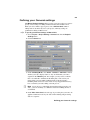
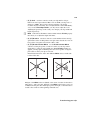
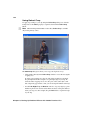
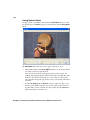
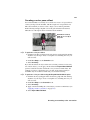
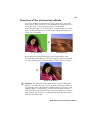
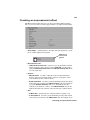
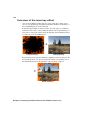
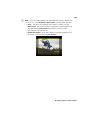
The Matrox mask effect lets you choose from dozens of soft-edged cutout shapes
that you can apply to a clip to superimpose it onto another clip.
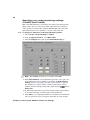
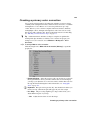
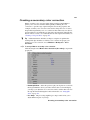
° To set up a Matrox mask effect:
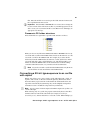
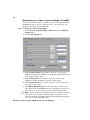
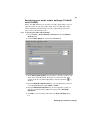
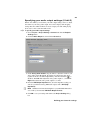
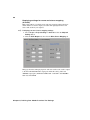
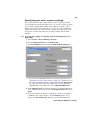
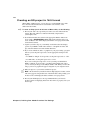
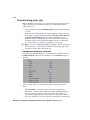
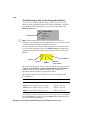
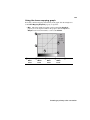
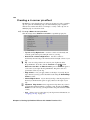
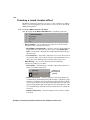
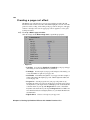
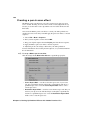
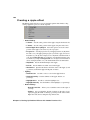
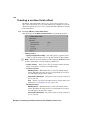
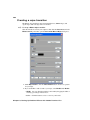
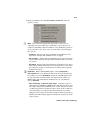
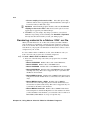
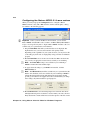
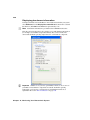
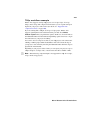
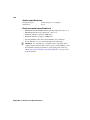
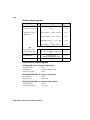
Click the triangle beside Matrox Mask to expand the property list.
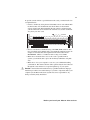
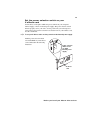
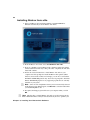
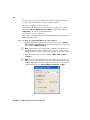
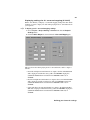
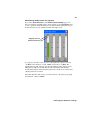
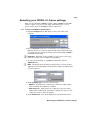
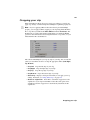
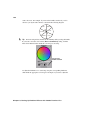
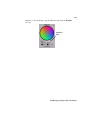
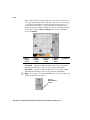
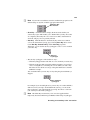
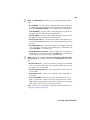
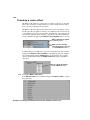
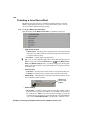
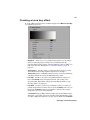
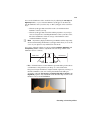
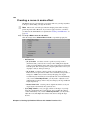
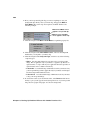
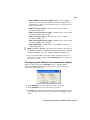
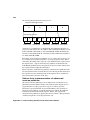
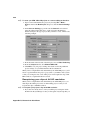
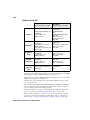
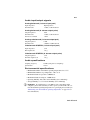
• Select Shape Click the button to the right of the current pattern to see the
list of available mask patterns.
Click here to
select a new
pattern
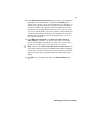
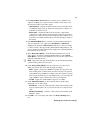
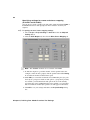
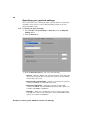
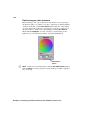
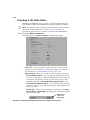
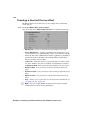
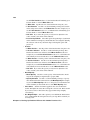
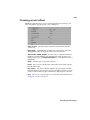
• Shape Transparency Sets the transparency of the shape and the area
around the shape. At the default setting (0), the shape is completely opaque
and the area around the shape is transparent. Dragging the slider to the left
increases the transparency of the shape. Dragging the slider to the right
decreases the transparency of the area around the shape.
• Outside Transparency
your mask.
Sets the transparency level of the area outside
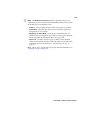
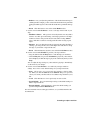
¦ Note The Outside Transparency setting is applicable only if you’ve
scaled down, moved, or rotated your mask using the transform controls so that
the mask doesn’t cover the entire screen. When Outside Transparency is
applied, the Shape Transparency sets the overall transparency of the entire
clip.
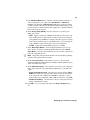
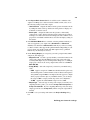
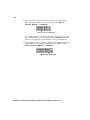
• Softness
Applies softness to the edges of your mask.
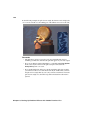
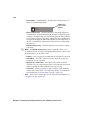
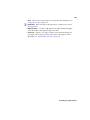
• Invert Mask Select this option if you want to invert the opaque and
transparent areas of your mask.
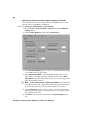
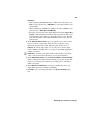
• Apply Crop to Video Only Select this if you want the mask to be
squeezed to fit your cropped clip. If you don’t select this option, the mask
will be cropped by the same amount that you crop your clip.
Chapter 9, Setting Up Realtime Effects with Adobe Premiere Pro