1
147
Creating a color pass effect
You can use the Matrox secondary color correction to create a color pass effect to
convert your clip to black and white, with the exception of one specified color.
This can be useful if you want to isolate a single color to make it prominent.
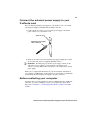
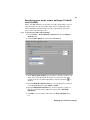
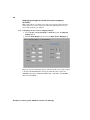
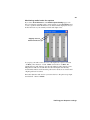
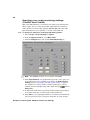
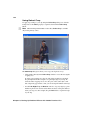
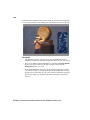
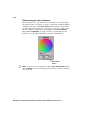
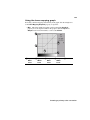
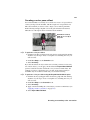
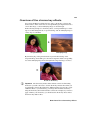
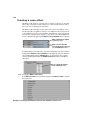
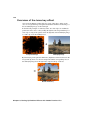
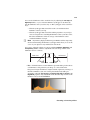
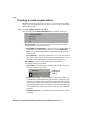
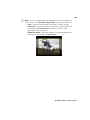
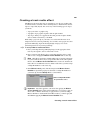
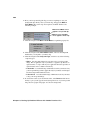
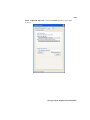
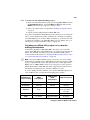
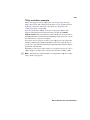
In the following example, the pink color of the girl’s shirt has been retained,
while the rest of the clip has been converted to black and white:
Pink shirt is isolated,
while the rest of clip is
grayscale.
° To perform a color pass effect:
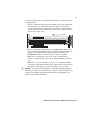
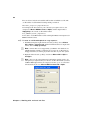
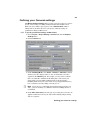
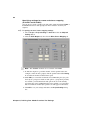
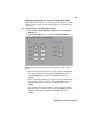
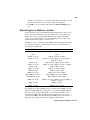
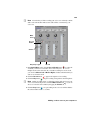
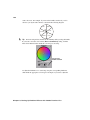
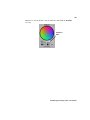
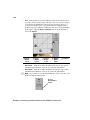
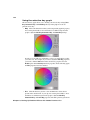
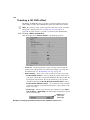
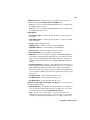
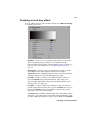
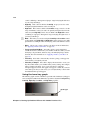
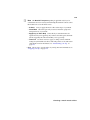
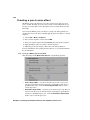
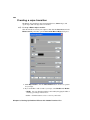
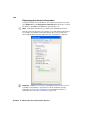
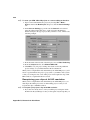
1 Click the Auto Key eyedropper in the selective key graph and click and drag
anywhere on your clip to create a rectangular area containing the color you
want to isolate.
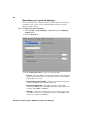
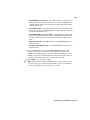
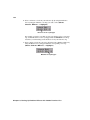
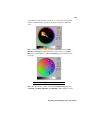
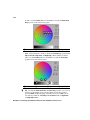
2 Under Proc Amps, set the Saturation to 0.
3 Select Invert Key.
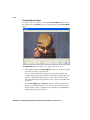
If you have more than one object of the same color but you want to isolate only
one of those objects, you can apply a mask and use the Expand Outside Mask
option to isolate the area that contains the color you want to remain intact. For
example, if you have a clip that has two roses that are the same red and you
would like only one of them to remain red, you can do the following.
° To perform a color pass effect using the Expand Outside Mask option:
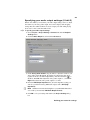
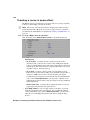
1 Click the auto key eyedropper in the selective key graph and click and drag
anywhere on your clip to create a rectangular area containing the color you
want to isolate.
2 Under Proc Amps set the Saturation to 0.
3 Select Invert Key.
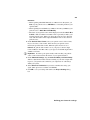
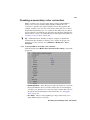
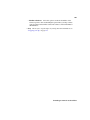
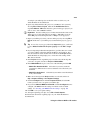
4 Apply a mask surrounding the colored object you want to remain intact (see
“Applying a mask to your effect” on page 123).
5 Select Expand Outside Mask.
Creating a secondary color correction