1
SMARTLIBRARY USER MANUAL
Defining Notification Service Settings
SmartLibrary has the ability to send approval Reminder and Escalation emails when
documents are not being approved in a timely fashion. Configuring the Reminder and
Escalation email settings are done via Customizing Notification Settings when creating
workflows.
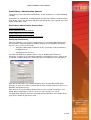
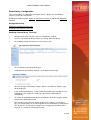
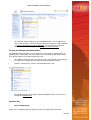
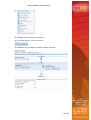
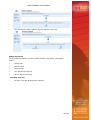
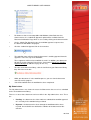
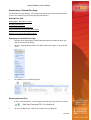
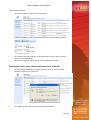
On the front page of the SmartLibrary Administration Console you will notice a button
titled ‘Notification Settings’. Click on this button to view the ‘Notification Settings’ form.
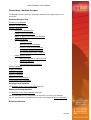
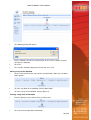
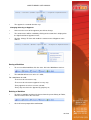
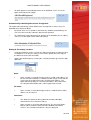
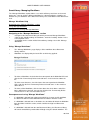
To enable this feature of SmartLibrary check the ‘Enable Notifications’ check box. The
notification settings will become editable. These settings are described as follows:
•
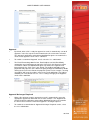
Run Every This setting defines how often the service should run. It can be
configured to run on a daily or weekly schedule. The number of days or weeks
between executions of the service is defined by the number property.
•
Time This setting defines at what time the service should run. Nintex
recommends setting this value to a time that your Windows Sharepoint
Services server and mail server are not busy. Note: The time property is 24hr
time format.
•
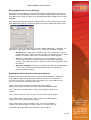
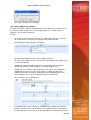
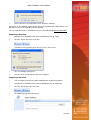
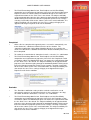
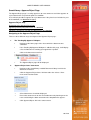
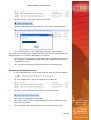
Advanced Schedule If you wish to set advanced settings on the Notification
service, click the Advanced Schedule button and the scheduled task
properties window will open.
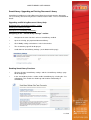
Enabling SharePoint Events for Document Libraries
By default, SharePoint does not enable events for document libraries. Follow the
steps below to enable events for document libraries. Events are enabled on a
per virtual server basis. Therefore, when you enable events, you enable them for
all sites created on the specified virtual server.
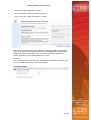
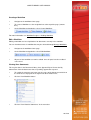
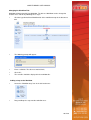
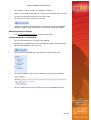
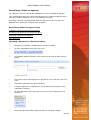
On the server with Smart Library installed, click ‘Start’, point to
‘Administrative Tools’, and then click ‘SharePoint Central Administration’.
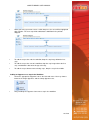
In the ‘Virtual Server Configuration’ section, click ‘Configure virtual server
settings’.
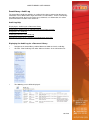
On the ‘Virtual server list’, click the virtual server that you want to enable.
On the Virtual Server Settings page, in the ‘Virtual Server Management’
section, click ‘Virtual server general settings’.
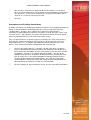
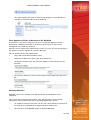
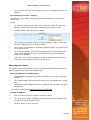
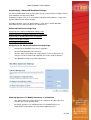
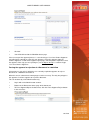
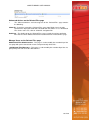
On the ‘Virtual Server General Settings’ page, in the ‘Event Handlers’
section, in the ‘Event handlers are’ box, select ‘On’, and then click ‘OK’.
Installation and configuration of SmartLibrary is now complete.
7 of 59