1
ABOUT THIS MANUAL
This manual provides basic instructions for user of Dejavoo Systems terminal products. It is suggested that you
read through this document to assist you in getting the full value of using the features provided by your Dejavoo
Systems product. Should you need to download additional copies of this manual you can do so on our website,
www.dejavoosystems.com, or by emailing [email protected].
DOCUMENT CONVENTIONS
The following symbols were used throughout this manual allowing the reader to easily identify instructions,
explanations and examples of the features found in the Dejavoo Systems terminal application.
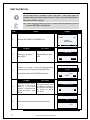
When you see this symbol it represents an explanation or a definition of the feature or option
you are reading about. Information is provided to assist the user when using the many
features and options provided by Dejavoo Systems software.
When you see this symbol it represents important additional information such as an example
of how the feature can be used, an important tip for using the feature or an important note to
be brought to your attention.
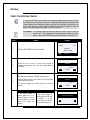
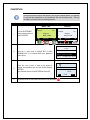
DEFAULT PASSWORD
The terminal’s factory default password is 1 2 3 4. This password can be customized either
through programming or manually at the terminal level. For more information on how to
customize the terminal’s security password at the terminal level see page 82 for instructions.
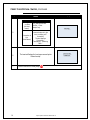
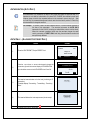
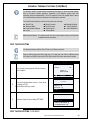
DEJAVOO MENUS
There are multiple menu’s that reside in the Dejavoo Systems software the exact number
depends primarily on how many applications are being run in the terminal. Please see
definitions below:
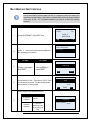
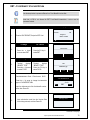
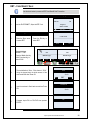
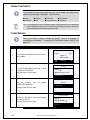
Core Menu
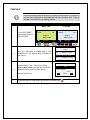
Application
Menu
In this menu you will find features settings that are Global to the
terminal, used by all applications. Some examples of Core Menu items
are: Adjusting the terminal’s Contrast, Setting the terminal’s time and
date, Printing reports for all applications running in the terminal, etc.
For detailed instructions of Core Menu options see page 75.
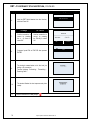
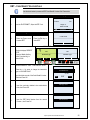
From the Core menu you can navigate to the different host Application
Menu’s, for example you can access the Credit/Debit menu where you
will find options such as: Transaction Prompts, Value Added Server,
and printing Reports only for Credit/Debit transactions, etc. For
detailed instructions on Host Application options see page 102.