1
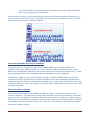
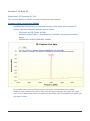
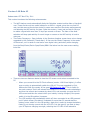
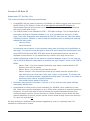
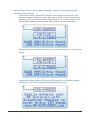
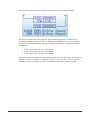
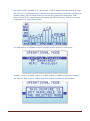
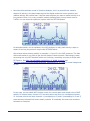
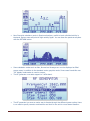
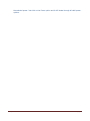
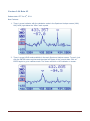
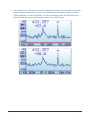
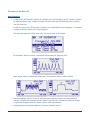
New Max Hold calculator mode in Spectrum Analyzer, this is a powerful new mode to capture all activity in the band capturing the Max signal mode with vector graphics and realtime activity with vertical bars. Use this mode anytime you want to detect activity for a long period of time. It is a very powerful mode to detect activity in busy bands such as 2.4Ghz. You can clean the spectrum anytime with the RETURN button. As described earlier, this is available in the WiFi Analyzer as well, peak activity is kept on screen for as long as you don’t recycle with RETURN button. See screens below showing activity in channels 1, 6 and 13 in the WiFi spectrum. The Max Hold mode makes it very easy to get the full shape of these channels. Interestingly, these are among the only WiFi channels which won’t overlap, something very easy to shape with RF Explorer. See http://en.wikipedia.org/wiki/List_of_WLAN_channels and http://en.wikipedia.org/wiki/Electromagnetic_interference_at_2.4_GHz for some background on this. In any case, you can select WiFi Analyzer mode for a much easier and simpler view of WiFi activity. On screen below, channel 13 is currently active and thus it is overlapping channel 12. At some point in the past, channels 1 (overlapping on 2) and 6 (overlapping on 5 and 7) were active as the peak hold marks clearly indicate. It is basically the same view as above but easier to interpret. RF Explorer Cumulative Release Notes page 29