1
7.
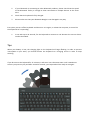
The keyboard will now be successfully paired and whenever Bluetooth is enabled on the iPad
/ iPhone and the keyboard is turned on, it will automa cally connect a er a few seconds
from now on.
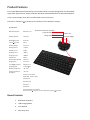
Note: To turn the keyboard on, hold down the Connect and Power bu on for a few seconds un l the
Bluetooth light appears. This light will disappear as soon as the keyboard has connected to an already
paired device, or if no device is found, it will automa cally turn off a er 5 seconds.
Function Switching
There are a number of user Func on keys, which can be enabled by pressing the FN key before
pressing them.
1.
Press FN+ (F1-F12) enables the func ons of F1-F12 within Windows;
2.
Press FN + ESC enables the func on of Web Searching on Windows;
3.
Entering Command + Space allows you to switch between different languages and input
methods.
Charging
When the keyboard is running low on power, the charge indicator will start flashing. This means that
it is me to charge the keyboard.
Charging Procedure
1.
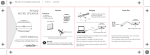
Use the USB charging cable provided. Connect it to a USB charger, and then connect the
other end of the plug into the keyboard as follows.
Charge indicator
USB Port
2.
The charge indicator will glow red, indica ng it is charging. A er charging has finished, the
red indicator will turn off. Charging me is approximately 2.5 - 3 hours.