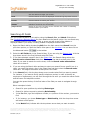
1
OrgPublisher 11 User Guide
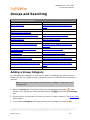
Groups and Searching
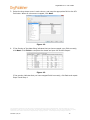
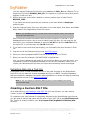
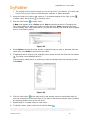
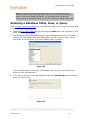
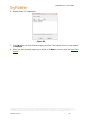
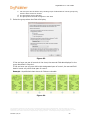
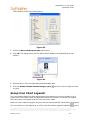
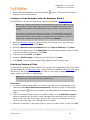
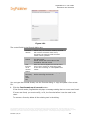
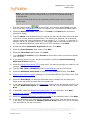
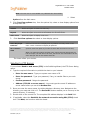
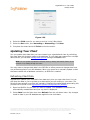
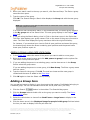
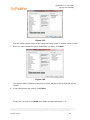
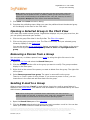
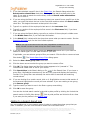
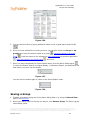
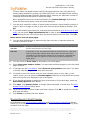
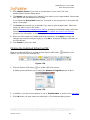
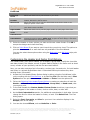
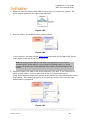
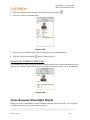
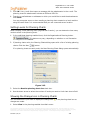
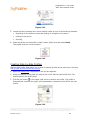
3. Type the name of the group.
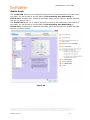
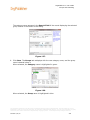
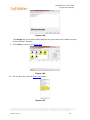
4. Click OK. The Search dialog or Search View displays the Groups tab with the new group
shown. If an end user has conducted a search in the published chart, the saved group
displays in the My groups tab of the Search View.
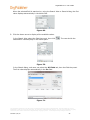
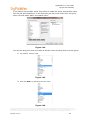
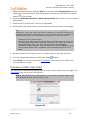
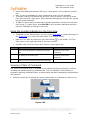
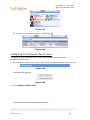
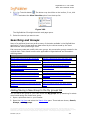
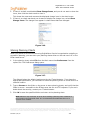
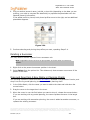
5. If you are using the Search dialog, close it. Click on the down-arrow in the Styles bar. A
Filter View displays your group names.
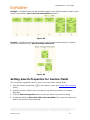
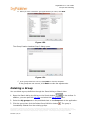
6. Click on the name of the group you want to chart. The Chart View displays the group
members within the original hierarchy.
For instance, if you searched your chart to find all open positions and saved the group,
the charted group shows the boxes containing open positions and the parent boxes
those open positions report to.
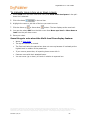
Auto Pinning Group or Search Results as Side-by-Side Profiles
You can use new search results or a search result from an existing group to automatically
pin profiles (maximum of six records at a time) to the Profile View.
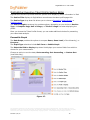
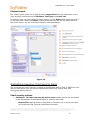
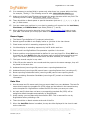
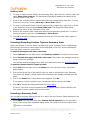
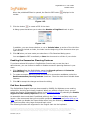
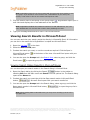
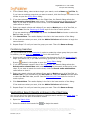
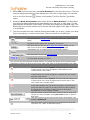
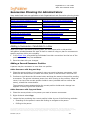
1. Conduct your search in the Search View or Search dialog.
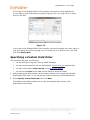
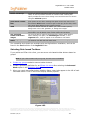
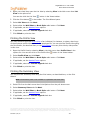
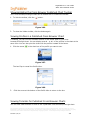
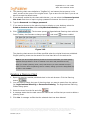
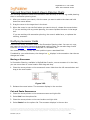
2. Click the Show the search results in the Profile View button
. If there are more than
six records in the Search Results pane, OrgPublisher selects the first six to display in the
side-by-side profile.
3. Click the button again to add the next 6 records, repeating the process, if applicable,
until all the records you want are in the pinned Profile View.
4. If the search results in less than 6 pinned profiles, you can manually add and pin
additional records by selecting a record that matches your original search criteria.
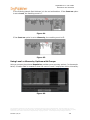
Saving Side By Side Profiles as a Group
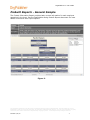
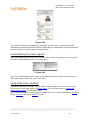
You can create groups from the displayed and pinned side-by-side profiles.
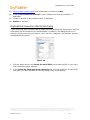
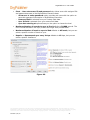
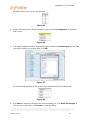
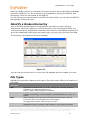
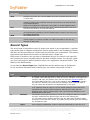
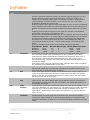
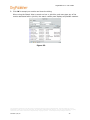
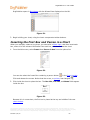
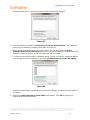
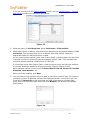
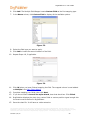
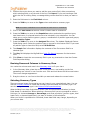
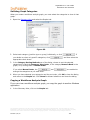
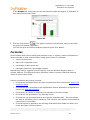
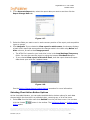
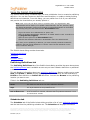
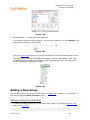
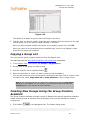
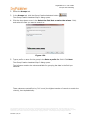
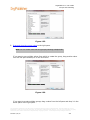
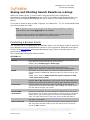
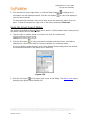
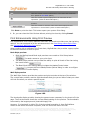
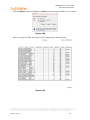
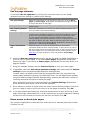
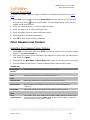
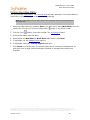
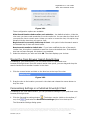
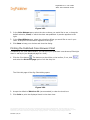
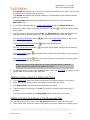
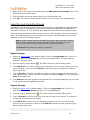
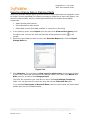
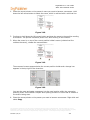
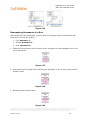
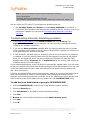
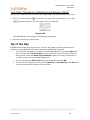
1. Select the profiles you want to use as a side-by-side profile then click on the Save the
current set of people as a new group button
.
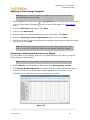
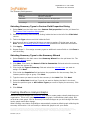
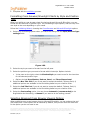
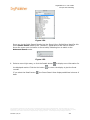
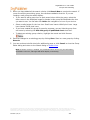
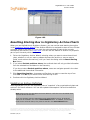
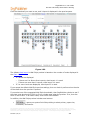
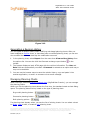
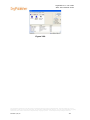
Figure 159.
The information contained in this document is confidential and proprietary to Peoplefluent®. This information may not be
distributed or used for any purpose other than the evaluation of Peoplefluent® solutions, nor may it be disclosed to any party
without the prior written consent from Peoplefluent®. Copyright © 2001 - 2013 Peoplefluent®. All Rights Reserved.
Revised 7/31/13
264