1
OrgPublisher 11 User Guide
Formatting Charts
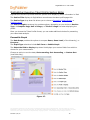
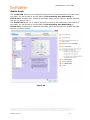
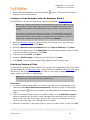
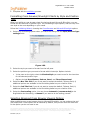
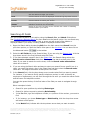
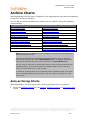
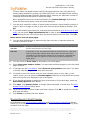
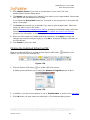
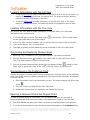
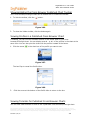
1. Select Format from the Main menu then Advanced box layout from the options list.
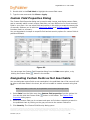
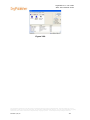
The Format dialog opens to the Advanced box layout tab displaying a single check
box.
2. Select the style, if applicable, and the position type you want to modify from the left
pane.
3. Select the Use advanced box layout for this position type check box. The advanced
box layout options appear.
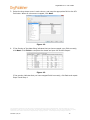
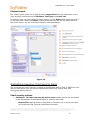
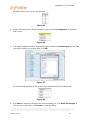
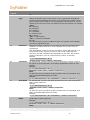
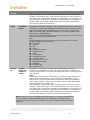
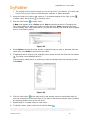
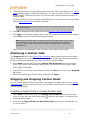
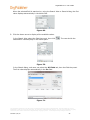
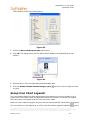
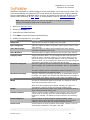
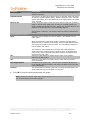
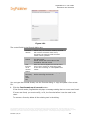
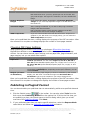
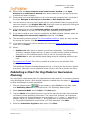
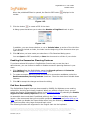
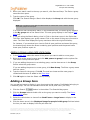
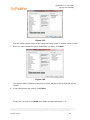
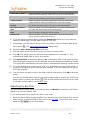
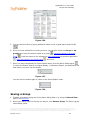
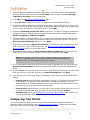
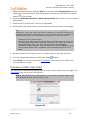
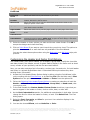
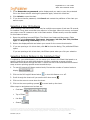
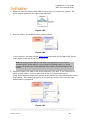
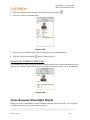
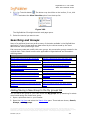
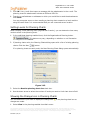
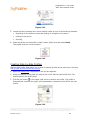
4. Click Add. The Add Item to Layout dialog opens. Three types of fields are available, Box
field, Job field, and Name field. Associated custom fields display for each field.
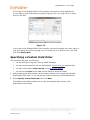
5. Select the field you want to add, such as a photo or e-mail address. If you want the field
label, as well as the field data, to display in the box, select the Automatically add
label item check box at the bottom of the list box.
6. Click Add item. The item is added to the Advanced box layout tab
Arranging Sections in the Box Layout
You can arrange the order of fields within the chart boxes in the selected style.
1. Select Format from the Main menu then Advanced box layout from the options list.
The Format dialog opens to the Advanced box layout tab displaying a single check
box. If you have already used this option for this chart, the layout options already
display.
2. Select the style, if applicable, and the position type you want to modify from the left
pane.
3. Select the Use advanced box layout for this position type check box, if applicable.
The advanced box layout options display in the right-side of the tab.
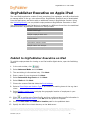
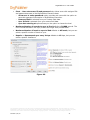
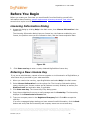
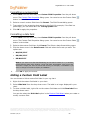
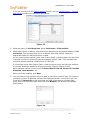
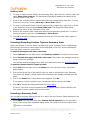
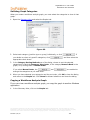
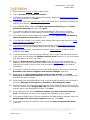
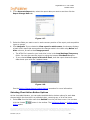
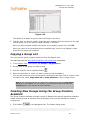
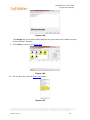
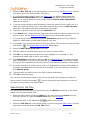
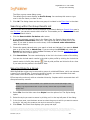
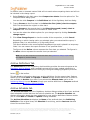
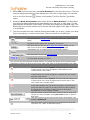
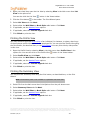
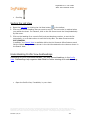
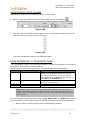
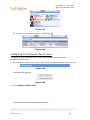
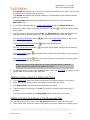
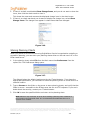
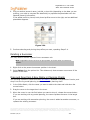
4. Click Arrange. The Arrange Sections dialog opens.
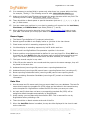
5. Select the radio button that describes the order in which you want the field sections to
display in the chart box.
6. Click OK. The list box closes.
7. Click OK in the Advanced box layout tab. The Format dialog closes and the field
sections are rearranged for the position type you selected.
Copying the Box Layout to Another Position Type
You can copy the advanced box layout of one position type to another position type in the
current style.
1. Select Format from the Main menu then Advanced box layout from the options list.
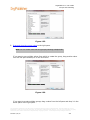
The Format dialog opens to the Advanced box layout tab. Since you have modified a
layout previously, the advanced box layout options are shown.
2. Click on the style, if applicable, and the position type layout you want to copy.
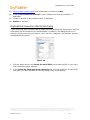
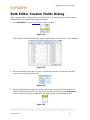
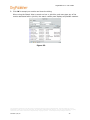
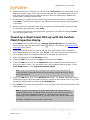
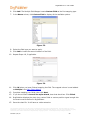
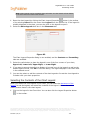
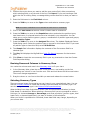
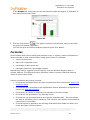
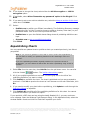
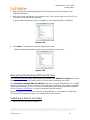
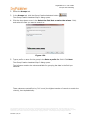
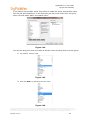
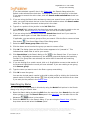
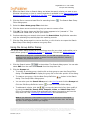
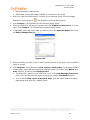
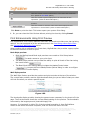
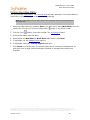
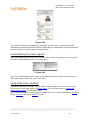
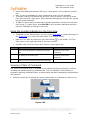
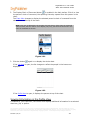
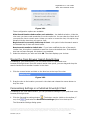
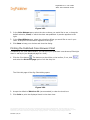
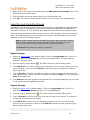
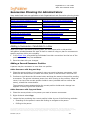
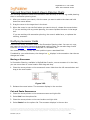
3. Click Copy layout. The Copy Box Layout dialog opens.
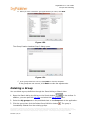
4. Select the style, if applicable, and the position type to which you want to copy the
layout.
The information contained in this document is confidential and proprietary to Peoplefluent®. This information may not be
distributed or used for any purpose other than the evaluation of Peoplefluent® solutions, nor may it be disclosed to any party
without the prior written consent from Peoplefluent®. Copyright © 2001 - 2013 Peoplefluent®. All Rights Reserved.
Revised 7/31/13
154