1
CFD-ACE+ 2003 : Integrated Circuit (IC) Thermal Analysis Tutorial
____________________________________________________________________________________
Post-Processing Simulation Results
31. Visualize IC thermal simulation results.
This section shows how to use CFD-VIEW to obtain color contours for temperature, wall heat flux etc. It also
describes how to obtain line plots for temperature variations in a cross-section. For more details on how to use
VIEW refer to the CFD-VIEW User Manual.
•
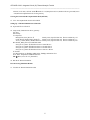
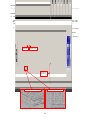
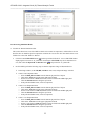
Click the Launch CFD-VIEW button [ ] in the top toolbar of CFD-GUI. A new CFD-VIEW window
displaying the IC structure of “IC_Heat.DTF” should open. CFD-VIEW may also be launched on it’s
own, then Click the Import DTF or Plot 3D button [ ] and open the file “IC_Heat.DTF”
•
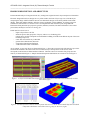
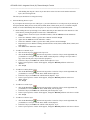
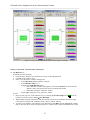
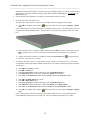
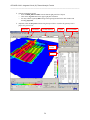
In CFD-VIEW, perform the following steps to obtain a temperature image as illustrated below:
In the image window, use the LB, MB, and RB to rotate, zoom, and pan the image as desired.
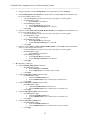
Create Z-Cut Temperature Plane:
o Select the Bulk_Silicon volume from the bottom right panel list of objects
o Click on the Z-Cut button in the upper right panel of buttons
o Set the Z-Cut location to 0.75e-6 (in meters) in the text-field in the middle right panel
o Click the Flooded On button along the top tool bar
o In the pull-down Color: menu, select T (temperature)
Create X-Cut Temperature Plane:
o Select the Bulk_Silicon volume from the bottom right panel list of objects
o Click on the X-Cut button in the upper right panel of buttons
o Set the X-Cut location to 75.0e-6 (in meters) in the text-field in the middle right panel
o Click the Flooded On button along the top tool bar
o In the pull-down Color: menu, select T (temperature)
Create Y-Cut Temperature Plane:
o Select the Bulk_Silicon volume from the bottom right panel list of objects
o Click on the Y-Cut button in the upper right panel of buttons
o Set the Y-Cut location to 55.0e-6 (in meters) in the text-field in the middle right panel
o Click the Flooded On button along the top tool bar
o In the pull-down Color: menu, select T (temperature)
25