1
4-14
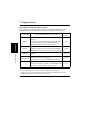
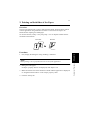
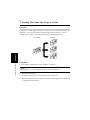
6. Printing on OHP Transparencies
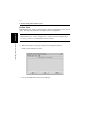
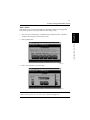
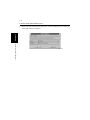
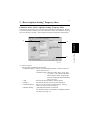
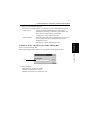
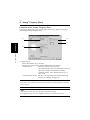
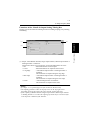
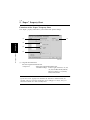
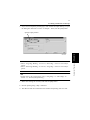
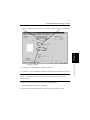
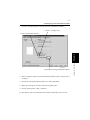
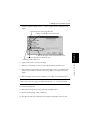
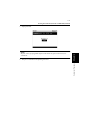
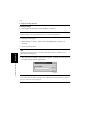
5. Click the “Detail of Paper Source”: “Detail of Paper Source” dialog box will
appear.
Chapter 4
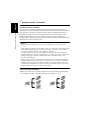
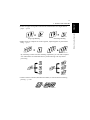
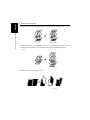
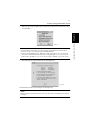
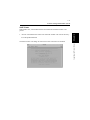
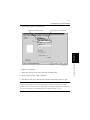
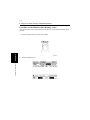
6. Select “OHP interleaving.”
4692P105CA
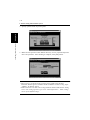
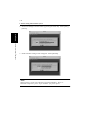
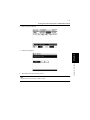
8. Select the paper source for the interleaves.
Convenient Functions
7. Select “with Image” to print OHP data on the interleaves.
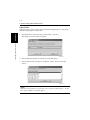
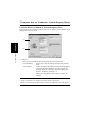
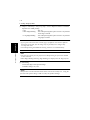
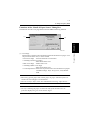
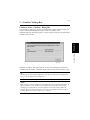
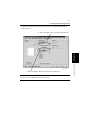
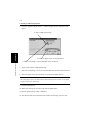
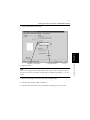
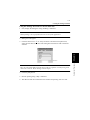
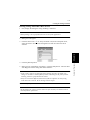
6. Apply check mark to “OHP Interleaving.”
7. Select the “with Image” box if you want the OHP data printed on the interleaves.
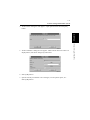
8. Select the paper source for interleaves in “Interleaving Paper Source.”
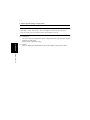
NOTE
The same paper source as that used for OHP transparencies cannot be specified
as paper source for interleaves.
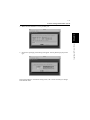
9. Click the [OK] button.
10. Make other settings as necessary and click the [OK] button.
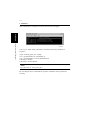
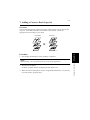
11. Execute printing using “dilpr” command.
12. The data will then be transferred to the machine and printing will soon start.