1
2. Starting RollCall-Pro System
Once the RCP software is loaded and configured properly and the SideKeys hardware is installed, the full
RollCall-Pro system is ready to operate.
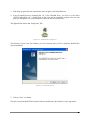
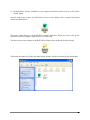
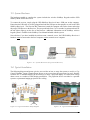
1. Double-click on the Launch RollCall-Pro icon that is on your computer desktop.
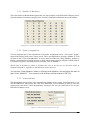
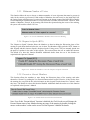
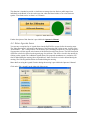
The first screen you will see is the Startup window,
Figure 2-1. Starting RollCall-Pro System
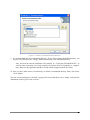
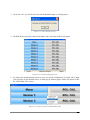
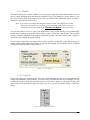
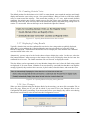
2. Click on “Start” to open the application.
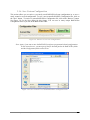
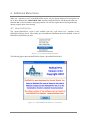
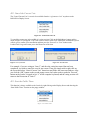
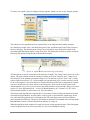
Figure 2-4. Confirm Screen asking if you have a Configuration you want to load
The application needs to know if you have already created a configuration for the Council/Board that will
be using the RollCall-Pro system. If you have such a configuration already saved and you wish to use it
now, simply click “Yes” and skip to the next Section: Configuring RollCall-Pro System. If you do not
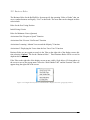
have a configuration saved, click the “No” button and continue to Step #3 below.
Installation & Setup of RollCall-Pro System
2-9