1
1. RollCall-Pro Installation
Normally this software is installed on a single PC or laptop computer that is usually situated in a
board/council chamber. The RollCall-Pro System could also be setup on a network computer that is then
accessed through any room with a computer that has a network connection to the central server where the
program was installed. The following instructions assume a normal PC or laptop installation, but where a
network install would differ, the network installation differences will be noted — the major difference
being where you install the software and where you save the Results.
Note: To install onto the network, you must install the CD onto the network server computer, BUT
the RollCall-Pro USB SideKeys receiver must be installed on the local PC in board/council
chamber in order for the keypads to work correctly.
1.1 System Requirements
Minimum system requirements to run RollCall-Pro include the following:
Pentium III Processor
Microsoft Windows 2000:
128 MB of RAM minimum
Full install size: 10 MB
Microsoft Windows XP (Home or Professional) Edition:
128 MB of RAM minimum (256 MB recommended)
Full install size: 10 MB
Microsoft Windows Vista Edition:
256 MB of RAM minimum (512 MB recommended)
Full install size: 10 MB
CD-ROM drive and USB port
RollCall-Pro Hardware (USB SideKeys Receiver II, 3, or 4 and Keypads)
Disk space requirements for RollCall-Pro installation
The RollCall-Pro Setup installs all of its files on the drive where the Windows operating
system is installed. The default directory is “C:\Program Files\RollCall-Pro\”.
1.2
System Software
To install RollCall-Pro software:
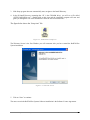
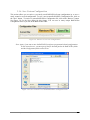
1. Load the RollCall-Pro System CD into the CD-ROM of the computer.
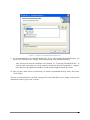
2. The Setup program should automatically start.
Installation & Setup of RollCall-Pro System
1-1