1
410 Using the Task/Messaging Module
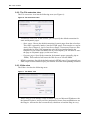
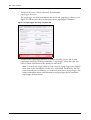
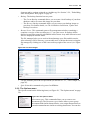
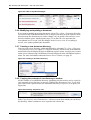
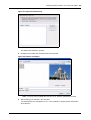
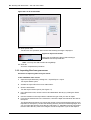
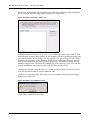
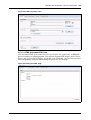
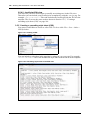
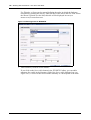
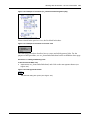
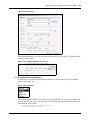
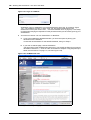
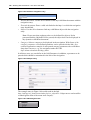
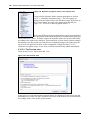
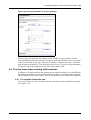
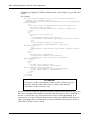
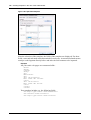
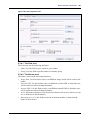
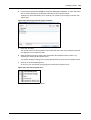
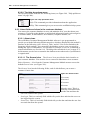
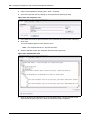
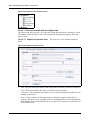
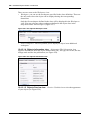
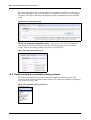
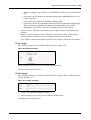
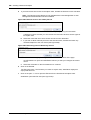
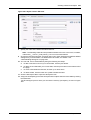
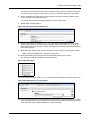
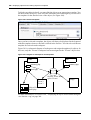
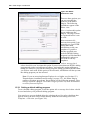
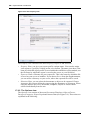
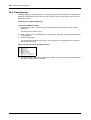
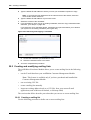
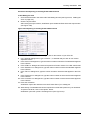
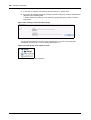
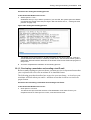
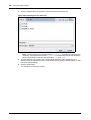
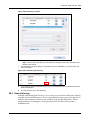
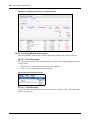
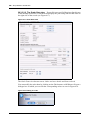
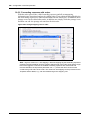
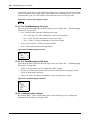
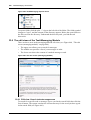
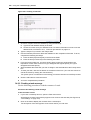
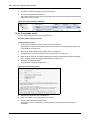
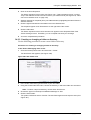
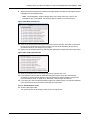
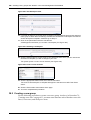
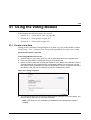
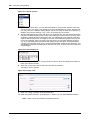
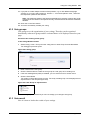
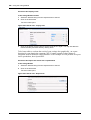
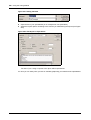
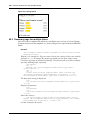
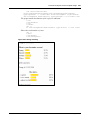
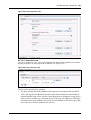
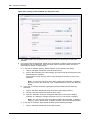
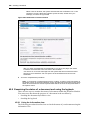
Figure 467 Creating a new task
2
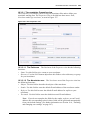
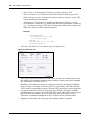
Choose a recipient. Enter the address by doing the following:
a
Type an E-mail address directly in the field.
b
Choose a receiver from your address book. For further information on how to use the
address book, see Section 34.3, "Common procedures" on page 414.
3
Type the subject of your task in the Subject field.
4
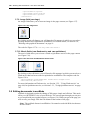
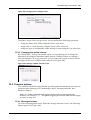
Use the Deadline pick lists to define the deadline for the completion of the task. To do so,
complete the following sub-steps:
a
Enter the date (day/month/year) in the first three fields.
b
Enter the time (hour/minute) in the following two fields.
5
From the Priority select box, choose a priority status, where the priority defines the
importance of each task. Choose one (1) to designate the highest priority, ten (10) to
designate the lowest priority.
6
Write the details about the task you wish to assign in the text field below the Priority select
box.
7
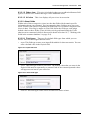
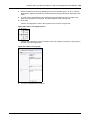
To send your task, click the OK button on the bottom of the form. (You can also choose to
cancel the action by clicking the Cancel button.)
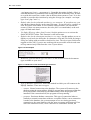
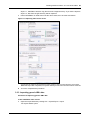
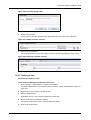
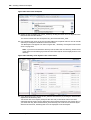
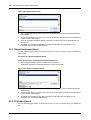
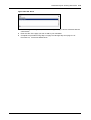
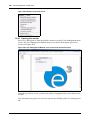
The system opens a confirmation screen telling you that the task was successfully created.
8
Click the OK button to close the screen.
9
You have completed this procedure.
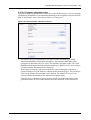
34.2.2 Reading a task message
Use the following procedure to read the contents of a task.
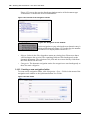
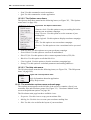
Procedure 66 Reading a task message
In the task main screen
1
If you have not already done so, open the Task main screen.
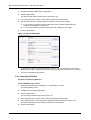
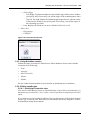
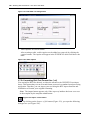
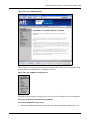
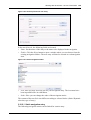
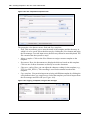
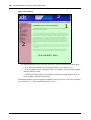
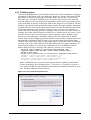
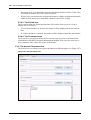
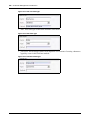
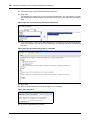
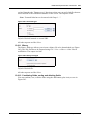
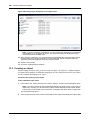
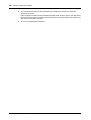
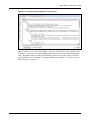
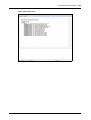
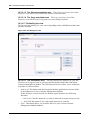
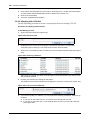
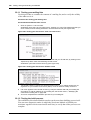
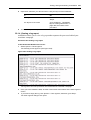
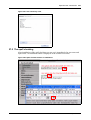
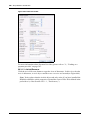
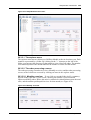
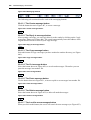
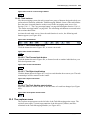
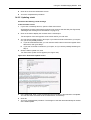
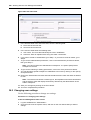
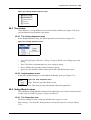
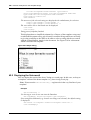
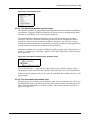
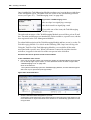
All messages or tasks in the directory appear on the screen in the edit view (see Figure 475,
"Task waiting!" on page 415).
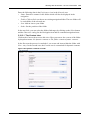
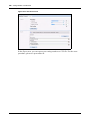
2
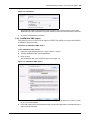
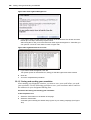
Click on the task to display the contents of the communiqué.
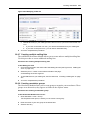
The description of the task appears in the bottom half of your edit view.
Standard 4.1.1 October 2006