1
Creating classes and objects 261
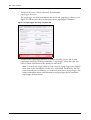
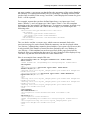
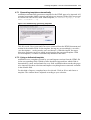
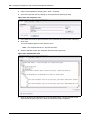
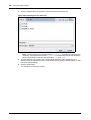
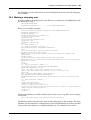
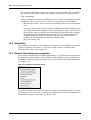
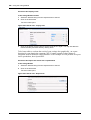
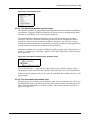
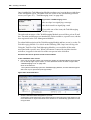
The system confirms that the new directory has been saved. After you close this dialog box,
your new directory appears in the explorer menu as a subfolder under the events folder.
6
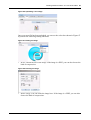
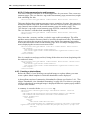
Create a subdirectory called events_2004 under the Documents view by selecting File >
New > Directory > Documents directory.
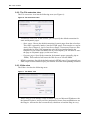
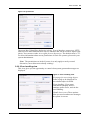
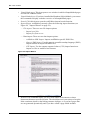
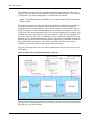
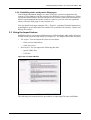
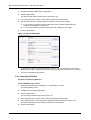
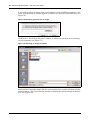
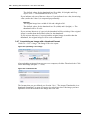
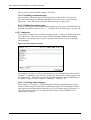
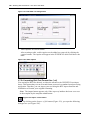
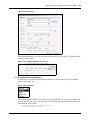
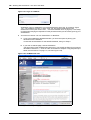
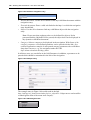
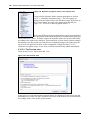
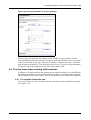
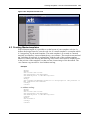
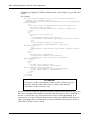
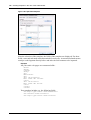
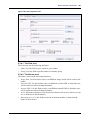
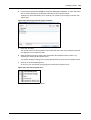
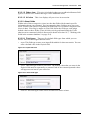
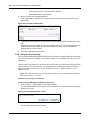
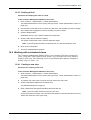
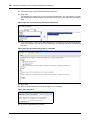
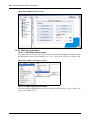
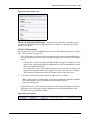
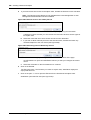
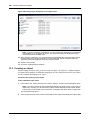
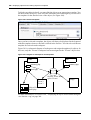
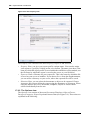
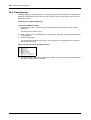
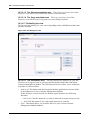
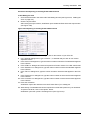
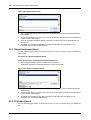
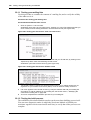
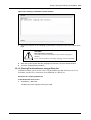
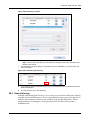
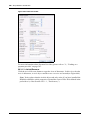
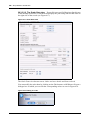
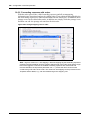
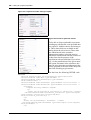
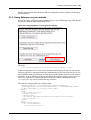
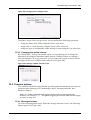
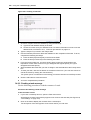
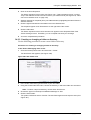
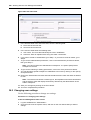
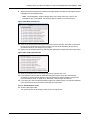
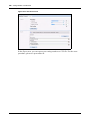
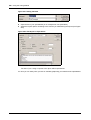
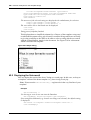
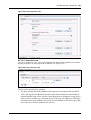
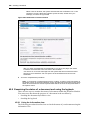
The system opens the Documents Properties view (see Figure 292).
7
Repeat Step 2 through Step 5.
Figure 292 New documents subdirectory
8
Create a new object called 2004_01_01_01 in the newly created subclass object folder
events_2004. To do so, click File > New > Object > events, type 2004_01_01_01 in the
Object name field, and choose the events_2004 directory using the Select button adjacent
to the Directory field.
9
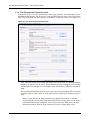
While still in the Objects view, click the Edit tab, and enter values into the required fields.
Note: The required fields are noted with an asterisk (*).
10 Save and publish the new object in the subclass object folder events_2004.
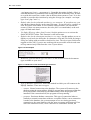
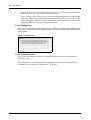
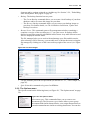
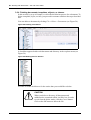
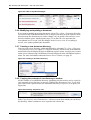
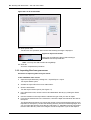
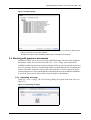
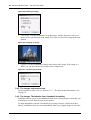
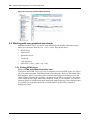
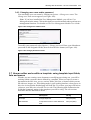
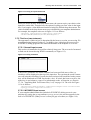
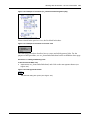
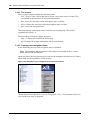
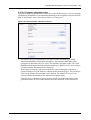
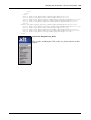
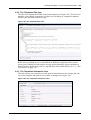
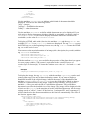
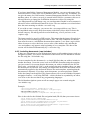
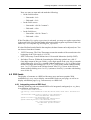
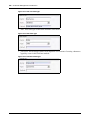
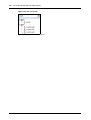
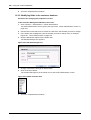
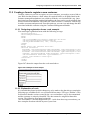
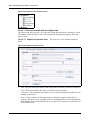
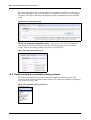
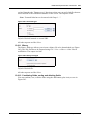
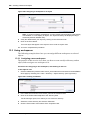
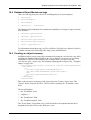
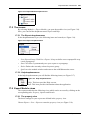
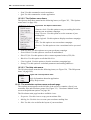
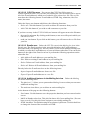
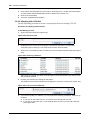
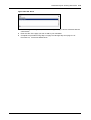
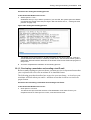
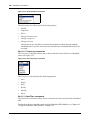
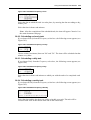
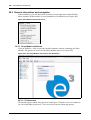
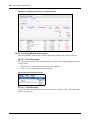
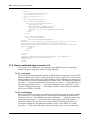
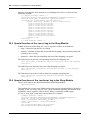
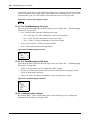
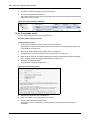
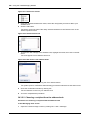
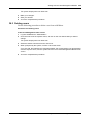
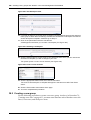
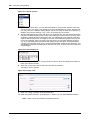
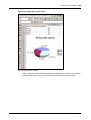
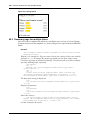
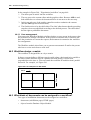
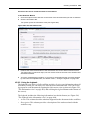
You will see the following display in the explorer menu:
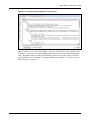
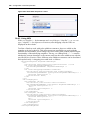
Figure 293 New object
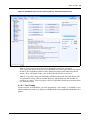
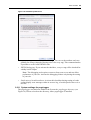
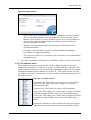
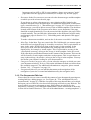
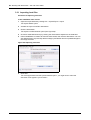
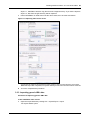
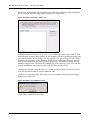
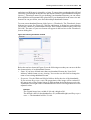
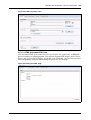
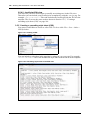
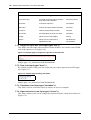
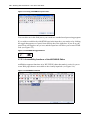
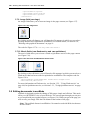
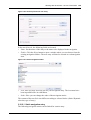
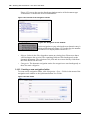
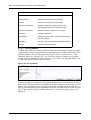
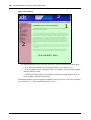
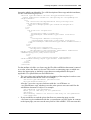
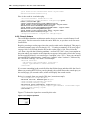
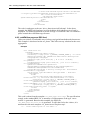
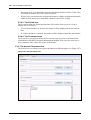
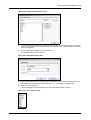
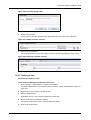
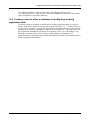
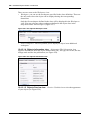
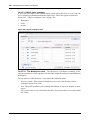
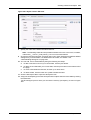
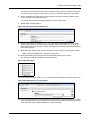
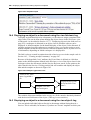
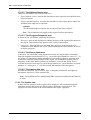
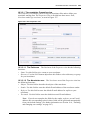
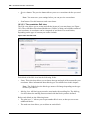
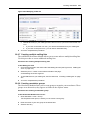
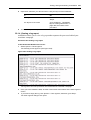
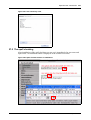
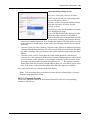
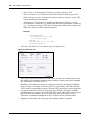
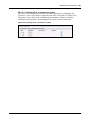
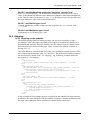
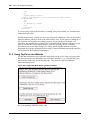
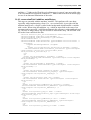
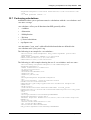
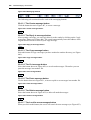
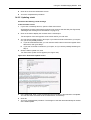
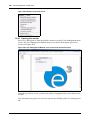
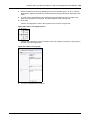
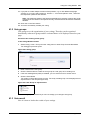
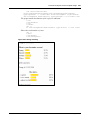
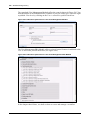
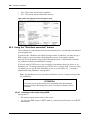
11 Click on the new object 2004_01_01_01 and select the Workspace view (see Figure 294).
Figure 294 Workspace for the new object
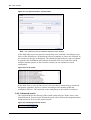
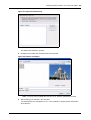
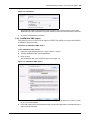
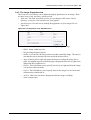
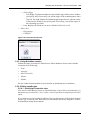
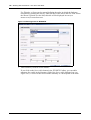
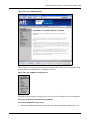
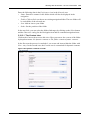
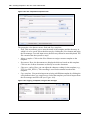
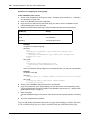
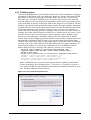
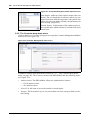
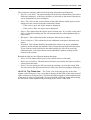
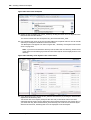
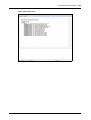
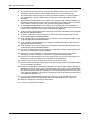
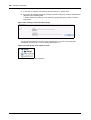
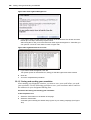
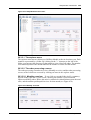
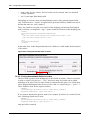
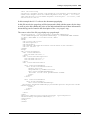
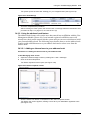
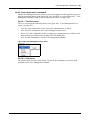
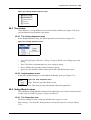
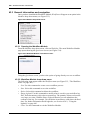
12 Add a new workspace /we_demo/events/events_2004 from the Add workspace drop-down
menu (see Figure 295). (This workspace is actually the new subdirectory that you created
in the document view in Step 6 and Step 7 of this procedure).
Database/Object Module