1
THE REGIONAL TRAINING WORKSHOP ON LARVAL FISH IDENTIFICATION
AND FISH EARLY LIFE HISTORY SCIENCE
SEAFDEC/TD, SAMUT PRAKAN, THAILAND
16 – 31 MAY 2007
TRD 05: Data Presentation techniques (Mapping)
Quantum GIS User Guide
Quantum GIS User Guide
Version 0.8 ’TITAN’
Gary E. Sherman
Tim Sutton
Radim Blazek
Stephan Holl
Otto Dassau
Tyler Mitchell
Brendan Morely
Lars Luthman
Contents
Contents
Title
i
Table of Contents
ii
List of figures
vii
List of tables
viii
1. Forward
1.1. Major Features . . . . . . . . . . . . . . . . . . . . . . . . . . . . . . . . . . . . . . . .
1.2. Whats New in 0.8 . . . . . . . . . . . . . . . . . . . . . . . . . . . . . . . . . . . . . . .
1
1
2
2. Introduction To GIS
2.1. Why is all this so new? . . . . . . . . . . . . . . . . . . . . . . . . . . . . . . . . . . . .
2.1.1. Raster Data . . . . . . . . . . . . . . . . . . . . . . . . . . . . . . . . . . . . . .
2.1.2. Vector Data . . . . . . . . . . . . . . . . . . . . . . . . . . . . . . . . . . . . . .
3
4
4
5
3. Getting Started
3.1. Installation . . . . . . . . . . . . . . . . . . . . . . .
3.2. Sample Data . . . . . . . . . . . . . . . . . . . . . .
3.3. Starting QGIS . . . . . . . . . . . . . . . . . . . . . .
3.3.1. Command Line Options . . . . . . . . . . . .
3.4. QGIS GUI . . . . . . . . . . . . . . . . . . . . . . . .
3.4.1. Menu Bar . . . . . . . . . . . . . . . . . . . .
3.4.2. Toolbars . . . . . . . . . . . . . . . . . . . . .
3.4.3. Map Legend . . . . . . . . . . . . . . . . . .
3.4.4. Map View . . . . . . . . . . . . . . . . . . . .
3.4.5. Map Overview . . . . . . . . . . . . . . . . .
3.4.6. Status Bar . . . . . . . . . . . . . . . . . . . .
3.5. Rendering . . . . . . . . . . . . . . . . . . . . . . . .
3.5.1. Scale Dependent Rendering . . . . . . . . .
3.5.2. Controlling Map Rendering . . . . . . . . . .
3.5.3. Suspending Rendering . . . . . . . . . . . .
3.5.4. Setting Layer Add Option . . . . . . . . . . .
3.5.5. Updating the Map Display During Rendering
3.6. Measuring . . . . . . . . . . . . . . . . . . . . . . . .
3.6.1. Measure length . . . . . . . . . . . . . . . . .
3.6.2. Measure areas . . . . . . . . . . . . . . . . .
3.7. Projects . . . . . . . . . . . . . . . . . . . . . . . . .
3.8. GUI Options . . . . . . . . . . . . . . . . . . . . . . .
3.9. Spatial Bookmarks . . . . . . . . . . . . . . . . . . .
3.9.1. Creating a Bookmark . . . . . . . . . . . . .
QGIS 0.8 User Guide
.
.
.
.
.
.
.
.
.
.
.
.
.
.
.
.
.
.
.
.
.
.
.
.
.
.
.
.
.
.
.
.
.
.
.
.
.
.
.
.
.
.
.
.
.
.
.
.
.
.
.
.
.
.
.
.
.
.
.
.
.
.
.
.
.
.
.
.
.
.
.
.
.
.
.
.
.
.
.
.
.
.
.
.
.
.
.
.
.
.
.
.
.
.
.
.
.
.
.
.
.
.
.
.
.
.
.
.
.
.
.
.
.
.
.
.
.
.
.
.
.
.
.
.
.
.
.
.
.
.
.
.
.
.
.
.
.
.
.
.
.
.
.
.
.
.
.
.
.
.
.
.
.
.
.
.
.
.
.
.
.
.
.
.
.
.
.
.
.
.
.
.
.
.
.
.
.
.
.
.
.
.
.
.
.
.
.
.
.
.
.
.
.
.
.
.
.
.
.
.
.
.
.
.
.
.
.
.
.
.
.
.
.
.
.
.
.
.
.
.
.
.
.
.
.
.
.
.
.
.
.
.
.
.
.
.
.
.
.
.
.
.
.
.
.
.
.
.
.
.
.
.
.
.
.
.
.
.
.
.
.
.
.
.
.
.
.
.
.
.
.
.
.
.
.
.
.
.
.
.
.
.
.
.
.
.
.
.
.
.
.
.
.
.
.
.
.
.
.
.
.
.
.
.
.
.
.
.
.
.
.
.
.
.
.
.
.
.
.
.
.
.
.
.
.
.
.
.
.
.
.
.
.
.
.
.
.
.
.
.
.
.
.
.
.
.
.
.
.
.
.
.
.
.
.
.
.
.
.
.
.
.
.
.
.
.
.
.
.
.
.
.
.
.
.
.
.
.
.
.
.
.
.
.
.
.
.
.
.
.
.
.
.
.
.
.
.
.
.
.
.
.
.
.
.
.
.
.
.
.
.
.
.
.
.
.
.
.
.
.
.
.
.
.
.
.
.
.
.
.
.
.
.
.
.
.
.
.
.
.
.
.
.
.
.
.
.
.
.
.
.
.
.
.
.
.
6
6
6
6
6
8
9
10
11
11
11
12
12
12
13
13
13
13
14
14
14
15
15
16
16
ii
Contents
3.9.2. Working with Bookmarks . . . . . . . . . . . . . . . . . . . . . . . . . . . . . .
3.9.3. Zooming to a Bookmark . . . . . . . . . . . . . . . . . . . . . . . . . . . . . . .
3.9.4. Deleting a Bookmark . . . . . . . . . . . . . . . . . . . . . . . . . . . . . . . . .
4. Working with Vector Data
4.1. ESRI Shapefiles . . . . . . . . . . . . . . . . .
4.1.1. Loading a Shapefile . . . . . . . . . . .
4.1.2. Improving Performance . . . . . . . . .
4.1.3. Loading a MapInfo Layer . . . . . . . .
4.1.4. Loading an ArcInfo Coverage . . . . . .
4.2. PostGIS Layers . . . . . . . . . . . . . . . . . .
4.2.1. Creating a stored Connection . . . . . .
4.2.2. Loading a PostGIS Layer . . . . . . . .
4.2.3. Some details about PostgreSQL layers
4.2.4. Importing Data into PostgreSQL . . . .
4.2.5. Improving Performance . . . . . . . . .
4.3. The Vector Properties Dialog . . . . . . . . . .
4.3.1. Vector Symbology . . . . . . . . . . . .
4.3.2. Vector transparency . . . . . . . . . . .
4.4. Attribute Actions . . . . . . . . . . . . . . . . .
4.4.1. Defining Actions . . . . . . . . . . . . .
4.4.2. Using Actions . . . . . . . . . . . . . . .
4.5. Editing . . . . . . . . . . . . . . . . . . . . . . .
4.5.1. Editing an Existing Layer . . . . . . . .
4.5.2. Creating a New Layer . . . . . . . . . .
4.6. Query Builder . . . . . . . . . . . . . . . . . . .
4.6.1. Query PostGIS layers . . . . . . . . . .
4.6.2. Query OGR formats and GRASS files .
5. Working with Raster Data
5.1. What is raster data? . . . . . . . .
5.2. Raster formats supported in QGIS
5.3. Loading raster data in QGIS . . . .
5.4. Raster Properties . . . . . . . . . .
5.4.1. Symbology Tab . . . . . . .
5.4.2. General Tab . . . . . . . . .
5.4.3. Metadata Tab . . . . . . . .
5.4.4. Pyramids Tab . . . . . . . .
5.4.5. Histogram Tab . . . . . . .
QGIS 0.8 User Guide
.
.
.
.
.
.
.
.
.
.
.
.
.
.
.
.
.
.
.
.
.
.
.
.
.
.
.
.
.
.
.
.
.
.
.
.
.
.
.
.
.
.
.
.
.
.
.
.
.
.
.
.
.
.
.
.
.
.
.
.
.
.
.
.
.
.
.
.
.
.
.
.
.
.
.
.
.
.
.
.
.
.
.
.
.
.
.
.
.
.
.
.
.
.
.
.
.
.
.
.
.
.
.
.
.
.
.
.
.
.
.
.
.
.
.
.
.
.
.
.
.
.
.
.
.
.
.
.
.
.
.
.
.
.
.
.
.
.
.
.
.
.
.
.
.
.
.
.
.
.
.
.
.
.
.
.
.
.
.
.
.
.
.
.
.
.
.
.
.
.
.
.
.
.
.
.
.
.
.
.
.
.
.
.
.
.
.
.
.
.
.
.
.
.
.
.
.
.
.
.
.
.
.
.
.
.
.
.
.
.
.
.
.
.
.
.
.
.
.
.
.
.
.
.
.
.
.
.
.
.
.
.
.
.
.
.
.
.
.
.
.
.
.
.
.
.
.
.
.
.
.
.
.
.
.
.
.
.
.
.
.
.
.
.
.
.
.
.
.
.
.
.
.
.
.
.
.
.
.
.
.
.
.
.
.
.
.
.
.
.
.
.
.
.
.
.
.
.
.
.
.
.
.
.
.
.
.
.
.
.
.
.
.
.
.
.
.
.
.
.
.
.
.
.
.
.
.
.
.
.
.
.
.
.
.
.
.
.
.
.
.
.
.
.
.
.
.
.
.
.
.
.
.
.
.
.
.
.
.
.
.
.
.
.
.
.
.
.
.
.
.
.
.
.
.
.
.
.
.
.
.
.
.
.
.
.
.
.
.
.
.
.
.
.
.
.
.
.
.
.
.
.
.
.
.
.
.
.
.
.
.
.
.
.
.
.
.
.
.
.
.
.
.
.
.
.
.
.
.
.
.
.
.
.
.
.
.
.
.
.
.
.
.
.
.
.
.
.
.
.
.
.
.
.
.
.
.
.
.
.
.
.
.
.
.
.
.
.
.
.
.
.
.
.
.
.
.
.
.
.
.
.
.
.
.
.
.
.
.
.
.
.
.
.
.
.
.
.
.
.
.
.
.
.
.
.
.
.
.
.
.
.
.
.
.
.
.
.
.
.
.
.
.
.
.
.
.
.
.
.
.
.
.
.
.
.
.
.
.
.
.
.
.
.
.
.
.
.
.
.
.
.
.
.
.
.
.
.
.
.
.
.
.
.
.
.
.
.
.
.
.
.
.
.
.
.
.
.
.
.
.
.
.
.
.
.
.
.
.
.
.
.
.
.
.
.
.
.
.
.
.
.
.
.
.
.
.
.
.
.
.
.
.
.
.
.
.
.
.
.
.
.
.
.
.
.
.
.
.
.
.
.
.
.
.
.
.
.
.
.
.
.
.
.
.
.
.
.
.
.
.
.
.
.
.
.
.
.
.
.
.
.
.
.
.
.
.
.
.
.
.
.
.
.
.
.
.
.
.
.
.
.
.
.
.
.
.
.
.
.
.
.
.
.
.
.
.
.
.
.
.
.
.
.
.
.
.
.
.
.
.
.
.
.
.
.
.
.
.
.
.
.
.
.
.
.
.
.
.
.
.
.
.
.
.
16
16
17
.
.
.
.
.
.
.
.
.
.
.
.
.
.
.
.
.
.
.
.
.
.
.
18
18
18
19
20
21
21
21
22
23
23
24
25
25
26
27
27
28
28
28
33
34
35
35
.
.
.
.
.
.
.
.
.
36
36
36
37
37
39
40
40
40
41
iii
Contents
6. Working with OGC Data
6.1. What is OGC Data . . . . . . . . .
6.2. WMS Client . . . . . . . . . . . . .
6.2.1. Overview of WMS Support
6.2.2. Selecting WMS Servers . .
6.2.3. Loading WMS Layers . . .
6.2.4. Using the Identify Tool . . .
6.2.5. Viewing Properties . . . . .
6.2.6. WMS Client Limitations . .
7. Working with Projections
7.1. Overview of Projection Support
7.2. Getting Started . . . . . . . . .
7.2.1. Specifying a Projection
7.3. Custom Projections . . . . . .
.
.
.
.
.
.
.
.
.
.
.
.
.
.
.
.
.
.
.
.
.
.
.
.
.
.
.
.
.
.
.
.
.
.
.
.
.
.
.
.
.
.
.
.
8. GRASS
8.1. Starting QGIS with GRASS . . . . . . .
8.2. Loading GRASS Data . . . . . . . . . .
8.3. Vector Data Model . . . . . . . . . . . .
8.4. Digitizing and Editing Tools . . . . . . .
8.4.1. Toolbar . . . . . . . . . . . . . .
8.4.2. Category Tab . . . . . . . . . . .
8.4.3. Settings Tab . . . . . . . . . . .
8.4.4. Symbology Tab . . . . . . . . . .
8.4.5. Table Tab . . . . . . . . . . . . .
8.5. Region Tool . . . . . . . . . . . . . . . .
8.6. GRASS Toolbox . . . . . . . . . . . . .
8.6.1. Modules inside the toolbox . . .
8.6.2. GRASS Browser . . . . . . . . .
8.6.3. Customizing the modules section
8.7. Creating new vectors . . . . . . . . . . .
.
.
.
.
.
.
.
.
.
.
.
.
.
.
.
.
.
.
.
.
.
.
.
.
.
.
.
.
.
.
.
.
.
.
.
.
.
.
.
.
.
.
.
.
.
.
.
.
.
.
.
.
.
.
.
.
.
.
.
.
.
.
.
.
.
.
.
.
.
.
.
.
.
.
.
.
.
.
.
.
.
.
.
.
.
.
.
.
.
.
.
.
.
.
.
.
.
.
.
.
.
.
.
.
.
.
.
.
9. Map Composer
9.1. Using Map Composer . . . . . . . . . . . . . .
9.1.1. Adding a Map to the Composer . . . . .
9.1.2. Adding other Elements to the Composer
9.1.3. Other Features . . . . . . . . . . . . . .
9.1.4. Creating Output . . . . . . . . . . . . .
QGIS 0.8 User Guide
.
.
.
.
.
.
.
.
.
.
.
.
.
.
.
.
.
.
.
.
.
.
.
.
.
.
.
.
.
.
.
.
.
.
.
.
.
.
.
.
.
.
.
.
.
.
.
.
.
.
.
.
.
.
.
.
.
.
.
.
.
.
.
.
.
.
.
.
.
.
.
.
.
.
.
.
.
.
.
.
.
.
.
.
.
.
.
.
.
.
.
.
.
.
.
.
.
.
.
.
.
.
.
.
.
.
.
.
.
.
.
.
.
.
.
.
.
.
.
.
.
.
.
.
.
.
.
.
.
.
.
.
.
.
.
.
.
.
.
.
.
.
.
.
.
.
.
.
.
.
.
.
.
.
.
.
.
.
.
.
.
.
.
.
.
.
.
.
.
.
.
.
.
.
.
.
.
.
.
.
.
.
.
.
.
.
.
.
.
.
.
.
.
.
.
.
.
.
.
.
.
.
.
.
.
.
.
.
.
.
.
.
.
.
.
.
.
.
.
.
.
.
.
.
.
.
.
.
.
.
.
.
.
.
.
.
.
.
.
.
.
.
.
.
.
.
.
.
.
.
.
.
.
.
.
.
.
.
.
.
.
.
.
.
.
.
.
.
.
.
.
.
.
.
.
.
.
.
.
.
.
.
.
.
.
.
.
.
.
.
.
.
.
.
.
.
.
.
.
.
.
.
.
.
.
.
.
.
.
.
.
.
.
.
.
.
.
.
.
.
.
.
.
.
.
.
.
.
.
.
.
.
.
.
.
.
.
.
.
.
.
.
.
.
.
.
.
.
.
.
.
.
.
.
.
.
.
.
.
.
.
.
.
.
.
.
.
.
.
.
.
.
.
.
.
.
.
.
.
.
.
.
.
.
.
.
.
.
.
.
.
.
.
.
.
.
.
.
.
.
.
.
.
.
.
.
.
.
.
.
.
.
.
.
.
.
.
.
.
.
.
.
.
.
.
.
.
.
.
.
.
.
.
.
.
.
.
.
.
.
.
.
.
.
.
.
.
.
.
.
.
.
.
.
.
.
.
.
.
.
.
.
.
.
.
.
.
.
.
.
.
.
.
.
.
.
.
.
.
.
.
.
.
.
.
.
.
.
.
.
.
.
.
.
.
.
.
.
.
.
.
.
.
.
.
.
.
.
.
.
.
.
.
.
.
.
.
.
.
.
.
.
.
.
.
.
.
.
.
.
.
.
.
.
.
.
.
.
.
.
.
.
.
.
.
.
.
.
.
.
.
.
.
.
.
.
.
.
.
.
.
.
.
.
.
.
.
.
.
.
.
.
.
.
.
.
.
.
.
.
.
.
.
.
.
.
.
.
.
.
.
.
.
.
.
.
.
.
.
.
.
.
.
.
.
.
.
.
.
.
.
.
.
.
.
.
.
.
.
.
.
.
.
.
.
.
.
.
.
.
.
.
.
.
.
.
.
.
.
.
.
.
.
.
.
.
.
.
.
.
.
.
.
.
.
.
.
.
.
.
.
.
.
.
.
.
.
.
.
.
.
.
.
.
.
.
.
.
.
.
42
42
42
42
43
44
46
46
47
.
.
.
.
49
49
49
51
51
.
.
.
.
.
.
.
.
.
.
.
.
.
.
.
53
53
53
53
54
54
55
55
56
56
57
57
57
58
59
60
.
.
.
.
.
62
62
62
64
64
64
iv
Contents
10. Using Plugins
10.1.An Introduction to Using Plugins . . . . . . .
10.1.1. Finding and Installing a Plugin . . . .
10.1.2. Managing Plugins . . . . . . . . . . .
10.1.3. Data Providers . . . . . . . . . . . . .
10.1.4. Core Plugins . . . . . . . . . . . . . .
10.1.5. External Plugins . . . . . . . . . . . .
10.1.6. Plugin templates . . . . . . . . . . . .
10.2.Using the GPS Plugin . . . . . . . . . . . . .
10.2.1. What is GPS? . . . . . . . . . . . . .
10.2.2. Loading GPS data from a file . . . . .
10.2.3. GPSBabel . . . . . . . . . . . . . . . .
10.2.4. Importing GPS data . . . . . . . . . .
10.2.5. Downloading GPS data from a device
10.2.6. Uploading GPS data to a device . . .
10.2.7. Defining new device types . . . . . . .
10.3.Using the Delimited Text Plugin . . . . . . . .
10.3.1. Requirements . . . . . . . . . . . . . .
10.3.2. Using the Plugin . . . . . . . . . . . .
.
.
.
.
.
.
.
.
.
.
.
.
.
.
.
.
.
.
.
.
.
.
.
.
.
.
.
.
.
.
.
.
.
.
.
.
.
.
.
.
.
.
.
.
.
.
.
.
.
.
.
.
.
.
.
.
.
.
.
.
.
.
.
.
.
.
.
.
.
.
.
.
.
.
.
.
.
.
.
.
.
.
.
.
.
.
.
.
.
.
.
.
.
.
.
.
.
.
.
.
.
.
.
.
.
.
.
.
.
.
.
.
.
.
.
.
.
.
.
.
.
.
.
.
.
.
.
.
.
.
.
.
.
.
.
.
.
.
.
.
.
.
.
.
.
.
.
.
.
.
.
.
.
.
.
.
.
.
.
.
.
.
.
.
.
.
.
.
.
.
.
.
.
.
.
.
.
.
.
.
.
.
.
.
.
.
.
.
.
.
.
.
.
.
.
.
.
.
.
.
.
.
.
.
.
.
.
.
.
.
.
.
.
.
.
.
.
.
.
.
.
.
.
.
.
.
.
.
.
.
.
.
.
.
.
.
.
.
.
.
.
.
.
.
.
.
.
.
.
.
.
.
.
.
.
.
.
.
.
.
.
.
.
.
.
.
.
.
.
.
.
.
.
.
.
.
.
.
.
.
.
.
.
.
.
.
.
.
.
.
.
.
.
.
.
.
.
.
.
.
.
.
.
.
.
.
.
.
.
.
.
.
.
.
.
.
.
.
.
.
.
.
.
.
.
.
.
.
.
.
.
.
.
.
.
.
.
.
.
.
.
.
.
.
.
.
.
.
.
.
.
.
.
.
.
.
.
.
.
.
.
.
.
.
.
.
.
.
.
.
.
.
.
.
.
.
.
.
.
.
.
.
.
.
.
.
.
.
.
.
.
.
.
.
.
.
.
.
.
.
.
.
.
.
.
.
.
.
.
.
.
.
.
.
66
66
66
66
67
67
68
69
70
70
70
71
71
71
72
72
75
75
76
11. Help and Support
11.1.Mailinglists .
11.2.IRC . . . . .
11.3.BugTracker .
11.4.Blog . . . . .
11.5.Wiki . . . . .
.
.
.
.
.
.
.
.
.
.
.
.
.
.
.
.
.
.
.
.
.
.
.
.
.
.
.
.
.
.
.
.
.
.
.
.
.
.
.
.
.
.
.
.
.
.
.
.
.
.
.
.
.
.
.
.
.
.
.
.
.
.
.
.
.
.
.
.
.
.
.
.
.
.
.
.
.
.
.
.
.
.
.
.
.
.
.
.
.
.
.
.
.
.
.
.
.
.
.
.
.
.
.
.
.
.
.
.
.
.
.
.
.
.
.
80
80
81
81
81
82
A. Supported Data Formats
A.1. Supported OGR Formats . . . . . . . . . . . . . . . . . . . . . . . . . . . . . . . . . .
A.2. GDAL Raster Formats . . . . . . . . . . . . . . . . . . . . . . . . . . . . . . . . . . . .
83
83
84
B. GNU Public License
B.1. Quantum GIS Qt exception for GPL
. . . . . . . . . . . . . . . . . . . . . . . . . . . .
86
91
.
.
.
.
.
.
.
.
92
92
92
92
93
D. Getting QGIS
D.1. Binary packages . . . . . . . . . . . . . . . . . . . . . . . . . . . . . . . . . . . . . . .
93
94
.
.
.
.
.
.
.
.
.
.
.
.
.
.
.
.
.
.
.
.
.
.
.
.
.
.
.
.
.
.
.
.
.
.
.
.
.
.
.
.
.
.
.
.
.
C. Installation
C.1. Installing GNU/Linux Version
C.2. Installing Windows Version .
C.3. Installing Mac OS X Version .
C.4. Building from Source . . . . .
QGIS 0.8 User Guide
.
.
.
.
.
.
.
.
.
.
.
.
.
.
.
.
.
.
.
.
.
.
.
.
.
.
.
.
.
.
.
.
.
.
.
.
.
.
.
.
.
.
.
.
.
.
.
.
.
.
.
.
.
.
.
.
.
.
.
.
.
.
.
.
.
.
.
.
.
.
.
.
.
.
.
.
.
.
.
.
.
.
.
.
.
.
.
.
.
.
.
.
.
.
.
.
.
.
.
.
.
.
.
.
.
.
.
.
.
.
.
.
.
.
.
.
.
.
.
.
.
.
.
.
.
.
.
.
.
.
.
.
.
.
.
.
.
.
.
.
.
.
.
.
.
.
.
.
.
.
.
.
.
.
.
.
.
.
.
.
.
.
.
.
.
v
Contents
E. Dependencies
E.1. Proj.4 . . . . . . . .
E.2. GEOS . . . . . . . .
E.3. PostgreSQL . . . . .
E.4. PostGIS . . . . . . .
E.5. SQLite3 . . . . . . .
E.6. GDAL/OGR . . . . .
E.7. GRASS . . . . . . .
E.8. gdal-GRASS-plugins
E.9. Qt4 . . . . . . . . . .
.
.
.
.
.
.
.
.
.
.
.
.
.
.
.
.
.
.
.
.
.
.
.
.
.
.
.
.
.
.
.
.
.
.
.
.
.
.
.
.
.
.
.
.
.
.
.
.
.
.
.
.
.
.
.
.
.
.
.
.
.
.
.
.
.
.
.
.
.
.
.
.
.
.
.
.
.
.
.
.
.
.
.
.
.
.
.
.
.
.
F. Building QGIS
F.1. Quick and Dirty . . . . . . . . . . . . .
F.2. Configuring QGIS the right way . . . .
F.2.1. Qt4 . . . . . . . . . . . . . . .
F.2.2. GDAL/OGR . . . . . . . . . . .
F.2.3. PostgreSQL . . . . . . . . . . .
F.2.4. GRASS . . . . . . . . . . . . .
F.2.5. python . . . . . . . . . . . . . .
F.2.6. Example Use of Configure . . .
F.2.7. Compiling and Installing QGIS
.
.
.
.
.
.
.
.
.
.
.
.
.
.
.
.
.
.
.
.
.
.
.
.
.
.
.
.
.
.
.
.
.
.
.
.
.
.
.
.
.
.
.
.
.
.
.
.
.
.
.
.
.
.
.
.
.
.
.
.
.
.
.
.
.
.
.
.
.
.
.
.
.
.
.
.
.
.
.
.
.
.
.
.
.
.
.
.
.
.
.
.
.
.
.
.
.
.
.
.
.
.
.
.
.
.
.
.
.
.
.
.
.
.
.
.
.
.
.
.
.
.
.
.
.
.
.
.
.
.
.
.
.
.
.
.
.
.
.
.
.
.
.
.
.
.
.
.
.
.
.
.
.
.
.
.
.
.
.
.
.
.
.
.
.
.
.
.
.
.
.
.
.
.
.
.
.
.
.
.
.
.
.
.
.
.
.
.
.
.
.
.
.
.
.
.
.
.
.
.
.
.
.
.
.
.
.
.
.
.
.
.
.
.
.
.
.
.
.
.
.
.
.
.
.
.
.
.
.
.
.
.
.
.
.
.
.
.
.
.
.
.
.
.
.
.
.
.
.
.
.
.
.
.
.
.
.
.
.
.
.
.
.
.
.
.
.
.
.
.
.
.
.
.
.
.
.
.
.
.
.
.
.
.
.
.
.
.
.
.
.
.
.
.
.
.
.
.
.
.
.
.
.
.
.
.
.
.
.
.
.
.
.
.
.
.
.
.
.
.
.
.
.
.
.
.
.
.
.
.
.
.
.
.
.
.
.
.
.
.
.
.
.
.
.
.
.
.
.
.
.
.
.
.
.
.
.
.
.
.
.
.
.
.
.
.
.
.
.
.
.
.
.
.
.
.
.
.
.
.
.
.
.
.
.
.
.
.
.
.
.
.
.
.
.
.
.
.
.
.
.
.
.
.
.
.
.
.
.
.
.
.
.
.
.
.
.
.
.
.
.
.
.
.
.
.
.
.
.
.
.
.
.
.
.
.
.
.
.
.
.
.
.
.
.
.
.
.
.
.
.
.
.
.
.
.
.
.
.
.
.
.
.
.
.
.
.
.
.
.
.
.
.
.
.
.
.
95
95
96
96
98
99
99
100
100
101
.
.
.
.
.
.
.
.
.
102
102
103
103
103
103
104
104
104
105
G. Building Plugins
105
Cited literature
106
Index
107
QGIS 0.8 User Guide
vi
List of Figures
List of Figures
1.
2.
3.
4.
5.
6.
7.
8.
9.
10.
11.
12.
13.
14.
15.
16.
17.
18.
19.
20.
21.
22.
23.
24.
25.
26.
27.
28.
Main window with spearfish sample data . . . . . . . . . . . . . .
Measure tools in action . . . . . . . . . . . . . . . . . . . . . . .
Open OGR Data Source Dialog . . . . . . . . . . . . . . . . . . .
QGIS with vmap0 Shapefile of Spain loaded . . . . . . . . . . . .
Vector Layer Properties Dialog . . . . . . . . . . . . . . . . . . .
Vector Digitizing Attributes Capture Dialog . . . . . . . . . . . . .
Creating a New Vector Dialog . . . . . . . . . . . . . . . . . . . .
Query Builder . . . . . . . . . . . . . . . . . . . . . . . . . . . . .
Raster context menu . . . . . . . . . . . . . . . . . . . . . . . . .
Raster Layers Properties Dialog . . . . . . . . . . . . . . . . . .
Dialog for adding a WMS server, showing its available layers . .
Projection Dialog (GNU/Linux) . . . . . . . . . . . . . . . . . . .
Custom Projection Dialog (OS X) . . . . . . . . . . . . . . . . . .
GRASS Edit Dialog . . . . . . . . . . . . . . . . . . . . . . . . . .
GRASS toolbox . . . . . . . . . . . . . . . . . . . . . . . . . . . .
Module generated through parsing the XML-file . . . . . . . . . .
Map Composer . . . . . . . . . . . . . . . . . . . . . . . . . . . .
Map Composer with map view, legend, scalebar, and text added
Plugin Manager . . . . . . . . . . . . . . . . . . . . . . . . . . . .
The GPS Tools dialog window . . . . . . . . . . . . . . . . . . . .
File selection dialog for the import tool . . . . . . . . . . . . . . .
The download tool . . . . . . . . . . . . . . . . . . . . . . . . . .
Plugin Manager Dialog . . . . . . . . . . . . . . . . . . . . . . . .
Delimited Text Dialog . . . . . . . . . . . . . . . . . . . . . . . . .
File Selected . . . . . . . . . . . . . . . . . . . . . . . . . . . . .
Fields Parsed from Text File . . . . . . . . . . . . . . . . . . . . .
Selecting the X and Y Fields . . . . . . . . . . . . . . . . . . . .
Delimited Text Layer Added to QGIS . . . . . . . . . . . . . . . .
QGIS 0.8 User Guide
.
.
.
.
.
.
.
.
.
.
.
.
.
.
.
.
.
.
.
.
.
.
.
.
.
.
.
.
.
.
.
.
.
.
.
.
.
.
.
.
.
.
.
.
.
.
.
.
.
.
.
.
.
.
.
.
.
.
.
.
.
.
.
.
.
.
.
.
.
.
.
.
.
.
.
.
.
.
.
.
.
.
.
.
.
.
.
.
.
.
.
.
.
.
.
.
.
.
.
.
.
.
.
.
.
.
.
.
.
.
.
.
.
.
.
.
.
.
.
.
.
.
.
.
.
.
.
.
.
.
.
.
.
.
.
.
.
.
.
.
.
.
.
.
.
.
.
.
.
.
.
.
.
.
.
.
.
.
.
.
.
.
.
.
.
.
.
.
.
.
.
.
.
.
.
.
.
.
.
.
.
.
.
.
.
.
.
.
.
.
.
.
.
.
.
.
.
.
.
.
.
.
.
.
.
.
.
.
.
.
.
.
.
.
.
.
.
.
.
.
.
.
.
.
.
.
.
.
.
.
.
.
.
.
.
.
.
.
.
.
.
.
.
.
.
.
.
.
.
.
.
.
.
.
.
.
.
.
.
.
.
.
.
.
.
.
.
.
.
.
.
.
.
.
.
.
.
.
.
.
.
.
.
.
.
.
.
.
.
.
.
.
.
.
.
.
.
.
.
.
.
.
.
.
.
.
.
.
.
.
.
.
.
.
.
.
.
.
.
.
.
.
.
.
.
.
.
.
.
.
.
.
.
.
.
.
8
14
19
20
26
30
33
34
37
38
45
50
51
55
60
61
63
65
67
70
72
73
76
77
77
78
78
79
vii
List of Tables
List of Tables
1.
2.
3.
4.
5.
PostGIS Connection Parameters
WMS Connection Parameters . .
Example Public WMS URLs . . .
GRASS Digitizing Tools . . . . .
QGIS Core Plugins . . . . . . . .
QGIS 0.8 User Guide
.
.
.
.
.
.
.
.
.
.
.
.
.
.
.
.
.
.
.
.
.
.
.
.
.
.
.
.
.
.
.
.
.
.
.
.
.
.
.
.
.
.
.
.
.
.
.
.
.
.
.
.
.
.
.
.
.
.
.
.
.
.
.
.
.
.
.
.
.
.
.
.
.
.
.
.
.
.
.
.
.
.
.
.
.
.
.
.
.
.
.
.
.
.
.
.
.
.
.
.
.
.
.
.
.
.
.
.
.
.
.
.
.
.
.
.
.
.
.
.
.
.
.
.
.
.
.
.
.
.
.
.
.
.
.
.
.
.
.
.
.
.
.
.
.
.
.
.
.
.
22
43
44
56
68
viii
1. Forward
Welcome to the wonderful world of Geographical Information Systems (GIS)! Quantum GIS (QGIS)
is an Open Source Geographic Information System. The project was born in May of 2002 and was
established as a project on SourceForge in June of the same year. We’ve worked hard to make
GIS software (which is traditionaly expensive commerical software) a viable prospect for anyone with
basic access to a Personal Computer. QGIS currently runs on most Unix platforms, Windows, and
OS X. QGIS is developed using the Qt toolkit (http://www.trolltech.com) and C++. This means
that QGIS feels snappy to use and has a pleasing, easy to use graphical user interface.
QGIS aims to be an easy to use GIS, providing common functions and features. The initial goal was
to provide a GIS data viewer. QGIS has reached that point in its evolution and is being used by many
for their daily GIS data viewing needs. QGIS supports a number of raster and vector data formats,
with new support easily added using the plugin architecture (see Appendix A for a full list of currenly
supported data formats). QGIS is released under the GNU Public License (GPL). Developing QGIS
under this license means that you can inspect and modify the source code and guarantees that you,
our happy user will always have access to a GIS program that is free of cost and can be freely
modified. You should have received a full copy of the license with your copy of QGIS, and is also
available as Appendix B.
Note: The latest version of this document can always be found at
http://qgis.org/docs/userguide.pdf
1.1. Major Features
QGIS has many common GIS features and functions. The major features are listed below.
1. Support for spatially enabled PostgreSQL tables using PostGIS
2. Support for ESRI shapefiles and other vector formats support by the OGR library, including
MapInfo files
3. GRASS integration, including view, edit, and analysis
4. On the fly projection of vector layers
5. Map composer
6. Identify features
7. Display attribute table
8. Select features
QGIS 0.8 User Guide
1
1.2 Whats New in 0.8
9. Label features
10. Persistent selections
11. Save and restore projects
12. Support for raster formats supported by the GDAL library
13. Change vector symbology (single, graduated, unique value, and continuous)
14. SVG markers symbology (single, unique value, and graduated)
15. Display raster data such as digital elevation models, aerial photography or landsat imagery
16. Change raster symbology (grayscale, pseudocolor and multiband RGB)
17. Export to Mapserver map file
18. Digitizing support
19. Map overview
20. Plugins
1.2. Whats New in 0.8
As usual the new version 0.8 bring some very interesting features to you.
• WMS support
• Improved vector and attribute editing
• Improved measure tools with area measuring
• Attribute searching
• New legend structure
• Refactoring of API to allow the use of QGIS libraries in mapping applications
• Improved MapServer export tool
• Vector layer transparency and antialiasing
• GRASS support in all platforms
• Enhanced GRASS support and toolbox commands
• Enhanced vector editing, including copy, cut, paste, snapping and vertex editing
• Shapefile/OGR layer editing
QGIS 0.8 User Guide
2
2. Introduction To GIS
A Geographical Information System (GIS)1 is a collection of software that allows you to create,
visualise, query and analyse geospatial data. Geospatial data refers to information about the
geographic location of an entity. This often involves the use of a geographic coordinate, like a latitude
or longitude value. Spatial data is another commonly used term, as are: geographic data, GIS data,
map data, location data, coordinate data and spatial geometry data.
Applications using geospatial data perform a variety of functions. Map production is the most easily
understood function of geospatial applications. Mapping programs take geospatial data and render
it in a form that is viewable, usually on a computer screen or printed page. Applications can present
static maps (a simple image) or dynamic maps that are customised by the person viewing the map
through a desktop program or a web page.
Many people mistakenly assume that geospatial applications just produce maps, but geospatial data
analysis is another primary function of geospatial applications. Some typical types of analysis include
computing:
1. distances between geographic locations
2. the amount of area (e.g., square metres) within a certain geographic region
3. what geographic features overlap other features
4. the amount of overlap between features
5. the number of locations within a certain distance of another
6. and so on...
These may seem simplistic, but can be applied in all sorts of ways across many disciplines. The
results of analysis may be shown on a map, but are often tabulated into a report to support
management decisions.
The recent phenomena of location-based services promises to introduce all sorts of other features,
but many will be based on a combination of maps and analysis. For example, you have a cell phone
that tracks your geographic location. If you have the right software, your phone can tell you what kind
of restaurants are within walking distance. While this is a novel application of geospatial technology,
it is essentially doing geospatial data analysis and listing the results for you.
1
This chapter is by Tyler Mitchell (http://www.oreillynet.com/pub/wlg/7053) and used under the Creative
Commons License. Tyler is the author of Web Mapping Illustrated, published by O’Reilly, 2005.
QGIS 0.8 User Guide
3
2.1 Why is all this so new?
2.1. Why is all this so new?
Well, it’s not. There are many new hardware devices that are enabling mobile geospatial services.
Many open source geospatial applications are also available, but the existence of geospatially
focused hardware and software is nothing new. Global positioning system (GPS) receivers are
becoming commonplace, but have been used in various industries for more than a decade. Likewise,
desktop mapping and analysis tools have also been a major commercial market, primarily focused
on industries such as natural resource management.
What is new, is how the latest hardware and software is being applied and who is applying it.
Traditional users of mapping and analysis tools were highly trained GIS Analysts or digital mapping
technicians trained to use CAD-like tools. Now, the processing capabilities of home PC’s and open
source software packages have enabled an army of hobbyists, professionals, web developers, etc. to
interact with geospatial data. The learning curve has come down. The costs have come down. The
amount of geospatial technology saturation has increased.
How is geospatial data stored? In a nutshell, there are two types of geospatial data in widespread
use today. This is in additional to traditional tabular data that is also widely used by geospatial
applications.
2.1.1. Raster Data
One type of geospatial data is called raster data or simply "a raster". The most easily recognised form
of raster data is digital satellite imagery or air photos. Elevation shading or digital elevation models
are also typically represented as raster data. Any type of map feature can be represented as raster
data, but there are limitations.
A raster is a regular grid made up of cells, or in the case of imagery, pixels. They have a fixed number
of rows and columns. Each cell has a numeric value and has a certain geographic size (e.g. 30x30
metres in size).
Multiple overlapping rasters are used to represent images using more than one colour value (i.e. one
raster for each set of red, green and blue values is combined to create a colour image). Satellite
imagery also represents data in multiple "bands". Each band is essentially a separate, spatially
overlapping aster where each band holds values of certain wavelengths of light. As you an imagine,
a large raster takes up more file space. A raster with smaller cells can provide more detail, but takes
up more file space. The trick is finding the right balance between cell size for storage purposes and
cell size for analytical or mapping purposes.
QGIS 0.8 User Guide
4
2.1 Why is all this so new?
2.1.2. Vector Data
Vector data is also used in geospatial applications. If you stayed awake during trigonometry and
coordinate geometry classes, you will already be familiar with some of the qualities of vector data.
In its simplest sense, vectors are a way of describing a location by using a set of coordinates. Each
coordinate refers to a geographic location using a system of x and y values.
This can be thought of in reference to a Cartesian plane - you know, the diagrams from school
that showed an x and y-axis. You might have used them to chart declining retirement savings or
increasing compound mortgage interest, but the concepts are essential to geospatial data analysis
and mapping.
There are various ways of representing these geographic coordinates depending on your purpose.
This is a whole area of study for another day - map projections.
Vector data takes on three forms, each progressively more complex and building on the former.
1. Points - A single coordinate (x y) represents the discrete geographic location
2. Lines - Multiple coordinates (x1 y1, x2 y2, x3 y4, ... xn yn) strung together in a certain order.
Like drawing a line from Point (x1 y1) to Point (x2 y2) and so on. These parts between each
point are considered line segments. They have a length and the line can be said to have a
direction based on the order of the points. Technically, a line is a single pair of coordinates
connected together; whereas, a line string is multiple lines connected together.
3. Polygons - When lines are strung together by more than two points, with the last point being at
the same location as the first, we call this a polygon. A triangle, circle, rectangle, etc. are all
polygons. The key feature of polygons is that there is a fixed area within them.
QGIS 0.8 User Guide
5
3. Getting Started
This chapter gives you a quick overview of running QGIS and examining data available on the QGIS
web page.
3.1. Installation
Installation of QGIS is documented in Appendix 3.1. The Installation Guide is distributed with the
QGIS source code and is also available at http://qgis.org. Under Windows and Mac OS X, QGIS
is available as a standard installer package. Packages for many flavors of Linux are also available.
Check the QGIS website at http://qgis.org for the latest information on binary packages.
3.2. Sample Data
If you do not have any GIS data handy, you can obtain an Alaska dataset from the QGIS web site
at http://qgis.org. For use with GRASS, a sample GRASS database (Spearfish) can be obtained
from the official GRASS GIS-website http://grass.itc.it/download/data.php.
These data sets will be used as the basis for many of the examples and screenshots provided in this
document.
3.3. Starting QGIS
Assuming that QGIS is installed in the PATH, you can start QGIS by typing: qgis at a command
prompt or by double clicking on the QGIS application link (or shortcut) on the desktop. Under MS
Windows, start QGIS using the Start menu shortcut, and under Mac OS X, double click the icon in
your Applications folder.
3.3.1. Command Line Options
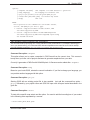
QGIS supports a number of options when started from the command line. To get a list of the options,
enter qgis -help on the command line. The usage statement for QGIS is:
holl@bim:~ > qgis --help
Quantum GIS - 0.8.0 ’TITAN’
Quantum GIS (QGIS) is a viewer for spatial data sets, including
raster and vector data.
Usage: qgis [options] [FILES]
QGIS 0.8 User Guide
6
3.3 Starting QGIS
options:
[--snapshot filename]
emit snapshot of loaded datasets to given file
[--lang language]
use language for interface text
[--project projectfile] load the given QGIS project
[--extent xmin,ymin,xmax,ymax] set initial map extent
[--help]
this text
FILES:
Files specified on the command line can include rasters,
vectors, and QGIS project files (.qgs):
1. Rasters - Supported formats include GeoTiff, DEM
and others supported by GDAL
2. Vectors - Supported formats include ESRI Shapefiles
and others supported by OGR and PostgreSQL layers using
the PostGIS extension
Tip 1 E XAMPLE U SING
COMMAND LINE ARGUMENTS
You can start QGIS by specifying one or more data files on the command line. For example, assuming you
are in your data directory, you could start QGIS with two shapefiles and a raster file set to load on startup
using the following command: qgis ak_shade.tif alaska.shp majrivers.shp
Command line option -snapshot
This option allows you to create a snapshot in PNG format from the current view. This comes in
handy when you have a lot of projects and want to generate snapshots from your data.
Currently it generates a PNG-file with 800x600 pixels. A filename can be added after -snapshot.
Command line option -lang
Based on your locale QGIS, selects the correct localization. If you like to change your language, you
can provide another language with this option.
Command line option -project
Starting QGIS with an existing project file is also possible. Just add the command line option project followed by your project name and QGIS will open with all layers loaded described in the
given file.
Command line option -extent
To start with a specific map extent use this option. You need to add the bounding box of your extent
in the following order separated by a comma:
--extent xmin,ymin,xmax,ymax
QGIS 0.8 User Guide
7
3.4
QGIS GUI
3.4. QGIS GUI
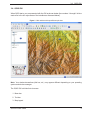
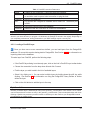
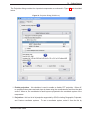
When QGIS starts, you are presented with the GUI as shown below (the numbers 1 through 6 in blue
ovals refer to the six major areas of the interface as discussed below):
Figure 1: Main window with spearfish sample data
Note: Your window decorations (title bar, etc.) may appear different depending on your operating
system and window manager.
The QGIS GUI is divided into six areas:
1. Menu bar
2. Tool bar
3. Map legend
QGIS 0.8 User Guide
8
3.4
QGIS GUI
4. Map view
5. Map overview
6. Status bar
These six components of the QGIS interface are described in more detail in the following sections.
3.4.1. Menu Bar
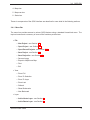
The menu bar provides access to various QGIS features using a standard hierarchical menu. The
top-level menus and a summary of some of the functions provided are:
• File
– New Project - see Section 3.7
– Open Project - see Section 3.7
– Open Recent Projects - see Section 3.7
– Save Project - see Section 3.7
– Save Project As - see Section 3.7
– Save as Image
– Export to MapServer Map
– Print
– Exit
• View
– Zoom Full
– Zoom To Selection
– Zoom To Layer
– Zoom Last
– Refresh
– Show Bookmarks
– New Bookmark
• Layer
– Add a Vector Layer - see Section 4
– Add a Raster Layer - see Section 5
QGIS 0.8 User Guide
9
3.4
QGIS GUI
– Add a PostGIS Layer - see Section 4.2
– Add a WMS Layer - see Section 6.2
– Remove Layer
– New Vector Layer
– In Overview
– Add All To Overview
– Remove All From Overview
– Hide All Layers
– Show All Layers
• Settings
– Project Properties - see Section 3.7
– Custom Projection - see Section 7.3
– Options - see Section 3.8
• Plugins - (Futher menu items are added by plugins as they are loaded.)
– Plugin Manager
• Help
– Help Contents
– QGIS Homepage
– QGIS Sourceforge
– About
– Check QGIS Version
3.4.2. Toolbars
The toolbars provide access to most of the same functions as the menus, plus additional tools for
interacting with the map. Each toolbar item has popup help available. Hold your mouse over the item
and a short description of the tool’s purpose will be displayed.
Every menubar can be moved around according to your needs. Additionally every menubar can be
switched off using your right mouse button context menu.
Tip 2 R EAPPEARING
TOOLBARS
If you have accidentally hidden all your toolbars, you can get them back by choosing Show most toolbars
from the View|Toolbars menu.
QGIS 0.8 User Guide
10
3.4
QGIS GUI
3.4.3. Map Legend
The map legend area is used to set the visibility and z-ordering of layers. Z-ordering means that
layers listed nearer the top of the legend are drawn over layers listed lower down in the legend. The
checkbox in each legend entry can be used to show or hide the layer.
Layers can be grouped in the legend window by adding a layer group and dragging layers into the
group. To do so, go with the mouse to the legend window, right click, choose ’Add group’. A new
folder appears. Now drag the layers to the folder symbol. It is then possible to toggle the visibility of
all the layers in the group with one click. To bring layers out of a group, go with the mouse to the layer
symbol, right click, choose ’make to toplevel item’. To give the folder a new name, choose ’Rename’
in the right click menu of the group.
If several vector data sources have the same vector type and the same attributes, their symbolisations
may be grouped. This means that if the symbolisation of one data source is changed, the others
automatically have the new symbolisation as well. To group symbologies, open the right click menu
in the legend window and choose ’Show file groups’. The file groups of the layers appear. It is now
possible to drag a file from one file group into another one. If this is done, the symbologies are
grouped. Note that QGIS only permits the drag if the two layers are able to share symbology (same
vector type and same attribute).
3.4.4. Map View
This is the ’business end’ of QGIS - maps are displayed in this area! The map displayed in this
window will depend on the vector and raster layers you have chosen to load (see sections that follow
for more information on how to load layers). The map view can be panned (shifting the focus of the
map display to another region) and zoomed in and out. Various other operations can be performed
on the map as described in the toolbar description above. The map view and the legend are tightly
bound to each other - the maps in view reflect changes you make in the legend area.
Tip 3 Z OOMING
THE
M AP
WITH THE
M OUSE W HEEL
You can use the mouse wheel to zoom in and out on the map. Place the mouse cursor inside the map area
and roll it forward (away from you) to zoom in and backwards (towards you) to zoom out. The mouse cursor is
the center where the zoom occurs. You can customize the behavior of the mouse wheel zoom using the Map
tools tab under the Settings|Options menu.
3.4.5. Map Overview
The map overview area provides a full extent view of layers added to it. Within the view is a rectangle
showing the current map extent. This allows you to quickly determine which area of the map you are
currently viewing. Note that labels are not rendered to the map overview even if the layers in the map
QGIS 0.8 User Guide
11
3.5 Rendering
overview have been set up for labeling. You can add a single layer to the overview by right-clicking on
it in the legend and choosing Add to overview. You can also add or remove all layers to the overview
using the Overview tools on the toolbar.
You can also grab the red rectangle showing your current extent and pan around; the map view will
update accordingly.
3.4.6. Status Bar
The status bar shows you your current position in map coordinates (e.g. meters or decimal degrees)
as the mouse pointer is moved across the map view. The status bar also shows the view extents of
the map view as you pan and zoom in and out. A progress bar in the status bar shows progress of
rendering as each layer is drawn to the map view. In some cases, such as the gathering of statistics
in raster layers, the progress bar will be used to show the status of lengthy operations. On the right
side of the status bar is a small checkbox which can be used to temporarily prevent layers being
rendered to the map view (see Section 3.5 below). At the far right of the status bar is a projector icon.
Clicking on this opens the projection properties for the current project.
3.5. Rendering
By default, QGIS renders all visible layers whenever the map canvas must be refreshed. The events
that trigger a refresh of the map canvas include:
• Adding a layer
• Panning or zooming
• Resizing the QGIS window
• Changing the visibility of a layer or layers
QGIS allows you to control the rendering process in a number of ways.
3.5.1. Scale Dependent Rendering
Scale dependent rendering allows you to specify the minimum and maximum scales at which a layer
will be visible. To set scale dependency rendering, open the properties dialog by double-clicking on
the layer in the legend. On the General tab, set the minimum and maximum scale values and then
click on the Use scale dependent rendering checkbox.
QGIS 0.8 User Guide
12
3.5 Rendering
You can determine the scale values by first zooming to the level you want to use and noting the scale
value in the QGIS status bar.
3.5.2. Controlling Map Rendering
Map rendering can be controlled in the following ways:
• Temporarily suspending rendering
• Setting an option to control the visibility of layers when they are added
3.5.3. Suspending Rendering
To suspend rendering, click the Render checkbox in the lower right corner of the statusbar. When
the Render box is not checked, QGIS does not redraw the canvas in response to any of the events
described in Section 3.5. Examples of when you might want to suspend rendering include:
• Add many layers and symbolize them prior to drawing
• Add one or more large layers and set scale dependency before drawing
• Add one or more large layers and zoom to a specific view before drawing
• Any combination of the above
Checking the Render box enables rendering and causes and immediate refresh of the map canvas.
3.5.4. Setting Layer Add Option
You can set an option to always load new layers without drawing them. This means the layer will be
added to the map, but its visibility checkbox in the legend will be unchecked by default. To set this
option, choose Preferences from the Settings menu and click on the Rendering tab. Check the New
layers added to the map are not displayed checkbox. Any layer added to the map will be off (invisible)
by default.
3.5.5. Updating the Map Display During Rendering
You can set an option to update the map display as features are drawn. By default, QGIS does not
display any features for a layer until the entire layer has been rendered. To update the display as
QGIS 0.8 User Guide
13
3.6 Measuring
features are read from the datastore, choose Preferences from the Settings menu and click on the
Rendering tab. Set the feature count to an appropriate value to update the display during rendering.
Setting a value of 0 disables update during drawing (this is the default). Setting a value too low
will result in poor performance as the map canvas is continually updated during the reading of the
features. A suggested value to start with is 500.
NOTE: This feature is currently disabled because it does not works as expected under Qt 4.2.
3.6. Measuring
3.6.1. Measure length
QGIS is also able to measure distances between given points. This tool allows you to click points
on the map. Each segment-length shows up in the measure-window and additionaly the total length
is printed. To stop measuring click your right mouse button.
3.6.2. Measure areas
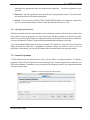
Also areas can be measured. The window only shows the accumulated area-size in the measure
window (see figure 2).
Figure 2: Measure tools in action
(a) Measure lines
QGIS 0.8 User Guide
(b) Measure areas
14
3.7
Projects
3.7. Projects
The state of your QGIS session is considered a Project. QGIS works on one project at a time.
Settings are either considered as being per-project, or as a default for new projects (see Section 3.8).
QGIS can save the state of your workspace into a project file using the menu option File->Save
Project.
Loading saved projects is a similar process.
The kinds of information saved in a project file include:
• Layers added
• Layer properties, including symbolization
• Projection for the map view
• Last viewed extent
The project file is saved in XML format, so it is possible to edit the file outside QGIS if you know what
you are doing.
The file format is new in version 0.8 compared to earlier QGIS versions.
3.8. GUI Options
Some basic options for QGIS can be selected using the Options dialog. Select the Settings entry
from the menu and choose Options (Alt-O). Some of the options you can customize are:
• Appearance
• Rendering
• Selection and Measuring
• Projection
• Help Browser
Modify them according to your needs. Some of the changes may require a restart of QGIS before
they will be effective.
On GNU/Linux everything is saved in:
QGIS 0.8 User Guide
15
3.9
Spatial Bookmarks
$HOME/.config/QuantumGIS/qgis.conf
This is a normal text file consisting of blocks, where QGIS saves its current display options, PostGIS
and WMS connections, and other settings.
On Windows settings are stored in the registry under:
\\HKEY_CURRENT_USER\Software\QuantumGIS\qgis
On OS X you can find your settings in:
$HOME/Library/Preferences/org.qgis.qgis.plist
3.9. Spatial Bookmarks
Spatial Bookmarks allow you to “bookmark” a geographic location and return to it later.
3.9.1. Creating a Bookmark
To create a bookmark:
1. Zoom or pan to the area of interest.
2. Select the menu option View ->New Bookmark or type Ctrl-B.
3. Enter a descriptive name for the bookmark (up to 255 characters).
4. Click OK to add the bookmark or Cancel to exit without adding the bookmark.
Note that you can have multiple bookmarks with the same name.
3.9.2. Working with Bookmarks
To use or manage bookmarks, select the menu option View ->Show Bookmarks. The bookmarks
dialog allows you to zoom to or delete a bookmark. You can not edit the bookmark name or
coordinates.
3.9.3. Zooming to a Bookmark
From the Bookmarks dialog, select the desired bookmark by clicking on it, then click the Zoom To
button. You can also zoom to a bookmark by double-clicking on it.
QGIS 0.8 User Guide
16
3.9
Spatial Bookmarks
3.9.4. Deleting a Bookmark
To delete a bookmark from the Bookmarks dialog, click on it then click the Delete button. Confirm
your choice by clicking Yes or cancel the delete by clicking No.
QGIS 0.8 User Guide
17
4. Working with Vector Data
QGIS supports vector data in a number of formats, including those supported by the OGR library data
provider plugin, such as ESRI shapefiles, MapInfo MIF (interchange format) and MapInfo TAB (native
format). QGIS also supports PostGIS layers in a PostgreSQL database using the PostgreSQL data
provider plugin. Support for additional data types (eg. delimited text) is provided by additional data
provider plugins. text.
This section describes how to work with two common formats: ESRI shapefiles and PostGIS layers.
Many of the features available in QGIS work the same regardless of the vector data source. This is
by design and includes the identify, select, labeling, and attributes functions.
Working with GRASS vector-data is described in chapter 8.
4.1. ESRI Shapefiles
ESRI Shapefile support is provided by a library of functions known as the OGR Simple Feature
Library http://www.gdal.org/ogr. See Appendix A.1 for a list of all supported formats in OGR.
A shapefile actually consists of a minimum of three files:
• .shp file containing the feature geometries
• .dbf file containing the attributes in dBase format
• .shx index file
Ideally it comes with another file with a .prj suffix. This describes the projection information for the
shapefile.
There can be more files belonging to a shapefile dataset. To have a closer look at this we recommend
the technical specification for the shapefile format. This can be found at
http://www.esri.com/library/whitepapers/pdfs/shapefile.pdf .
4.1.1. Loading a Shapefile
To load a shapefile, start QGIS and click on the Add a vector layer toolbar button. This same
tool can be used to load any of the formats supported by the OGR library.
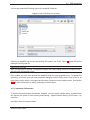
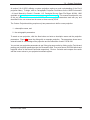
Clicking on the tool brings up a standard open file dialog (Figure 3) which allows you to navigate the
file system and load a shapefile or other supported data source. The selection-box File of type allows
you to preselect some OGR supported file formats.
QGIS 0.8 User Guide
18
4.1 ESRI Shapefiles
You can also select the Encoding type for the shapefile if desired.
Figure 3: Open OGR Data Source Dialog
Selecting a shapefile from the list and clicking OK loads it into QGIS. Figure 4 shows QGIS after
loading the country.shp file.
Tip 4 L AYER C OLORS
When you add a layer to the map, it is assigned a random color. When adding more than one layer at a time,
different colors are assigned to each.
Once loaded, you can zoom around the shapefile using the map navigation tools. To change the
symbology of a layer, open the layer properties dialog by double clicking on the layer name or by
right-clicking on the name in the legend and choosing Properties from the popup menu. See Section
4.3.1 for more information on setting symbology of vector layers.
4.1.2. Improving Performance
To improve the performance of drawing a shapefile, you can create a spatial index. A spatial index
will improve the speed of both zooming and panning. Spatial indexes used by QGIS have a .qix
extension.
Use these steps to create the index:
QGIS 0.8 User Guide
19
4.1 ESRI Shapefiles
Figure 4: QGIS with vmap0 Shapefile of Spain loaded
• Load a shapefile
• Open the Layer Properties dialog by double-clicking on the shapefile name in the legend or by
right-clicking and choosing Properties from the popup menu.
• In the tab General click the Create button on the Spatial Index panel
4.1.3. Loading a MapInfo Layer
To load a MapInfo layer, click on the Add a vector layer toolbar bar button and change the file type
filter to MapInfo (*.mif *.tab *.MIF *.TAB) and select the layer you want to load.
QGIS 0.8 User Guide
20
4.2 PostGIS Layers
4.1.4. Loading an ArcInfo Coverage
Loading an an ArcInfo coverage is done using the same method as with a shapefiles and MapInfo
layers. Click on the Add a vector layer toolbar button to open the layer dialog and change the file
type filter to All files (*.*). Navigate to the coverage directory and select one of the following files (if
present in your coverage)
• .lab - to load a label layer (polygon labels, or standing points
• .cnt - to load a polygon centroid layer
• .arc - to load an arc (line) layer
• .pal - to load a polygon layer
4.2. PostGIS Layers
PostGIS layers are stored in a PostgreSQL database. The advantage of PostGIS is the spatial
indexing, filtering, and query capability. Using PostGIS, vector functions such as select and identify
work more accurately than with OGR layers in QGIS.
To use PostGIS layers you must:
• Create a stored connection in QGIS to the PostgreSQL database (if one is not already defined)
• Connect to the database
• Select the layer to add to the map
• Optionally provide a SQL where clause to define which features to load from the layer
• Load the layer
4.2.1. Creating a stored Connection
The first time you use a PostGIS data source, you must create a connection to the PostgreSQL
database that contains the data. Begin by clicking on the Add a PostGIS Layer toolbar button. The
Add PostGIS Table(s) dialog will be displayed. To access the connection manager, click on the
New button to display the Create a New PostGIS Connection dialog. The parameters required for a
connection are shown in Table 1.
Once the parameters have been filled in, you can test the connection by clicking on the Test
Connection button. To save the password with the connection information, check the Save Password
option.
QGIS 0.8 User Guide
21
4.2 PostGIS Layers
Table 1: PostGIS Connection Parameters
Name
Host
Database
Port
Username
Password
A name for this connection. Can be the same as Database
Name of the database host. This must be a resolvable host name the same
as would be used to open a telnet connection or ping the host
Name of the database
Port number the PostgreSQL database server listens on. The default port
is 5432.
User name used to login to the database
password used with Username to connect to the database
Tip 5 QGIS U SER S ETTINGS
AND
S ECURITY
Your customized settings for QGIS are stored based on the operating system. On Linux/Unix, the settings are
stored in your home directory in .qt/qgisrc. On Windows, the settings are stored in the registry. Depending on
your computing environment, storing passwords in your QGIS settings may be a security risk.
4.2.2. Loading a PostGIS Layer
Once you have one or more connections defined, you can load layers from the PostgreSQL
database. Of course this requires having data in PostgreSQL. See Section 4.2.4 for a discussion on
importing data into the database.
To load a layer from PostGIS, perform the following steps:
• If the PostGIS layer dialog is not already open, click on the Add a PostGIS Layer toolbar button
• Choose the connection from the drop-down list and click Connect
• Find the layer you wish to add in the list of available layers
• Select it by clicking on it. You can select multiple layers by holding down the shift key while
clicking. See Section 4.6 for information on using the PostgreSQL Query Builder to further
define the layer.
• Click on the Add button to add the layer to the map
Tip 6 P OST GIS L AYERS
Normally a PostGIS layer is defined by an entry in the geometry_columns table. From version 0.74 on, QGIS
can load layers that do not have an entry in the geometry_columns table. This includes both tables and views.
Defining a spatial view provides a powerful means to visualize your data. Refer to your PostgreSQL manual
for information on creating views.
QGIS 0.8 User Guide
22
4.2 PostGIS Layers
4.2.3. Some details about PostgreSQL layers
This section contains some details on how QGIS accesses PostgreSQL layers. Most of the time
QGIS should simply provide you with a list of database tables that can be loaded, and load them on
request. However, if you have trouble loading a PostgreSQL table into QGIS, the information below
may help you understand any QGIS messages and give you direction on changing the PostgreSQL
table or view definition to allow QGIS to load it.
QGIS requires that PostgreSQL layers contain a column that can be used as a unique key for the
layer. For tables this usually means that the table needs a primary key, or have a column with a
unique constraint on it. QGIS additionally requires that this column be of type int4 (an integer of
size 4 bytes). If a table lacks these items, the oid column will be used instead. Performance will be
improved if the column is indexed (note that primary keys are automatically indexed in PostgreSQL).
If the PostgreSQL layer is a view the same requirements exist, but views don’t have primary keys or
columns with unique constraints on them. In this case QGIS will try to find a column in the view that
is derived from a table column that is suitable. If one cannot be found, QGIS will not load the layer.
If this occurs, the solution is to alter the view so that it does include a suitable column (a type of int4
and either a primary key or with a unique constraint, preferably indexed).
4.2.4. Importing Data into PostgreSQL
shp2pgsql
Data can be imported into PostgreSQL using a number of methods. PostGIS includes a utility called
shp2pgsql that can be used to import shapefiles into a PostGIS enabled database. For example,
to import a shapefile named lakes into a PostgreSQL database named gis_data, use the following
command:
shp2pgsql -s 2964 lakes.shp lakes_new | psql gis_data
This creates a new layer named lakes_new in the the gis_data database. The new layer will have a
spatial reference identifier (SRID) of 2964. See Chapter 7 for more information on spatial reference
systems and projections.
Tip 7 E XPORTING
DATASETS FROM
P OST GIS
Like the import-tool shp2pgsql there is also a tool to export PostGIS-datasets into shapefiles: pgsql2shp. This
is shipped within your PostGIS distribution.
QGIS 0.8 User Guide
23
4.2 PostGIS Layers
SPIT Plugin
QGIS comes with a plugin named SPIT (Shapefile to PostGIS Import Tool). SPIT can be used to
load multiple shapefiles at one time and includes support for schemas. To use SPIT, open the Plugin
Manager from the Tools menu and load the plugin by checking the box next to the SPIT plugin and
click Ok. The SPIT icon will be added to the plugin toolbar.
To import a shapefile, click on the SPIT tool in the toolbar to open the dialog. You can add one
or more files to the queue by clicking on the Add button. To process the files, click on the Import
button. The progress of the import as well as any errors/warnings will be displayed as each shapefile
is processed.
Tip 8 I MPORTING S HAPEFILES C ONTAINING P OSTGRE SQL R ESERVED WORDS
If a shapefile is added to the queue containing fields that are reserved words in the PostgreSQL database a
dialog will popup showing the status of each field. You can edit the field names prior to import and change any
that are reserved words (or change any other field names as desired). Attempting to import a shapefile with
reserved words as field names will likely fail.
ogr2ogr
Beside shp2pgsql and SPIT there is another tool for feeding geodata in PostGIS: ogr2ogr. This is
part of your GDAL installation. To import a shapefile into PostGIS, do the following:
ogr2ogr -f "PostgreSQL" PG:"dbname=postgis host=myhost.de user=postgres \
password=topsecret" alaska.shp
This will import the shapefile alaska.shp into the PostGIS-database postgis using the user postgres
with the password topsecret on host myhost.de.
Note that OGR must be built against PostgreSQL to support PostGIS. You can see this by typing
ogrinfo --formats | grep -i post
4.2.5. Improving Performance
Retrieving features from a PostgreSQL database can be time consuming, especially over a network.
You can improve the drawing performance of PostgreSQL layers by ensuring that a spatial index
exists on each layer in the database. PostGIS supports creation of a GiST (Generalized Search Tree)
index to speed up spatial searches of the data.
The syntax for creating a GiST2 index is:
2
GiST index information is taken from the PostGIS documentation available at http://postgis.refractions.net
QGIS 0.8 User Guide
24
4.3 The Vector Properties Dialog
CREATE INDEX [indexname] ON [tablename]
USING GIST ( [geometryfield] GIST_GEOMETRY_OPS );
Note that for large tables, creating the index can take a long time. Once the index is created, you
should perform a VACUUM ANALYZE. See the PostGIS documentation (4) for more information.
The following is an example of creating a GiST index:
gsherman@madison:~/current$ psql gis_data
Welcome to psql 8.0.0, the PostgreSQL interactive terminal.
Type:
\copyright for distribution terms
\h for help with SQL commands
\? for help with psql commands
\g or terminate with semicolon to execute query
\q to quit
gis_data=# CREATE INDEX sidx_alaska_lakes ON alaska_lakes
gis_data-# USING GIST (the_geom GIST_GEOMETRY_OPS);
CREATE INDEX
gis_data=# VACUUM ANALYZE alaska_lakes;
VACUUM
gis_data=# \q
gsherman@madison:~/current$
4.3. The Vector Properties Dialog
The vector properties dialog provides information about a layer, symbology settings, and labeling
options. If your vector layer has been loaded from a PostgreSQL / PostGIS datastore, you can also
alter the underlying SQL for the layer - either by hand editing the SQL on the General tab, or by
invoking the query builder dialog on the General tab. To access the properties dialog, double-click on
a layer in the legend or right-click on the layer and select Properties from the popup menu.
4.3.1. Vector Symbology
QGIS supports a number of symbology renderers to control how vector features are displayed.
Currently the following renderers are available:
Single symbol - a single style is applied to every object in the layer.
QGIS 0.8 User Guide
25
4.3 The Vector Properties Dialog
Graduated symbol - objects within the layer are displayed with different symbols classified by the
values of a particular field.
Continuous colour - objects within the layer are displayed with a spread of colours classified by the
numerical values within a specified field.
Unique value - objects are classified by the unique values within a specified field with each value
having a different symbol.
To change the symbology for a layer, simply double click on its legend entry and the vector layer
properties dialog will be shown.
Figure 5: Vector Layer Properties Dialog
4.3.2. Vector transparency
QGIS 0.8 allows to set a transparency for every vector layer. This can be done with the slider right
below the legend type (see fig. 5). This is very useful for displaying several vector-layers.
QGIS 0.8 User Guide
26
4.4 Attribute Actions
4.4. Attribute Actions
QGIS provides the ability to perform an action based on the attributes of a feature. This can be
used to perform any number of actions, for example, running a program with arguments built from the
attributes of a feature or passing parameters to a web reporting tool.
Actions are useful when you frequently want to run an external application or view a web page based
on one or more values in your vector layer. An example is performing a search based on an attribute
value. This concept is used in the following discussion.
4.4.1. Defining Actions
Attribute actions are defined from the vector layer properties dialog. To define an action, open the
vector layer properties dialog and click on the Actions tab. Provide a descriptive name for the action.
The action itself must contain the name of the application that will be executed when the action is
invoked. You can add one or more attribute field values as arguments to the application. When the
action is invoked any set of characters that start with a % followed by the name of a field will be
replaced by the value of that field. The special characters %% will be replaced by the value of the
field that was selected from the identify results or attribute table (see Using Actions below). Double
quote marks can be used to group text into a single argument to the program, script or command.
Double quotes will be ignored if proceeded by a backslash.
Two example actions are shown below:
• konqueror http://www.google.com/search?q=%nam
• konqueror http://www.google.com/search?q=%%
In the first example, the web browser konqueror is invoked and passed a URL to open. The
URL performs a Google search on the value of the nam field from our vector layer. Note
that the application or script called by the action must be in the path or you must provided
the full path. To be sure, we could rewrite the first example as: /opt/kde3/bin/konqueror
http://www.google.com/search?q=%nam. This will ensure that the konqueror application will be
executed when the action is invoked.
The second example uses the %% notation which does not rely on a particular field for its value.
When the action is invoked, the %% will be replaced by the value of the selected field in the identify
results or attribute table.
QGIS 0.8 User Guide
27
4.5 Editing
4.4.2. Using Actions
Actions can be invoked from either the Identify Results dialog or the Attribute table dialog. To invoke
an action, right click on the record and choose the action from the popup menu. Actions are listed in
the popup menu by the name you assigned when defining the actions. Click on the action you wish
to invoke.
If you are invoking an action that uses the %% notation, right-click on the field value in the Identify
Results dialog or the Attribute table that you wish to pass to the application or script.
Here is another example that pulls data out of a vector layer and inserts it into a file using bash and
the ‘echo’ command (so it will only work on Gnu/Linux and perhaps Mac OS X). The layer in question
has fields for a species name (taxon_name), latitude (lat) and longitude (long). I would like to be able
to make a spatial selection of a localities and export these field values to a text file for the selected
record (shown in yellow in the QGIS map area). Here is the action to achieve this:
bash -c "echo \"%taxon_name %lat %long\" >> /tmp/species_localities.txt"
After selecting a few localities and running the action on each one, opening the output file will show
something like this:
Acacia
Acacia
Acacia
Acacia
mearnsii
mearnsii
mearnsii
mearnsii
-34.0800000000
-34.9000000000
-35.2200000000
-32.2700000000
150.0800000000
150.1200000000
149.9300000000
150.4100000000
4.5. Editing
QGIS supports basic capabilities for editing spatial data. Before reading any further you should note
that at this stage editing support is still preliminary. Before performing any edits, always make a
backup of the dataset you are about to edit.
Note - the procedure for editing GRASS layers is different - see Section 8.4 for details.
4.5.1. Editing an Existing Layer
By default, QGIS loads layers read-only: This is a safeguard to avoid accidentally editing a layer if
there is a slip of the mouse. However, you can choose to edit any layer as long as the data provider
supports it, and the underlying data source is writable (i.e. its files are not read-only).
Layer editing is most versatile when used on PostgreSQL/PostGIS data sources.
QGIS 0.8 User Guide
28
4.5 Editing
Tip 9 DATA I NTEGRITY
Please consider backing up your data source before you start editing, and also at regular intervals during
editing.
QGIS is still at a pre-version 1.0 stage, and so may not be able to protect your data in all situations.
All editing sessions start by choosing the Allow editing option. This can be found in the context menu
after right clicking on the legend entry for that layer. Alternately, you can use the
Start editing or
Stop editing buttons from the toolbar to toggle the editing mode.
Tip 10 E DITING
A
M AP
IS
D IFFERENT
TO
E DITING
AN
ATTRIBUTE TABLE
In this version of QGIS, the Start editing/Stop editing couplet on the map view acts separately to the Start
Editing/Stop Editing couplet on the attribute table.
Tip 11 S AVE R EGULARLY
Remember to toggle Allow editing off or select the Stop editing button regularly. This allows you to save your
changes thus far, and also confirms that your data source can accept all your changes.
Once the layer is in edit mode, markers will appear at the vertices.
You can perform the following editing functions:
• Add Features
• Add Vertices of a Feature
• Move Vertices of a Feature
• Delete Vertices of a Feature
• Cut Selected Features
• Copy Selected Features
• Paste Selected Features
• Delete Selected Features
Adding Features
Before you start adding features, use the pan and zoom tools to first navigate to the area of interest.
Then you can use the Capture Point, Capture Line or Capture Polygon icon on the toolbar to put the
QGIS cursor into digitizing mode.
For each feature, you first digitize the geometry, then enter its attributes.
QGIS 0.8 User Guide
29
4.5 Editing
Tip 12 C ONCURRENT E DITS
This version of QGIS does not track if somebody else is editing a feature at the same time as you. The last
writer wins.
Tip 13 Z OOM
IN
B EFORE E DITING
Before editing a layer, you should zoom in to your area of interest first. This avoids waiting while all the vertex
markers are rendered across the entire layer.
To digitize the geometry, left-click on the map area to create the first point of your new feature.
For lines and polygons, keep on left-clicking for each additional point you wish to capture. When
you have finished adding points, right-click anywhere on the map area to confirm you have finished
entering the geometry of that feature.
The attribute window will appear, allowing you to enter the information for the new feature. Figure 6
shows setting attributes for a fictitious new river in England.
Figure 6: Vector Digitizing Attributes Capture Dialog
QGIS 0.8 User Guide
30
4.5 Editing
Tip 14 V ERTEX M ARKERS
This version of QGIS does not allow you to change the vertex markers used.
Tip 15 ATTRIBUTE VALUE T YPES
In the current version of QGIS, the attributes dialog box does not check that the data entered matches the
type expected (e.g. numeric vs. text),
Make sure of this before pressing Ok, otherwise you may find the error will be caught later when you try to
save your changes.
Editing Vertices of a Feature
New in v0.8
For both PostgreSQL/PostGIS and shapefile-based layers, the verticies of features can be edited.
Verticies can be directly edited, that is, you don’t have to choose which feature to edit before you
can change its geometry. In some cases, several features may share the same vertex and so the
following rules apply when the mouse is pressed down near map features:
• Lines - The nearest line to the mouse position is used as the target feature. Then (for moving
and deleting a vertex) the nearest vertex on that line is the editing target.
• Polygons - If the mouse is inside a polygon, then it is the target feature; otherwise the nearest
polygon is used. Then (for moving and deleting a vertex) the nearest vertex on that polygon is
the editing target.
You will need to set the property Settings->Project Properties->General->Snapping Tolerance to a
number greater than zero. Otherwise QGIS will not be able to tell which feature is being edited.
Adding Vertices of a Feature
New in v0.8
You can add new verticies to a feature by using the Add Vertex icon on the toolbar.
Note, it doesn’t make sense to add more verticies to a Point feature!
In this version of QGIS, verticies can only be added to an existing line segment of a line feature. If
you want to extend a line beyond its end, you will need to move the terminating vertex first, then add
a new vertex where the terminus used to be.
Moving Vertices of a Feature
New in v0.8
You can add new verticies to a feature by using the Move Vertex icon on the toolbar.
QGIS 0.8 User Guide
31
4.5 Editing
Deleting Vertices of a Feature
New in v0.8
You can add new verticies to a feature by using the Delete Vertex icon on the toolbar.
Note, it doesn’t make sense to delete the vertex of a Point feature! Delete the whole feature instead.
Similarly, a one-vertex line or a two-vertex polygon is also fairly useless and will lead to unpredictable
results elsewhere in QGIS, so don’t do that.
Warning: A vertex is identified for deletion as soon as you click the mouse near an eligible feature.
To undo, you will need to toggle Editing off and then discard your changes. (Of course this will mean
that other unsaved changes will be lost, too.)
Cutting, Copying and Pasting Features
New in v0.8
Selected features can be cut, copied and pasted between layers in the same QGIS project, as long
as destination layers are set to Allow editing beforehand.
Features can also be pasted to external applications as text: That is, the features are represented in
CSV format with the geometry data appearing in the OGC Well-Known Text (WKT) format.
However in this version of QGIS, text features from outside QGIS cannot be pasted to a layer within
QGIS.
Tip 16 C ONGRUENCY
OF
PASTED F EATURES
If your source and destination layers use the same projection, then the pasted features will have geometry
identical to the source layer.
However if the destination layer is a different projection then QGIS cannot guarantee the geometry is identical.
This is simply because there are small rounding-off errors involved when converting between projections.
Deleting Selected Features
To delete a feature, select it using the selection tool and choose Delete selection from the editing
tools.
Tip 17 F EATURE D ELETION S UPPORT
When editing ESRI shapefiles, the deletion of features only works if QGIS is linked to a GDAL version 1.3.2 or
greater. The OS X and Windows versions of QGIS available from the download site are built using GDAL
1.3.2 or higher.
QGIS 0.8 User Guide
32
4.5 Editing
Snap Mode
QGIS allows digitised vertices to be snapped to other vertices of the same layer. To set the snapping
tolerance, go to Settings->Project Properties->General->Snapping Tolerance. Note that the snapping
tolerance is in map units.
Saving Edited Layers
When a layer is in editing mode, any changes remain in the memory of QGIS. Therefore they are
not committed/saved immediately to the data source or disk. When you turn editing mode off (or quit
QGIS for that matter), you are then asked if you want to save your changes or discard them.
If the changes cannot be saved (e.g. disk full, or the attributes have values that are out of range), the
QGIS in-memory state is preserved. This allows you to adjust your edits and try again.
4.5.2. Creating a New Layer
To create a new layer for editing, choose New Vector Layer from the Layer menu. The New Vector
Layer dialog will be displayed as shown in Figure 7. Choose the type of layer (point, line, or polygon).
Figure 7: Creating a New Vector Dialog
Note that QGIS does not yet support creation of 2.5D features (i.e. features with X,Y,Z coordinates) or
measure features. At this time, only shapefiles can be created. In a future version of QGIS, creation
of any OGR or PostgreSQL layer type will be supported.
Creation of GRASS-layers is supported within the GRASS-plugin. Please refer to section 8.7 for
more information on creating GRASS vector layers.
QGIS 0.8 User Guide
33
4.6 Query Builder
To complete the creation of the new layer, add the desired attributes by clicking on the Add button and
specifying a name and type for the attribute. Only real, integer, and string attributes are supported.
Once you are happy with the attributes, click Ok and provide a name for the shapefile. QGIS will
automatically add a .shp extension to the name you specify. Once the layer has been created, it will
be added to the map and you can edit it in the same way as described in Section 4.5.1 above.
4.6. Query Builder
The Query Builder allows you to define a subset of a table and display it as a layer in QGIS. It can
be used for all OGR supported formats, GRASS files and PostGIS layers. For example, if you have a
towns layer with a population field you could select only larger towns by entering population > 100000
in the SQL box of the query builder. Figure 8 shows an example of the query builder populated with
data from a PostGIS layer with attributes stored in PostgreSQL.
Figure 8: Query Builder
The query builder lists the layer’s database fields in the list box on the left. You can get a sample of
QGIS 0.8 User Guide
34
4.6 Query Builder
the data contained in the highlighted field by clicking on the Sample button. This retrieves the first 25
distinct values for the field from the database. To get a list of all possible values for a field, click on the
All button. To add a selected field or value to the query, double-click on it. You can use the various
buttons to construct the query or you can just type it into the SQL box.
To test a query, click on the Test button. This will return a count of the number of records that will be
included in the layer. When satisfied with the query, click Ok. The SQL for the where clause will be
shown in the SQL column of the layer list.
Tip 18 C HANGING
THE
L AYER D EFINITION
You can change the layer definition after it is loaded by altering the SQL query used to define the layer. To do
this, open the vector layer properties dialog by double-clicking on the layer in the legend and click on the
Query Builder button on the General tab. See Section 4.3 for more information.
4.6.1. Query PostGIS layers
To query a loaded PostGIS layer there are two options. The first is to click on the button Open Table
to open the attribute table of the PostGIS layer. Then choose the Advanced... button at the bottom.
This starts the Query Builder that allows to define a subset of a table and display it as described in
Section 4.6.
The second option to load a PostGIS layer, is to open the Layer Properties dialog by double-clicking
on the PostGIS layer name in the legend or by right-clicking and choosing Properties from the popup
menu. In the tab General click the Query Builder button at the bottom.
4.6.2. Query OGR formats and GRASS files
To query a loaded GRASS file or OGR supported format you currently need to click on the button
Open Table to open the corresponding attribute table and choose the Advanced... button. This starts
the Query Builder and allows to define a subset of a table and display it as described in Section 4.6.
The second option to start the Query Builder as decribed in Section 4.6.1 is currently not supported
for OGR and GRASS-layers.
QGIS 0.8 User Guide
35
5. Working with Raster Data
QGIS supports a number of raster data formats. This section describes how to work with raster data
in QGIS.
5.1. What is raster data?
Raster data in GIS are matrices of discrete cells that represent features on, above or below the
earth’s surface. Each cell in the raster grid is the same size, and cells are usually rectangular (in
QGIS they will always be rectangular). Typical raster datasets include remote sensing data such as
aerial photography or satellite imagery and modelled data such as an elevation matrix.
Unlike vector data, raster data typically do not have an associated database record for each cell.
In GIS, a raster layer would have georeferencing data associated with it which will allow it to be
positioned correctly in the map display to allow other vector and raster data to be overlaid with it.
QGIS makes use of georeferenced rasters to properly display the data.
5.2. Raster formats supported in QGIS
QGIS supports a number of different raster formats. Currently tested formats include:
• Arc/Info Binary Grid
• Arc/Info ASCII Grid
• GRASS Raster
• GeoTIFF
• Spatial Data Transfer Standard Grids (with some limitations)
• USGS ASCII DEM
• Erdas Imagine
Because the raster implementation in QGIS is based on the GDAL library, other raster formats
implemented in GDAL are also likely to work, but have not yet been tested. See Appendix A.2
for more details.
QGIS 0.8 User Guide
36
5.3 Loading raster data in QGIS
5.3. Loading raster data in QGIS
Raster layers are loaded either by clicking on the Load Raster icon or by selecting the View > Add Raster Layer menu option. More than one layer can be loaded at the same time by holding
down the Control key and clicking on multiple items in the file dialog.
Please refer to section 8.2 if you intend to load GRASS rasterdata.
5.4. Raster Properties
To view and set the properties for a raster layer, right click on the layer name. This displays the raster
layer context menu that includes a number of items that allow you to:
Figure 9: Raster context menu
• Open the properties dialog
• Zoom to the full extent of the raster
• Show the raster in the map overview window
• Remove the layer from the map
• Rename the layer
• Add a layer group
• Expand legend tree view
QGIS 0.8 User Guide
37
5.4 Raster Properties
• Collapse legend tree view
• Show file groups
Choose Properties from the context menu to open the raster properties dialog for the layer.
Figure 10 shows the properties dialog. There are five tabs on the dialog: Symbology, General,
Metadata, Pyramids and Histogram.
Figure 10: Raster Layers Properties Dialog
QGIS 0.8 User Guide
38
5.4 Raster Properties
5.4.1. Symbology Tab
QGIS supports three forms of raster layers:
• Single Band Grayscale Rasters
• Palette Based RGB Rasters
• Multiband RGB Rasters
From these three basic layer types, eight forms of symbolised raster display can be used:
• Single Band Grayscale
• Single Band Pseudocolor
• Paletted Grayscale (where only the red, green or blue component of the image is displayed)
• Paletted Pseudocolor (where only the red, green or blue component of the image is displayed,
but using a pseudocolor algorithm)
• Paletted RGB
• Multiband Grayscale (using only one of the bands to display the image)
• Multiband Pseudocolor (using only one of the bands shown in pseudocolor)
• Multiband RGB (using any combination of three bands)
QGIS can invert the colors in a given layer so that light colors become dark (and dark colors become
light). Use the Invert Color Map checkbox to enable / disable this behavior.
QGIS has the ability to display each raster layer at varying transparency levels. Use the transparency
slider to indicate to what extent the underlying layers (if any) should be visible though the current
raster layer.
QGIS can restrict the data displayed to only show cells whose values are within a given number of
standard deviations of the mean for the layer. This is useful when you have one or two cells with
abnormally high values in a raster grid that are having a negative impact on the rendering of the
raster. This option is only available for pseudocolor images.
QGIS 0.8 User Guide
39
5.4 Raster Properties
5.4.2. General Tab
The General tab displays basic information about the selected raster, including the layer source and
display name in the legend (which can be modified). This tab also shows a thumbnail of the layer, its
legend symbol, and the palette.
Additionally scale-dependent visability can be set in this tab. You need to check the checkbox and
set an appropriate scale where your data will be displayed in the map canvas.
Also the spatal reference system is printed here as a PROJ.4-string. This can be modified by hitting
the Change button.
5.4.3. Metadata Tab
The Metadata tab displays a wealth of information about the raster layer, including statistics about
each band in the current raster layer. Statistics are gathered on a ’need to know’ basis, so it may well
be that a given layers statistics have not yet been collected.
Tip 19 G ATHERING R ASTER S TATISTICS
To gather statistics for a layer, select pseudocolor rendering and click the Apply button. Gathering statistics
for a layer can be time consuming. Please be patient while QGIS examines your data!
5.4.4. Pyramids Tab
Large resolution raster layers can slow navigation in QGIS. By creating lower resolution copies of
the data (pyramids), performance can be considerably improved as QGIS selects the most suitable
resolution to use depending on the level of zoom.
You must have write access in the directory where the original data is stored to build pyramids.
Several resampling methods can be used to calculate the pyramides:
• Average
• Nearest Neighbour
• Average Magphase
Please note that building pyramids may alter the original data file and once created they cannot be
removed. If you wish to preserve a ’non-pyramided’ version of your raster, make a backup copy prior
to building pyramids.
QGIS 0.8 User Guide
40
5.4 Raster Properties
5.4.5. Histogram Tab
The histogram tab allows you to visualize the histogram of your rasterdata. This is useful to get an
idea about the pixel-distribution. Two different chart types are allowed: Barcharts and Linegraphs.
QGIS 0.8 User Guide
41
6. Working with OGC Data
6.1. What is OGC Data
The Open Geospatial Consortium (OGC), is an international organization with more than 300
commercial, governmental, nonprofit and research organisations worldwide. Its members develop
and implement standards for geospatial content and services, GIS data processing and exchange.
Describing a basic data model for geographic features an increasing number of specifications are
developed to serve specific needs for interoperable location and geospatial technology, including
GIS. Further information can be found under http://www.opengeospatial.org/.
Important OGC specifications are:
• WMS - Web Map Service
• WFS - Web Feature Service
• WCS - Web Coverage Service
• CAT - Web Catalog Service
• SFS - Simple Features for SQL
• GML - Geography Markup Language
OGC services are increasingly being used to exchange geospatial data between different GIS
implementations and data stores. QGIS can now deal with two of the above specifications, being
SFS (though support of the PostgreSQL / PostGIS data provider, see Section 4.2); and WMS as a
client.
6.2. WMS Client
New in v0.8
6.2.1. Overview of WMS Support
QGIS currently can act as a WMS client that understands WMS 1.1, 1.1.1 and 1.3 servers. It
has particularly been tested against publicly accessible servers such as DEMIS and JPL OnEarth.
WMS servers act upon requests by the client (e.g. QGIS) for a raster map with a given extent, set of
layers, symbolisation style, and transparency. The WMS server then consults its local data sources,
QGIS 0.8 User Guide
42
6.2 WMS Client
rasterizes the map, and sends it back to the client in a raster format. For QGIS this would typically be
JPEG or PNG.
WMS is generically a REST (Representational State Transfer) service rather than a fully-blown Web
Service. As such, you can actually take the URLs generated by QGIS and use them in a web browser
to retrieve the same images that QGIS uses internally. This can be useful when troubleshooting
problems, as there are several brands of WMS servers in the market and they all have their own
interpretation of the WMS standard.
WMS layers can be added quite simply, as long as you know the URL to access the WMS server, you
have a serviceable connection to that server, and the server understands HTTP as the data transport
mechanism.
6.2.2. Selecting WMS Servers
You can begin by clicking the Add WMS layer button inside the toolbar, or through the Layer menu.
The dialog for adding layers from the WMS server pops up. In the Server Connections section, select
New. Then enter in the parameters to connect to your desired WMS server, as listed in table 2:
Table 2: WMS Connection Parameters
Name
URL
Proxy Host
Proxy Port
Proxy User
Proxy Password
A name for this connection. This name will be used in the Server
Connections drop-down box so that you can distinguish it from other WMS
Servers.
URL of the server providing the data. This must be a resolvable host name;
the same format as you would use to open a telnet connection or ping a
host.
Network address or host name of the proxy server you would use to access
this WMS server, or leave blank if no proxy is needed.
Port number of the proxy server.
User name used to login to the proxy server.
Password used to login to the proxy server.
At least Name and URL are required entries; the proxy entries can be left blank if you have a clear
path to your WMS server.
Once the new WMS Server has been created, it will be preserved across future QGIS sessions.
Tip 20 O N WMS S ERVER URL S
Be sure, when entering in the WMS server URL, that you have the base URL. For example, you shouldn’t
have fragments such as request=GetCapabilities or version=1.0.0 in your URL.
Table 3 shows some example WMS URLs to get you started. These links were last checked in
QGIS 0.8 User Guide
43
6.2 WMS Client
December 2006, but could change at any time:
Table 3: Example Public WMS URLs
Name
Atlas of Canada
DEMIS
Geoscience Australia
NASA JPL OnEarth
QGIS Users
URL
http://atlas.gc.ca/cgi-bin/atlaswms_en?
http://www2.demis.nl/wms/wms.asp?wms=WorldMap&
http://www.ga.gov.au/bin/getmap.pl?dataset=national
http://wms.jpl.nasa.gov/wms.cgi?
http://qgis.org/cgi-bin/mapserv?map=/var/www/maps/main.map&
An exhaustive list of WMS servers can be found at http://wms-sites.com.
6.2.3. Loading WMS Layers
Once you have successfully filled in your parameters you can select the Connect button to retrieve
the capabilities of the selected server. This includes the Image encoding, Layers, Layer Styles, and
Projections. Since this is a network operation, the speed of the response depends on the quality of
your network connection to the WMS server.
Your screen should now look a bit like Figure 11, which shows the response provided by the NASA
JPL OnEarth WMS server.
Image Encoding
The Image encoding section now lists the formats that are supported by both the client and server.
Choose one depending on your image accuracy requirements.
Tip 21 I MAGE E NCODING
You will typically find that a WMS server offers you the choice of JPEG or PNG image encoding. JPEG is a
lossy compression format, whereas PNG faithfully reproduces the raw raster data.
Use JPEG if you expect the WMS data to be photographic in nature and/or you don’t mind some loss in
picture quality. This trade-off typically reduces by 5 times the data transfer requirement compared to PNG.
Use PNG if you want precise representations of the original data, and you don’t mind the increased data
transfer requirements.
Layers
The Layers section lists the layers available from the selected WMS server. You may notice that some
layers are expandible, this means that the layer can be displayed in a choice of image styles.
You can select several layers at once, but only one image style per layer. When several layers are
selected, they will be combined at the WMS Server and transmitted to QGIS in one go.
QGIS 0.8 User Guide
44
6.2 WMS Client
Figure 11: Dialog for adding a WMS server, showing its available layers
Tip 22 WMS L AYER O RDERING
In this version of QGIS, WMS layers rendered by a server are overlaid in the order listed in the Layers section,
from top to bottom of the list. If you want to overlay layers in the opposite order, then you can select Add WMS
layer a second time, choose the same server again, and select the second group of layers that you want to
overlay the first group.
Transparency
In this version of QGIS, the transparency setting is hard-coded to be always on, where available.
Therefore no option for it exists on-screen.
This, in theory, allows you to overlay WMS layers on other layers (raster, vector or WMS) and still see
through to those lower layers.
Tip 23 WMS L AYER T RANSPARENCY
The availability of WMS image transparency depends on the image encoding used: PNG and GIF support
transparency, whilst JPEG leaves it unsupported.
Coordinate Reference System
A Coordinate Reference System is the OGC terminology for a QGIS Projection.
QGIS 0.8 User Guide
45
6.2 WMS Client
Each WMS Layer can be presented in multiple CRSs, depending on the capability of the WMS server.
You may notice that the x changes in the Coordinate Reference System (x available) header as you
select and deselect layers from the Layers section.
To choose a CRS, select Change... and a screen similar to Figure 12 in Section 7.2 will appear. The
main difference with the WMS version of the screen is that only those CRSs supported by the WMS
Server will be shown.
Tip 24 WMS P ROJECTIONS
For best results, make the WMS layer the first layer you add in the project. This allows the project projection
to inherit the CRS you used to render the WMS layer. On-the-fly projection (see Section 7.2.1) can then be
used to fit any subsequent vector layers to the project projection.
In this version of QGIS, If you add a WMS layer later, and give it a different CRS to the current project
projection, unpredictable results can occur.
6.2.4. Using the Identify Tool
Once you have added a WMS server, and if any any layer from a WMS server is queryable, you can
then use the Identify tool to select a pixel on the map canvas. A query is made to the WMS server
for each selection made.
The results of the query are returned in plain text. The formatting of this text is dependent on the
particular WMS server used.
6.2.5. Viewing Properties
Once you have added a WMS server, you can view its properties by right-clicking on it in the legend,
and selecting Properties.
Metadata Tab
The Metadata tab displays a wealth of information about the WMS server, generally collected from
the Capabilities statement returned from that server.
Many definitions can be gleaned by reading the WMS standards (7), (8), but here are a few handy
definitions:
• Server Properties
– WMS Version - The WMS version supported by the server.
QGIS 0.8 User Guide
46
6.2 WMS Client
– Image Formats - The list of MIME-types the server can respond with when drawing the
map. QGIS supports whatever formats the underlying Qt libraries were built with, which is
typically at least image/png and image/jpeg.
– Identity Formats - The list of MIME-types the server can respond with when you use the
Identify tool. Currently QGIS supports the text-plain type.
• Layer Properties
– Selected - Whether or not this layer was selected when its server was added to this project.
– Visible - Whether or not this layer is selected as visible in the legend. (Not yet used in this
version of QGIS.)
– Can Identify - Whether or not this layer will return any results when the Identify tool is
used on it.
– Can be Transparent - Whether or not this layer can be rendered with transparency.
This version of QGIS will always use transparency if this is Yes and the image encoding
supports transparency .
– Can Zoom In - Whether or not this layer can be zoomed in by the server. This version
of QGIS assumes all WMS layers have this set to Yes. Deficient layers may be rendered
strangely.
– Cascade Count - WMS servers can act as a proxy to other WMS servers to get the raster
data for a layer. This entry shows how many times the request for this layer is forwarded
to peer WMS servers for a result.
– Fixed Width, Fixed Height - Whether or not this layer has fixed source pixel dimensions.
This version of QGIS assumes all WMS layers have this set to nothing. Deficient layers
may be rendered strangely.
– WGS 84 Bounding Box - The bounding box of the layer, in WGS 84 coordinates. Some
WMS servers do not set this correctly (e.g. UTM coordinates are used instead). If this
is the case, then the initial view of this layer may be rendered with a very “zoomed-out”
appearance by QGIS. The WMS webmaster should be informed of this error, which they
may know as the WMS XML elements LatLonBoundingBox, EX_GeographicBoundingBox
or the CRS:84 BoundingBox.
– Available in CRS - The projections that this layer can be rendered in by the WMS server.
These are listed in the WMS-native format.
– Available in style - The image styles that this layer can be rendered in by the WMS server.
6.2.6. WMS Client Limitations
Not all possible WMS Client functionality had been included in this version of QGIS. Some of the
more notable exceptions follow:
QGIS 0.8 User Guide
47
6.2 WMS Client
Editing WMS Layer Settings
Once you’ve completed the Add WMS layer procedure, there is no ability to change the settings.
A workaround is to delete the layer completely and start again.
WMS Servers Requiring Authentication
Only public WMS servers are accessible. There is no ability to apply a user name and password
combination as an authentication to the WMS server.
QGIS 0.8 User Guide
48
7. Working with Projections
QGIS supports on-the-fly (OTF) projection of vector layers. This feature allows you to display layers
with different coordinate systems and have them overlay properly.
7.1. Overview of Projection Support
QGIS has support for approximately 2,700 known projections. Projections are stored in a Sqlite
database that is installed with QGIS. Normally you do not need to manipulate the database directly. In
fact, doing so may cause projection support to fail. Custom projections are stored in a user database.
See Section 7.3 for information on managing your custom projections.
The projections available in QGIS are based on those defined by EPSG and are largely abstracted
from the spatial_references table in PostGIS version 1.x. Note that the identifiers used in QGIS do not
correspond to the EPSG or PostGIS spatial reference identifiers. The EPSG and PostGIS identifiers
are present in the database and can be used to specify a projection in QGIS.
In order to use OTF projection, your data must contain information about its coordinate system. For
PostGIS layers QGIS uses the spatial reference identifier that was specified when the layer was
created. For data supported by OGR, QGIS relies on the presence of a format specific means of
specifying the coordinate system. In the case of shapefiles, this means a file containing the Well
Known Text (WKT) specification of the the coordinate system. The projection file has the same base
name as the shapefile and a prj extension. For example, a shapefile named lakes.shp would have a
corresponding projection file named lakes.prj.
7.2. Getting Started
At startup, QGIS does not have OTF projection enabled. To use OTF projection, you must open the
Project Properties dialog, select a projection for the map, and enable projections. There are two ways
to open the Project Properties dialog:
1. Select Project Properties from the Settings menu
2. Click on the projector icon in the lower right-hand corner of the statusbar
Tip 25 P ROJECT P ROPERTIES D IALOG
If you open the Project Properties dialog from the Settings menu, you must click on the Projection tab to view
the projection settings. Opening the dialog from the projector icon will automatically bring the Projection tab to
the front.
QGIS 0.8 User Guide
49
7.2 Getting Started
The Projection dialog contains four important components as numbered in Figure 12 and described
below.
Figure 12: Projection Dialog (GNU/Linux)
1. Enable projections - this checkbox is used to enable or disable OTF projection. When off,
no projection takes place and each layer is drawn using the coordinates as read from the data
source. When on, the coordinates in each layer are projected to the coordinate system of the
map canvas.
2. Projections - this is a list of all projection supported by QGIS, including Geographic, Projected,
and Custom coordinate systems. To use a coordinate system, select it from the list by
QGIS 0.8 User Guide
50
7.3 Custom Projections
expanding the appropriate node and selecting the projection. The active projection is preselected.
3. Proj4 text - this is the projection string used by the Proj4 projection engine. This text is readonly and provided for informational purposes.
4. Search - if you know the PostGIS, EPSG, QGIS SRSID identifier or the name for a projection,
you can use the search feature to find it. Enter the identifier and click on Find.
7.2.1. Specifying a Projection
QGIS automatically sets the map projection to the coordinate system of the first layer loaded. One
way to specify the map projection is to first load a layer with the projection you want for the entire
map. Then open the Project Properties dialog and click on the Enable on the fly projection checkbox.
You can now close the Project Properties dialog and add additional layers to the map.
If you have already added layers and want to enable OTF projection, open the Project Properties
dialog and find the projection or geographic coordinate system you want to use in the list of
projections. Alternatively you can use the search feature as described in the previous section.
7.3. Custom Projections
If QGIS doesn’t have the projection you need, you can define a custom projection. To define a
projection, select Custom Projections from the Settings menu. Custom projections are stored in your
QGIS user database. In addition to your projections, this database contains your spatial bookmarks
and other custom data.
Figure 13: Custom Projection Dialog (OS X)
QGIS 0.8 User Guide
51
7.3 Custom Projections
At version 0.8 of QGIS, defining a custom projection requires a good understanding of the Proj.4
projection library. To begin, refer to Cartographic Projection Procedures for the UNIX Environment
- A User’s Manual by Gerald I. Evenden, U.S. Geological Survey Open-File Report 90-284, 1990
(available at ftp://ftp.remotesensing.org/proj/OF90-284.pdf). This manual describes the use
of the proj and related command line utilities. The cartographic parameters used with proj and
described in the user manual are the same as those used by QGIS.
The Custom Projections dialog requires only two parameters to define a user projection:
1. a descriptive name, and
2. the cartographic parameters.
To create a new projection, click the New button and enter a descriptive name and the projection
parameters. Figure 13 shows the dialog with an example projection. The parameters shown were
entered based on a knowledge of the projection and the information found in OF90-284.
You can test your projection parameters to see if they give sane results by clicking on the Test tab and
pasting your projection parameters into the Parameters field. Then enter known WGS 84 latitude and
longitude values in North and East fields respectively. Click on Calculate and compare the results
with the known values in your projected coordinate system.
QGIS 0.8 User Guide
52
8. GRASS
While GRASS(2) is a full-blown hybrid GIS it can be used to extend QGIS with the following new
features:
•
Add GRASS vector layers
•
Add GRASS raster layers
•
GRASS Toolbox
•
Vector layers digitizing
•
Changing the GRASS region
8.1. Starting QGIS with GRASS
If you like to use GRASS features from within QGIS, you need to load the GRASS plugin with the
plugin manager. After loading the plugin you can immediately load your GRASS datasets using the
appropriate toolbar buttons for vector and raster data.
If you want to use the GRASS toolbox you need to add a GRASS mapset where GRASS will store
the resulting datasets.
8.2. Loading GRASS Data
With the GRASS plugin loaded, you can load vector or raster layer using the appropriate button on
the toolbar.
Tip 26 GRASS DATA L OADING
If you have problems loading data or QGIS terminates abnormally, check to make sure you have loaded the
GRASS plugin properly as described in Section 8.1.
8.3. Vector Data Model
It is important to understand the GRASS vector data model prior to digitizing. In general, GRASS
uses a topological vector model. This means that areas are not represented as closed polygons, but
by one or more boundaries. A boundary between two adjacent areas is digitized only once, and it is
QGIS 0.8 User Guide
53
8.4 Digitizing and Editing Tools
shared by both areas. Boundaries must be connected without gaps. An area is identified (labeled)
by the centroid of the area.
Besides boundaries and centroids, a vector map can also contain points and lines. All these geometry
elements can be mixed in one vector and will be represented in different so called ’layers’ inside QGIS.
It is possible to store more ’layers’ in one vector dataset. For example, fields, forests and lakes can be
stored in one vector. Adjacent forest and lake can share the same boundary, but they have separate
attribute tables. It is also possible to attach attributes to boundaries. For example, the boundary
between lake and forest is a road, so it can have a different attribute table.
The ’layer’ of the feature is defined by ’layer’ inside GRASS. ’Layer’ is the number which defines if
there are more than one layer inside the dataset, e.g. if the geometry is forest or lake. For now, it can
be only a number, in the future GRASS will also support names as fields in the user interface.
Attributes can be stored in external database tables, for example DBF, PostgreSQL, MySQL,
SQLITE3, etc.
Attributes in database tables are linked to geometry elements using ’category’. ’Category’ (key, ID)
is an integer attached to geometry primitives, and it is used as the link to one column in the database
table.
Tip 27 L EARNING
THE
GRASS V ECTOR M ODEL
The best way to learn the GRASS vector model and its capabilities is to download one of the many GRASS
Tutorials where the vector model is described more deeply. See http://grass.itc.it/gdp/manuals.php for
more information, books and tutorials in several languages.
8.4. Digitizing and Editing Tools
The digitizing tools for GRASS vector layers are accessed using the Edit GRASS Vector Layer
tool on the toolbar. Make sure you have loaded a GRASS vector and it is the selected layer in the
legend before clicking on the edit tool. If you like to create a new GRASS vector, you need to use the
toolbar-entry Plugins->GRASS->Create new GRASS vector layer
Figure 14 shows the GRASS Edit dialog that is displayed when you click on the edit tool.
The tools and settings are discussed in the following sections.
8.4.1. Toolbar
Table 4 lists the digitizing tools provided by the GRASS plugin. These correspond to the tool buttons
in the toolbar(s) across the top of the dialog.
QGIS 0.8 User Guide
54
8.4 Digitizing and Editing Tools
Figure 14: GRASS Edit Dialog
8.4.2. Category Tab
This tab allows you to set the way in which the category will be assigned to each new feature and/or
assign a category to a feature.
• Mode: what category should be attached to geometry
– Next not used - next category not yet used in vector file
– Manual entry - define the category in the ’Category’-entry field
– No category - digitize geometry without entering any category
• Category - a number (ID) attached to digitized feature
• Field (layer) - feature (attribute table) identification
Tip 28 C REATING
ADDITIONAL ’ LAYERS ’ WITH
QGIS
If you like to add more layers to your dataset, just add a new number in the ’Field (layer)’ entry box and press
return. In the Table tab you can create your new table connected to your new layer.
8.4.3. Settings Tab
This tab allows you to set the snapping in screen pixels. This is the threshold in pixels in which
new points or line ends are snapped to existing nodes. This helps prevent gaps or dangles between
QGIS 0.8 User Guide
55
8.4 Digitizing and Editing Tools
Table 4: GRASS Digitizing Tools
Icon
Tool
Purpose
New Point
digitize new point
New Line
digitize new line (finish by selecting new tool)
New Boundary
digitize new boundary (finish by selecting new tool)
New Centroid
digitize new centroid (label existing area)
Move vertex
select one vertex of existing line or boundary and identify new position
Add vertex
add a new vertex to existing line
Delete vertex
delete one vertex from existing line (confirm selected vertex by another
click)
Move line
select existing line and click on new position
Split line
split an existing line to 2 parts
Delete line
delete existing line (confirm selected line by another click)
Edit attributes
edit attributes of existing element (note that one element can represent
more features, see above)
Exit
close digitizing session (rebuilds topology afterwards)
boundaries. The default is set to 10 pixels.
8.4.4. Symbology Tab
This tab allows you to view and set symbology and color settings for various geometry types and their
topological status (e.g. closed / opened boundary).
8.4.5. Table Tab
This tab provides information about the database table for a given ’layer’. Here you can add, modify
or create new database tables for the current layer.
QGIS 0.8 User Guide
56
8.5
Region Tool
Tip 29 GRASS E DIT P ERMISSIONS
You must be the owner of the GRASS mapset you want to edit. It is impossible to edit vectors in mapsets
which are not yours, even if you have write permissions.
8.5. Region Tool
The current region (window) in GRASS is very important for all raster modules. All new created
rasters have the extension and resolution of the current region, regardless their original region. The
region is stored in $LOCATION/$MAPSET/WIND file, and it defines north, south, east, west, number
of columns, number of rows, horizontal and vertical spatial resolution.
It is possible to switch on/off the GRASS region in QGIS canvas using the Display Current GRASS
Region button.
With the Edit Current GRASS Region you can open a tool in which you can change the current region
and symbology of the GRASS region rectangle on the QGIS canvas. When the tool is running, it is
also possible to select a new region interactively with your mouse on the QGIS canvas.
8.6. GRASS Toolbox
The GRASS toolbox provides analytic functions from GRASS within QGIS. To use the GRASS
toolbox you need to have opened a mapset where you have write-permission. This is needed
because QGIS will most probably create new datasets which need to be written to a valid mapset.
Therefor you need to start QGIS from within a GRASS session. Then your current mapset will be
opened for writing.
Another option for opening a mapset for writing is provided through the GRASS plugin entry. Use
Plugins->GRASS->Open mapset.
If you have a greyed out GRASS toolbox button, make sure you open a valid mapset for writing, since
the GRASS plugin needs a mapset to store its results.
The toolbox also provides a very useful data browser for browsing through your current location and
its containing mapsets.
8.6.1. Modules inside the toolbox
The GRASS toolbox provide a collection of GRASS modules which can be used from within QGIS.
They are grouped to thematic blocks which can be defined by yourself (see section 8.6.3).
QGIS 0.8 User Guide
57
8.6
GRASS Toolbox
When clicking on a module a new tab will be added to your toolbox which provides three new subtabs:
1. Options
2. Output
3. Manual
Options
This tab provides you with a very simplified entry field where you need to select the needed maps and
enter parameters to run the selected module. Note, that this options are kept as simple as possible in
order to keep the structure clear. If you need more option of the module feel free to use the GRASS
shell to run the module.
Output
This tab provides you with the output generated from the running module. After you hit the ’run’
button, the module switches to the Output-tab and you will see information about the process. If all
goes well, you will see Successfully finished at the end.
Manual
This tab shows the help page of each GRASS module. You can have a look at the manual-page if
you want to get a deeper knowledge about the purpose of the module. You may have recognized
that some modules have more options and parameters than given in the ’Options’ tab. This is correct
and done by design. To keep the GUI simple as possible only the needed options and parameters
are put in the Options tab. But you can always use the GRASS shell to run the module with all its
parameters.
Tip 30 D ISPLAY
RESULTS IMMEDIATELY
If you want to display your calculation results immediately in your map canvas, you can use ’View Output’
button at the bottom of the module tab.
8.6.2. GRASS Browser
A very nice feature is the newly added GRASS browser in QGIS 0.8. At figure 16(a) you can see the
current location with its mapsets.
The browser on the left allows you to browse through all you mapsets inside your selected location.
The right side of the browser window shows some meta information for the selected dataset, e.g.
resolution, bounding box, data source, attribute table for vector data. . .
QGIS 0.8 User Guide
58
8.6
GRASS Toolbox
The toolbar inside the browser tab gives you the following tools for the selected dataset:
•
Add selected map to canvas
•
Copy selected map
•
Rename selected map
•
Delete selected map
•
Set current region to selected map
•
Refresh browser window
The ’Rename’ and ’Delete’ buttons are only available in your current mapset. All other tools also work
on maps from other mapsets as well.
8.6.3. Customizing the modules section
Nearly all GRASS modules can be adopted to the GRASS toolbox. A XML interface is provided to
parse the very simple XML files which configure the modules inside the toolbox.
A brief description of adding new modules, changing the modules group, etc. can be found on the
QGIS wiki at http://wiki.qgis.org/qgiswiki/Adding_New_Tools_to_the_GRASS_Toolbox.
A sample XML file for generating the module v.buffer (v.buffer.qgm) looks like this:
<?xml version="1.0" encoding="UTF-8"?>
<!DOCTYPE qgisgrassmodule SYSTEM "http://mrcc.com/qgisgrassmodule.dtd">
<qgisgrassmodule label="Vector buffer" module="v.buffer">
<option key="input" typeoption="type" layeroption="layer" />
<option key="buffer"/>
<option key="output" />
</qgisgrassmodule>
The parser reads this definition and creates a new tab inside the toolbox when you select the module:
QGIS 0.8 User Guide
59
8.7 Creating new vectors
Figure 15: GRASS toolbox
(a) GRASS browser inside the toolbox
(b) GRASS shell inside the toolbox
8.7. Creating new vectors
With this version of QGIS it is also possible to create new vectors from within GRASS very easily.
Just select Plugins->GRASS->Create new GRASS layer from the toolbar, give a new name in the
text box and start digitizing. If you encounter a greyed-out button, make sure you have a working
mapset enabled. If you forgot how to enable have a look at sec. 8.2.
Since GRASS is able to organize all sort of geometries in on layer, there is no need to select the
geometry. This only applies to shapefile creation (see sec. 4.5.2).
Some hints to make your digitizing more useful:
• Make sure to create an attribute table with its needed columns before you start digitizing if you
QGIS 0.8 User Guide
60
8.7 Creating new vectors
Figure 16: Module generated through parsing the XML-file
like to assign attributes to your digitized object. Go to the table tab inside the digitize window.
• If you plan to create to polygon layer, consider setting the mode to No category. Then start
digitizing the boundaries which actually do not need an entry in the attribute table. If you have
done this, change back to Next not used and start digitizing the centroids, which hold the
attribute information of a polygon.
QGIS 0.8 User Guide
61
9. Map Composer
The map composer is a feature that provides improved layout and printing capabilities. The composer
allows you to add elements such as the QGIS map canvas, legend, scalebar, images, and text. You
can size and position each item and adjust the properties to create your layout. The result can be
printed, exported as an image, or exported to SVG.
To access the map composer, click on the Print button in the toolbar or choose Print from the File
menu.
9.1. Using Map Composer
To use the map composer, first add the layers you want to print to QGIS. The layers should be
rendered and symbolized to your liking prior to composing the map.
Opening the map composer provides you with a blank canvas to which you can add the current map
view, legend, scalebar, and text. Figure 17 shows the initial view of the map composer before any
elements are added.
The map composer has two tabs: General and Item. The General tab allows you to set the paper
size, orientation, and resolution for the map. The Item tab displays the properties for the currently
selected map element. By selecting an element on the map (eg. legend, scalebar, text, etc.) and
clicking on the Item tab, you can customize the settings.
You can add multiple elements to the composer. This allows you to have more than one map view
and legend in the composer. Each element has its own properties and in the case of the map, its
own extent.
9.1.1. Adding a Map to the Composer
To add the QGIS map canvas to the map composer, click on the Add a new map button in
toolbar. Drag a rectangle on the composer canvas to add the map. You can resize the map later by
clicking on the Select/move item button, clicking on the map, and dragging one of the handles in the
corner of the map. With the map selected, you can also resize the map by specifying the width and
height on the Item properties tab.
The map is linked to the QGIS map canvas. If you change the view on the map canvas by zooming
or panning, you can update the map composer view by selecting the map in composer and clicking
on the Set Extent button. You can also change the composer view by specifying a map scale. To set
the view to a specific scale:
QGIS 0.8 User Guide
62
9.1 Using Map Composer
Figure 17: Map Composer
1. Choose Scale (calculate extent) from the Set drop-down box
2. Enter the scale denominator in the scale box
3. Press Enter
QGIS 0.8 User Guide
63
9.1 Using Map Composer
9.1.2. Adding other Elements to the Composer
Already existing QGIS templates can be used to easily load and adapt map layouts. To open
an existing template, click on the Open Template button. Choose a template and customize its
appearance.
To add a logo, north arrow or any kind of image to the composer, click on the Add Image button.
The image will be placed on the composer canvas and you can move it where you like.
A legend can be added to the composer canvas and customized to show only the desired layers.
To add a legend, click on the Add Vector Legend button. The legend will be placed on the composer
canvas and you can move it where you like. Click on the Items tab to customize the appearance of
the legend, including which layers are shown.
To add a scalebar to the composer, click on the Add Scalebar button. Use the Item tab to
customize the segment size, number of segments, scalebar units, size, and font for the scalebar.
You can add text labels to the composer by clicking on the Add New Label button. Use the Item
tab while the text is selected to customize the settings or change the default text.
Figure 18 shows the map composer after adding each type of map element.
9.1.3. Other Features
The map composer has navigation tools to zoom in and out. To zoom in, click the zoom in tool. The
map composer canvas will be scaled by a factor to 2. Use the scrollbars to adjust the view to the area
of interest. Zooming out works in a similar fashion.
If you find the view in an inconsistent state, you can use the refresh button to redraw the map
composer canvas.
9.1.4. Creating Output
The map composer allows you to print the map to a printer, export to a PNG, or export to SVG. Each
of these functions is available from the composer toolbar.
To save the composer canvas as a templates, click on the Save Template As button. Browse to
the directory you like and save a template to use it again for another map canvas.
It is possible to export the result as an image by clicking on the Export as image button.
QGIS 0.8 User Guide
64
9.1 Using Map Composer
Figure 18: Map Composer with map view, legend, scalebar, and text added
To export the composer canvas as an SVG (Scalable Vector Graphic), click on the Export as SVG
button. Note: Currently the SVG output is very basic. This is not a QGIS problem, but a problem of
the underlaying Qt library. This will be sorted out in future versions.
QGIS 0.8 User Guide
65
10. Using Plugins
10.1. An Introduction to Using Plugins
QGIS has been designed with a plugin architecture. This allows new features/functions to be added
to the application. Many of the features in QGIS are actually implemented as plugins.
There are two types of plugins in QGIS: core and user-contributed. A core plugin is maintained
by the QGIS development team and is part of every QGIS distribution. A user-contributed
plugin is an external plugin that is maintained by the individual author. The QGIS SVN website
(http://svn.qgis.org) serves some user contributed plugins.
10.1.1. Finding and Installing a Plugin
When you install QGIS, all of the core plugins are included (see chapter 10.1.4).
Typically user-contributed plugins are distributed in source form and require compiling. For
instructions on building and installing a user-contributed plugin, see the documentation included with
the plugin.
10.1.2. Managing Plugins
Managing plugins consists of loading or unloading them from QGIS. Loaded plugins are
"remembered" when you exit the application and restored the next time you run QGIS.
To manage plugins, open the Plugin Manager from the Tools menu. The Plugin Manager displays
all the available plugins and their status (loaded or unloaded). Figure 19 shows the Plugin Manager
dialog.
Typically all QGIS plugins are installed in the same location. This location is shown in the Plugin
Directory text field. You can tell QGIS to load plugins from another location by specifying a different
directory.
Tip 31 C RASHING P LUGINS
If you find that QGIS crashes on startup, a plugin may be at fault. You can stop all plugins from loading by
editing your stored settings file (see 3.8 for location). Locate the plugins settings and change all the plugin
values to false to prevent them from loading. For example, to prevent the Delimited text plugin from loading,
the entry in $HOME/.config/QuantumGIS/qgis.conf on Linux should look like this:Add Delimited Text
Layer=false.Do this for each plugin in the [Plugins] section. You can then start QGIS and add the plugins
one at a time from the Plugin Manger to determine which is causing the problem.
QGIS 0.8 User Guide
66
10.1 An Introduction to Using Plugins
Figure 19: Plugin Manager
10.1.3. Data Providers
Data Providers are "special" plugins that provides access to a data store. By default, QGIS supports
PostGIS layers and disk-based data stores supported by the GDAL/OGR library (Appendix A.1). A
Data Provider plugin extends the ability of QGIS to use other data sources.
Data Provider plugins are registered automatically by QGIS at startup. They are not managed by the
Plugin Manager but are used behind the scenes when a corresponding data type is added as a layer
in QGIS.
10.1.4. Core Plugins
QGIS currently contains 9 core plugins that can be loaded using the Plugin Manager. Table 5 lists
each of the core plugins along with a description of their purpose and the toolbar-icon. Note the
GRASS plugin is not included below because it installs its own toolbar (see section 8 for a discussion
of available features in the GRASS plugin).
QGIS 0.8 User Guide
67
10.1 An Introduction to Using Plugins
Table 5: QGIS Core Plugins
Icon
Plugin
Description
Copyright Label
Display a copyright label on the map canvas
Delimited Text
Load a delimited text file containing x,y coordinates as a point layer
GPS Tools
Load and display GPS data
Graticule Creator
Create a latitude/longitude grid and save as a shapefile
Scalebar
Add a scalebar to the map canvas
North Arrow
Add a north arrow to the map canvas
PostgreSQL Geoprocessing
Buffer a PostGIS layer
SPIT
Shapefile to PostGIS Import Tool - import shapefiles into
PostgreSQL
Georeferencera
Georeferencing rasterlayers
a
The georeferencer-plugin is only available if you have installed the gsl-libraries and headers during compile-time.
Please check the installation-chapter C for details.
Tip 32 P LUGINS S ETTINGS S AVED
TO
P ROJECT
When you save a .qgs project, any changes you have made to NorthArrow, ScaleBar and Copyright plugins
will be saved in the project and restored next time you load the project.
10.1.5. External Plugins
QGIS also comes with some externally developed plugins. They are not shipped with the default
distribution. However, they can be compiled and used within QGIS.
Currently the external plugins are only available directly from SVN. To check out all available external
plugins do the following:
svn co https://svn.qgis.org/repos/qgis/trunk/external_plugins external_qgis_plugins
This will create a folder external_qgis_plugins in your current folder. Each subdirectory has its
own compile and install instructions. Read them carefully in order to build the plugin.
QGIS 0.8 User Guide
68
10.1 An Introduction to Using Plugins
10.1.6. Plugin templates
If you like to develop your own QGIS-plugin the main sources include a nice script which guides you
through the process of creating your own template-directory-structure within the QGIS-source-tree.
The script lives in QGIS/src/plugins/plugin_builder.pl.
The only thing to do is coding your functions into the plugin (and of course contribute your plugin the
the QGIS-development-team).
Beside that the QGIS-wiki (http://wiki.qgis.org) and the QGIS-blog (http://blog.qgis.org)
provide useful articles about writing your own plugin as well. Check the websites for details!
QGIS 0.8 User Guide
69
10.2 Using the GPS Plugin
10.2. Using the GPS Plugin
10.2.1. What is GPS?
GPS, the Global Positioning System, is a satellite-based system that allows anyone with a GPS
receiver to find their exact position anywhere in the world. It is used as an aid in navigation, for
example in airplanes, in boats, and by hikers. The GPS receiver uses the signals from the satellites
to calculate its latitude, longitude and (sometimes) elevation. Most receivers also have the capability
to store locations (known as waypoints), sequences of locations that make up a planned route, and
a tracklog or track of the receivers movement over time. Waypoints, routes, and tracks are the three
basic feature types in GPS data. QGIS displays waypoints in point layers while routes and tracks are
displayed in linestring layers.
10.2.2. Loading GPS data from a file
There are dozens of different file formats for storing GPS data. The format that QGIS uses is called
GPX (GPS eXchange format), which is a standard interchange format that can contain any number
of waypoints, routes, and tracks in the same file.
To load a GPX file you need to use the GPS Tools plugin. When this plugin is loaded a button
with a small handheld GPS device will show up in the toolbar (the device looks a bit like a mobile
phone). Clicking on this button will open the GPS Tools dialog (see figure 20).
Figure 20: The GPS Tools dialog window
QGIS 0.8 User Guide
70
10.2 Using the GPS Plugin
Use the browse button [...] to select the GPX file, then use the checkboxes to select the feature types
you want to load from that GPX file. Each feature type will be loaded in a separate layer when you
click OK.
10.2.3. GPSBabel
Since QGIS uses GPX files you need a way to convert other GPS file formats to GPX.
This can be done for many formats using the free program GPSBabel, which is available at
http://www.gpsbabel.org. This program can also transfer GPS data between your computer and
a GPS device. QGIS uses GPSBabel to do these things, so it is recommended that you install it.
However, if you just want to load GPS data from GPX files you will not need it. Version 1.2.3 of
GPSBabel is known to work with QGIS, but you should be able to use later versions without any
problems.
10.2.4. Importing GPS data
To import GPS data from a file that is not a GPX file, you use the tool Import other file in the GPS
Tools dialog. Here you select the file that you want to import, which feature type you want to import
from it, where you want to store the converted GPX file, and what the name of the new layer should
be.
When you select the file to import you must also select the format of that file by using the menu in
the file selection dialog (see figure 21). All formats do not support all three feature types, so for many
formats you will only be able to choose between one or two types.
10.2.5. Downloading GPS data from a device
QGIS can use GPSBabel to download data from a GPS device directly into vector layers. For this
you use the tool Download from GPS (see Figure 22), where you select your type of GPS device, the
port that it is connected to, the feature type that you want to download, the GPX file where the data
should be stored, and the name of the new layer.
The device type you select in the GPS device menu determines how GPSBabel tries to communicate
with the device. If none of the device types works with your GPS device you can create a new type
(see section 10.2.7).
The port is a file name or some other name that your operating system uses as a reference to the
physical port in your computer that the GPS device is connected to. On Linux this is something like
/dev/ttyS0 or /dev/ttyS1 and on Windows it’s COM1 or COM2.
When you click OK the data will be downloaded from the device and appear as a layer in QGIS.
QGIS 0.8 User Guide
71
10.2 Using the GPS Plugin
Figure 21: File selection dialog for the import tool
10.2.6. Uploading GPS data to a device
You can also upload data directly from a vector layer in QGIS to a GPS device, using the tool Upload
to GPS. The layer must be a GPX layer. To do this you simply select the layer that you want to upload,
the type of your GPS device, and the port that it’s connected to. Just as with the download tool you
can specify new device types if your device isn’t in the list.
This tool is very useful together with the vector editing capabilities of QGIS. You can load a map,
create some waypoints and routes, and then upload them and use them in your GPS device.
10.2.7. Defining new device types
There are lots of different types of GPS devices. The QGIS developers can’t test all of them, so if you
have one that does not work with any of the device types listed in the download and upload tools you
can define your own device type for it. You do this by using the GPS device editor, which you start by
clicking the Edit devices button in the download or the upload window.
QGIS 0.8 User Guide
72
10.2 Using the GPS Plugin
Figure 22: The download tool
To define a new device you simply click the New device button, enter a name, a download command,
and an upload command for your device, and click the Update device button. The name will be listed
in the device menus in the upload and download windows, and can be any string.
The download command is the command that is used to download data from the device to a GPX
file. This will probably be a GPSBabel command, but you can use any other command line program
that can create a GPX file. QGIS will replace the keywords %type, %in, and %out when it runs the
command.
%type will be replaced by “-w” if you are downloading waypoints, “-r” if you are downloading routes,
and “-t” if you are downloading tracks. These are command line options that tell GPSBabel which
feature type to download.
%in will be replaced by the port name that you choose in the download window, and %out will be
replaced by the name you choose for the GPX file that the downloaded data should be stored in.
So if you create a device type with the download command “gpsbabel %type -i garmin -o gpx %in
%out” (this is actually the download command for the predefined device type “Garmin serial”) and
then use it to download waypoints from port “/dev/ttyS0” to the file “output.gpx”, QGIS will replace the
keywords and run the command “gpsbabel -w -i garmin -o gpx /dev/ttyS0 output.gpx”.
The upload command is the command that is used to upload data to the device. The same keywords
are used, but %in is now replaced by the name of the GPX file for the layer that is being uploaded, and
QGIS 0.8 User Guide
73
10.2 Using the GPS Plugin
%out is replaced by the port name. You can learn more about GPSBabel and it’s available command
line options at http://www.gpsbabel.org
Once you have created a new device type it will appear in the device lists for the download and upload
tools.
QGIS 0.8 User Guide
74
10.3 Using the Delimited Text Plugin
10.3. Using the Delimited Text Plugin
The Delimited Text plugin allows you to load a delimited text file as a layer in QGIS.
10.3.1. Requirements
To view a delimited text file as layer, the text file must contain:
1. A delimited header row of field names. This must be the first line in the text file
2. The header row must contain an X and Y field. These fields can have any name.
3. The x and y coordinates must be specified as a number. The coordinate system is not important
An example of a valid text file might look like this:
name|latdec|longdec|cell|
196 mile creek|61.89806|-150.0775|tyonek d-1 ne|
197 1/2 mile creek|61.89472|-150.09972|tyonek d-1 ne|
a b mountain|59.52889|-135.28333|skagway c-1 sw|
apw dam number 2|60.53|-145.75167|cordova c-5 sw|
apw reservoir|60.53167|-145.75333|cordova c-5 sw|
apw reservoir|60.53|-145.75167|cordova c-5 sw|
aaron creek|56.37861|-131.96556|bradfield canal b-6|
aaron island|58.43778|-134.81944|juneau b-3 ne|
aats bay|55.905|-134.24639|craig d-7|
Some items of note about the text file are:
1. The example text file uses | as delimiter. Any character can be used to delimit the fields.
2. The first row is the header row. It contains the fields name, latdec, longdec, and cell
3. No quotes (") are used to delimit text fields
4. The x coordinates are contained in the longdec field
5. The y coordinates are contained in the latdec field
QGIS 0.8 User Guide
75
10.3 Using the Delimited Text Plugin
10.3.2. Using the Plugin
To use the plugin you must have QGIS running and use the Plugin Manager to load the plugin:
Start QGIS, then Open the Plugin Manager by choosing the Tools|Plugin Manager menu. The Plugin
Manager displays a list of available plugins. Plugins that are already loaded have a check mark to the
left of their name. Click on the checkbox to the left of the Add Delimited Text Layer plugin and click
Ok to load it as shown in Figure 23.
Figure 23: Plugin Manager Dialog
A new toolbar icon is now present:
in Figure 24.
Click on the icon to open the Delimited Text dialog as shown
Select the desired text file from the
First select the file to import by clicking on the ellipsis button:
file dialog Once the file is selected, the plugin attempts to parse the file using the last used delimiter,
in this case | (Figure 25).
In this case the delimiter | is not correct for the file. The file is actually tab delimited. Note that the
X and Y field drop down boxes do not contain valid field names. To properly parse the file, change
the delimiter to tab using \t (this is a regular expression for the tab character). After changing the
delimiter, click Parse. The drop down boxes now contain the fields properly parsed as shown in
Figure 26. Choose the X and Y fields from the drop down boxes and enter a Layer name as shown in
Figure 27. To add the layer to the map, click Add Layer. The delimited text file now behaves as any
other map layer in QGIS (Figure 28).
QGIS 0.8 User Guide
76
10.3 Using the Delimited Text Plugin
Figure 24: Delimited Text Dialog
Figure 25: File Selected
QGIS 0.8 User Guide
77
10.3 Using the Delimited Text Plugin
Figure 26: Fields Parsed from Text File
Figure 27: Selecting the X and Y Fields
QGIS 0.8 User Guide
78
10.3 Using the Delimited Text Plugin
Figure 28: Delimited Text Layer Added to QGIS
QGIS 0.8 User Guide
79
11. Help and Support
11.1. Mailinglists
QGIS is still under active development and as such it won’t always work like you expect it to. The
preferred way to get help is by joining the qgis-users mailing list.
qgis-users
Your questions will reach a broader audience and answers will benefit others. You can subscribe to
the qgis-users mailing list by visiting the following URL:
http://lists.qgis.org/cgi-bin/mailman/listinfo/qgis-user
qgis-developer
If you are a developer facing problems of a more technical nature, you may want to join the qgisdeveloper mailing list here:
http://lists.qgis.org/cgi-bin/mailman/listinfo/qgis-developer
qgis-commit
Each time a commit is made to the QGIS code repository an email is posted to this list. If you want
to be up to date with every change to the current code base, you can subscribe to this list at:
http://lists.qgis.org/cgi-bin/mailman/listinfo/qgis-commit
qgis-trac
This list provides email notification related to project management, including bug reports, tasks, and
feature requests. You can subscribe to this list at:
http://lists.qgis.org/cgi-bin/mailman/listinfo/qgis-trac
qgis-doc
This list deals with topics like documentation, context help, user-guide and translation efforts. If you
like to work on the user-guide as well, this list is a good starting point to ask your questions. You can
subscribe to this list at:
http://lists.qgis.org/cgi-bin/mailman/listinfo/qgis-doc
qgis-psc
This list is used to discuss Steering Committee issues related to overall management and direction
of Quantum GIS. You can subscribe to this list at:
http://mrcc.com/cgi-bin/mailman/listinfo/qgis-psc
QGIS 0.8 User Guide
80
11.2 IRC
You are welcome to subscribe to any of the lists. Please remember to contribute to the list by
answering questions and sharing your experiences. Note that the qgis-commit and qgis-trac are
designed for notification only and not meant for user postings.
11.2. IRC
We also maintain a presence on IRC - visit us by joining the #qgis channel on irc.freenode.net.
Please wait around for a response to your question as many folks on the channel are doing other
things and it may take a while for them to notice your question. Commercial support for QGIS is also
available. Check the website http://qgis.org/content/view/90/91 for more information.
If you missed a discussion on IRC, not a problem! We log all discussion so you can easily catch up.
Just go to http://logs.qgis.org and read the IRC-logs.
11.3. BugTracker
While the qgis-users mailing list is useful for general ’how do I do xyz in QGIS’ type questions, you
may wish to notify us about bugs in QGIS. You can submit bug reports using the QGIS bug tracker at
http://svn.qgis.org/trac. When creating a new ticket for a bug, please provide an email address
where we can request additional information.
Please bear in mind that your bug may not always enjoy the priority you might hope for (depending
on its severity). Some bugs may require significant developer effort to remedy and the manpower is
not always available for this.
Feature requests can be submitted as well using the same ticket system as for bugs. Please make
sure to select the type enhancement.
If you have found a bug and fixed it yourself you can submit this patch also. Again, the lovely trac
ticketsystem at http://svn.qgis.org/trac has this type as well. Select patch from the type-menu.
Someone of the developers will review it and apply it to QGIS.
Please dont be alarmed if your patch is not applied straight away - developers may be tied up with
other committments.
11.4. Blog
The QGIS-community also runs a weblog (BLOG) at http://blog.qgis.org which has some
interesting articles for users and developers as well. You are invited to contribute to the blog after
registering yourself!
QGIS 0.8 User Guide
81
11.5 Wiki
11.5. Wiki
Lastly, we maintain a WIKI web site at http://wiki.qgis.org where you can find a variety of
useful information relating to QGIS development, release plans, links to download sites, message
translation-hints and so on. Check it out, there are some goodies inside!
QGIS 0.8 User Guide
82
A. Supported Data Formats
A.1. Supported OGR Formats
At the date of this document, the following formats are supported by the OGR library. Formats known
to work in QGIS are indicated in bold.
• Arc/Info Binary Coverage
• Comma Separated Value (.csv)
• DODS/OPeNDAP
• ESRI Shapefile
• FMEObjects Gateway
• GML
• IHO S-57 (ENC)
• Mapinfo File
• Microstation DGN
• OGDI Vectors
• ODBC
• Oracle Spatial
• PostgreSQL3
• SDTS
• SQLite
• UK .NTF
• U.S. Census TIGER/Line
• VRT - Virtual Datasource
3
QGIS implements its own PostgreSQL functions. OGR should be built without PostgreSQL support
QGIS 0.8 User Guide
83
A.2
GDAL Raster Formats
A.2. GDAL Raster Formats
At the date of this document, the following formats are supported by the GDAL library. Note that
not all of these format may work in QGIS for various reasons. For example, some require external
commercial libraries. Only those formats that have been well tested will appear in the list of file types
when loading a raster into QGIS. Other untested formats can be loaded by selecting the All other files
(*) filter. Formats known to work in QGIS are indicated in bold.
• Arc/Info ASCII Grid
• Arc/Info Binary Grid (.adf)
• Microsoft Windows Device Independent Bitmap (.bmp)
• BSB Nautical Chart Format (.kap)
• VTP Binary Terrain Format (.bt)
• CEOS (Spot for instance)
• First Generation USGS DOQ (.doq)
• New Labelled USGS DOQ (.doq)
• Military Elevation Data (.dt0, .dt1)
• ERMapper Compressed Wavelets (.ecw)
• ESRI .hdr Labelled
• ENVI .hdr Labelled Raster
• Envisat Image Product (.n1)
• EOSAT FAST Format
• FITS (.fits)
• Graphics Interchange Format (.gif)
• GRASS Rasters4
• TIFF / GeoTIFF (.tif)
• Hierarchical Data Format Release 4 (HDF4)
• Erdas Imagine (.img)
4
GRASS raster support is supplied by the QGIS GRASS data provider plugin
QGIS 0.8 User Guide
84
A.2
GDAL Raster Formats
• Atlantis MFF2e
• Japanese DEM (.mem)
• JPEG JFIF (.jpg)
• JPEG2000 (.jp2, .j2k)
• JPEG2000 (.jp2, .j2k)
• NOAA Polar Orbiter Level 1b Data Set (AVHRR)
• Erdas 7.x .LAN and .GIS
• In Memory Raster
• Atlantis MFF
• Multi-resolution Seamless Image Database MrSID
• NITF
• NetCDF
• OGDI Bridge
• PCI .aux Labelled
• PCI Geomatics Database File
• Portable Network Graphics (.png)
• Netpbm (.ppm,.pgm)
• USGS SDTS DEM (*CATD.DDF)
• SAR CEOS
• USGS ASCII DEM (.dem)
• X11 Pixmap (.xpm)
QGIS 0.8 User Guide
85
B. GNU Public License
GNU GENERAL PUBLIC LICENSE
Version 2, June 1991
Copyright (C) 1989, 1991 Free Software Foundation, Inc. 59 Temple Place - Suite 330, Boston, MA
02111-1307, USA
Everyone is permitted to copy and distribute verbatim copies of this license document, but changing it is not
allowed.
Preamble
The licenses for most software are designed to take away your freedom to share and change it. By contrast,
the GNU General Public License is intended to guarantee your freedom to share and change free software–to
make sure the software is free for all its users. This General Public License applies to most of the Free Software
Foundation’s software and to any other program whose authors commit to using it. (Some other Free Software
Foundation software is covered by the GNU Library General Public License instead.) You can apply it to your
programs, too.
When we speak of free software, we are referring to freedom, not price. Our General Public Licenses are
designed to make sure that you have the freedom to distribute copies of free software (and charge for this
service if you wish), that you receive source code or can get it if you want it, that you can change the software
or use pieces of it in new free programs; and that you know you can do these things.
To protect your rights, we need to make restrictions that forbid anyone to deny you these rights or to ask you
to surrender the rights. These restrictions translate to certain responsibilities for you if you distribute copies of
the software, or if you modify it.
For example, if you distribute copies of such a program, whether gratis or for a fee, you must give the recipients
all the rights that you have. You must make sure that they, too, receive or can get the source code. And you
must show them these terms so they know their rights.
We protect your rights with two steps: (1) copyright the software, and (2) offer you this license which gives you
legal permission to copy, distribute and/or modify the software.
Also, for each author’s protection and ours, we want to make certain that everyone understands that there is
no warranty for this free software. If the software is modified by someone else and passed on, we want its
recipients to know that what they have is not the original, so that any problems introduced by others will not
reflect on the original authors’ reputations.
Finally, any free program is threatened constantly by software patents. We wish to avoid the danger that
redistributors of a free program will individually obtain patent licenses, in effect making the program proprietary.
To prevent this, we have made it clear that any patent must be licensed for everyone’s free use or not licensed
at all.
The precise terms and conditions for copying, distribution and modification follow. TERMS AND CONDITIONS
FOR COPYING, DISTRIBUTION AND MODIFICATION
QGIS 0.8 User Guide
86
0. This License applies to any program or other work which contains a notice placed by the copyright holder
saying it may be distributed under the terms of this General Public License. The "Program", below, refers to
any such program or work, and a "work based on the Program" means either the Program or any derivative
work under copyright law: that is to say, a work containing the Program or a portion of it, either verbatim or with
modifications and/or translated into another language. (Hereinafter, translation is included without limitation in
the term "modification".) Each licensee is addressed as "you".
Activities other than copying, distribution and modification are not covered by this License; they are outside its
scope. The act of running the Program is not restricted, and the output from the Program is covered only if its
contents constitute a work based on the Program (independent of having been made by running the Program).
Whether that is true depends on what the Program does.
1. You may copy and distribute verbatim copies of the Program’s source code as you receive it, in any medium,
provided that you conspicuously and appropriately publish on each copy an appropriate copyright notice and
disclaimer of warranty; keep intact all the notices that refer to this License and to the absence of any warranty;
and give any other recipients of the Program a copy of this License along with the Program.
You may charge a fee for the physical act of transferring a copy, and you may at your option offer warranty
protection in exchange for a fee.
2. You may modify your copy or copies of the Program or any portion of it, thus forming a work based on the
Program, and copy and distribute such modifications or work under the terms of Section 1 above, provided that
you also meet all of these conditions:
a) You must cause the modified files to carry prominent notices stating that you changed the files and the date
of any change.
b) You must cause any work that you distribute or publish, that in whole or in part contains or is derived from
the Program or any part thereof, to be licensed as a whole at no charge to all third parties under the terms of
this License.
c) If the modified program normally reads commands interactively when run, you must cause it, when started
running for such interactive use in the most ordinary way, to print or display an announcement including an
appropriate copyright notice and a notice that there is no warranty (or else, saying that you provide a warranty)
and that users may redistribute the program under these conditions, and telling the user how to view a copy of
this License. (Exception: if the Program itself is interactive but does not normally print such an announcement,
your work based on the Program is not required to print an announcement.)
These requirements apply to the modified work as a whole. If identifiable sections of that work are not derived
from the Program, and can be reasonably considered independent and separate works in themselves, then this
License, and its terms, do not apply to those sections when you distribute them as separate works. But when
you distribute the same sections as part of a whole which is a work based on the Program, the distribution of
the whole must be on the terms of this License, whose permissions for other licensees extend to the entire
whole, and thus to each and every part regardless of who wrote it.
Thus, it is not the intent of this section to claim rights or contest your rights to work written entirely by you;
rather, the intent is to exercise the right to control the distribution of derivative or collective works based on the
Program.
In addition, mere aggregation of another work not based on the Program with the Program (or with a work
based on the Program) on a volume of a storage or distribution medium does not bring the other work under
QGIS 0.8 User Guide
87
the scope of this License.
3. You may copy and distribute the Program (or a work based on it, under Section 2) in object code or
executable form under the terms of Sections 1 and 2 above provided that you also do one of the following:
a) Accompany it with the complete corresponding machine-readable source code, which must be distributed
under the terms of Sections 1 and 2 above on a medium customarily used for software interchange; or,
b) Accompany it with a written offer, valid for at least three years, to give any third party, for a charge no
more than your cost of physically performing source distribution, a complete machine-readable copy of the
corresponding source code, to be distributed under the terms of Sections 1 and 2 above on a medium
customarily used for software interchange; or,
c) Accompany it with the information you received as to the offer to distribute corresponding source code. (This
alternative is allowed only for noncommercial distribution and only if you received the program in object code
or executable form with such an offer, in accord with Subsection b above.)
The source code for a work means the preferred form of the work for making modifications to it. For
an executable work, complete source code means all the source code for all modules it contains, plus
any associated interface definition files, plus the scripts used to control compilation and installation of the
executable. However, as a special exception, the source code distributed need not include anything that is
normally distributed (in either source or binary form) with the major components (compiler, kernel, and so
on) of the operating system on which the executable runs, unless that component itself accompanies the
executable.
If distribution of executable or object code is made by offering access to copy from a designated place, then
offering equivalent access to copy the source code from the same place counts as distribution of the source
code, even though third parties are not compelled to copy the source along with the object code.
4. You may not copy, modify, sublicense, or distribute the Program except as expressly provided under
this License. Any attempt otherwise to copy, modify, sublicense or distribute the Program is void, and will
automatically terminate your rights under this License. However, parties who have received copies, or rights,
from you under this License will not have their licenses terminated so long as such parties remain in full
compliance.
5. You are not required to accept this License, since you have not signed it. However, nothing else grants you
permission to modify or distribute the Program or its derivative works. These actions are prohibited by law if
you do not accept this License. Therefore, by modifying or distributing the Program (or any work based on the
Program), you indicate your acceptance of this License to do so, and all its terms and conditions for copying,
distributing or modifying the Program or works based on it.
6. Each time you redistribute the Program (or any work based on the Program), the recipient automatically
receives a license from the original licensor to copy, distribute or modify the Program subject to these terms
and conditions. You may not impose any further restrictions on the recipients’ exercise of the rights granted
herein. You are not responsible for enforcing compliance by third parties to this License.
7. If, as a consequence of a court judgment or allegation of patent infringement or for any other reason (not
limited to patent issues), conditions are imposed on you (whether by court order, agreement or otherwise) that
contradict the conditions of this License, they do not excuse you from the conditions of this License. If you
cannot distribute so as to satisfy simultaneously your obligations under this License and any other pertinent
obligations, then as a consequence you may not distribute the Program at all. For example, if a patent license
QGIS 0.8 User Guide
88
would not permit royalty-free redistribution of the Program by all those who receive copies directly or indirectly
through you, then the only way you could satisfy both it and this License would be to refrain entirely from
distribution of the Program.
If any portion of this section is held invalid or unenforceable under any particular circumstance, the balance of
the section is intended to apply and the section as a whole is intended to apply in other circumstances.
It is not the purpose of this section to induce you to infringe any patents or other property right claims or
to contest validity of any such claims; this section has the sole purpose of protecting the integrity of the
free software distribution system, which is implemented by public license practices. Many people have made
generous contributions to the wide range of software distributed through that system in reliance on consistent
application of that system; it is up to the author/donor to decide if he or she is willing to distribute software
through any other system and a licensee cannot impose that choice.
This section is intended to make thoroughly clear what is believed to be a consequence of the rest of this
License.
8. If the distribution and/or use of the Program is restricted in certain countries either by patents or by
copyrighted interfaces, the original copyright holder who places the Program under this License may add
an explicit geographical distribution limitation excluding those countries, so that distribution is permitted only in
or among countries not thus excluded. In such case, this License incorporates the limitation as if written in the
body of this License.
9. The Free Software Foundation may publish revised and/or new versions of the General Public License from
time to time. Such new versions will be similar in spirit to the present version, but may differ in detail to address
new problems or concerns.
Each version is given a distinguishing version number. If the Program specifies a version number of this
License which applies to it and "any later version", you have the option of following the terms and conditions
either of that version or of any later version published by the Free Software Foundation. If the Program does
not specify a version number of this License, you may choose any version ever published by the Free Software
Foundation.
10. If you wish to incorporate parts of the Program into other free programs whose distribution conditions are
different, write to the author to ask for permission. For software which is copyrighted by the Free Software
Foundation, write to the Free Software Foundation; we sometimes make exceptions for this. Our decision will
be guided by the two goals of preserving the free status of all derivatives of our free software and of promoting
the sharing and reuse of software generally.
NO WARRANTY
11. BECAUSE THE PROGRAM IS LICENSED FREE OF CHARGE, THERE IS NO WARRANTY FOR THE
PROGRAM, TO THE EXTENT PERMITTED BY APPLICABLE LAW. EXCEPT WHEN OTHERWISE STATED
IN WRITING THE COPYRIGHT HOLDERS AND/OR OTHER PARTIES PROVIDE THE PROGRAM "AS
IS" WITHOUT WARRANTY OF ANY KIND, EITHER EXPRESSED OR IMPLIED, INCLUDING, BUT NOT
LIMITED TO, THE IMPLIED WARRANTIES OF MERCHANTABILITY AND FITNESS FOR A PARTICULAR
PURPOSE. THE ENTIRE RISK AS TO THE QUALITY AND PERFORMANCE OF THE PROGRAM IS WITH
YOU. SHOULD THE PROGRAM PROVE DEFECTIVE, YOU ASSUME THE COST OF ALL NECESSARY
SERVICING, REPAIR OR CORRECTION.
QGIS 0.8 User Guide
89
12. IN NO EVENT UNLESS REQUIRED BY APPLICABLE LAW OR AGREED TO IN WRITING WILL
ANY COPYRIGHT HOLDER, OR ANY OTHER PARTY WHO MAY MODIFY AND/OR REDISTRIBUTE THE
PROGRAM AS PERMITTED ABOVE, BE LIABLE TO YOU FOR DAMAGES, INCLUDING ANY GENERAL,
SPECIAL, INCIDENTAL OR CONSEQUENTIAL DAMAGES ARISING OUT OF THE USE OR INABILITY TO
USE THE PROGRAM (INCLUDING BUT NOT LIMITED TO LOSS OF DATA OR DATA BEING RENDERED
INACCURATE OR LOSSES SUSTAINED BY YOU OR THIRD PARTIES OR A FAILURE OF THE PROGRAM
TO OPERATE WITH ANY OTHER PROGRAMS), EVEN IF SUCH HOLDER OR OTHER PARTY HAS BEEN
ADVISED OF THE POSSIBILITY OF SUCH DAMAGES.
QGIS 0.8 User Guide
90
B.1 Quantum GIS Qt exception for GPL
B.1. Quantum GIS Qt exception for GPL
In addition, as a special exception, the QGIS Development Team gives permission to
link the code of this program with the Qt library, including but not limited to the following
versions (both free and commercial): Qt/Non-commerical Windows, Qt/Windows, Qt/X11,
Qt/Mac, and Qt/Embedded (or with modified versions of Qt that use the same license as
Qt), and distribute linked combinations including the two. You must obey the GNU General
Public License in all respects for all of the code used other than Qt. If you modify this file,
you may extend this exception to your version of the file, but you are not obligated to do
so. If you do not wish to do so, delete this exception statement from your version.
QGIS 0.8 User Guide
91
C. Installation
The described process within this document deals with the basic build process from source on *NIXsystems.
./configure
make
sudo make install
For operating systems like GNU/Linux, Windows and Mac OSX there are precompiled binaries where
you mostly do not need to read further than the next three following subsections. For current links to
binary packages, compair section D.
C.1. Installing GNU/Linux Version
For GNU/Linux binary packages are available for various distributions such as Debian, Ubuntu,
Fedora, Mandriva or SuSE. You can easily install the .rpm or .deb binaries with the appropriate
Package Manager.
C.2. Installing Windows Version
Installing the Windows version of QGIS is simply a matter of running the user friendly setup wizard.
See the README.WIN32 file for additional information regarding the Windows version of QGIS. At
version 0.74, the GRASS plugin was not yet available in Windows, because no native GRASS port
existed.
Since GRASS GIS is almost completely ported to MS Windows, QGIS 0.8 now includes the GRASS
plugin as well.
C.3. Installing Mac OS X Version
To install the compressed disk image containing the OSX version of QGIS, double-click to expand
and mount the image, then drag QGIS application to your hard drive. If you want to build from source
on Mac OS X, see http://wiki.qgis.org/qgiswiki/BuildingOnMacOsX. Installing the compressed
disk image is the easiest method and gives you the full functionality of QGIS and all plugins, including
GRASS. See the README file included on the disk image for additional instructions.
Additional information about the latest QGIS and its build-relates can be found at
http://mrcc.com/wiki/index.php/Building_QGIS_on_OS_X as well.
QGIS 0.8 User Guide
92
C.4 Building from Source
C.4. Building from Source
The remainder of this document deals with compiling and installing QGIS from source code.
Specifically this applies to GNU/Linux and Unix systems.
At QGIS 0.8, there are two new requirements: SQLite3 and Proj.4. These must be built and installed
prior to configuring QGIS.
QGIS can be installed with four levels of support for data stores:
1. Basic raster and vector support (GDAL and OGR formats)
2. PostreSQL/GEOS/PostGIS
3. GRASS raster and vector support
4. OGC WMS support
Basic support uses the GDAL/OGR libraries and supports many raster and vector formats. For
more information on the available formats, see http://gdal.maptools.org/formats_list.html
and http://gdal.maptools.org/ogr/ogr_formats.html.
PostgreSQL/PostGIS support allows you to store spatial data in a PostgreSQL database. GRASS
support provides access to GRASS mapsets and GRASS modules for doing analytic task with your
geodata.
Note: - If you plan to build QGIS with GRASS support, version 1.2.6 or higher of GDAL must be used.
Recommended is a version higher than 1.3.1 where GDAL and GDAL-GRASS support for QGIS is
separated into different files. They are loaded at runtime from within the GDAL/OGR library.
Each of the requirements are discussed below. Note that the information given below is abstracted
from the installation documentation for each of the libraries. See the install information for each
library to get detailed instructions. In the documentation below, the file names and versions used are
examples.
If you are building QGIS without PostgreSQL or GRASS support, skip to the section on Installing
GDAL/OGR.
D. Getting QGIS
QGIS is available in both source and package format from the official QGIS website http://qgis.org
(6).
QGIS 0.8 User Guide
93
D.1 Binary packages
In addition, packages for many GNU/Linux distributions are independently maintained in various
locations. See the Download section on http://qgis.org for the latest information on package
locations.
Packages for most of the software/libraries discussed below can be found for almost all GNU/Linux
distributions. While it is possible to mix compiling from source and installing packages to meet the
requirements for QGIS, sometimes this becomes tricky. Following the steps below will generally
ensure a successful installation.
D.1. Binary packages
Binary packages, mostly inofficial are provided under following urls:
SuSE
• GDF Hannover http://www.gdf-hannover.de/software
Mandriva (Mandrake)
• Mandrivaclub http://rpms.mandrivaclub.com/search.php?query=qgis&submit=Search+...
• GDF Hannover http://www.gdf-hannover.de/software
Fedora (redhat)
• Intevation GmbH http://ftp.gwdg.de/pub/misc/freegis/intevation/freegis/fedora/
• MPA http://mpa.itc.it/markus/grass61/fc4/
• Mappinghacks http://www.mappinghacks.com/rpm/fedora/3/
Debian
• DebianGIS Project http://pkg-grass.alioth.debian.org/cgi-bin/wiki.pl
• Bullhorn.org http://bullhorn.org/debian/qgis/
MS-Windows
• Sourceforge http://prdownloads.sourceforge.net/qgis/
QGIS 0.8 User Guide
94
Mac OSX
• Sourceforge http://rpms.mandrivaclub.com/search.php?query=qgis&submit=Search+...
Various plattforms via BitTorrent
• MRCC BitTorrent http://gisalaska.com/torrents/
E. Dependencies
The following dependencies need to be install prior QGIS installation. The order given here should
be used, because some programs depend on each other. Basically this order is needed:
• PROJ.4
• GEOS
• PostgreSQL
• PostGIS
• SQLite3
• GDAL/OGR
• GRASS
• GDAL-GRASS
• QT4
• QGIS
Optionaly you need python in order to get the new UMN MapServer exporter compiled.
E.1. Proj.4
Proj.4 provides the functions needed for on-the-fly projection of map layers starting from QGIS 0.74.
To build and install Proj4, download the latest version from http://proj.maptools.org, untar the
distribution and:
./configure
make
make install
QGIS 0.8 User Guide
95
E.2 GEOS
E.2. GEOS
Note: As of version 0.6, GEOS is a requirement in order to build QGIS.
QGIS uses GEOS to properly fetch features from the the underlying datastore when doing an identify
or select operation. At the time of this writing QGIS 0.8 supports only GEOS 2.x.x.
To install GEOS:
1. Download GEOS source from http://geos.refractions.net (1)
2. Untar GEOS
tar -xzf geos-2.x.x.tar.gz
3. Change to the GEOS source dir
cd geos-2.x.x
4. Follow the instructions in the GEOS README file to complete the installation. Typically the
install goes like this:
./configure
make
sudo make install
E.3. PostgreSQL
QGIS uses the latest features of PostgreSQL. For this reason, version 8.x.x or higher is recommended
with QGIS version 0.8. If you choose to add PostgreSQL you must also install PostGIS (see E.4).
Note: The following steps are only necessary when you install PostgreSQL from sources. Most
GNU/Linux distributions have included the steps below into their package-systems.
1. Download PostgreSQL source from www.postgresql.org (5)
2. Extract the source
tar -xzf postgresql-8.x.x.tar.gz
3. Change to the source directory
cd postgresql-8.x.x
QGIS 0.8 User Guide
96
E.3 PostgreSQL
4. Configure PostgreSQL:
./configure --prefix=/usr/local/pgsql
5. Build
make
6. Install
make install
7. As root, create the postgres user and setup the database (following taken from PostgreSQL
INSTALL file with modification)
• Create the postgres user
adduser postgres
• Create the directory for the PostgreSQL database
mkdir /usr/local/pgsql/data
• Change ownership of the data directory to the postgres user
chown postgres /usr/local/pgsql/data
• su to the postgres user (or login as postgres)
su - postgres
• Change to the PostgreSQL install directory
cd /usr/local/pgsql
• Initialize the database
./bin/initdb -D /usr/local/pgsql/data
• Start the PostgreSQL daemon
./bin/pg_ctl start -o "-i" -D /usr/local/pgsql/data -l
/home/postgres/serverlog
• Create the test database
./bin/createdb test
8. PostgreSQL should now be running. Login as the postgres user (or use su - postgres). You
should be able to connect to the test database and execute a test query with the following
commands:
QGIS 0.8 User Guide
97
E.4 PostGIS
psql test
select version();
version
---------------------------------------------------------------------PostgreSQL 8.x.x on i686-pc-linux-gnu, compiled by GCC gcc (GCC) 3.3.1
(SuSE Linux)
(1 row)
\q
9. PostgreSQL install is done
E.4. PostGIS
Note:: You must edit the PostGIS Makefile and make sure that USE_GEOS=1 is set. Also adjust
GEOS_DIR to point to your GEOS installation directory.
1. Download PostGIS source from http://postgis.refractions.net (4)
2. Untar PostGIS into the contrib subdirectory of the PostgreSQL build directory. The contrib
subdirectory is located in the directory created in step 3 of the PostgreSQL installation process.
3. Change to the postgis subdirectory
4. Edit the Makefile to enable GEOS support (see the note above)
5. PostGIS provides a manual in the doc/html subdirectory that explains the build process (see
the Installation section)
6. The quick and dirty steps to install PostGIS are:
cd contrib
gunzip postgis-1.x.x.tar.gz
tar xvf postgis-1.x.x.tar
cd postgis-1.x.x
make
sudo make install
createlang plpgsql yourtestdatabase
psql -d yourtestdatabase -f lwpostgis.sql
psql -d yourtestdatabase -f spatial_ref_sys.sql
The better way to install PostGIS is to carefully follow the instructions in the PostGIS manual in the
doc/html subdirectory or the online manual at http://postgis.refractions.net/docs
QGIS 0.8 User Guide
98
E.5 SQLite3
E.5. SQLite3
SQLite3 is used to manage the projections database and store persistent data such as spatial
bookmarks. Download the latest (3.x) version of SQLite from http://www.sqlite.org/ (9). Untar
the distribution and:
./configure
make
make install
Note: SQLite 3.x is included on Mac OS X 10.4.
E.6. GDAL/OGR
The GDAL and OGR libraries provide support for raster and vector data formats. QGIS makes use of
both of these libraries (which come bundled in one distribution).
Note: A GNU/Linux binary of GDAL is available at http://www.gdal.org. If you choose to install the
binary you will also need to download and unpack the source tree since QGIS needs the header files
in order to compile.
To install GDAL/OGR from source:
1. Download the GDAL distribution from http://www.gdal.org (3). You should use the latest
version of GDAL if possible. The minimum recommended version for use with QGIS 0.8 is
1.3.1.
2. Untar the distribution
tar xfvz /path/to/gdal-x.x.x.tar.gz
3. Change to the gdal-x.x.x subdirectory that was created by step 2
cd gdal-x.x.x
4. Configure GDAL
./configure
Since GDAL/OGR supports a lot of different formats you should check to website (see (3) for
other dependencies required by GDAL/OGR. It may possible that you need more libraries and
its header-files installed in order to get a specific format linked into GDAL/OGR.
QGIS 0.8 User Guide
99
E.7
GRASS
5. Build and install GDAL:
make
sudo make install
6. In order to run GDAL after installing it is necessary for the shared library to be findable. This
can often be accomplished by setting LD_LIBRARY_PATH to include /usr/local/lib. On Linux,
you can add /usr/local/lib (or whatever path you used for installing GDAL) to /etc/ld.so.conf and
run ldconfig as root afterwards.
7. Make sure that gdal-config (found in the bin subdirectory where GDAL was installed) is
included in the PATH. If necessary, add the path to gdal-config to the PATH environment
variable.
export PATH=/path/to/gdal-config:$PATH
8. Check the install by running:
gdal-config --formats
If you’ve had problems during the installation, refer to this manual, where the whole process is
described with some more detail: http://www.gdal.org/gdal_building.html
Note: In order to get GRASS-support into QGIS you need to compile the GRASS-plugins for GDAL
and OGR as well. Please see section E.8 for more details.
E.7. GRASS
If you want QGIS to support GRASS vector and raster layers, you must build GRASS prior to
proceeding. Follow the directions on the GRASS website carefully to at least version, 6.0.x,
better version 6.x.x from CVS. Additional information and the build instructions can be found at
http://grass.itc.it.
The GRASS software is available for download at http://grass.itc.it/download/index.php.
E.8. gdal-GRASS-plugins
To enable GRASS raster-support in QGIS, the GDAL-plugin for GRASS needs to be built. You need
the header-files from GRASS and GDAL/OGR in order to build the plugins.
QGIS 0.8 User Guide
100
E.9 Qt4
1. Download the GDAL-GRASS distribution from http://www.gdal.org/dl/ (3). You should use
the latest version of GDAL-GRASS if possible. The minimum recommended version for use
with QGIS 0.8 is 1.3.1.
2. Untar the distribution
tar xfvz /path/to/gdal-grass-1.3.x.x.tar.gz
3. Change to the gdal-grass-1.3.x.x subdirectory that was created by step 2
cd gdal-grass-1.3.x.x
4. Configure GDAL-GRASS
./configure \
--with-grass=/path/to/your/GRASS-installation \
--with-gdal=/path/to/gdal-config
5. Build and install GDAL-GRASS:
make
sudo make install
6. Check if GRASS is now supported by GDAL/OGR:
gdalinfo --formats
ogrinfo --formats
E.9. Qt4
Qt 4.1 or higher is required in order to compile QGIS. You may already have Qt on your system. If so,
check to see if you have version 4.1.x or later. You can check the Qt version using the find command:
find ./ -name qglobal.h 2>/dev/null | xargs grep QT_VERSION_STR
If you have the locate utility installed you can do the same more quickly using:
locate qglobal.h | xargs grep QT_VERSION_STR
In either case the result should look something like this:
QGIS 0.8 User Guide
101
#define QT_VERSION_STR
"4.1.0"
In the example above, Qt 4.1.0 is installed.
If Qt is not installed, you will have to install the Qt development package for your distribution. If you
are not able to install the required Qt packages, you will have to build from source.
To install Qt from source
1. Download Qt from http://www.trolltech.com/developer (choose the Qt/X11 Free Edition)
2. Unpack the distribution
3. Follow directions provided in the distribution directory (doc/html/install-x11.html)
4. Use whatever configure options you like but make sure you include -thread for use with QGIS.
You can configure Qt with minimal options:
./configure -thread
5. Complete the installation per the instructions provided in the Qt documentation (see step 3)
F. Building QGIS
After you have installed the required libraries, you are ready to build QGIS. Download and untar the
QGIS distribution and change to the QGIS source directory. You have two options for building and
installing QGIS:
Quick and Dirty and the right way.
F.1. Quick and Dirty
If you don’t need PostgreSQL support and have installed GDAL , you can configure and build QGIS
by changing to the distribution directory and typing:
./configure
make
sudo make install
The above assumes that the gdal-config program is in your PATH See the next section for the full
configuration instructions.
QGIS 0.8 User Guide
102
F.2 Configuring QGIS the right way
F.2. Configuring QGIS the right way
To see the configure options available, change the the QGIS directory and enter:
./configure --help
Among other options, there are six that are important to the success of the build:
--with-qtdir=dir
--with-gdal=path
--with-postgresql=path
--with-grass=dir
--with-geos=path
--with-sqlite3dir=dir
qt installation directory default=$qtdir
full path to ’gdal-config’ script,e.g.
’--with-gdal=/usr/local/bin/gdal-config’
PostgreSQL (PostGIS) support
(full path to pg_config)
grass support (full path to grass binary
package)
Full path to ’geos-config’ script, e.g.
’--with-geos=/usr/local/bin/geos-config’
sqlite3 installation directory, e.g.
’--with-sqlite3=/usr/local’
F.2.1. Qt4
The configure script will detect Qt, unless it is installed in a non-standard location. Setting the QTDIR
environment variable will make ensure that the detection succeeds. You can also specify the path
using the –with-qtdir option.
F.2.2. GDAL/OGR
If the gdal-config script is in the PATH, configure will automatically detect and configure GDAL
support. If not in the path, you can specify the full path to gdal-config using the –with-gdal option. For
example:
./configure --with-gdal=/usr/mystuff/bin/gdal-config
F.2.3. PostgreSQL
If the pg_config script is in the PATH, configure will automatically detect and configure PostgreSQL
support. If not, you can use the –with-postgresql option to specify the full path to pg_config. For
example:
QGIS 0.8 User Guide
103
F.2 Configuring QGIS the right way
./configure --with-postgresql=/usr/local/psql/bin/pg_config
F.2.4. GRASS
To build QGIS with GRASS support you must specify the full path to the installed GRASS binary
package:
./configure --with-grass=/usr/local/grass-6.0.3
This assumes that GRASS is installed in the default location. Change the path to match the location
of your GRASS installation.
F.2.5. python
In order to build QGIS with the new UMN MapServer mapfile exporter you need to configure python
witzhin QGIS. Therefor you need to give the following parameter
./configure --with-python
F.2.6. Example Use of Configure
An example of use of configure for building QGIS with all options:
./configure \
--with-qtdir=/usr/share/qt4 \
--prefix=/usr/local/qgis \
--with-gdal=/usr/local/gdal/bin/gdal-config \
--with-postgresql=/usr/local/psql/bin/pg_config \
--with-geos=/usr/local/bin/geos-config \
--with-sqlite3dir=/usr/local \
--with-grass=/usr/local/grass-6.0.3 \
--with-python
This will configure QGIS to use GDAL, GRASS, and PostgreSQL. Additionally it should be built
against QT4 living in /usr/share/qt4. QGIS will be installed in /usr/local/qgis.
If gdal-config and pg_config are both in the PATH, there is no need to use the –with-gdal and –withpostgresql options. The configure script will properly detect and configure GDAL and PostgreSQL.
QGIS 0.8 User Guide
104
You must still use the –with-grass option if building with GRASS support. To enable the python
bindings supply the option –with-python as well.
F.2.7. Compiling and Installing QGIS
Once properly configured simply issue the following commands:
make
sudo make install
Note: You must do a sudo make install and start QGIS from the installed location. In case of the
example above, the QGIS binary resides in the bin subdirectory of the directory specified with the
prefix option (/usr/local/qgis/bin).
For information on using QGIS see the QGIS User Guide.
G. Building Plugins
The QGIS source distribution contains a number of "core" plugins. These are built along with
QGIS using the instructions above. Additional external plugins are available from the QGIS SVN
repository at http://svn.qgis.org/WebSVN/. Instructions for building an external plugin can be
found at http://wiki.qgis.org/qgiswiki/StepByStepBuildInstructions. Some external plugins
may include instructions on building. If so, follow the instructions provided with the plugin rather than
those provided in the wiki.
QGIS 0.8 User Guide
105
Literature
Web-References
[1] GEOS. http://geos.refractions.net/, 2006.
[2] GRASS GIS. http://grass.itc.it, 2006.
[3] OGR-Software-Suite. http://www.gdal.org/ogr/, 2006.
[4] PostGIS. http://postgis.refractions.net/, 2006.
[5] PostgreSQL. http://www.postgresql.org/, 2006.
[6] QGIS-Development-Team. http://www.qgis.org, 2006.
[7] Web Map Service (1.1.1) Implementation Specification. http://portal.opengeospatial.org/files/?artif
2002.
[8] Web Map Service (1.3.0) Implementation Specification. http://portal.opengeospatial.org/files/?artif
2004.
[9] SQlite. http://www.sqlite.org, 2006.
Index
%%, 27
display results, 58
edit permissions, 57
loading data, 53
query builder, 35
region, 57
display, 57
editing, 57
snapping tolerance, 55
starting QGIS, 53
symbology settings, 56
table editing, 56
toolbox, 57
Browser, 58
customize, 59
modules, 57
topology, 53
vector data model, 53
actions, 27
defining, 27
examples, 27
using, 28
Allow Editing, 28
bookmarks, 16
command line options, 6
coordinate reference system, 45
crashes, 66
CRS, 45
data
sample, 6
data providers, 67
delimited text, 18
identify
WMS, 46
installation, 6
editing, 28
an existing layer, 28
copying features, 32
creating a new layer, 33
cutting features, 32
icons, 29
pasting features, 32
saving changes, 33
snap, 33
EPSG, 49
ESRI
shapefiles, 18
layer
visibility, 11
layers
initial visibility, 13
layout
toolbars, 10
legend, 11
license
exception, 91
GPL, 86
GDAL
supported formats, 84
GRASS, 53
attribute linkage, 54
attribute storage, 54
category settings, 55
digitizing, 53
digitizing tools, 54, 56
main window, 8
map
overview, 11
view, 11
MapInfo
MIF files, 18
TAB files, 18
107
Index
measure, 14
measure:areas, 14
measure:line length, 14
menus, 9
MIF files, 18
OGC
coordinate reference system, 45
CRS, 45
introduction, 42
WMS
client, 42
OGR, 18
query builder, 35
supported formats, 83
plugin
Georeferencer, 68
plugins, 66
copyright, 68
core, 67
delimited text, 68
external, 68
geoprocessing, 68
gps, 68
graticule, 68
installing, 66
manager, 66
managing, 66
north arrow, 68
scalebar, 68
SPIT, 68
template, 69
types, 66
plugins settings, 68
PostGIS, 18, 49
Exporting, 23
layers, 21
query builder, 35
spatial index, 24
GiST, 24
SPIT, 24
QGIS 0.8 User Guide
editing field names, 24
importing data, 23
loading, 24
reserved words, 24
PostgreSQL
connection, 21
testing, 21
connection manager, 21
connection parameters, 22
database, 22
host, 22
layer details, 23
loading layers, 21, 22
password, 22
port, 22
PostGIS, 18
query builder, 35
username, 22
Projections
coordinate reference system, 45
CRS, 45
custom, 51
enabling, 50
specifying, 51
WMS, 45
working with, 49
projects, 15
Query Builder, 34
adding fields, 35
changing layer definitions, 35
generating sample list, 35
getting all values, 35
testing queries, 35
query builder
GRASS, 35
OGR, 35
PostGIS, 35
PostgreSQL, 35
raster layers, 36–41
context menu, 37
108
Index
data formats, 36
definition, 36
GDAL implementation, 36
georeferenced, 36
histogram, 41
icolor map inversion, 39
loading, 37
metadata, 40
properties, 38, 40
pyramids, 40
rendering interpretation, 39
resolution pyramids, 40
standard deviation, 39
statistics, 40
supported channels, 39
supported formats, 84
transparency, 39
rasters
metadata, 46
properties, 46
WMS, 42
rendering, 12
options, 13
scale dependent, 12
suspending, 13
update during drawing, 13
scale, 13
security, 22
settings, 22
shapefile
format, 18
loading, 18
specification, 18
shapefiles, 18
SHP files, 18
spatial bookmarks,
seebookmarks16
spatial index
shapefiles, 19
Start Editing, 29
Stop Editing, 29
QGIS 0.8 User Guide
symbology
changing, 26
TAB files, 18
toolbars, 10
vector layers, 18–35
adding
feature, 29
vertex, 31
ArcInfo Coverage, 21
copy
feature, 32
cut
feature, 32
deleting
feature, 32
vertex, 32
editing, 28
vertex, 31
ESRI shapefiles, 18
MapInfo, 20
moving
vertex, 31
paste
feature, 32
PostGIS, see PostGIS
properties dialog, 25
renderers
continuous color, 26
graduated symbol, 26
single symbol, 25
unique value, 26
symbology, 25
transparency, 26
WKT, 49
WMS
capabilites, 46
client, 42
about, 42
connection parameters, 43
layers, 44
109
Index
limits, 47
coordinate reference system, 45
CRS, 45
identify, 46
image encoding, 44
layer settings
editing, 48
layer transparency, 45
metadata, 46
properties, 46
remote server
authentication, 48
layer ordering, 45
selection, 43
URL, 43
URL, 43
zoom
mouse wheel, 11
QGIS 0.8 User Guide
110