1
Note: Factory presets can’t be overwritten. So If that’s what you started with, clicking the “Save”
button will automatically open the “Save as” menu so you can save the edited preset as a user
preset.
3.3.3 Import / Export a bank of presets
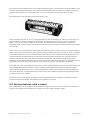
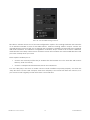
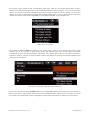
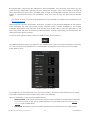
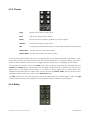
It is possible to import or export entire banks of VOX Continental V presets. To import a bank, click
on the bank import button on the tool bar:
After clicking this button a window will appear so you can choose the bank to import (look for
the “.VOX” extension). Choose the desired bank and click “Open”. The new bank of presets will
automatically appear among the available banks.
You can also export your own sounds as a means of backing them up, using them on another
computer, or sharing them with other users. And while you can only import an entire bank at
once, it’s possible to export a single preset, a Preset Type (a specific category of presets), or an
entire Preset bank.
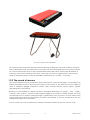
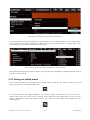
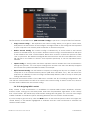
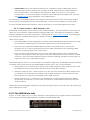
To do this, click on the preset bank export button in the tool bar of the program, which looks like
this:
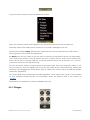
Select the type of export you want to perform (bank, type or preset) and a window will appear,
allowing you to choose a destination folder and name for the item(s) you are exporting.
3.4 Advanced features
3.4.1 Extended mode
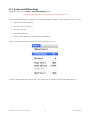
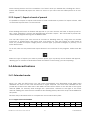
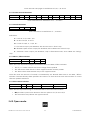
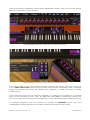
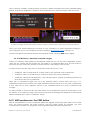
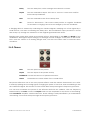
When you click the EXT button you will notice immediately that Extended mode adds extra
drawbars for each of the VOX Continental V organ manuals, and one more drawbar for the
pedals. But it does more than that: it also adds an extra effect switch on the left side of the upper
manual (TREM, for tremolo) and changes the “percussion” switches to the right of the lower
manual, adding one more button overall but also altering which percussion stops are available for
the preset.
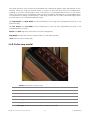
The best way to illustrate this is to compare the two modes side-by-side:
3.4.1.1 Upper manual drawbars
Standard
Extended
16’
16’
8’
8’
ARTURIA VOX Continental V User's Manual
4’
5-1/3'
II
4’
III
2-2/3’
-21-
2’
1-3/5’
1’
~
~
M
M
S
4 USER INTERFACE