1
14 CREATE BUTTON
MELSOFT
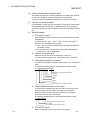
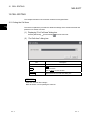
POINT
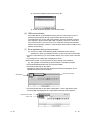
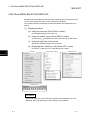
• When the button was created or any property was changed, save the Excel book.
• Do not execute [Grouping] - [Ungroup] from the right-click menu of the button.
Executing Ungroup will disable the button from functioning.
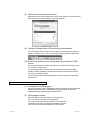
• If the font size is set on the <<Font>> Tab of the property, a value (error) different
from the set font size may be displayed when the <<Font>> Tab is displayed next
time.
(Example) When the font size is set to 8, 8.25 will be displayed next time.
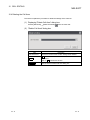
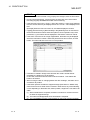
• If [Split], [Freeze Panes] or [New Window] in the [Window] menu is executed for
the Excel sheet where buttons have been placed, correct operation may not be
performed, e.g. the buttons remain displayed or the buttons cannot be clicked.
• If the zoom of Excel is set to a large magnification, the button may be displayed
above the row/column number. When this phenomenon has occurred, click the
button. The button will then move to the correct position.
• If a button is created in design mode and then the mode is ended and set
repeatedly, the button may not be clicked.
In this case, minimize and restore the Excel book window. This enables the
button to be clicked.
• When moving a button or changing button size after creating it, the button is not
checked for its position.
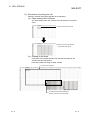
• If the button position exceeds the supported range (256 columns ×65536 rows)
when Excel from 97 to 2003 version is saved in book format, any of the following
occurs depending on the button size, button position, height of the row and/or cell
width.
(1) When saved Book is reopened, the button is reduced or moved so that it is
fit within the supported range.
(2) The button has disappeared when saved Book is reopened.
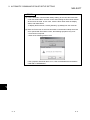
(3) The Compatibility Checker screen appears on the Excel at saving the Book.
14 - 5
14 - 5