1
OSD Adjustments (Continued)
202P7 CRT
14
Go to cover page
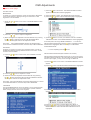
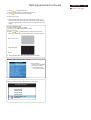
4) Press the
or
button to move the image up or down.
5) When the position is adjusted, press the
MAIN CONTROLS window, or press the
ADJUST SIZE.
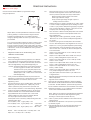
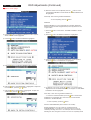
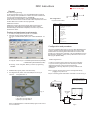
4) Press the button. The SIDE CURVE window appears.
PINCUSHION should be highlighted.
button to return to
button to highlight
5) To adjust the pincushion, press the
6) To adjust the vertical size, press the
or
or
button.
button.
7) When the size is adjusted, press the button to return to MAIN
CONTROLS window. CLOSE MAIN CONTROLS will be highlighted.
6) When the pincushion is adjusted, press the button to
highlight BALANCED or press the button to return to the
ADJUST SHAPE window.
Smart Help After returning to MAIN CONTROLS...
... To continue to ADJUST SHAPE, press the button until ADJUST
SHAPE is highlighted. Next, start with step 3 under ADJUST SHAPE and
follow the directions.
... To exit completely, press the button.
ADJUST SHAPE
ADJUST SIDE CURVE
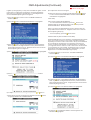
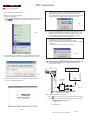
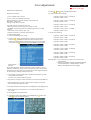
ADJUST SIDE CURVE under ADJUST SHAPE allows you to adjust two
of the five preset options. These two options are PINCUSHION and
BALANCED pincushion. Note: use these features only when the picture
is not square.
1) Press the
appears.
button on the monitor. The MAIN CONTROLS window
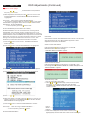
7) To adjust the balanced, press the
2) Press the
button until ADJUST SHAPE is highlighted.
8) When the balanced is adjusted, press the
ADJUST SHAPE will be highlighted.
9) Press the
press the
or
button.
button. BACK TO
button to return to the ADJUST SHAPE window, then
button until ADJUST SIDE ANGLES is highlighted.
Smart Help After returning to MAIN CONTROLS...
... To continue to ADJUST SIDE ANGLES, start with step 5 under
ADJUST SIDE ANGLES and follow the directions.
...To exit completely. Press the button twice.
... to adjust only the BALANCED pincushion,follow steps 1-4 above,
then press the button,and follow steps 7-9.
ADJUST SIDE ANGLES
3) Press the button. The ADJUST SHAPE window appears.
ADJUST SIDE CURVE should be highlighted.
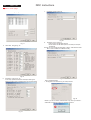
ADJUST SIDE ANGLES under ADJUST SHAPE allows you to adjust
two of the five preset options. These two options are TRAPEZOID
and PARALLELOGRAM. Note: use these features only when the
picture is not square.
1) Press the
button on the monitor. The MAIN CONTROLS
window appears.
2) Press the
button until ADJUST SHAPE is highlighted.