1
OSD Adjustments (Continued)
202P7 CRT
19
Go to cover page
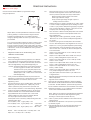
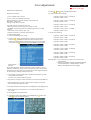
together (converge) then you may see unwanted red, green, or blue
lines or dots. To adjust the convergence, follow the steps below.
Note: Use only if necessary. Remember: you must degauss the
monitor BEFORE adjusting the convergence.
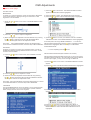
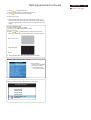
1) Press the button on the monitor. The MAIN CONTROLS
window appears.
2) Press the
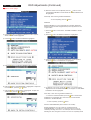
8) To adjust the vertical convergence, press the
or
button.
9) When the vertical convergence is adjusted, press the button
to return to the EXTRA CONTROLS window. BACK TO MAIN
CONTROLS is highlighted.
Smart Help
button until EXTRA CONTROLS is highlighted.
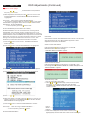
After returning to EXTRA CONTROLS . . .
. . . to continue to ADJUST PURITY, press the button until
ADJUST PURITY is highlighted. Next, start with step 4 under
EXTRA CONTROLS - ADJUST PURITY.
Note: If you have not degaussed the monitor, please follow the
steps under the Extra Controls - Degauss section of this manual
before adjusting the purity.
. . . to exit completely, press the
button twice.
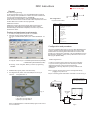
ADJUST PURITY (Not available in all models)
3) Press the button. The EXTRA CONTROLS window appears.
Note: If you have not degaussed the monitor, please follow the
steps under the Extra Controls - Degauss section of this manual
before adjusting the convergence.
4) Press the
EXTRA CONTROLS is a set of features, including ADJUST PURITY.
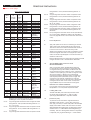
Purity is a process by which colors appear clear and untainted,
especially in the four corners of the monitor. Purity can be affected
by such things as the presence of a magnetic source near the
monitor or even by the ambient room temperature. For example,
you might see the color red in a corner of the monitor screen where
you should see only a pure white. To adjust the purity, follow the
steps below. Note:Use only if necessary. Remember: you must
degauss the monitor BEFORE adjusting the purity.
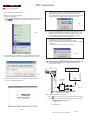
button until ADJUST CONVERGENCE is highlighted.
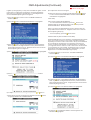
1) Press the button on the monitor. The MAIN CONTROLS
window appears.
2) Press the
button until EXTRA CONTROLS is highlighted.
5) Press the button. The ADJUST CONVERGENCE window
appears. ADJUST HORIZONTAL is highlighted.
3) Press the button. The EXTRA CONTROLS window appears.
Note: If you have not degaussed the monitor, please follow the
steps under the Extra Controls - Degauss section of this manual
before adjusting the purity.
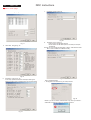
4) Press the
6) To adjust the horizontal convergence, press the
or
button until ADJUST PURITY is highlighted.
button.
7) When the horizontal convergence is adjusted, press the
to highlight VERTICAL CONVERGENCE.
button
5) Press the . The ADJUST PURITY window appears. NS
PUTRITY is highlighted.