1
Avaya™ Interactive Response
Release 1.2.1
Troubleshooting
Issue 1.0
Publication Date: June 2004
© 2004, Avaya Inc.
All Rights Reserved
Notice
Every effort was made to ensure that the information in this document was
complete and accurate at the time of printing. However, information is
subject to change.
Preventing Toll Fraud
“Toll fraud” is the unauthorized use of your telecommunications system by
an unauthorized party (for example, a person who is not a corporate
employee, agent, subcontractor, or working on your company's behalf). Be
aware that there may be a risk of toll fraud associated with your system and
that, if toll fraud occurs, it can result in substantial additional charges for
your telecommunications services.
Avaya Fraud Intervention
If you suspect that you are being victimized by toll fraud and you need
technical assistance or support, call Technical Service Center Toll Fraud
Intervention Hotline at +1 800 643 2353 for the United States and Canada.
For additional support telephone numbers, see the Avaya Web site:
http://www.avaya.com
Select Support >Escalation Management > International Services.
Providing Telecommunications Security
Telecommunications security (of voice, data, and/or video communications)
is the prevention of any type of intrusion to (that is, either unauthorized or
malicious access to or use of) your company's telecommunications
equipment by some party.
Your company's “telecommunications equipment” includes both this Avaya
product and any other voice/data/video equipment that could be accessed
via this Avaya product (that is, “networked equipment”).
An “outside party” is anyone who is not a corporate employee, agent,
subcontractor, or working on your company's behalf. Whereas, a “malicious
party” is anyone (including someone who may be otherwise authorized)
who accesses your telecommunications equipment with either malicious or
mischievous intent.
Such intrusions may be either to/through synchronous (time-multiplexed
and/or circuit-based) or asynchronous (character-, message-, or packetbased) equipment or interfaces for reasons of:
• Utilization (of capabilities special to the accessed equipment)
• Theft (such as, of intellectual property, financial assets, or toll-facility
access)
• Eavesdropping (privacy invasions to humans)
• Mischief (troubling, but apparently innocuous, tampering)
• Harm (such as harmful tampering, data loss or alteration, regardless of
motive or intent)
Be aware that there may be a risk of unauthorized intrusions associated
with your system and/or its networked equipment. Also realize that, if such
an intrusion should occur, it could result in a variety of losses to your
company (including but not limited to, human/data privacy, intellectual
property, material assets, financial resources, labor costs, and/or legal
costs).
Your Responsibility for Your Company's Telecommunications Security
The final responsibility for securing both this system and its networked
equipment rests with you - an Avaya customer's system administrator, your
telecommunications peers, and your managers. Base the fulfillment of your
responsibility on acquired knowledge and resources from a variety of
sources including but not limited to:
• Installation documents
• System administration documents
• Security documents
• Hardware-/software-based security tools
• Shared information between you and your peers
• Telecommunications security experts
To prevent intrusions to your telecommunications equipment, you and your
peers should carefully program and configure:
• your Avaya-provided telecommunications systems and their interfaces
• your Avaya-provided software applications, as well as their underlying
hardware/software platforms and interfaces
• any other equipment networked to your Avaya products.
2
Avaya IR R1.2.1 Troubleshooting
Federal Communications Commission Statements
Part 15: Class A Statement
Note: This equipment has been tested and found to comply with the limits
for a Class A digital device, pursuant to Part 15 of the FCC Rules. These
limits are designed to provide reasonable protection against harmful
interference when the equipment is operated in a commercial environment.
This equipment generates, uses, and can radiate radio frequency energy
and, if not installed and used in accordance with the instruction manual,
may cause harmful interference to radio communications. Operation of this
equipment in a residential area is likely to cause harmful interference, in
which case the user will be required to correct the interference at his own
expense.
Part 68: Answer-Supervision Signaling. Allowing this equipment to be
operated in a manner that does not provide proper answer-supervision
signaling is in violation of Part 68 rules. This equipment returns answersupervision signals to the public switched network when:
• answered by the called station,
• answered by the attendant, or
• routed to a recorded announcement that can be administered by the CPE
user.
This equipment returns answer-supervision signals on all direct inward
dialed (DID) calls forwarded back to the public switched telephone network.
Permissible exceptions are:
• A call is unanswered.
• A busy tone is received.
• A reorder tone is received.
Canadian Department of Communications (DOC) Interference
Information
This Class A digital apparatus complies with Canadian ICES-003.
Cet appareil numérique de la classe A est conforme à la norme NMB-003
du Canada.
European Union Declarations of Conformity
Avaya Inc. declares that the switch equipment specified in this document
bearing the “CE” (Conformité Europeénne) mark conforms to the European
Union Radio and Telecommunications Terminal Equipment Directive
(1999/5/EC), including the Electromagnetic Compatibility Directive
(89/336/EEC) and Low Voltage Directive (73/23/EEC). This equipment has
been certified to meet CTR3 Basic Rate Interface (BRI) and CTR4 Primary
Rate Interface (PRI) and subsets thereof in CTR12 and CTR13, as
applicable.
Copies of these Declarations of Conformity (DoCs) signed by the Vice
President of R&D, Avaya Inc., can be obtained by contacting your local
sales representative and are available on the following Web site:
http://support.avaya.com
Trademarks
Avaya, CONVERSANT, and Intuity are registered trademarks of Avaya, Inc.
Adobe and Adobe Acrobat are trademarks or registered trademarks of
Adobe Systems, Inc. in the United States and in other countries.
U.S. Robotics and Sportster are registered trademarks of 3Com
Corporation or its subsidiaries.
Alliance Generation is a registered trademark and NMS Communications,
Natural MicroSystems, AG, Natural Access, NaturalFax are trademarks or
service marks of NMS Communications Corporation or its subsidiaries.
Informix, DB2 are registered trademarks of IBM Corporation.
Microsoft, Windows, and Windows NT are either registered trademarks or
trademarks of Microsoft Corporation in the United States and/or other
countries.
Netscape is a registered trademark of Netscape Communications
Corporation in the United States and other countries. End-users are not
entitled to receive from Netscape any support, warranty, or documentation
associated with the Netscape product unless they have paid for such
support, warranty or documentation. End user can purchase support from
Netscape, at http://help.netscape.com.
Nuance and Nuance Vocalizer are trademarks of of Nuance
Communications, Inc.
Oracle is a registered trademark, and Oracle8i, and Oracle9i are
trademarks or registered trademarks of Oracle Corporation
Sybase is a trademark of Sybase, Inc.
Speechify, OpenSpeech Server, OpenSpeech Recognizer, and OpenVXI
are registered trademarks of SpeechWorks International, Inc.
Sun, Sun Microsystems, docs.sun.com, Java, Solaris, Sun Blade, and Sun
Fire are trademarks or registered trademarks of Sun Microsystems, Inc. in
the United States and in other countries.
Technical Support
To report problems or to request assistance setting up and using your
system, contact the Avaya Technical Services Organization (TSO). The
telephone number for support in the United States is 1-800-242-2121.
For additional support telephone numbers:
• Visit the Avaya Support Centre Web site (http://support.avaya.com).
• Select Escalation Management > International Services.
Warranty
Avaya Inc. provides a limited warranty on this product. Refer to your sales
agreement to establish the terms of the limited warranty. In addition,
Avaya’s standard warranty language as well as information regarding
support for this product, while under warranty, is available through the
Avaya Support Centre Web site http://support.avaya.com.
Ordering Information: Avaya Publications Center
Voice:
+1 207 866 6701
+1 800 457 1764 (Toll-free, U.S. and Canada only)
Fax:
+1 207 626 7269
+1 800 457 1764 (Toll-free, U.S. and Canada only)
Write:
Globalware Solutions
200 Ward Hill Avenue
Haverhill, MA 01835 USA
Attention: Avaya Account Manager
Web:
http://www.avayadocs.com
E-mail:
[email protected]
Acknowledgment
This document was written by the CRM Information Development group.
Issue 1.0
June 2004
3
Contents
Troubleshooting ..................................................................................................................... 6
Troubleshooting overview ............................................................................................... 6
Requirements for successful operations....................................................................... 6
Possible malfunctions and errors.................................................................................. 8
Identifying possible causes of problems ..................................................................... 10
Troubleshooting procedure ........................................................................................... 12
Using IR system events .............................................................................................. 13
Gathering information on a problem ........................................................................... 13
Troubleshooting based on observations ....................................................................... 15
Investigating operations problems .............................................................................. 16
Checking communications.......................................................................................... 29
Checking hardware..................................................................................................... 36
Index ...................................................................................................................................... 53
Issue 1.0
June 2004
5
Troubleshooting
An Avaya IR system interacts with other systems and relies on them for critical functions.
Consequently, troubleshooting may involve testing connections and checking other systems
where databases, speech functions, and host services reside. This section guides you in
resolving many Avaya IR system problems and includes information on basic LAN, server,
and host troubleshooting. Additionally, Avaya technical support provides troubleshooting
assistance that is specific to your Avaya IR system and the current problem.
Troubleshooting overview
This overview explains how the Avaya IR system works and and identifies potential problem
areas.
Requirements for successful operations
Interactions between the IR system and other systems and applications are essential to voice
response operations. This section explains the requirements for successful operations to help
you to prevent problems and identify them more quickly when they occur.
The public switched telephone network (PSTN)
Calls come into the IR system from the public switched telephone network (PSTN). Calls
from the PSTN can reach the IR system in one of three ways:
•
A MultiVantage (DEFINITY) system receives the calls from the PSTN and passes them to
the IR system through direct digital connections between the two systems.
•
An IP-enabled DEFINITY or MultiVantage system receives calls from the PSTN, converts
them to packet-based signals, and sends them to the IR system over a Local Area
Network (LAN) connection.
•
Calls come from the PSTN directly to the IR system through digital connections.
For successful voice response operations, all of the connections described above and the
telephony network that supports them–including central offices–must be working and free
from errors.
Issue 1.0
June 2004
6
Troubleshooting overview
Switches
IR systems can be linked to DEFINITY or MultiVantage systems that route calls to and from
the IR system and perform call handling functions. For successful operations, switches must
be free of hardware problems and must be administered correctly. Additionally, connections
between the switch and the IR system must be operating properly and not be overloaded.
DEFINITY and MultiVantage systems come with a comprehensive set of self-tests that you
can use to troubleshoot problems with the switch and with connections, such as trunks.
Procedures are documented in detail in the various administration manuals. Switch
troubleshooting should be done with the aim of bringing connections into service. Once the
connections are in service, there is a good chance that the problem is not with the switch.
Voice response applications
Voice response applications manage the interactions between callers and play the
information that callers hear. For successful operations, voice response applications must
perform a variety of tasks, such as:
•
Interpreting caller input and taking appropriate action
•
Communicating with hosts, databases, and proxy speech servers
•
Transferring values entered by callers to other applications
•
Providing information to callers in the form of recorded speech or speech generated
through the Proxy Text-to-Speech feature
As you can see, voice response applications are central to the successful operation of an IR
system.
Connections and communications
Connections to other systems, and the communications that take place across them, are
critical to smooth voice operations. Major connections and communications are as follows:
•
Digital lines and LAN connections that bring calls in from and send calls out to the public
switched telephone network (PSTN)
•
Connections between any MultiVantage systems and the IR system
•
Connections from the back of the IR system to other devices, and to the LAN
•
LAN connections between the IR system and servers that provide speech functions,
database information, or both
A breakdown in any of these connections can affect voice response operations.
Issue 1.0
June 2004
7
Troubleshooting
System and LAN capacity
Like any computer, the IR system has a certain amount of memory, drive space, and CPU
capacity to support system operations. Additionally, the IR system requires LAN capacity to
communicate with servers that provide critical functions. For successful operation, both IR
system capacity and LAN capacity must be adequate.
Possible malfunctions and errors
This section explains the types of problems that may affect voice response operations.
Hardware malfunctions and failures
Hardware malfunctions and failures may stop or interfere with voice operations. These
include problems in:
•
The IR system itself
•
Servers providing speech functions, database information, or both
•
Connected MultiVantage (DEFINITY) systems
Hardware malfunctions and failures are relatively easy to identify. However, they are rarely a
cause of problems.
Incorrect system administration
Errors in IR system administration can cause problems with voice operations. Examples are:
•
A service cannot be assigned to a channel, resulting in the service not functioning when
calls come in.
•
TCIP/IP connections between the IR system and a server might be set up incorrectly, so
that required data is not available to callers.
Application errors
Applications manage voice response functions, so errors can be devastating to operations.
For instance, an application may call for the playing of recorded speech that does not exist,
or try to access the wrong server for speech. Applications that are not sufficiently tested, or
that are not tested under realistic conditions, can function poorly when used for business
8
Avaya IR R1.2.1 Troubleshooting
Troubleshooting overview
operations. Voice response applications that are large and complex or that use system
resources inefficiently are the most common cause of performance problems.
Connection and communication problems
When any connection that supports voice response applications experiences a problem,
operations may be affected. Disruptions may occur in the public switched telephone network
(PSTN), MultiVantage (DEFINITY) system, servers that support operations, or in the LAN.
Circuit-based configurations
Circuit-based configurations allocate a physical cable (or part of a cable by using Time
Division Multiplexing) to each telephone call. Obviously, problems with these cables might
affect voice response applications.
Packet-based configurations
When the VoIP feature is used, the voice data is transmitted in small packets that contain a
fraction of the entire spoken transmission. Rather than a dedicated cable being used
between the end-points, packets traverse the network between the end-points via one or
more available routes. With this type of transmission, packets may get lost. An overloaded
network might delay or lose packets.
Overloading
Overloading may occur in these ways:
•
An overloaded IR system exhibits performance problems. Causes of system overloaded
include:
― Voice response applications that use system resources inefficiently or are too complex
or lengthy
― Excessive system processes that are external to voice response operations
•
LAN overloading may result from competition with other processes for LAN capacity. The
result can be delays and breaks in the availability of required data and functions.
If the call load increases beyond the capacity of the IR system, call handling problems are
likely to occur. A new system, or re-routing of calls, is generally required.
Issue 1.0
June 2004
9
Troubleshooting
Speech
The IR system provides information to callers through recorded or generated speech. For
successful operation:
•
Recorded speech must exist, be of acceptable quality, and be accessible to voice
response applications.
•
Generated speech must be constructed properly by the Proxy Text-to-Speech feature and
the voice response application.
•
Recorded speech must be transferred from a server, so that the application can play it for
the caller.
Communication between the IR system and the server or host must be adequate to deliver
speech in a timely manner.
Identifying possible causes of problems
Generally, you will work with Avaya support representatives to identify the cause of the
problem and correct it. However, you may find that some problems are easy to identify and
resolve on your own.
The following table describes common problems and suggests actions you can take to
identify them:
Problems
Effects
Actions
Disconnection or poor
connection of cables to the
back of the IR system
Possible effects include:
Check the cable connections.
See Checking cable
connections on page 36 for
more information.
10 Avaya IR R1.2.1 Troubleshooting
•
Monitor, keyboard, or
mouse are not operating.
•
Speech functions and data
resident on servers are not
accessible.
Troubleshooting overview
Inadequate or expired
feature licensing
Note: Renaming the IR
system may cause loss of
feature licensing.
Calls not terminating on the
IR system.
Poor communication or no
communication with
required servers across the
LAN
Affected features are not
functioning, or are not
functioning as expected.
Callers hear a fast busy signal.
Possible effects include:
•
•
Incorrect system
administration, such as
errors in channel
assignments, server
assignments, and other
configuration information
Response times for speech
functions and data retrieval
are slow, interrupted, or
both.
•
From web administration, go
to the Feature Licensing
screen (Configuration
Management > Feature
Licensing) to identify the
features licensed for the
system.
•
Contact your Avaya support
representative if you have
renamed the IR system or
to purchase more features, if
you require them.
•
From web administration, go
to Configuration
Management > System
Control.
•
Stop and start the voice
system.
•
Test the LAN connection.
See Checking LAN
communications on page 30
for more information.
•
Work with your LAN
administrator as needed to
resolve the problem.
•
From web administration, go
to the Display Equipment
screen (Configuration
Management > Voice
Equipment > Display
Equipment) and check the
system settings.
•
Make corrections as
needed.
Speech functions and data
resident on servers are not
accessible to voice
response applications.
Degraded or non-functional
voice response services
Inadequate system
resources (memory, CPU,
disk)
Poor response times, speech
breaks, load-related messages
and alarms, increased hold
times and blocking of calls
Assess the load and reduce it, if
necessary. Manage better the
performance of your system in
the future.
Voice response application
coding errors
•
Degraded or non-functional
voice response services
•
Dropped calls
Contact the vendor or internal
staff who develop your
applications.
Issue 1.0
June 2004
11
Troubleshooting
Troubleshooting procedure
If a problem develops with voice response operations, follow this general procedure to
resolve it:
1. Go to the Message Log Report screen (Reports > Message Log Report) and check for
messages about events related to the problem.
Events may generate alarms. The level of the alarm (critical, major, or minor) indicates the
severity of the problem.
2. Follow repair procedures for any events related to the problem.
On the Message Log Report screen, you may display repair procedures by using the
Explain function. Explanations of messages and related repair procedures are included in
this online help as well.
3. If you cannot resolve the problem based on events and related repair procedures, check
the indications of the problem against information in Troubleshooting based on
observations on page 15 and take action based on your findings there.
4. Before contacting others for assistance, gather data on the problem:
― Alarms received
― Application involved
― Type of channel protocol in use
― Type of card
― Type of switch
― System history related to the problem
5. Contact other resources for assistance as needed. Contact your:
― Avaya support representative for problems related to IR system operations
― Application developer for problems related to voice response applications
― LAN administrator for problems with remote access that are not related to
configuration of remote resources on the IR system
― Database administrator for problems with database functions
― Host support personnel for problems with host operations
12 Avaya IR R1.2.1 Troubleshooting
Troubleshooting procedure
Using IR system events
The first step in the general troubleshooting procedure is to check for messages about events
related to the problem. This topic provides more information about troubleshooting based on
events.
Events on the Avaya IR system are logged, and alarms are generated when those events
cause or might cause a problem with voice response operations.
To troubleshoot using Avaya IR system alarms and errors:
1. When a problem arises, check the Message Log Report screen (Reports > Message Log
Reports) for messages about events related to the situation.
Events include a time stamp, event ID, and brief explanatory text. See the sample event
that follows:
Mon May 12 00:15:05 2003 CDH CDH007 -- -- --- (CDH_TRASUM) trasum
failed. Reason: Could not connect to the database
2. If you find events that are relevant to the problem, view additional information on the
event.
Additional information includes priority, description, and repair procedures. You may
display additional information by using the Explain option in the Message Log Report
screen, or by going to the online Help topic for the message.
3. Follow the repair procedure for the event.
The repair procedure may provide specific instructions, direct you to contact your Avaya
support representative, or link to other topics in the online Help or to other resources.
Gathering information on a problem
The next step of the general procedure for troubleshooting is to gather information on the
problem. The topics in this section explain how to gather the information. You may do this on
your own or under the direction of an Avaya support representative.
Reviewing the Display Equipment screen
Go to the Display Equipment screen (Configuration Management > Voice Equipment >
Display Equipment) to view configuration information, such as:
•
Type of card
•
Type of channels
Issue 1.0
June 2004
13
Troubleshooting
•
Services (voice response applications) assigned to channels
•
Service state
The following table shows state descriptions and their meanings.
State
Meaning
INSERV
In service
MANOOS
Manually out of service
FOOS
Facility out of service
BROKEN
Not functioning, possibly
needing replacement
Monitoring live operations
Use the sysmon command to observe voice response operations as they occur. You can see
calls coming in, digits entered by callers, and line conditions, such as off-hook.
Note:
Monitoring live operations places a heavy demand on system resources. Using
the sysmon command at times of heavy system activity might result in overload
and interference with call processing.
Checking system history
Researching the history of your IR system helps you to identify the current problem. Talk to
others and check records external to the system to find out about:
•
Previous problems and support calls
•
Recent changes to the system, including upgrades and repairs
•
Changes to the LAN configuration in your organization
Check the Message Log Report screen (Reports > Message Log Report) for previous
intermittent problems that may indicate a pattern.
Using Sun diagnostic tests
Three types of diagnostic tests are available through Sun applications. Use the following Sun
diagnostic tests:
14 Avaya IR R1.2.1 Troubleshooting
Troubleshooting based on observations
•
Validation Test System (VTS) to test and validate major hardware components
•
OpenBoot Diagnostics system to perform root cause failure analysis on various IR
devices
•
PROM Diagnostics to check system processes, such as the error rate and type for
Ethernet packets
Sun Fire V210 and V240 Servers Administration Guide explains how to run these diagnostic
tests on the Sun Fire V240 platform. The Sun Fire 280R Server Service Manual explains how
to run these diagnostic tests on the Sun Fire 280R platform. The Sun Blade 150 Service
Manual explains how to run these diagnostic tests on the Sun Blade 150 platform.
These documents are available in Avaya IR System Help (under "Print documents") or from
the Sun Web site (http://www.sun.com).
Using commands
Execute IR system administrative commands to check components and processes.
Information available through administrative commands includes:
•
The allocation of resources for all devices
•
Resources and space available in the database
•
Feature packages installed on your IR system
•
A report of all active fax jobs
Since the Solaris operating system is UNIX-based, you also can run UNIX commands that
check devices, processes, and files.
Troubleshooting based on observations
Troubleshoot based on observations when:
•
You have reviewed the Message Log Report screen and cannot identify any events
related to the problem.
•
The suggested repair procedure for the event does not completely resolve the problem.
•
Further investigation is required, such as when you are investigating an intermittent
problem.
Issue 1.0
June 2004
15
Troubleshooting
Investigating operations problems
Problems central to voice response functions can affect business operations and may result
in missed calls and caller frustration. Most of the problems described in this section require
prompt attention. To investigate these problems, you should have a good understanding of
the Requirements for successful operations on page 6.
Investigating call handling problems
Call handling problems include issues related to responding to and transferring voice and fax
calls. This section provides information on various problems that might happen.
Voice system not answering
The voice system will not take calls. The voice system rings but does not answer, or the voice
system is busy.
Note:
If you depend on a host system for caller services, refer to Host interaction
problems on page 22.
To check on possible causes of the problem:
1. Determine whether the voice response application required for the service is running.
― If the application is a permanent process, use the Solaris ps command to list the
running processes and look for the application process.
― If the application is started on demand, the AD (application dispatch) process starts it
when a call arrives for that application.
2. If the application is not running, take any required actions to correct the operation of the
voice response application.
The application may not be installed or there may be errors in coding. For instance, the
voice response application should contain an action to answer the phone. Check with the
person responsible for development of voice response applications for more information.
3. If the voice response application is running correctly and does not contain errors, ensure
that all cards are in the in service (INSERV) state by taking one of the following actions:
― Enter display card all and press Enter.
― Go to the Display Equipment screen (Configuration Management > Voice Equipment >
Display Equipment).
16 Avaya IR R1.2.1 Troubleshooting
Troubleshooting based on observations
4. If cards are not in service, either try to restore them or contact your Avaya support
representative.
See Restoring cards and channels on page 41 for procedures that may bring cards back
into service.
5. If cards are in service, go to the Channel Services screen (Voice Equipment > Voice
Services > Channel Services) and verify that required voice response applications are
assigned to the appropriate channels.
6. If Speech Recognition or Text-to-Speech are in use, make sure that those applications are
working and that servers running the applications are accessible.
7. Go to the Message Log Report screen (Reports > Message Log Report) and check for
messages indicating that the Transaction State Machine process (TSM) is respawning
due to an excessive number of channels in the system.
The message MTC017 (MTC_RESPAWN) indicates respawning of a system maintenance
process.
8. If TSM is respawning due to an excessive number of channels, reassign channels to
another Avaya IR system or contact your Avaya support representative to order more
channels.
Calls dropped
The Avaya IR system can drop calls at the initial prompt or at any other time.
Calls dropped at initial prompt
The IR system may drop calls when the initial prompt is playing if the prompt was recorded
over background noise, such as a fan or ventilation system. The background noise may be
detected as a dial tone following connection by the caller. If this happens, the call is dropped
by the IR system. To fix the problem, re-record the prompt without the background noise.
Note:
For sound quality, you should record in an environment that is free of
background noise.
All calls dropped
Take these actions when all calls are dropped:
Note:
If you depend on a host system to provide information to callers, refer to Host
interaction problems on page 22.
1. Go the Message Log Report screen (Reports > Message Log Report) and scan it for
messages related to the trouble.
Issue 1.0
June 2004
17
Troubleshooting
Look for messages that occurred just before and at the time when calls began dropping. If
calls are handled by VoIP, look for the messages VOIP_DISABLED_CALL_PROC or
VOIP_CALL_FORCE_CLEARED.
2. Type who -rpb and press Enter to display a log of system processes.
3. Search for different time stamps on the processes.
A recent date different from most of the others may indicate that the process respawned.
4. If you find different time stamps, record the situation that caused the problem and take
steps to correct it.
Calls not transferred properly
A transfer may fail simply because the number receiving the call is busy. However, if there
are repeated problems with transfer operations, the cause may be:
•
Digits are being dialed incorrectly.
•
The switch does does not support transfer operations.
•
There are mismatches between the anticipated number of digits in an ANI or DID pass
and the actual number received. (This situation applies to the R2MFC protocol only.)
To resolve the problem:
1. Ensure that digits are being dialed correctly:
a) Type sysmon and press Enter to observe system operations.
b) Observe transfer operations to determine if the correct digits are being dialed.
c) If the wrong digits are being dialed, make the required correction in the voice response
application.
2. If the correct digits are being dialed, verify that the transfer number is valid and that the
switch supports transfer operations.
3. If the R2MFC protocol is in use, try to match the anticipated number of digits in an ANI or
DID pass and the actual number received:
a) Type sysmon and press Enter to observe system operations.
b) Observe transfer operations to determine the number of digits passed in ANI and DID
operations.
c) Use the nms command to specify the correct number of digits.
Note:
It might not be possible to specify the correct number of digits for each call
instance.
18 Avaya IR R1.2.1 Troubleshooting
Troubleshooting based on observations
No DTMF tones (WINK protocol)
If voice response applications are not responding correctly to caller input, you may suspect
that DTMF tones (the tones that identify the called number) are missing. For calls handled
with the WINK start protocol, run a trace to determine if the NMS card is receiving the tones.
To set up the trace:
1. Set the following values in the cta.cfg file:
― Tracemode=1
― Tracemask=allevt
― Tracefile=cta.log
2. Stop and start the voice system.
3. Review the ctdaemon file.
The system displays trace output.
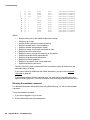
4. Check the trace output to determine whether digits are being sent.
In the trace output, the digits in parentheses for the val field identify digits sent. In the
sample trace output that follows, val entries indicate that the digits 1, 2, and 3 were sent.
(The digit 3 is not significant, and the val entries are in bold here to help you find them.)
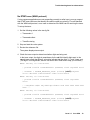
MESG: Tue May 13 17:08:48 2003
| pid=580 tid=578 ctahd=80000001 (CTATEST) uid=0 tag=4006 sev=0
| DISPEVT: ? NCCEVN_RECEIVED_DIGIT (1c201d) (val=31) objhd=1
src=1c dst=2000 time=235a9a97 uid=0 size=0 buf=0
MESG: Tue May 13 17:08:48 2003
| pid=580 tid=578 ctahd=80000001 (CTATEST) uid=0 tag=14001
sev=0
| ? Msg:854D Ch#01 Obj:0000 Np=16 Nb=0 0032 0000 0000 0000 0000
0000 ...
MESG: Tue May 13 17:08:48 2003
| pid=580 tid=578 ctahd=80000001 (CTATEST) uid=0 tag=4006 sev=0
| DISPEVT: ? NCCEVN_RECEIVED_DIGIT (1c201d) (val=32) objhd=1
src=1c dst=2000 time=235a9b32 uid=0 size=0 buf=0
Issue 1.0
June 2004
19
Troubleshooting
MESG: Tue May 13 17:08:48 2003
| pid=580 tid=578 ctahd=80000001 (CTATEST) uid=0 tag=14001
sev=0
| ? Msg:854D Ch#01 Obj:0000 Np=16 Nb=0 0033 0000 0000 0000 0000
0000 ...
MESG: Tue May 13 17:08:48 2003
| pid=580 tid=578 ctahd=80000001 (CTATEST) uid=0 tag=4006 sev=0
| DISPEVT: ? NCCEVN_RECEIVED_DIGIT (1c201d) (val=33) objhd=1 src=1c
dst=2000 time=235a9bd7 uid=0 size=0 buf=0
This trace output shows that digits were sent.
Poor audio quality on VoIP calls
The performance of the self-service IP network has impact on the quality of the audio during
calls. A busy network can delay or loose packets with audio information, causing poor audio
performance. To help in troubleshooting such problems, you can set up the VoIP subsystem
to send copies of RTCP packets to a VoIP Monitoring Manager (VMM), which is a call-quality
monitoring application for calls that use packet-forwarding technology. VMM helps you to
identify audio quality problems and take steps to resolve them.
Touchtone not interpreted correctly
If touchtone is not working properly:
•
Verify that the action to collect data from the caller matches the intended use in the voice
response application.
•
If there is no problem with the action and its usage in the voice response application,
contact your Avaya support representative for assistance.
Investigating fax problems
Fax problems are often caused by simple errors, so understanding the common causes of
problems saves you time. If you need to investigate further, the Avaya IR system provides
detailed information on fax processes.
Typical fax problems
The most common reasons that a fax is not sent are:
20 Avaya IR R1.2.1 Troubleshooting
Troubleshooting based on observations
•
The remote fax machine is busy or out of paper.
•
There is no fax machine at the remote number.
Once you have checked these two possibilities, troubleshoot fax problems using the
information in this section.
Locating fax errors
For internal errors:
1. Check for fax errors by taking one of the following actions:
― Go to the Message Log Report (Reports > Message Log Report) and check for fax
errors or
― Type trace date FAXOOC sbFaxProc NMSIP chan # area all level all and press
Enter.
2. Provide the output to technical support.
You may also learn of errors through negative return values on a FAX action. Refer to
Interpreting negative fax values on page 21 for explanations of negative errors.
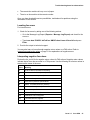
Interpreting negative fax values
Review the fax_tool.h file for negative return values for FAX actions. Negative return values
indicate that an error has occurred in a FAX process. Use the following list of return values to
determine the cause of the error.
Value
Meaning
-1
Another faxit command is executing.
-2
Fax transmission failed (internal).
-3
Channel was denied (internal).
-4
File cannot be opened or does not exist
-5
There are no previous queued faxes.
-8
faxit command timed out (internal).
-12
Cannot set timer (internal).
-13
File was not specified.
-14
UNIX call failed (internal).
-15
Destination was not supplied.
-17
Command was not supplied.
-18
Return string was not supplied.
Issue 1.0
June 2004
21
Troubleshooting
-19
Cover page merging failed (internal).
-20
Subprog to sbFaxHpr failed (internal).
-21
IRAPI call failed (internal).
-23
Wrong subprog message was received (internal).
-24
Max. sbFaxHpr instances was reached (internal).
Reviewing fax repair procedures
When problems arise with fax operations, the Message Log Report screen might display
various events related to fax operations. The Explain text and help topics for these events
include suggested repair procedures. If you see fax events in the Message Log Report
screen, review the related repair procedures to determine your course of action.
Fax text or file not found
Take action depending on whether the problem occurred in transmission or receipt of the fax:
•
Request to transmit a fax file to the caller failed: Verify, using either the Fax Loading and
Printing screen or the full path specified in the voice response application, that the file
exists.
•
Caller did not receive the fax: Consider manually transmitting the fax message to the
caller by using the delivery number contained in the error message.
Host interaction problems
This section contains very basic information on problems that might occur when a IR system
interacts with a host system. Most often, you will work with the vendor of your host system to
resolve these issues.
Host sessions recover repeatedly
To resolve the problem:
1. Go to the Message Log Report screen (Reports > Message Log Report) and check for
messages related to the trouble.
Alarms related to host interaction begin with the letters HOST, and range in severity from
minor to critical.
2. Verify that a Transaction Base screen has been specified.
3. Verify that the Login and Recovery sequences both keep the host session at a
Transaction Base screen.
22 Avaya IR R1.2.1 Troubleshooting
Troubleshooting based on observations
No response for application with host interface
A voice response application that relies on a host system for data might receive no answer
intermittently or consistently.
To resolve the problem:
1. Go to the Message Log Report screen (Reports > Message Log Report) and check for
events related to the trouble.
The event HOST001 (HOST_NORESP) should appear in the log.
2. Follow the repair procedure for the event.
Calls to host dropped
When all calls to the host are dropped, take these steps:
•
Type hstatus all and press Enter to check the status of the host.
If all sessions are recovering or logging in, this could cause the trouble.
•
If the problem occurs frequently, consider speeding up connections between the IR
system and the host.
Speech delayed or cut off
Delayed or cut off speech can cause callers to disconnect.
Speech response delayed
Delays in speech response may be caused by:
•
Inadequate IR system or LAN resources. Managing the performance of your IR system
helps to prevent delays in speech response.
•
Limited recognition resources in a speech recognition application. All remote application
resources might be busy and not available for allocation to other calls. You must wait for
resources to become available or increase the number of resources the system can use.
•
Overloaded host communications. If interactions between the host and the IR system are
too busy, the result may be delays in speech response.
•
Mismatches between the anticipated number of digits in an ANI or DID pass and the
actual number received (R2MFC protocol only). Use the nms command to specify the
anticipated number of digits.
Issue 1.0
June 2004
23
Troubleshooting
Messages cut off
When messages are cut off, make the following changes in the voice response application to
correct the problem:
•
Add a few seconds of initial silence (0.2 to 0.5 seconds) to the beginning of the message
to be played.
•
Construct a phrase consisting of a few seconds of silence and play that phrase first.
•
Ensure that the prompt does not allow voice barge-in. If it does, any background noise or
talk by the caller will interrupt the prompt.
Speech recognition not working
If Avaya speech recognition is not working, the cause may be:
•
Incorrect or incomplete administration of the Natural Language Speech Recognition
feature or proxy speech server on the IR system
•
Disconnection or malfunction of the proxy speech server
The procedures in this section explain what to do when speech recognition is not working at
all. PROXY alarms and messages contain repair procedures for a variety of speech
recognition problems.
Speech recognition not available as resource
To resolve the problem:
1. Go to the Speech Resource Status screen (Features > Speech and DPR
Administration > Display Status > Speech Resource Status), select a speech
resource type from the drop-down list, and select Submit.
The configuration listing for the selected type of speech resource is displayed.
2. Review the speech resource listing to verify that the resource is administered and is in the
in service (IN SERV) state.
3. Repeat the previous steps with all types of speech resources.
4. If no speech resource is administered, go to the Speech Recognition Configuration screen
(Features > Speech and DPR Administration > Administration > Speech
Recognition or DPR Configuration) and make the required entries to configure speech
resources.
5. If speech resources are configured, but are not in the IN SERV (in service) state, verify
that the speech server or servers and related connections are operating.
24 Avaya IR R1.2.1 Troubleshooting
Troubleshooting based on observations
Cannot configure speech recognition
If the Speech Recognition Configuration option is not available on the Speech Proxy
Administration screen, the Natural Language Speech Recognition packages are not installed.
The AVSproxy and AVsrproxy packages are required for the Natural Language Speech
Recognition feature. If WholeWord speech recognition is required (AVasr, AVwwasr), one or
more of the language packages (AVwwau, AVwwbp, AVwwcf, AVwwcs, AVwwfr, AVwwgr,
AVwwit, AVwwjn, AVwwms, AVwwnl, AVwwuk, Avwwus) are also needed. For SpeechWorks
OpenSpeech Recognizer (OSR), either AVosr114 or AVosr204 is required.
All ports BROKEN on speech server
If all ports for a proxy speech server are in the BROKEN state when viewed either by
recognition type or by server type, the speech recognition proxy is not able to connect to the
specified server with the configured port.
To correct the problem:
1. Ensure that the speech recognition server is up and running.
See Troubleshooting speech server disconnections on page 30 for more information.
2. Run the netstat –a command on the recognition server to verify that the recognition
server is listening on the configured port.
Speech resource bad or non-configured
If you see the following system message when you try to display a speech configuration
resource, there is no server administered for the specified recognition type.
Error: Bad or Non-configured Resource type
Go to the Speech Recognition or DPR Configuration screen (Feature Packages > Speech
and DPR Administration > Administration > Speech Proxy Administration > Speech
Recognition Administration > Speech Recognition or DPR Configuration) and administer a
server.
Speech server not running
For earlier releases of OSR, run the command swisvc -start to restart the speech server
after every Avaya IR system re-start.
Starting with OSR 2.x, you can set OSR service to start automatically after every system
restart. To do so, make the following change on the OSR 2.x server:
1. Locate and open the file c:\Program
Files\SpeechWorks\OpenSpeechRecognizer\confg\SpeechWorks.cfg
2. Change the SWIsvcMonAutoRestart and SWIsvcMonAutoStart lines to be set to 1. Verify
that the lines look like this:
Issue 1.0
June 2004
25
Troubleshooting
― SWIsvcMonAutoRestart=1
― SWIsvcMonAutoStart=1
3. Save the SpeechWorks.cfg file.
Speech recognition rejecting many responses
ScanSoft OSR 2.0 uses new confidence scores to obtain the recognition result. Some of the
borderline utterances that would have been accepted in OSR 1.x might be rejected in OSR
2.0.
Try one of the following changes to increase the recognition rate:
•
If you want to use the OSR 1.x confidence score scale, set the attribute
swirec_backward_compatible_confidence_scores to 1.1 in the OSR server user
configuration file. Refer to the Scansoft OSR 2.x reference manual for further information.
•
If you want to use the OSR 2.x confidence score but you want to increase the recognition
rate, try decreasing the confidencelevel property in the /vs/data/vxml/defaults.xml file on
the Avaya Interactive Response system, then restart the voice system.
Speech not playing
Speech may not play for a variety of reasons, including the following:
•
The voice response application does not contain, or fails to find, the required phrase.
•
The required voice response application is not assigned to the channel.
•
A proxy server providing Text-to-Speech service is disconnected or experiencing
intermittent problems.
Checking the voice response application and system administration
To check the application and the administration settings:
1. If a particular phrase of recorded speech is not playing, check to see that it is recorded
and record it, if necessary.
2. Go to the Display Equipment screen (Configuration Management > Voice Equipment >
Display Equipment) and check to see if the correct service is assigned to the channel or
channels.
3. If the correct service is not assigned, go to the Channel Services screen (Configuration
Management > Voice Equipment > Voice Services > Channel Services) and make the
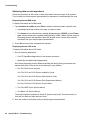
required changes.
26 Avaya IR R1.2.1 Troubleshooting
Troubleshooting based on observations
Checking the server connection
See Troubleshooting speech server disconnections on page 30 for a complete procedure on
checking and testing the connection.
Checking for errors
To check for errors:
1. Go to the Message Log Report screen (Reports > Message Log Report) and check for
messages related to the trouble.
2. Enter the following commands as needed to analyze operations:
― Type trace tsm chan all | tee /tmp/trace.out and press Enter to trace
all levels of operations for the call.
― Type trace tsm chan date | tee /tmp/trace.out and press Enter to trace
operations for the identified date. (Trace output will be prefixed by the date and
timestamp.)
― Type trace tsm chan VROP | tee /tmp/trace.out and press Enter to trace
voice response operations specifically.
The trace output from the above commands is sent to the console and to the file
/tmp/trace.out.
3. Place a call to the server.
4. Review the trace output for failure indications or error messages and take action to
correct the problems.
Investigating system process problems
Problems with system processes can affect callers and voice response operations, causing
speech breaks, delays, and interruptions in call handling.
UNIX commands failing or disk errors
If UNIX commands are failing, or if the system reports disk failures, go to the Message Log
Report screen (Reports > Message Log Report), check for events related to the problem, and
follow the repair procedures in the related Explain text or online Help topic. The following are
possible problems:
•
DSKMG messages report file access failures that affect speech or data operations.
•
UNIX messages report problems with the UNIX operating system.
Issue 1.0
June 2004
27
Troubleshooting
Execute UNIX command failed
Most likely, the problem is with the command or shell script. Make sure that the command or
shell script that was attempted works when executed manually. If it does, verify that its full
path name is provided to the script.
vi editor causes core dump
If the vi editor causes a core dump, split the file into multiple segments:
•
Type split - n filename name and press Enter, where n is the number of lines in
each piece (1000 is the default), filename is the name of the files you want to split, and
name is the new segment you are creating.
Investigating database problems
If you are using databases on the LAN, communications problems with those databases may
affect voice operations. Troubleshooting database server disconnections on page 31 covers
what to do when the IR system is not communicating with the database server at all. The
following topics explain how to check on less serious problems with databases.
Checking JDBC operations
Use the following commands to check JDBC function:
•
netstat -a lists port usage. Review the output to verify that ports are functioning and
are not overloaded.
•
trace chan all DBDIP3 traces DIP activity. Review the output to verify that all DIPs
are functioning in the desired way.
Review the following system processes related to JDBC operations:
•
/vs/bin/vrs/idbcint DIP num
•
/vs/bin/vrs/jdbcdip dipnumber
•
/usr/bin/../java/bin/../bin/SPARC/routine_threads/java -Dpname=ais3 -cp /webadm
•
/usr/bin/../java/bin/../bin/SPARC/routine_threads/java -Dpname=ais(dip number) -cp
/webadm
Checking Oracle object size limits
An extent is a user-defined unit of storage in the Oracle storage clause used when defining
an Oracle object. It is used as MINEXTENTS or MAXEXTENTS in the storage clause. An
Oracle object (that is, a table, an index, a rollback segment) grows one extent in size each
time the object needs to be expanded.
28 Avaya IR R1.2.1 Troubleshooting
Troubleshooting based on observations
When the maximum allowed number of extents is reached, the object will not be able to grow
further. The object needs to be redefined so that either the size of each extent is increased or
the initial object size is increased, to reduce the number of extents required for the storage of
this object. The maximum allowed number of extents in a system is 2,147,483,645.
To check the number of extents:
1. Type dbused and press Enter.
The system displays the Space Allocated screen.
2. Compare the value in the EXTENTS column to the value in the MAX_EXTENTS column.
If the value in the EXTENTS column is greater than or equal to the value in the
MAX_EXTENTS column, the table has reached its maximum size.
3. Redefine the database table storage, if necessary.
Note:
Contact your internal database administrator or your database vendor for help
with this and other database tasks.
A word about the Tomcat server log
In Avaya IR Release 1.2.1, the Web Administration tool uses Tomcat as both the Web server
and servlet engine. Tomcat periodically writes data to a log on the Avaya IR server.
Since the Tomcat server does not provide a method internally to delete old data, it continually
adds to this data and will continue to do so unless cleaned up from time to time. We
recommend that you check these log files on a regular basis and delete old data files when
the size of the log file directory gets too large.
This file can be found at the following location:
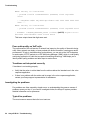
/webadm/jakarta-tomcat-5.0.18/logs/localhost_log.<yyyy-mm-dd>.txt
where <yyyy-mm-dd> is the date of the last time time the log was written to. For example, if
the last date the log was written to was May 7, 2004, then the name of the log file would be:
localhost_log.2004-05-07.txt
Checking communications
Because voice system functions may be reliant on servers, checking LAN communications is
an important aspect of troubleshooting. You might need to work with your LAN administrator
to completely investigate LAN problems.
Issue 1.0
June 2004
29
Troubleshooting
Checking LAN communications
To support voice response operations, an Avaya IR system may communicate with remote
servers that store databases, with proxy servers for Text-to-Speech and speech recognition,
or both. Using servers outside the IR system provides flexibility and increased storage
capacity.
However, problems with LANs and with servers can interrupt or stop access to required
functions. Understanding how to check LAN communications helps you to identify the cause
of voice response problems faster when servers are involved. If the VoIP feature is used,
LAN operations are critical to transmitting calls. With VoIP, the goal of troubleshooting the
network is to enable the DEFINITY or MultiVantage system and the Avaya IR system to
communicate with each other using the UDP and TCP protocols on the network.
Typical causes of LAN problems
The following are typical causes of problems with server communications over the LAN:
•
Incorrect administration of server communication settings, such as IP addresses
•
Breakdowns in the LAN system or malfunction of the server itself
•
Overloading the Avaya IR system or the LAN
Resources for LAN troubleshooting
The following resources are available to help you troubleshoot problems with LAN
communications:
•
Technical books and Web sites in the public realm explain how to analyze LAN problems.
•
The Solaris operating system provides network troubleshooting tools.
•
DEFINITY and MultiVantage systems have built-in network troubleshooting tools.
Additionally, you can receive help with troubleshooting server problems from your LAN
administrator and from Avaya. Before seeking assistance, be sure to:
•
Research the situation
•
Make sure that servers are administered correctly in the Avaya IR system
Troubleshooting speech server disconnections
To investigate the problem:
30 Avaya IR R1.2.1 Troubleshooting
Troubleshooting based on observations
1. Go to the Speech Server Status screen (Feature Packages > Speech and DPR
Administration > Display Status > Speech Server Status) to check server status and
settings.
2. Select the desired speech server from the list and select Submit.
The system displays setting and status information for the server.
3. Verify that the correct ports, server name, and IP address are in use.
If you have recorded the server name and IP address on the IR System Data Form, refer
to it now.
4. If there are errors in the configuration of the server, take the following actions:
a) Go to the appropriate proxy configuration screen and make the required corrections.
To correct speech recognition configuration errors, go to the Speech Recognition or
DPR Configuration screen (Feature Packages > Speech and DPR Administration >
Administration > Speech Proxy Administration > Speech Recognition or DPR
Configuration).
To correct text-to-speech configuration errors, go to the Text-to-Speech Configuration
screen (Feature Packages > Speech and DPR Administration > Administration > Textto-Speech Configuration).
b) Return to the Speech Server Status screen to see if the server status is in service
(INSERV).
5. If the server status is not INSERV, go to the Solaris operating system and execute the
ping command to test the connection.
6. If the ping command fails, take the following actions:
a) Verify that the LAN cables are correctly connected between the Avaya IR, the server,
and the LAN hub (where applicable).
b) Make sure that the voice response application is referring to the correct server.
c) Contact your LAN administrator to determine whether there are problems with the
server or with network connections.
7. If no network problems exist, check license administration on the remote server to ensure
that the maximum number of licenses has not been exceeded.
8. If the server remains disconnected, contact your Avaya technical support representative
for assistance.
Troubleshooting database server disconnections
To investigate the problem:
Issue 1.0
June 2004
31
Troubleshooting
1. Go to the JDBC Administration screen (Configuration Management > JDBC
Administration) to check server status and settings.
2. Select the database data interface process (DIP) that interacts with the server in question.
The system displays the JDBC Administration - Edit screen.
3. Check the DIP settings, particularly those for ports, hostname and DB name, and make
any required corrections.
If multiple DIPs interact with the server, you must check them separately.
4. Click Test to check communications between the Avaya IR system and the database
server.
The connection between the Avaya IR system and the database server is tested and the
results are reported. If the connection is not working, the related error message is
included in the output.
5. Continue checking settings, testing connections, and making corrections for all DIPs that
communicate with the database server.
6. If the database server is still not responding, take the following actions:
a) Check the /etc/hosts file to make sure that it has the correct IP address and name for
the server.
b) Verify that the LAN cables are correctly connected between the Avaya IR system , the
server, and the LAN hub (where applicable).
c) Make sure that the voice response application is referring to the correct server.
d) Contact your LAN administrator to determine whether there are problems with the
server or with network connections.
7. If the /etc/hosts file is correct and no network problems exist, check license administration
on the remote server to ensure that the maximum number of licenses has not been
exceeded.
8. If the server remains disconnected, contact your Avaya technical support representative
for assistance.
Troubleshooting intermittent LAN problems
Slow or interrupted LAN communications can result in failed processes for speech
recognition, Text-to-Speech, or database checking. The cause is generally overloading of the
Avaya IR system or the LAN.
Troubleshooting persistent server problems
If you experience persistent problems with a server, you might want to reconfigure and retest
the server.
32 Avaya IR R1.2.1 Troubleshooting
Troubleshooting based on observations
To reconfigure and retest the server:
1. Put all systems used in the application that is experiencing problems on a dedicated LAN
hub, completely isolated from the rest of the LAN.
2. Configure the systems to communicate with each other over the dedicated LAN hub.
3. Use the ping command to verify that the server responds.
4. If none of these solutions work, contact your field support representative.
Pinging server connections
The ping command indicates whether a remote host can be reached. It can also display
statistics about packet loss and delivery time.
The ping command is available through the Solaris operating system. Use it with the
attributes shown in the table that follows.
Attribute
Function
-d
Set the SO_DEBUG socket option.
-l
Send the packet to the given host and back again.
-L
Turn off loopback of multicast packets.
-n
Display the network addresses as numbers.
-r
Bypass the normal routing tables and send directly to a host on an attached network.
-R
Set the IP record route option and store the route of the packet inside the IP header.
-v
List any ICMP packets, other than ECHO_RESPONSE, that are received.
-i
Specify the outgoing interface to use for multicast packets.
-I
Specify the interval between successive transmissions.
-t ttl
Specify the IP time to live for multicast packets.
Monitoring Ethernet packets
The Sun Solaris operating system provides Watch-Net and Watch Net-All diagnostics that
monitor Ethernet packets to identify good packets and packets with errors. Refer to the
service manual for your platform:
•
Sun Fire V210 and V240 Servers Administration Guide
•
Sun Fire 280R Server Service Manual
•
Sun Blade 150 Service Manual
Issue 1.0
June 2004
33
Troubleshooting
These documents are available in Avaya IR System Help (under "Print documents") or from
the Sun Web site (http://www.sun.com).
Tracing LAN activities
LAN trace utilities help you to understand how LAN communications are operating and
identify problems. Although, the LAN trace utilities have the following disadvantages, they are
still very helpful:
•
Only traffic on the subnet to which the IR system is attached can be traced.
•
When traffic on the LAN is very heavy, some packets might be lost because the server
cannot keep up with the flow.
To better understand the results, you might want to seek support from your Avaya support
representative when running the LAN utilities.
Detecting incorrect IP addresses (arp)
The arp command provides information about Ethernet/IP address translation. You can use
the command to detect systems on the LAN that are configured with an incorrect IP address.
The table that follows identifies the different options and functions for the arp command.
Command
Function
arp -a [unix[kmem]]
Display all of the current ARP entries by reading the table
from the file kmem (default /dev/kmem), based on the kernel
file unix (default /kernel/unix )
arp -d hostname
Delete an entry for the host called hostname.
Note:
This option can be used only by the super-user.
arp -s hostname
ether_address [temp]
[pub] [trail]
Create an ARP entry for the host called hostname with the
Ethernet address ether_address.
arp -f filename
Read the file named filename and set multiple entries in the
ARP tables
Displaying network statistics (netstat)
Use the netstat command to display statistics about each network interface and socket
and statistics about the network routing table. Use the netstat command with the attributes
shown in the table that follows.
34 Avaya IR R1.2.1 Troubleshooting
Troubleshooting based on observations
Attribute
Function
-a
Display the state of all sockets and all routing table entries.
-f address_family
Limit the statistics or address control block reports to those of the
specified family. (The address family can be inet for the AF_INET
family or UNIX for the AF_UNIX family.)
-g
Display the multicast group memberships for all interfaces.
-i
Display the state of the interfaces that are used for TCP/IP traffic.
-m
Display the STREAMS statistics.
-n
Display the network addresses as numbers.
-p
Display the address resolution tables.
-r
Display the routing tables.
-s
Display the per-protocol statistics.
-v
Display additional information for the sockets and the routing
table.
-I interface
Display the state of a particular interface.
-M
Display the multicast routing tables.
-P protocol
Limit the display of statistics or state of all sockets to those
applicable to protocol.
Displaying packet route (traceroute)
Use the traceroute command to display the route that packets take when going to a
remote system. Use the traceroute command with the attributes shown in the table that
follows.
Attribute
Function
-f
Set the initial time-to-live used in the first outgoing probe packet.
-F
Set the don't fragment bit.
-d
Enable socket level debugging.
-g
Specify a loose source route gateway.
-i
Specify a network interface to obtain the source IP address for outgoing probe
packets.
-I
Use the ICMP ECHO instead of UDP datagrams.
-m
Set the max time-to-live (max number of hops) used in outgoing probe packets.
-n
Print hop address numerically rather than symbolically.
Issue 1.0
June 2004
35
Troubleshooting
-p
Set the base UDP port number used in probes. (Default is 33434.)
-r
Bypass the normal routing tables and send directly to a host on an attached
network.
-s
Use the following IP address (which usually is given as an IP number) as the
source address in outgoing probe packets.
-t
Set the type of service in probe packets to the following value.
-v
List the ICMP packets other than TIME_EXCEEDED and UNREACHABLE.
-w
Set the time (in seconds) to wait for a response to a probe.
-x
Toggle checksums.
Checking hardware
Hardware failures and malfunctions can stop or interfere with voice system operations. This
section explains how to check various types of hardware connections and components.
Resolving a problem when the monitor does not display
It has been observed on Sun Fire headless systems (such as the 280R and the V240), that
when the console is left disconnected for an extended period of time, the system can stop
sending output to the port where the console monitor would be connected. Then, when a
monitor is reconnected to the port, console messages are not sent to the monitor.
If this happens, you may be able to log in to the system remotely to effect a graceful
shutdown and restart of the system. Console messages are then redirected to the monitor
when the system comes back up.
If, however, you are not able to log in remotely, you must power down the system manually
by pressing the power switch/button.
Because this problem involves a complete power down and restart of the system, you should
plan to do this during non-peak hours, if at all possible.
Checking cable connections
Make sure that the cables that connect your IR system to other devices and systems are
firmly in place and functioning properly.
36 Avaya IR R1.2.1 Troubleshooting
Troubleshooting based on observations
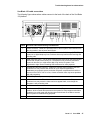
Sun Blade 150 cable connections
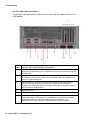
The following figure shows where cables connect to the back of the back of the Sun Blade
150 platform.
Label
Function and troubleshooting considerations
1
Power connector - Cable here provides power to the IR system. Disconnection from
the plug results in loss of power and function.
2
PCI card slots - Cables here connect NMS cards to the MultiVantage (DEFINITY)
system or to digital telephony lines. Problems here may interfere with receiving and
handling calls.
3
USB connectors (four) - Two of these connectors are reserved for the keyboard and
mouse that are part of the country kit. If a keyboard is not connected, and the IR
system is rebooted, you might not be able to log into the IR system. Your
organization might use the remaining USB connectors for other purposes.
4
Twisted-pair Ethernet connector - Cable here connects the IR system to the LAN.
Problems here may interfere with access to voice response applications,
databases, proxy speech servers, and other IR system components that reside on
servers on the LAN. If VoIP is in use, a loose connection here may cause problems
with call processing.
5
IEEE 1394 (Fireware) connectors (two).
6
VGA video connector - The cable connects the video monitor to the IR system.
Problems here may cause the video monitor to appear blank, even though the
IRsystem is still processing calls.
7
Parallel connector
8
Serial connector (RS-232) - Cables here connect the IR system to the external
modem, which controls dial-up access to the system for Avaya support technicians.
Problems here might mean that Avaya support technicians are unable to acccess
the IR system for troubleshooting purposes.
9
Audio module connectors
Issue 1.0
June 2004
37
Troubleshooting
Sun Fire 280R cable connections
The following figure shows where cables connect to the back of the back of the Sun Fire
280R platform.
Label
Function and Troubleshooting Considerations
1
PCI card slots - Cables here connect NMS cards to the MultiVantage (DEFINITY)
system or to digital telephony lines. Problems here may interfere with receiving and
handling calls.
2
Serial connector a - The cable connects the video monitor to the IR system.
Problems here may cause the video monitor to appear blank, even though the IR
system is still processing calls.
3
Serial connector b - Cables here connect the IR system to the external modem,
which controls dial-up access to the system for Avaya support technicians.
Problems here might mean that Avaya support technicians are unable to acccess
the IR system for troubleshooting.
4
Parallel connector
5
UltraSCSI connector
6, 7
USB connectors (four) - Two of these connectors are reserved for the keyboard and
mouse that are part of the country kit. If a keyboard is not connected, and the IR
system is rebooted, you may not be able to log into the IR system. Your
organization may use the remaining USB connectors for other purposes.
38 Avaya IR R1.2.1 Troubleshooting
Troubleshooting based on observations
8
Twisted-pair Ethernet connector - Cable here connects the IR system to the LAN.
Problems here may interfere with access to voice response applications,
databases, proxy speech servers, and other IR system components that reside on
servers on the LAN. If VoIP is in use, a loose connection here may cause problems
with call processing.
9
FC-AL
10, 12
Power connectors - Cables here provide power to the IR system. Disconnection
from the plug results in loss of power and function.
11
RSC card
You can also test port function. The Sun OpenBoot Diagnostics system performs root cause
failure analysis on the ports. Sun Blade 150 Service Manual and Sun Fire 280R Server
Service Manual explain how to run OpenBoot Diagnostic tests. These documents are
available in Avaya IR System Help (under "Print documents") or from the Sun Web site
(http://www.sun.com).
Testing platform hardware
When hardware problems occur with the IR system, you can use the Sun Validation Test
System (VTS) to test and validate the hardware. You use Sun VTS in the event of failures in:
•
Powering on
•
Video output
•
The hard drive, CD-ROM, or DVD-ROM drives
•
Dual in-line memory module (DIMM) function
Refer to the service manual for your platform:
― Sun Fire V240 Server manuals:
Sun Fire V210 and V240 Servers Installation Guide
Sun Fire V210 and V240 Servers Administration Guide
Sun Fire V210 and V240 Servers Parts Replacement Manual
Sun Fire V210 and V240 Servers Product Notes
― Sun Fire 280R Server Service Manual
― Sun Blade 150 Service Manual
These documents are available in Avaya IR System Help (under "Print documents") or from
the Sun Web site (http://www.sun.com).
Issue 1.0
June 2004
39
Troubleshooting
Checking NMS card configuration
Check the configuration of the NMS card or cards with the commands described in the table
that follows.
Commands
Functions
nmsboards
Identifies NMS digital telephony boards, their types
(E1 or T1), and their slot numbers.
pcidev
Identifies board type and communicates with PCI
files. Can be run without having to configure an
NMS board or run ctdaemon.
boardinf
Provides detailed information on the board,
communicates with board, and provides real-time
memory display. Requires an installed NMS board
and ctdaemon running.
trunkmon
Identifies trunk status
shows95
Shows trunks ABCD bits being toggled and is a
good tool for Loop or Wink (E&M) protocols.
Requires an installed NMS board and ctdaemon
running.
showcx95
Provides board timeslot information. Requires an
installed NMS board and ctdaemon running.
ctavers
Identifies version of NMS software
Checking card and channel states
If you think a problem is caused by the failure or malfunction of an Avaya IR system channel,
NMS card, or VoIP card, you can check the state of the component. To check card and
channel states, go to the Display Equipment screen (Configuration Management > Voice
Equipment > Display Equipment). The IR system displays information about cards and
channels, which should show an in service (INSERV) state. If cards and channels are not in
the INSERV state, you may be able to restore them. See Restoring cards and channels on
page 41.
40 Avaya IR R1.2.1 Troubleshooting
Troubleshooting based on observations
Performing root cause failure analysis
The Sun OpenBoot Diagnostics system performs root cause failure analysis on various IR
devices by testing internal registers, confirming subsystem integrity, and verifying device
functionality. Refer to the service manual for your platform:
•
Sun Blade 150 Service Manual
•
Sun Fire 280R Server Service Manual
These documents are available in Avaya IR System Help (under "Print documents") or from
the Sun Web site (http://www.sun.com).
Restoring cards and channels
Channels and voice operations cards on the IR system can go out of service for a variety of
reasons. When that happens, following the procedures presented in this section may restore
channels, NMS cards, or VOIP cards to service. Most out-of-service conditions are the result
of administration errors or intermittent problems, rather than actual hardware failures. By
taking the time to troubleshoot, you may be able to resolve the problem yourself.
When you troubleshoot problems with cards and channels, bear in mind that as long as even
one channel on a card is operating, the card will be in the in service (INSERV) state. If a card
is out of service, all channels connected to the card are not operating.
Restoring MANOOS cards and channels
The MANOOS (manually out of service) state is the result of one of the following events:
•
A user requested that the card or channel be taken out of service.
•
An internal error put the card or channel in this state to allow for an attempted recovery.
To restore a channel or card in the MANOOS state:
1. Type restore channel channel # or restore card card# and press Enter.
channel # and card # represent the number of card or channel you want to restore.
2. Go to the Display Equipment screen (Configuration Management > Voice Equipment >
Display Equipment) to determine if the card or channel has returned to the INSERV state.
The card of channel may remain in the MANOOS state or go to another out-of-service
state.
3. If the card or channel has not returned to the INSERV state, contact your Avaya support
representative.
Issue 1.0
June 2004
41
Troubleshooting
Restoring NETOOS cards and channels
The NETOOS state indicates that the card or channel was taken out of service by some
network or physical channel error. This state refers only to channels that are defined as PRI
protocol.
To restore a card in the NETOOS state:
1. Go to the Message Log Report screen (Reports > Message Log Report) and review any
messages related to the particular card or channel.
2. Check connections and indicators on the back of the IR system and re-seat the
connection, if necessary:s
a) Check the physical connection to the card and determine if it is seated correctly.
The card should not have worked its way out of the connection. See Checking cable
connections on page 36 for more information.
b) If the connection is loose, re-seat it.
3. If you have reseated the connection, go to the Display Equipment screen (Configuration
Management > Voice Equipment > Display Equipment) to see if the card or channel is
now in the INSERV state.
4. If the card or channel is still not in service, take the following actions:
a) Check the status of the card or channel on the switch system administration interface.
b) Run diagnostics from the switch system administration interface to identify any errors
with the switch connections
c) If errors are identified, correct them.
d) Busy out and release the card or channel on the switch to try to clear the problem.
e) If necessary, re-check the status of the card or channel on the Display Equipment
screen.
5. If the card or channel is still not in service, contact your Avaya support representative
about the problem and share the information you have gathered.
Restoring FOOS cards and channels
The FOOS state indicates that the card or channel was taken out of service by some physical
channel error.
To restore a card or channel in the FOOS state:
1. Go to the Message Log Report screen (Reports > Message Log Report) and review any
messages related to the particular card or channel.
42 Avaya IR R1.2.1 Troubleshooting
Troubleshooting based on observations
2. Check connections and indicators on the back of the IR system and reseat the
connection, if necessary:
a) Check the physical connection to the card and determine if it is seated correctly.
The card should not have worked its way out of the connection. See Checking cable
connections on page 36 for more information.
VoIP may use a network interface (NIC) card that is different from the one used by
other web-based processes for the Avaya IR system. If this is the case, check the
connection for the card.
b) If the connection is loose, re-seat it.
c)
Make note of other information about the card, such as lit LEDs, connection to the
telephony switch for T1/E1 connections, LAN status for VoIP connections, and so
forth.
3. If you have reseated the connection, go to the Display Equipment screen (Configuration
Management > Voice Equipment > Display Equipment) to see if the card or channel is
now in the INSERV state.
4. If the card or channel is still not in service, contact your Avaya support representative
about the problem and share the information you have gathered.
Restoring BROKEN NMS and VoIP cards
The BROKEN state can result from conditions other than actual malfunction of the card or
channel. For example, the card or channel may be unconfigured, or configured incorrectly.
Note that individual channels do not come up in the BROKEN state, so the procedures in this
section apply only to NMS and VoIP cards.
Inspecting the IR system platform
When an NMS or VoIP card is in the BROKEN state, inspect the IR system platform:
1. If the BROKEN card is an NMS card, there should be a card in the identified slot.
VoIP function is provided through the Ethernet connection, so there will not be a card in
the slot.
2. If there is no NMS card in the slot, take one of the following actions:
― Install an NMS card.
― Disregard the BROKEN state if no card is required in the slot.
An IR system may operate using one or two NMS cards. If the system is configured for
two NMS cards, but has only one, system messages and screens report a BROKEN
card for the empty slot.
Issue 1.0
June 2004
43
Troubleshooting
3. Check the connection for the BROKEN card or channel on the back of the IR system.
The card or channel should not have worked its way out of the connection. See Checking
cable connections on page 36 for more information.
4. If the connection is loose, re-seat it.
5. If you have reseated the connection, go to the Display Equipment screen (Configuration
Management > Voice Equipment > Display Equipment) to see if the card or channel is
now in the INSERV state.
6. If the card is still not in service, verify that it is administered correctly.
See Checking card administration on page 44 for more information.
Checking card administration
If a card is present in the slot and securely connected, the next step is to check the IR system
administration settings for the card.
To check administration settings:
1. Check configuration settings for the BROKEN card:
― For the NMS digital interface card, go to the Display Digital Interface Card screen
(Configuration Management > Switch Interfaces > > Digital Interfaces Protocols >
Display Parameters > Display Digital Interface Card) to view the card parameters.
― For the VoIP card, go to the Display VoIP Parameters screen (Configuration
Management > Switch Interfaces > Voiceover IP > Display Parameters > Display VoIP
Parameters) to view card parameters.
Configuration settings should match the type of card installed. VoIP cards should be
enabled.
2. If the card is configured incorrectly, make the required corrections:
― For the NMS card, go to the Change Card screen for the appropriate type of digital
interface (Configuration Management > Switch Interfaces > Digital Interfaces > Digital
Interfaces Protocols > Change Parameters > Change Card - Digital Interfaces), and
choose subsequent screens based on card type.
See Checking NMS card configuration on page 40 for useful commands related to
NMS cards.
― For the VoIP card, go to the Change VoIP Card screen (Configuration Management >
Switch Interfaces > Voiceover IP > Change Parameters > Change VoIP Parameters >
Change VoIP Card) and change parameters.
3. If you have corrected the card configuration, go to the Display Equipment screen
(Configuration Management > Voice Equipment > Display Equipment) to verify the card
state.
44 Avaya IR R1.2.1 Troubleshooting
Troubleshooting based on observations
4. If the card is still not in service, type display card card _number and press Enter
and verify that the card is found.
Note:
If there are problems with licensing, there may be no usable channels on the
card, and the card will not be found when the display card command is
run.
5. If the card is not found, go to the Feature Licensing screen (Configuration Management
> Feature Licensing) and verify that there are enough Right-to-Use licenses (RTUs) for
the channels supported by the card.
6. If you do not have an adequate number of RTUs for channels in operation, contact your
Avaya support representative to arrange to acquire more RTUs.
7. If RTUs are not an issue, and the card is still not in service, you may be able to bring it
back into service by removing and restoring it.
See Removing and restoring cards on page 45 for more information.
Removing and restoring cards
If the connection to a card is seated properly, and the card is configured correctly, try
removing and restoring the card. Repeat the remove and restore process anytime that you
change a configuration parameter or reseat a cable. Removing and restoring causes the IR
system to attempt re-initialization of the card.
To remove and restore a card:
1. To remove the card, type remove card card number and press Enter.
2. To restore the card, type restore card card number and press Enter.
The IR system attempts to configure the card again. The reconfiguration process may
bring the card back into service.
3. If the card remains in the BROKEN state, check the card configuration in the switch and
make any required corrections.
4. Remove and restore the card again on the IR system.
Even if you have made no changes to the card configuration on the switch, removing and
restoring the card at this point may clear the problem.
5. If the card is still BROKEN, busy out and release the card on the switch.
6. Remove and restore the card once more on the IR system.
If the card remains in the BROKEN state, you need to find out more and then contact your
Avaya support representative. See Gathering data on card operations on page 46 for more
information.
Issue 1.0
June 2004
45
Troubleshooting
Gathering data on card operations
Follow the procedures in this section to learn more about the exact nature of the problem.
Then contact your Avaya support representative for assistance in troubleshooting the card.
Displaying data on NMS cards
To display information about NMS cards:
1. Type trunkmon-b card# and press Enter to display information about a specific card.
― card# represents the number of the card you want to check.
― The alarms column should show a steadily-displayed entry of NONE, and the Frame
sync column should show a steadily-displayed entry of OK. If either of these entries is
fluctuating between the identified values and another value, note the other value for
discussion with your Avaya support representative.
2. Press Esc to return to the command-line interface.
Displaying data on VoIP cards
To display information about VoIP cards:
1. Run the following diagnostics:
― SunVTS OpenBoot diagnostics for the network connection
― Watch-Net and Watch Net-All diagnostics
All of these diagnostics monitor Ethernet packets and identify both good packets and
packets with errors. Refer to the service manual for your platform:
― Sun Fire V240 Server manuals:
Sun Fire V210 and V240 Servers Installation Guide
Sun Fire V210 and V240 Servers Administration Guide
Sun Fire V210 and V240 Servers Parts Replacement Manual
Sun Fire V210 and V240 Servers Product Notes
― Sun Fire 280R Server Service Manual
― Sun Blade 150 Service Manual
These documents are available in Avaya IR System Help (under "Print documents") or
from the Sun Web site (http://www.sun.com).
2. Note the results for discussion with your Avaya support representative.
46 Avaya IR R1.2.1 Troubleshooting
Troubleshooting based on observations
Performing root cause failure analysis
The Sun OpenBoot Diagnostics system performs root cause failure analysis on various IR
devices by testing internal registers, confirming subsystem integrity, and verifying device
functionality. Refer to the service manual for your platform:
― Sun Fire V240 Server manuals:
Sun Fire V210 and V240 Servers Installation Guide
Sun Fire V210 and V240 Servers Administration Guide
Sun Fire V210 and V240 Servers Parts Replacement Manual
Sun Fire V210 and V240 Servers Product Notes
― Sun Fire 280R Server Service Manual
― Sun Blade 150 Service Manual
These documents are available in Avaya IR System Help (under "Print documents") or from
the Sun Web site (http://www.sun.com).
Replacing a failed hard disk drive
For systems with the disk mirroring feature, a failed hard disk drive must be replaced.
Checking for hard disk drive failures
To check the hard disk drives from problems:
1. If you are not logged in, log in as root.
2. At the command prompt, enter metadb
The system displays information about each hard disk drive.
The following example shows the results of the metadb command for a system with hard
disk drive problems.
a m
a
a
a
flags
p luo
p luo
p luo
p luo
first blk
16
1050
2084
3118
block count
1034
/dev/dsk/c1t0d0s4
1034
/dev/dsk/c1t0d0s4
1034
/dev/dsk/c1t0d0s4
1034
/dev/dsk/c1t0d0s4
Issue 1.0
June 2004
47
Troubleshooting
a
a
a
a
W
W
W
W
W
W
W
W
p
p
p
p
p
p
p
p
p
p
p
p
luo
luo
luo
luo
l
l
l
l
l
l
l
l
4152
5186
6220
7254
16
1050
2084
3118
4152
5186
6220
7254
1034
1034
1034
1034
1034
1034
1034
1034
1034
1034
1034
1034
/dev/dsk/c1t0d0s4
/dev/dsk/c1t0d0s4
/dev/dsk/c1t0d0s4
/dev/dsk/c1t0d0s4
/dev/dsk/c1t1d0s4
/dev/dsk/c1t1d0s4
/dev/dsk/c1t1d0s4
/dev/dsk/c1t1d0s4
/dev/dsk/c1t1d0s4
/dev/dsk/c1t1d0s4
/dev/dsk/c1t1d0s4
/dev/dsk/c1t1d0s4
Where:
o
u
l
c
p
m
W
a
M
D
F
S
R
=
=
=
=
=
=
=
=
=
=
=
=
=
Replica active prior to last mddb configuration change
Replica is up to date
Locator for this replica was read successfully
Replica's location was in /etc/lvm/mddb.cf
Replica's location was patched in kernel
Replica is master, this is replica selected as input
Replica has device write errors
Replica is active, commits are occurring to this replica
Replica had problem with master blocks
Replica had problem with data blocks
Replica had format problems
Replica is too small to hold current data base
Replica had device read errors
The Ws in the first column indicate that there is a problem writing to partitions on the
secondary disk (c1t1d0s4).
If you want to check for additional disk status information, you can run the metastat
command on page 48.
If you detect problems with the hard disk drive, you must remove the failed drive and
replace it with a good one. For more information, see Removing a failed hard disk drive.
Running the metastat command
For additional disk status information when using Disk Mirroring, you can run the metastat
command.
To run the metastat command:
1. If you are not logged in, log in as root.
2. At the command prompt, enter metastat
48 Avaya IR R1.2.1 Troubleshooting
Troubleshooting based on observations
The system displays detailed information for each metadevice (virtual device) similar to
the following sample output:
d1: Mirror
Submirror 0: d11
State: Okay
Submirror 1: d12
State: Okay
Pass: 2
Read option: roundrobin (default)
Write option: parallel (default)
Size: 4202688 blocks
d11: Submirror of d1
State: Okay
Size: 4202688 blocks
Stripe 0:
Device
Spare
c1t0d0s1
d12: Submirror of d1
State: Okay
Size: 4202688 blocks
Stripe 0:
Device
Spare
c1t1d0s1
Start Block
0
Start Block
0
Dbase State
No
Okay
Dbase State
No
Hot
Hot
Okay
In this sample, d1 is the metadevice that contains the submirrors d11 and d12. Submirror
d11 is actually c1t0d0s1 (slice 1 on disk 0) and d12 is c1t1d0s1 (slice 1 on disk 1). In this
sample, the status of all three devices is "Okay." If there are errors you will see it in the
output for the affected device.
For more information about this command and the possible errors, see the documentation
for the DiskSuite tools for your system (http://docs.sun.com/db/doc/
http://docs.sun.com/db/doc/).
Removing a failed hard disk drive
If you detect failure in disk drive on a mirrored system, you must remove and replace it with a
good one.
To remove a failed hard disk drive:
1. If you are not logged in, log in as root.
Issue 1.0
June 2004
49
Troubleshooting
2. At the command prompt, enter stop_vs.
The voice system stops.
3. Enter mirror_admin detach.
The system displays the following prompt:
Prompt for hard disk drive to detach
4. Type the number that corresponds to the hard disk drive to detach and press Enter.
The system detaches all submirrors from the failed hard disk drive.
5. Physically remove the failed hard disk drive.
For information on how to remove a disk drive, see the Sun Fire V210 and V240 Servers
Parts Replacement Manual or the Sun Fire 280R Server Service Manual. This document
is available in Avaya IR System Help (under "Print documents") or from the Sun Web site
(http://www.sun.com).
When you are ready to install the replacement drive, see Activating disk mirroring for a new
hard disk drive.
Activating disk mirroring for a new hard disk drive
To activate disk mirroring for a new hard disk drive:
1. If you are not logged in, log in as root.
2. Enter stop_vs to stop the voice system.
3. Install the new hard disk drive that has the same geography and size as the drive that
failed.
For information on how to remove a disk drive, see the Sun Fire V210 and V240 Servers
Parts Replacement Manual or the Sun Fire 280R Server Service Manual. This document
is available in Avaya IR System Help (under "Print documents") or from the Sun Web site
(http://www.sun.com).
4. Enter mirror_admin replace.
The new hard disk drive is partitioned and synchronized to the other hard disk. It takes
approximately 20 minutes for each 10 GB to copy data to the new hard disk.
For more information on this command, see mirror_admin command.
50 Avaya IR R1.2.1 Troubleshooting
Troubleshooting based on observations
Restoring the system if both hard disk drives fail
If both hard disk drives fail, after replacing the hard disk drives, you must do one of the
following:
•
Rebuild your system from CD media.
•
Rebuild your system by restoring the system from backup, which may be preferable if you
have applications, data, and feature administration that also needs to be restored.
Disabling disk mirroring
Use the following procedure to disable disk mirroring.
1. If you are not logged in, log in as root.
2. Stop the voice system by typing stop_vs and pressing Enter.
3. To disable disk mirroring, type mirror_admin cleanup and press Enter.
Issue 1.0
June 2004
51
G
Index
Gathering data on card operations • 45, 46
Gathering information on a problem • 13
H
Hardware malfunctions and failures • 8
Host interaction problems • 16, 17, 22
Host sessions recover repeatedly • 22
A
A word about the Tomcat server log • 29
Activating disk mirroring for a new hard disk drive • 50
All calls dropped • 17
All ports BROKEN on speech server • 25
Application errors • 8
C
Calls dropped • 17
Calls dropped at initial prompt • 17
Calls not transferred properly • 18
Calls to host dropped • 23
Cannot configure speech recognition • 25
Checking cable connections • 10, 36, 42, 43, 44
Checking card administration • 44
Checking card and channel states • 40
Checking communications • 29
Checking for errors • 27
Checking for hard disk drive failures • 47
Checking hardware • 36
Checking JDBC operations • 28
Checking LAN communications • 11, 30
Checking NMS card configuration • 40, 44
Checking Oracle object size limits • 28
Checking system history • 14
Checking the server connection • 27
Checking the voice response application and system
administration • 26
Connection and communication problems • 9
Connections and communications • 7
D
Detecting incorrect IP addresses (arp) • 34
Disabling disk mirroring • 51
Displaying data on NMS cards • 46
Displaying data on VoIP cards • 46
Displaying network statistics (netstat) • 34
Displaying packet route (traceroute) • 35
E
Execute UNIX command failed • 28
F
Fax text or file not found • 22
I
Identifying possible causes of problems • 10
Incorrect system administration • 8
Inspecting the IR system platform • 43
Interpreting negative fax values • 21
Investigating call handling problems • 16
Investigating database problems • 28
Investigating fax problems • 20
Investigating operations problems • 16
Investigating system process problems • 27
L
Locating fax errors • 21
M
Messages cut off • 24
Monitoring Ethernet packets • 33
Monitoring live operations • 14
N
No DTMF tones (WINK protocol) • 19
No response for application with host interface • 23
O
Overloading • 9
P
Performing root cause failure analysis • 41, 47
Pinging server connections • 33
Poor audio quality on VoIP calls • 20
Possible malfunctions and errors • 8
R
Removing a failed hard disk drive • 49
Removing and restoring cards • 45
Replacing a failed hard disk drive • 47
Requirements for successful operations • 6, 16
Resolving a problem when the monitor does not display •
36
Resources for LAN troubleshooting • 30
Restoring BROKEN NMS and VoIP cards • 43
Restoring cards and channels • 17, 40, 41
Restoring FOOS cards and channels • 42
Restoring MANOOS cards and channels • 41
Restoring NETOOS cards and channels • 42
Issue 1.0
June 2004
53
Index
Restoring the system if both hard disk drives fail • 51
Reviewing fax repair procedures • 22
Reviewing the Display Equipment screen • 13
Running the metastat command • 48
S
Speech • 10
Speech delayed or cut off • 23
Speech not playing • 26
Speech recognition not available as resource • 24
Speech recognition not working • 24
Speech recognition rejecting many responses • 26
Speech resource bad or non-configured • 25
Speech response delayed • 23
Speech server not running • 25
Switches • 7
System and LAN capacity • 8
T
Testing platform hardware • 39
The public switched telephone network (PSTN) • 6
Touchtone not interpreted correctly • 20
Tracing LAN activities • 34
Troubleshooting • 6
Troubleshooting based on observations • 12, 15
Troubleshooting database server disconnections • 28, 31
Troubleshooting intermittent LAN problems • 32
Troubleshooting overview • 6
Troubleshooting persistent server problems • 32
Troubleshooting procedure • 12
Troubleshooting speech server disconnections • 25, 27, 30
Typical causes of LAN problems • 30
Typical fax problems • 20
U
UNIX commands failing or disk errors • 27
Using commands • 15
Using IR system events • 13
Using Sun diagnostic tests • 14
V
vi editor causes core dump • 28
Voice response applications • 7
Voice system not answering • 16
54 Avaya IR R1.2.1 Troubleshooting