1
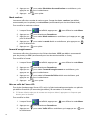
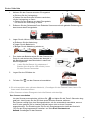
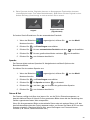
To change the scanning resolution:
1. With the
screen displayed, press
2. Press
to select Settings.
to enter Menu mode.
3. Press
to select Resolution.
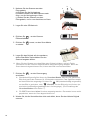
4. Press
to focus on the desired scan resolution, and then press
5. Press
to exit.
to select it.
Color Mode
The scanner offers two color modes for your scanned image, Color (default, recommended
for photos) or Black and White (recommended for text documents).
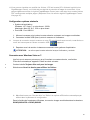
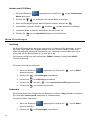
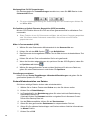
To change the scanning color mode:
1. With the
screen displayed, press
to enter Menu mode.
2. Press
to select Settings.
3. Press
to scroll to Color Mode and then press
4. Press
to focus on the desired mode, and then press
5. Press
to exit.
to select it.
to select it.
Save Format
The scanner offers two formats for your scanned image output files, JPEG (default,
recommended for photos) or PDF (recommended for text documents and books).
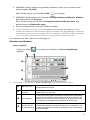
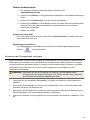
To change the scanned file format:
1. With the
screen displayed, press
to enter Menu mode.
2. Press
to select Settings.
3. Press
to scroll to Save Format, and then press
4. Press
to focus on the desired file format, and then press
5. Press
to exit.
to select it.
to select it.
LCD Off
To prevent screen burn-in, the LCD screen automatically shuts off when left idle for a
specified time (45 seconds [default], 90 seconds or 2 minutes).
After the LCD shuts off (and scanner is still on), simply press any button to turn the LCD
back on.
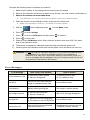
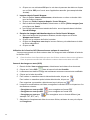
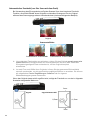
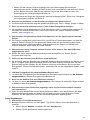
To change the time setting:
1. With the
screen displayed, press
2. Press
to select Settings.
3. Press
to scroll to LCD off, and then press
to enter Menu mode.
to select it.
17