1
Deactivating Your Programs
Refer to your JeppView license agreement to obtain the number of computers you can install
JeppView on at the same time.
You must deactivate JeppView under the following conditions:
• You are replacing your computer and want to install JeppView on the new computer.
• Your computer or hard drive fails and requires major service.
• You are performing major modifications to your computer.
In the last two instances, the programs might not recognize your computer when you get it
working again. If you are planning major service on your computer, deactivate JeppView3 or
the NavSuite first. If your computer fails unexpectedly, call Jeppesen Customer service for
help.
You can deactivate the JeppView or NavSuite products in two ways:
• Uninstalling the program(s) and choosing Yes when the deactivation wizard asks if you
would like to deactivate JeppView or NavSuite.
• Alternatively, if you installed JeppView and FliteDeck in their default folders:
1. Click Start > Run and then type one of the following:
- C:\Jeppesen\JeppView3\deactivate.exe1
- C:\Jeppesen\FliteDeck3\deactivate.exe
If you installed JeppView in a different folder than the default, locate and run the
deactivate.exe program in any folder in which you have installed a Jeppesen
program that requires deactivation.
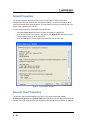
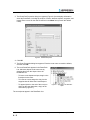
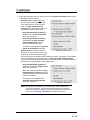
2. If the deactivation wizard displays a list of programs to deactivate, select JeppView
or NavSuite.
IMPORTANT Deactivating JeppView also deactivates FliteDeck. If you are using
JeppView within the NavSuite, deactivating JeppView or FliteDeck
also deactivates the other NavSuite products on the computer.
The deactivation procedure does not uninstall the program from your hard drive. You can reactivate JeppView and FliteDeck without reinstalling them. This is the recommended method if
you are going to modify your computer, or move your hard drive to another computer.
After deactivation, JeppView and FliteDeck no longer work. You may then install the programs
on another computer. Complete the steps in the Activation Wizard when you start the program
on the new computer. To reactivate JeppView and FliteDeck on a computer that previously ran
it, open the program and complete the steps in the Activation Wizard on that computer again.
1. The location of the application folders might also be in the C:\Program Files\Jeppesen\
folder.
Jeppesen JeppView User’s Guide
1 - 36
Copyright © 2004-2008 Jeppesen, All Rights Reserved