1
you via email at the time of the web registration
Not a registered User? Register user account now!
if you never registered on the AvMap web site, you can create your user account now in order to have access
to all the Suite functionalities.
ATTENTION! The navigator must be connected during the whole registration process.
4.Associating the navigator to the user
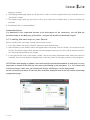
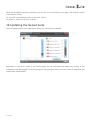
Geosat Suite will then ask if you want to associate the connected Geosat to your user account:
Click Yes, the Geosat Suite home page opens up.
This way, your Geosat is linked to your user account. Remember: you can have more than one device linked
to your account, but a device can belong to only one user account.
A Geosat Suite installed on a PC can be used to update more devices belonging to different users provided
each user logs in with his own login and password.
5.My Account
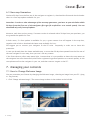
You can see your name displayed on the top bar of the Geosat Suite; Click on My account to view your account
details. In this page you can change your password and modify your data.
4. Basic Operations
4.1 Starting the Suite
The procedure described in par.3. is needed only the first time the Suite is started. Next time, you will
just have to connect the Geosat to the PC and the Suite will be open up automatically by default, then
you will just have to insert login and password to enter.
You can modify the start options of the suite, choose between:
1. “Automatically start when device is connected” this option starts the Suite automatically when your computer
detects the navigator (default)
2. “Don’t start automatically”, this option lets you open the suite manually by clicking on its icon on the PC.
4.2 Closing the Suite
To close the Suite:
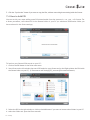
1. Click on the Disconnect button next to the Navigator Image on the left part of the Geosat Suite Home page,
and wait for the Geosat to be disconnected
2. Click on Exit on the upper right corner, and confirm by clicking yes.
4.3 How to change the Software Language
You can change the language in the Suite at any moment:
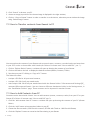
1. Click on Settings on the bottom bar of the Geosat Suite
2. Click on Language
3. Choose the language, clicking on the correspondent check box
3 - AvMap