1
Adding Markers to a Clip
Compressor can import and create several different kinds of markers. In addition,
Compressor can import entire lists of chapter markers.
Output File Formats That Support Markers
Not all output file formats support markers. Following is a list of those that do
support them.
 MPEG-2
 MPEG-4 when configured for podcasting (audio-only with the “Allow Podcasting
information” checkbox selected)
 QuickTime Movies
 H.264 for DVD Studio Pro
 H.264 for Apple Devices
You can set and configure markers for other output file formats, but they will not be
included in the encoded output file.
Types of Markers
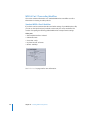
Compressor can import and create the following types of markers:
 Chapter markers: Chapter markers allow easy access to index points throughout a
DVD, QuickTime movie, or podcast. Compressor and DVD Studio Pro can both read
chapter markers exported from Final Cut Pro. QuickTime Player can interpret any text
track containing time stamps as a chapter track. Chapter markers can also have
artwork and a URL assigned to them that appear when playing a podcast.
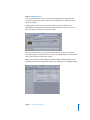
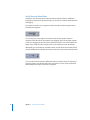
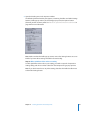
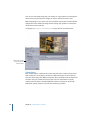
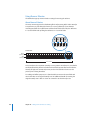
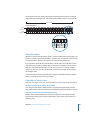
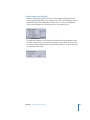
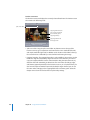
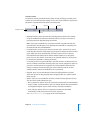
These markers appear as purple in the Preview window timeline.
 Podcast markers: Like chapter markers, podcast markers can have artwork and a URL
assigned to them. Podcast markers cannot be used to access frames within the clip
though, and they do not appear as chapter markers in DVD Studio Pro or QuickTime.
You can use podcast markers to provide a slideshow (with URLs) for users to view
when playing audio podcasts.
 Compression markers: Also known as manual compression markers—these are
markers you can add to a Final Cut Pro sequence (or in the Compressor Preview
window) to indicate when Compressor should generate an MPEG I-frame during
compression. See “Understanding GOPs and Frame Types” on page 197 for more
information on I-frames.
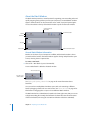
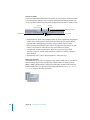
These markers appear as blue in the Preview window timeline, and are the type created
when you manually add markers using Compressor. You can convert compression
markers into chapter markers using the Edit item of the Markers pop-up menu.
Chapter 23 Using the Preview Window
297