1
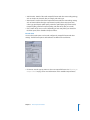
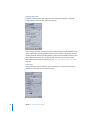
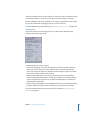
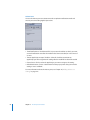
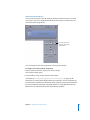
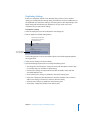
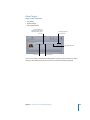
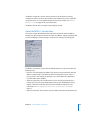
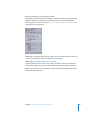
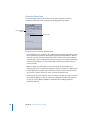
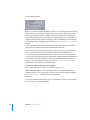
 Dialog Normalization: Specifies the average volume of the dialogue, using decibels of full scale (dBFS), in your sound files relative to full modulation. The playback device uses this information to maintain similar volume among different AC-3 streams. The goal is to make all AC-3 encoded audio files have the same listening level, regardless of the source file. It is especially important to properly use the Dialog Normalization feature if you have different audio files (with different volume levels) going on to a DVD. If you know the average level for each file, enter that number in the Dialog Normalization field for each file. For example, if the dialogue in your Final Cut Pro sequence averages around –12 dB on the audio meter, enter –12 in the Dialog Normalization field. Note: This normalization is between the audio streams on the DVD, not within an individual audio stream itself. For that type of normalization, use an audio editing tool like Soundtrack Pro. You can enter values from –1 dBFS to –31 dBFS. The difference between the value you enter and 31 dBFS (which represents the normal dialogue listening level) is the amount that the source audio will be attenuated.  If you enter –31 dBFS, the attenuation is 0 dB (31 dBFS–31 dBFS), and the source audio levels are not affected at all.  If you enter –27 dBFS, the attenuation will be 4 dB (31 dBFS–27 dBFS).  If you enter –12 dBFS, the attenuation is 19 dB (31 dBFS–12 dBFS). The louder the source file, the smaller the value you enter, and the more the audio in the encoded file is attenuated during playback. Important: It is critical that you set the Dialog Normalization setting correctly if you intend to use any of the Compression Preset settings. The Compression Preset settings assume that the audio, after the dialogue has been normalized, is at the normal listening level of 31 dBFS. Levels that are consistently louder than that result in distorted sound and erratic levels. If you do not know the sound level of the source file or for some other reason want to ensure the Dolby Digital Professional encoder does not affect your sound levels, enter –31 for the Dialog Normalization and choose None in the Compression Preset pop-up menu (located in the Preprocessing tab). Chapter 8 Creating Dolby Digital Professional Output Files 133