1
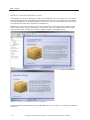
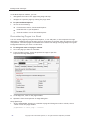
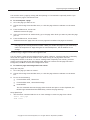
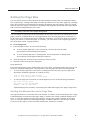
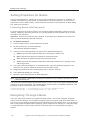
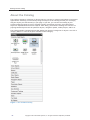
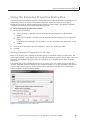
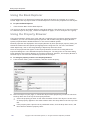
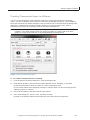
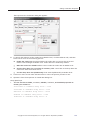
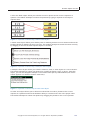
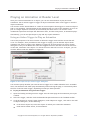
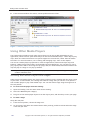
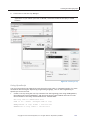
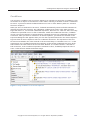
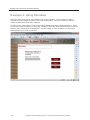
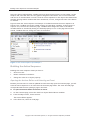
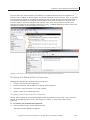
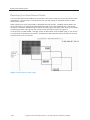
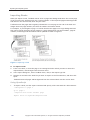
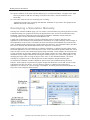
Working at Author Level Working with Properties and Extended Properties Dialog Boxes After you add an object to the page, you set its properties to customize its appearance and behavior in your application. You set an object's properties by first selecting the object and then opening the object's Properties or Extended Properties dialog box. These dialog boxes allow you to set an object's color, specify a graphic displayed on a button, identify the correct answers in a question object, control when a video plays, and much more. Working with the Properties Dialog Box Using the Properties dialog box, you simply enter or select the values you want to set. As a convenience, you can leave the Properties dialog box open as you work—the Properties dialog box shows you the properties of the currently selected object. This feature allows you to set the properties of different objects on your page without having to close and reopen the dialog box several times. Figure 6: The Properties dialog box The toolbar in the Properties dialog box includes buttons to give you quick access to commands, other object properties, and Help. For example, if you make a mistake, you can click the Undo button to reverse the changes you made. You can also use the Properties dialog box to specify behavior that extends beyond individual objects. For example, you can set properties for a page, a background, and a book. ToolBook also provides Properties for Lesson dialog box, where you can set scoring and logging options. ► To display the Properties dialog box: x Do one of the following: From the Object menu, choose one of the properties options. Click the Properties button Right-click an object, and then click the Properties button on the right-click menu. on the ToolBook toolbar. Copyright © 2012 SumTotal Systems, Inc. All rights reserved. Duplication prohibited. 39