1
Working with List Boxes and Combo Boxes
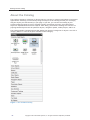
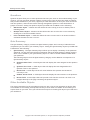
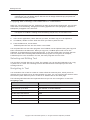
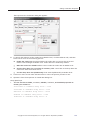
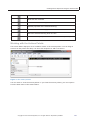
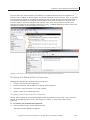
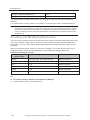
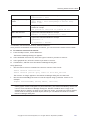
List box properties
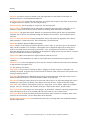
Click this
tab...
To do this...
Draw
Set drawing options, border style, field type, color, and
visibility state options
Bounds
Set the field's position and size
Font
Set the font, style, size, effects, and formatting options
Paragraph
Set text alignment, indentation, spacing, and tabs
Behavior
Specify the field's behavior at run time
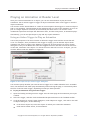
Drag & Drop
Specify the appearance and behavior of the field when it is
dragged or dropped at Reader level
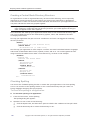
For more information about formatting text fields, see Chapter 8, "Working with Text."
Modifying Field Type
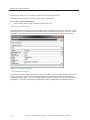
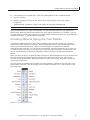
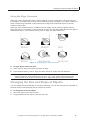
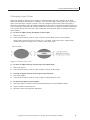
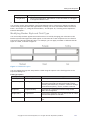
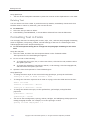
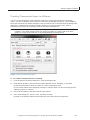
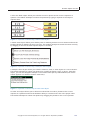
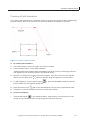
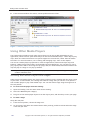
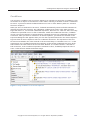
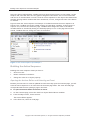
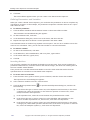
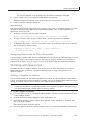
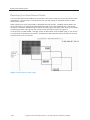
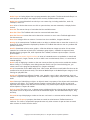
A list box organizes field text into a list, with one item per line. By default, list boxes allow only
one selection at a time. If you want the user to be able to select more than one item at a time,
you can change the single-select list box to a multi-select list box. ToolBook highlights the
selected list option or options.
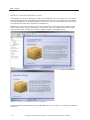
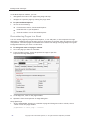
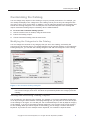
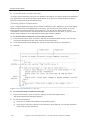
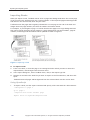
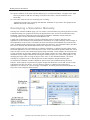
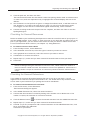
Figure 3: Single-select and multi-select list boxes
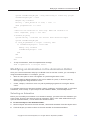
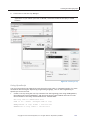
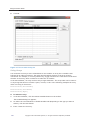
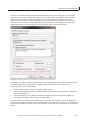
► To choose a multi-select field type:
1.
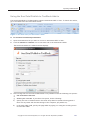
Click the Draw tab of the Properties for Text Field dialog box.
2.
In the Field type list, select Multi-select list box.
3.
Optional. Close the Properties for Text Field dialog box.
Adding Text to a List Box
You add text to a list box in the same way that you add text to any field: by typing, pasting, or
importing. Each text line must be separated from the next item using the ENTER key.
Note Text does not wrap at the ends of lines in a list box. If you want to type in more text than
fits on a line, you must first resize the list box.
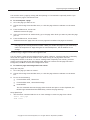
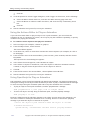
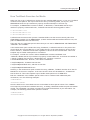
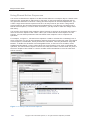
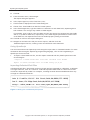
► To type text in a list box:
Using the interface
1. Double-click inside the list box or right-click the field and select the Edit Text option in the
right-click menu.
An insertion point appears in the upper-left corner.
2.
142
Type your text. Press ENTER after each item in the list.
Copyright © 2012 SumTotal Systems, Inc. All rights reserved. Duplication prohibited.