1
Troubleshooting
Memory Scanning and Memory Mapping
Memory scanning and memory mapping identify and correct fabric checksum issues. Sometimes
referred to as EDP checksums, today Extreme Networks recognizes all these issues under the general
category of checksum errors.
Hard drives use disk scanning tools to map out bad sectors in order to allow the drive to remain
operational with no adverse effect on performance, capacity, or reliability. Memory scanning and
memory mapping function similarly.
Memory scanning is designed to help isolate one of the major root causes for checksum errors. Memory
scanning detects with a high probability all current single bit permanent failures in the switch memory
that would result in checksum errors.
Memory mapping can correct up to 8 of these detected permanent single bit errors by reconfiguring the
memory maps around the problem areas. Memory scanning and memory mapping are two separate
functions. Scanning detects the faulted portion of the memory. Mapping re-maps the memory to remove
the faulted memory section.
Modes of Operation
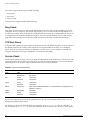
The memory scanning feature has two modes of operation: manual mode, which is the default and
recommended mode; and automatic mode, which is only used in redundant networks.
Memory scanning is supported on the following modules and platforms:
• BlackDiamond 6816, BlackDiamond 6808, and BlackDiamond 6804
• BlackDiamond modules - MSM64i, F96Ti, F48Ti, G8Xi, G8Ti, G12SXi
• Alpine 3808, Alpine 3804, and Alpine 3802
• Summit48i, Summit7i, Summit5i, Summit1i, and Summit48si
Manual Mode
Manual mode is initiated by the following command:
run diagnostics packet-memory
NOTE
This command is available on ExtremeWare 6.2.1 for BlackDiamond I/O modules, and ExtremeWare
6.2.2 and higher for BlackDiamond MSM64i, Alpine, and stackables. The command is only executed on
one module at a time, although you can queue up two run diagnostics commands at a time.
Automatic Mode (Auto Scan)
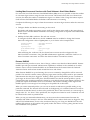
Automatic mode for initiating memory scanning is set up after the auto-recovery option is enabled
under the system health check configuration. This is done using the following commands:
For stackable and Alpine switches:
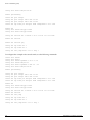
configure sys-health-check alarm-level [ log | system-down | traps | auto-recovery [
<cr> | offline | online ] ]
596
ExtremeWare 7.0.0 Software User Guide