1
SAVING AND COMPLETING DRAFTS
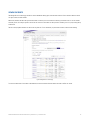
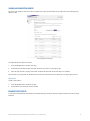
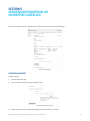
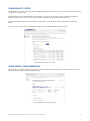
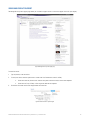
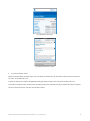
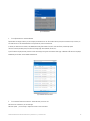
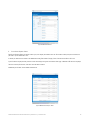
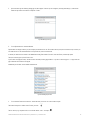
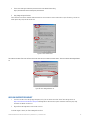
You can save your incident as a draft at any time by clicking the Save as draft link on the bottom of any of the Create a new incident pages and
submitting it later.
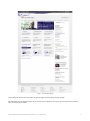
Figure 21: Managed Services drafts page
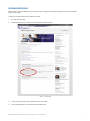
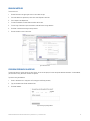
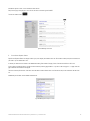
To complete the draft and submit as an incident:
1.
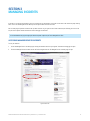
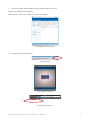
Access the Managed Services incidents drafts page.
2.
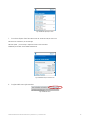
Click the Edit link in the Actions column in the table. The Create a new incident – Step 1 page will open.
3.
Follow the steps in Section 4: Creating a new incident to complete the information required from steps 1 to 4 and submit.
The information in your original draft will be updated and an active ticket created. Once a draft is submitted it will no longer appear in the list.
Deleting Drafts
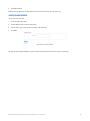
To delete a draft incident:
1.
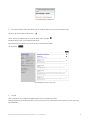
Access the Managed Services incidents drafts page.
2.
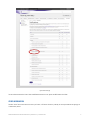
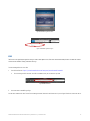
Click the Remove link in the Actions column in the table.
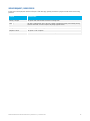
INCIDENT TICKET STATUS
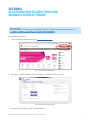
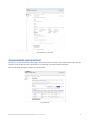
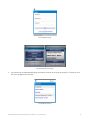
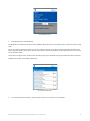
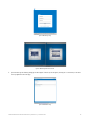
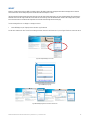
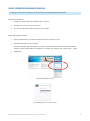
A ticket status will be displayed for each Incident on the Incident detail page, providing an indication of progress and the current activities being
performed.
MANAGED SERVICES ONLINE USER GUIDE | VERSION 3.0 | JANUARY 2013
21