1
Managing jobs
11
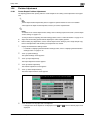
11.2.4
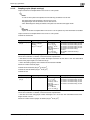
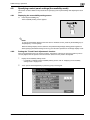
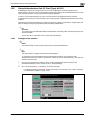
Displaying the Current Jobs list (stored jobs and active jobs)
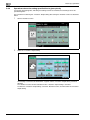
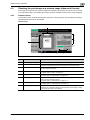
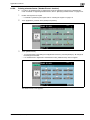
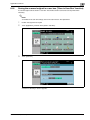
The Current Jobs list of received print jobs for Copy mode and Fax mode and for computer printing is
displayed.
1
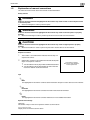
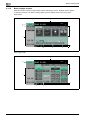
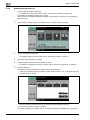
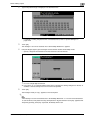
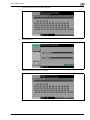
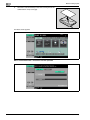
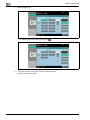
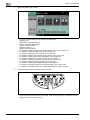
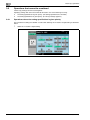
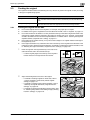
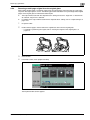
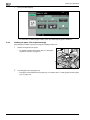
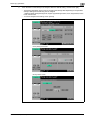
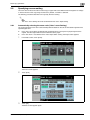
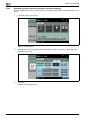
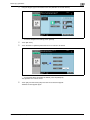
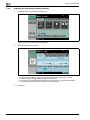
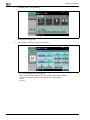
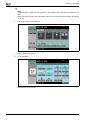
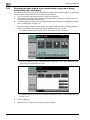
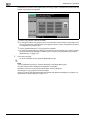
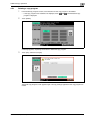
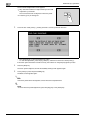
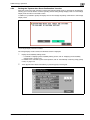
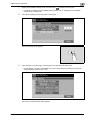
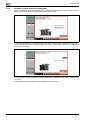
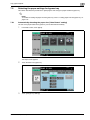
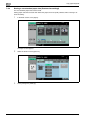
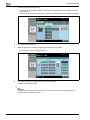
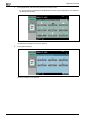
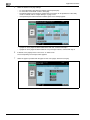
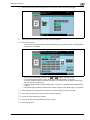
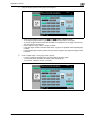
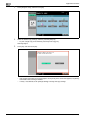
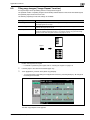
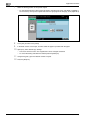
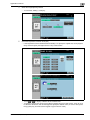
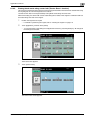
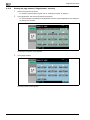
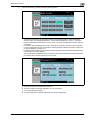
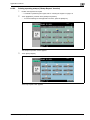
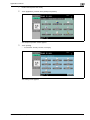
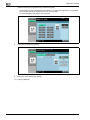
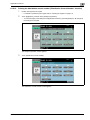
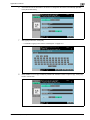
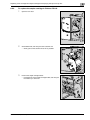
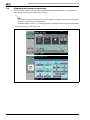
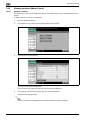
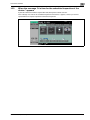
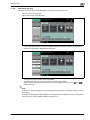
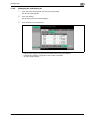
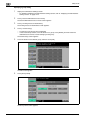
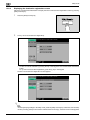
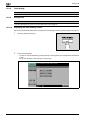
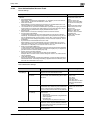
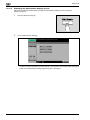
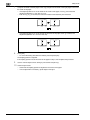
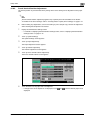
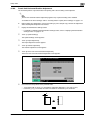
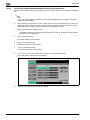
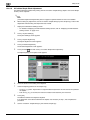
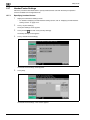
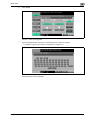
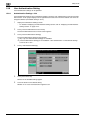
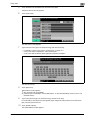
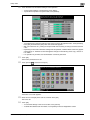
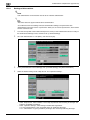
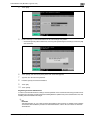
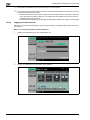
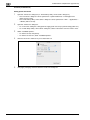
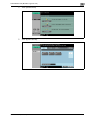
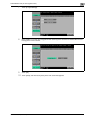
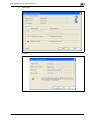
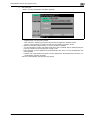
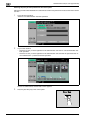
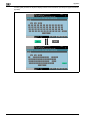
Touch [Job List] in the left panel, and then touch [Job Details].
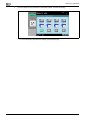
The Job List screen appears.
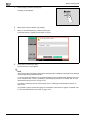
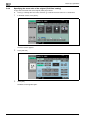
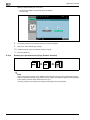
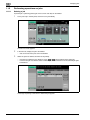
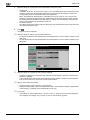
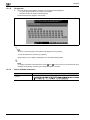
2
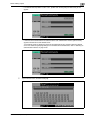
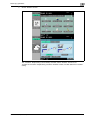
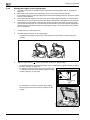
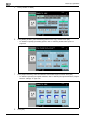
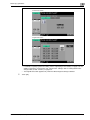
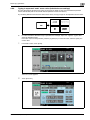
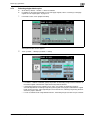
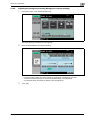
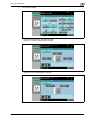
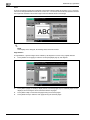
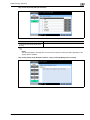
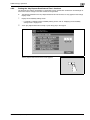
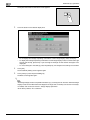
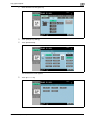
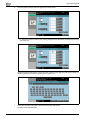
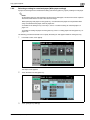
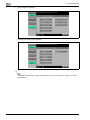
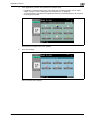
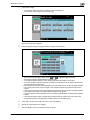
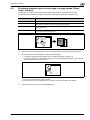
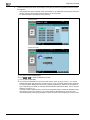
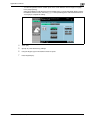
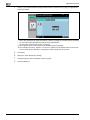
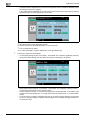
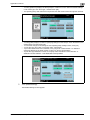
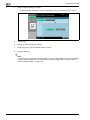
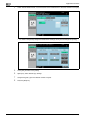
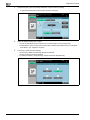
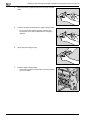
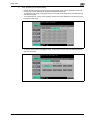
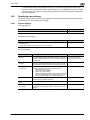
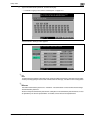
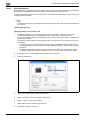
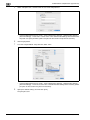
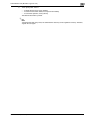
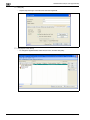
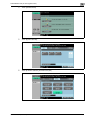
Touch the button for the desired list.
–
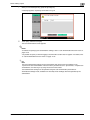
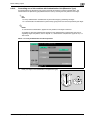
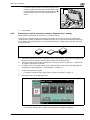
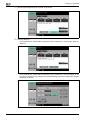
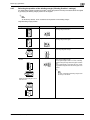
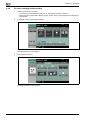
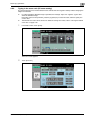
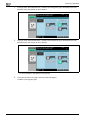
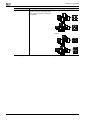
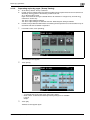
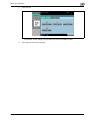
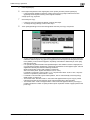
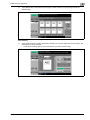
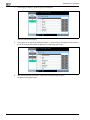
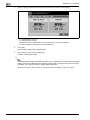
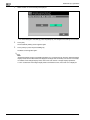
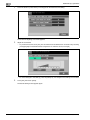
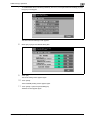
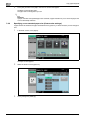
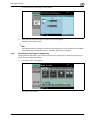
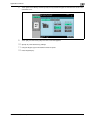
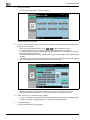
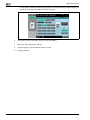
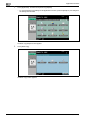
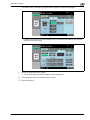
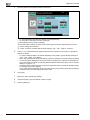
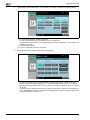
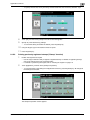
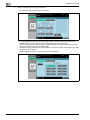
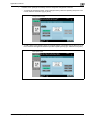
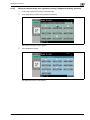
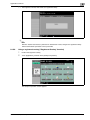
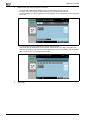
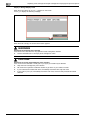
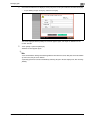
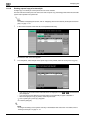
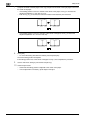
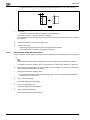
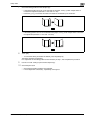
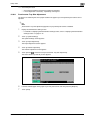
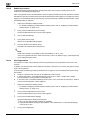
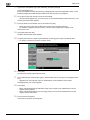
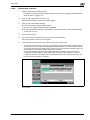
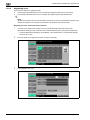
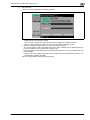
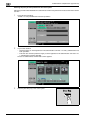
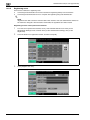
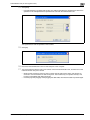
To display the stored jobs, touch [Release Held Job] to display the Release Held Job screen.
To return to the Job List screen, touch [Cancel].
!
Detail
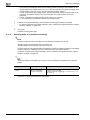
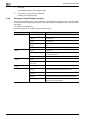
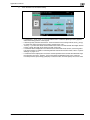
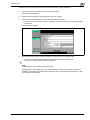
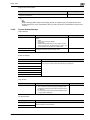
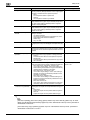
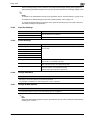
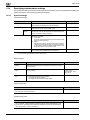
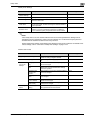
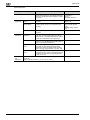
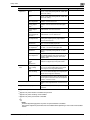
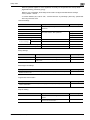
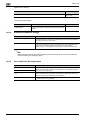
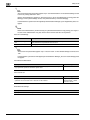
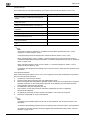
For details on the function of each button, refer to "Job List screens" on page 11-4.
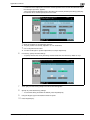
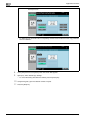
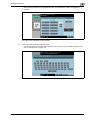
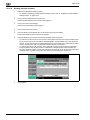
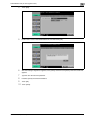
From the Release Held Job screen, proof copies of stored jobs can be printed. For details, refer to
"Printing a proof copy of a stored job" on page 11-14.
Stored jobs can be printed from the Release Held Job screen. For details, refer to "Printing a stored
job" on page 11-15.
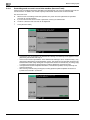
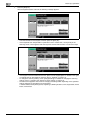
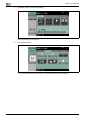
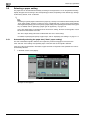
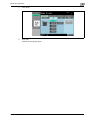
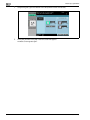
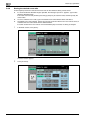
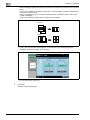
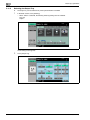
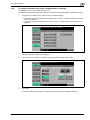
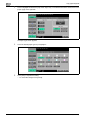
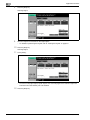
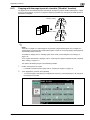
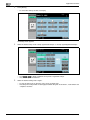
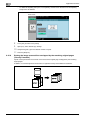
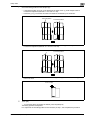
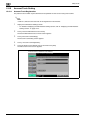
To give priority for output to a job, touch [Increase Priority] in the Current Jobs list. For more details,
refer to "Increasing printing priority" on page 11-17.
11-12
bizhub 751/601 (Version 2)