1
Troubleshooting
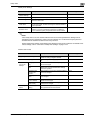
Finisher
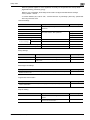
Authentication
Unit (Biometric
Type)
5
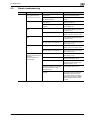
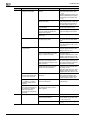
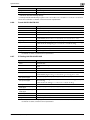
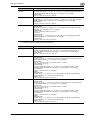
Symptom
Possible cause
Remedy
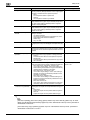
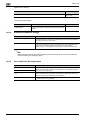
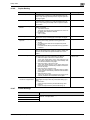
The finisher cannot be
used.
Is no power supplied to the connector?
Check that the cord is correctly inserted into the connector.
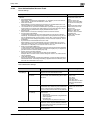
The pages cannot be stapled.
Have the staples run out?
Replace the staple cartridge. (See
p. 9-7.)
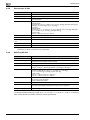
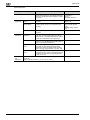
The staple is incorrectly
positioned by 90 degrees.
Is the staple position correctly
specified?
Specify the desired position for
stapling. (See p. 3-71.)
The pages that were fed
out were not uniformly
loaded and the punched
holes or staples are incorrectly positioned.
Is the paper curled?
Remove the paper from the paper
tray, turn it over, and then load it
again.
Is there a gap between the lateral
guides in the paper tray and the
sides of the paper?
Slide the lateral guides in the paper
tray against the sides of the paper
so that there is no gap.
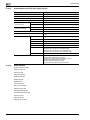
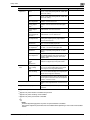
Even though a Punch setting was selected, holes
are not punched. (when
the punch unit is installed
on the finisher)
Did the message "Empty the holepunch scrap box." appear?
Empty the hole-punch scrap box.
(See p. 9-18)
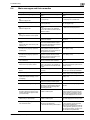
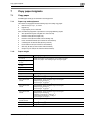
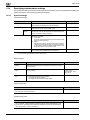
Trouble
Possible cause
Remedy
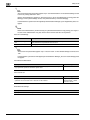
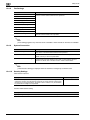
The USB cable is connected between the authentication unit and the
machine, but the status indicator is not lit in green.
The USB port of the machine may
be malfunctioning.
Turn the machine off with the main
power switch and temporarily disconnect the USB cable from the
authentication unit or the machine
before connecting it again and
waiting 10 seconds before turning
on the machine with the main power switch.
The USB cable is connected between the authentication unit and the
computer, but the status
indicator is not lit in green.
The USB port of the computer may
be malfunctioning.
Restart the computer.
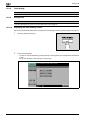
Is the authentication unit correctly
installed?
Refer to "Registering from Data
Administrator", and check if the
driver is correctly installed on the
computer. (p. 13-9)
A tone does not sound
from the machine when
scanning begins and when
authentication is completed.
Has the tone setting on the machine been set to "OFF"?
Refer to "Registering users", and
set the tone setting to "ON".
(p. 13-15)
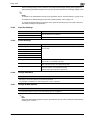
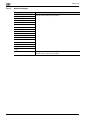
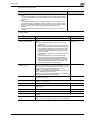
The message "Failed to
register". appears on a
machine where registration failed.
With the authentication unit, the
scanning time is limited for each
scan. This message appears if
scanning is not possible within the
limited period of time.
For details on the scanning time,
consult with the technical representative.
Refer to the Quick Guide Authentication Unit (Biometric Type AU101) and check how to position the
finger for authentication and scanning in order to complete scanning
within the limited period of time.
Correctly position the finger to be
scanned on the scanner, and do
not move the finger until the scanning results are received. If the
area of the finger to be scanned is
dirty or chapped, a correct image
cannot be created and scanning
may not be completed. Wash your
hands and try scanning again, or
try to correct chapped fingers. If
the area of the finger to be scanned
is too wide or too thin (outside of
the finger width range of 10 mm to
25 mm), a correct image cannot be
created and scanning may not be
completed. Try widening your finger or inserting it deeper or less
deep into the scanner.
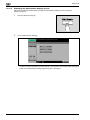
Logon failed. The message
"Failed to Authenticate."
appears on the machine.
The message "Failed to
read data. Place your finger once again and click
the [Start reading] button."
appears on a computer
where registration failed.
bizhub 751/601 (Version 2)
With the authentication unit, the
scanning time is limited to five seconds for each scan. This message
appears if scanning is not possible
within the five-second time period.
5-45