1
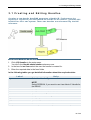
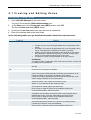
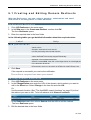
6.1 Creating and Editing Domain Redirects
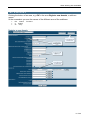
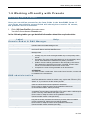
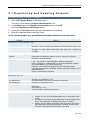
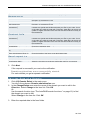
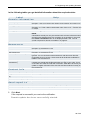
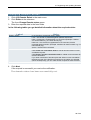
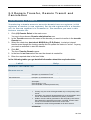
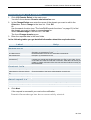
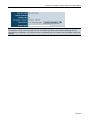
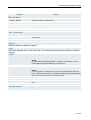
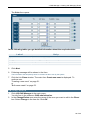
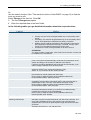
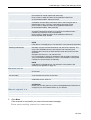
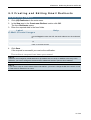
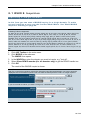
In the following tables you get detailed information about the required entries.
Label
Web-Einstellungen
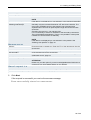
Target
Backup
Mode
Title (frame)
Help
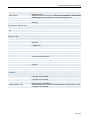
Enter the URL of the target domain. Enter the domain without ´"http://"
Enter backup targets here. If the first target is not accessible, the domain
will be redirected to the backup target automatically .
Select the mode frame, if the URL of the source domain is to be
displayed in the browsers adress bar.
Select the mode HTTP, if the URL of the target domain is to be displayed
in the browsers adress bar.
If you have selected frame mode, the target website displays in a frame.
Enter the title, which is to be shown in the title bar of the browser, here.
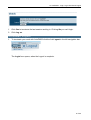
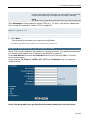
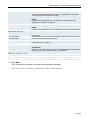
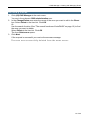
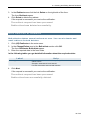
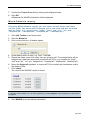
4. Click Save.
If the request is successful you receive the notification:
The redirect-request has been processed.
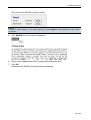
Redirect has been updated successfully.
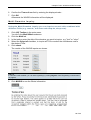
NOTE
Redirects are managed by a dedicated server (IP address 62.116.130.8). In addition to the entry in the
redirector, you have to change the domain and the subdomain entries to point to this IP address.
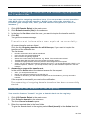
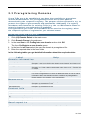
Redirecting Domains for Statistics
You can redirect domains to a service provider, to get domain access
statistics.
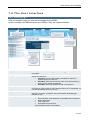
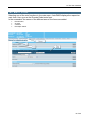
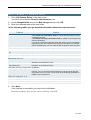
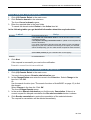
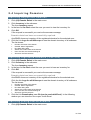
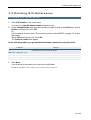
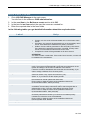
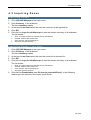
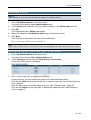
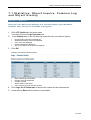
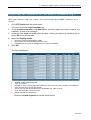
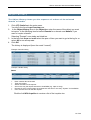
1. Click (05) Redirector in the main menu.
2. In the New area in the Create new Redirect section.
3. Click OK.
The form Redirector opens.
4. Enter the required data in the form fields.
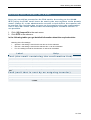
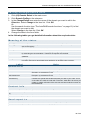
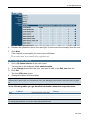
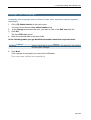
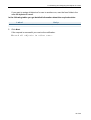
5. To use the placeholder in the form field Target see the following example:
Example
Your source domains are:
domain.com
www.domain.com
domain.org
www.domain.org
The URL of the service provider is:
www.domainparking.de
74 of 95