1
RFID TRANSPONDER TECHNOLOGY
DOC. 370-R2-EN
EK20-IDPAYFS
USER MANUAL
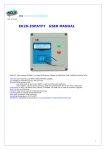
IDPAYFS (here named READER) is a fixed RFID device oriented to PREPAYED SHOWERS APPLICATION.
Operates with High Security RFID CARDS MIFARE CLASSIC.
Lcd display for operation survey and user info.
Records 2500 payment LOG.
Any LOG saved is sent to the HOST in real time after each operation.
If the HOST is inactive all the pending LOGS are automatically sent at the next reactivation.
Connection to HOST via RADIO UHF (200 mt) or RS485. The USB can be used for firmware upgrade.
Black list for card blocking.
Actuator relay to operate an electro-valve to control the water flow.
Led red-green to indicate status START/STOP.
Two push buttons to START and STOP the water flow.
IP65 class protection. Wall mounting.
Operating temperature -20’C to +65’C.
IDONE-PAY software free download at: www.zetanetweb.com/download/zetanet.htm
1
INDEX
1.0
2.0
3.0
4.0
5.0
5.1
6.0
7.0
8.0
9.0
10.0
11.0
12.0
13.0
HOW TO OPERATE WITH READER
IDONE-PAY PROGRAM INSTALL
HOW TO CONFIGURE THE READER USING IDONE-PAY
LOG MANAGEMENT
HOW TO CREATE A CUSTOMER DATABASE
HOW TO CREATE A BLACK LIST
HOW TO CREATE FIDELITY AND SUBSCRIPTION CARDS
SET CURRENT DATE ON A READER
SET A DEVICE NUMBER ON A READER
READER CONNECTIONS
HOW TO REDUCE IDONE-PAY
AVAILABLE MODELS
TECHNICAL SPEC
HOW TO UPGRADE THE FIRMWARE AND THE LANGUAGE ON IDTRCM
1.0 HOW TO OPERATE WITH READER
At power up appears for 3 seconds:
- The model PAYS and the active APPLICATION (Ex.02).
- The installed version (Ex. 1.5R).
- The READER number (Ex.N:00).
- The current date and time.
The LED is RED to indicate the water flow is blocked.
The READ CARD is active. On the display will appear:
1)-When the customer approach the CARD the READER verify if it is a
VALID CARD for the current APPLICATION (EX.02).
Subtract the set PAY VALUE and save the LOG of the operation.
If OK the Buzzer emit a sound and on the display appears the
previous VALUE and the new VALUE after the operation.
After 2 seconds appears the time you have water.
The customer can augment the time repeating the procedure 1).
This operation is similar as you use coins.
PAYS02 1.5R N:00
12/10/14 13:56
APPROACH
YOUR CARD
0865
0863 THANK YOU
YOU HAVE TIME FOR
MIN->02 SEC->00
YOU HAVE TIME FOR
MIN->08 SEC->00
The customer, when is ready, press the button START.
The LED became GREEN and the water flows.
The available time on the display begin to decrement.
2)-The customer can press STOP to suspend the water flows. The LED become RED.
The timer stops the time decrement.
When the customer is ready press the button START.
3)-The customer can augment the time in any moment as in procedure 1)
At the end of the available time the water flow is blocked.
The LED became RED. The READ CARD is active for another operation.
APPROACH
YOUR CARD
In case of error the buzzer sounds and these warnings are displayed:
CARD VALUE out of limit
CARD OUT LIMIT
RECHARGE!
CARD out of expiry date
CARD EXPIRED
RECHARGE!
CARD VALID but with corrupted data.
CARD NOT VALID
CONTACT US!
WRITE ERROR appears:
REPEAT
OPERATION
2
2.0
IDONE-PAY PROGRAM INSTALL
INSTALL USB DRIVERS
1) Copy into the PC the folder [MCP2200WindowsDriver].
2) In folder [DriverInstallationTool] select the folder [X64] for 64Bit or [X86] for 32bit platforms.
Launch “MCP2200DriverIstallationTool.exe”.
Press “Install” and wait to the end of drivers installation.
INSTALL USB ON YOUR PC
1) Turn off the READER. Insert the USB plug and turn on.
2) The PC begin the new device install. Wait for the complete install of the assigned COM PORT.
INSTALL RADIO-PEN-UHF ON YOUR PC
1) Insert the RADIO PEN UHF into the USB connector of the PC.
3) The PC begin the new device install. Wait for the complete install of the assigned COM PORT.
INSTALL IDONE-PAY SOFTWARE ON YOUR PC
Dowload the IDONE_PAY setup from the site: www.zetanetweb.com/download/zetanet.htm
Launch “IDONE_PAY_40x_Setup” and follow the instructions to end.
Into your PC (WINDOWS7) will be created by default the specific folder:
C:/ProgramData/ZETANET/IDONE-PAY/Database Files/idone-pay.mdb. The application Database.
IMPORTANT: Don’t erase or rename this file. You can lost all the work made before.
Will be created an icon on your desktop.
Now launch the IDONE-PAY program.
Open the “PROGRAM OPTIONS” window.
Click the “LANGUAGE” to change the CURRENT LANGUAGE.
Click “ENABLE COMMUNICATION AT START-UP”.The connection go active at any IDONE-PAY restart.
Click “ENABLE CUSTOMER MANAGEMENT” if you want to create a CUSTOMERS DATABASE associated to the CARDS.
3
Modify or use the default texts in “CARDS DEFAULT TEXT”.
These texts will be written into the CARDS in “CREATE CARD” operations.
3.0
HOW TO CONFIGURE THE READER USING IDONE-PAY
CONFIGURATION MODE BY RADIO
To CONFIGURE the READER the RADIO is the best choice. Avoid to open the box.
Uncheck “USE RADIO” in the window “COMMUNICTION PARAMETERS”.
To avoid problems, make attention that no other READER with the same DEVICE NUMBER is turned on.
Click “READER SETTINGS”
-Set the “DEVICE NUMBER” =0 and click the button to send to the READER.
-Click the button to send the actual “DATE & TIME” to the READER.
-The DEFAULT KEY is preset with the code (FF-FF-FF-FF-FF-FF). Do not change.
Press the button to send it to the READER.
-The “SECRET KEY” protects your CARDS against fraud and duplication.
Enter 12 digits with numbers from 0 to 9 and letters from A to F. Example: 3C-26-D9-67-FA-59.
For safety reasons, the “SECRET KEY” will not appear again, you will see always FF-FF-FF-FF-FF-FF.
Press the button to send it to the READER.
IMPORTANT: Write this code and keep it in a safe place.
-Click “SEND” to transmit the other parameters to the READER.
A bar indicates the good transfer.
4
Click “APPLICATION LIST”.
Insert the SHOWERS name in one of the APPLICATION less the 15. (Ex.the APPLICATION 2)
Click SAVE to memorize the created list and click SEND.
Will appear the window “SEND APPLICATION LIST”.
Check “SHOWERS” and click “SEND” to transfer to the READER.
A bar indicates the good transfer.
4.0 LOG MANAGEMENT
They are two visualization:
CURRENT LOG MANAGEMENT
-Here you can verify in real time all the LOG transferred from the READER and saved into the current LOG FILE.
-You can save the current LOG FILE into an EXCEL ARCHIVE.
LOG ARCHIVE MANAGEMENT
-You can open any previous LOG FILE present in the EXCEL ARCHIVE to explore it.
-All this operations don’t interact anyway with the CURRENT LOG MANAGEMENT activities that flows normally.
-At start up, check if there is a LOG FILE NAME:xxx.mdb where to save your LOGS.
If it does not, open another existing file or create a new one by pressing “CREATE NEW LOG FILE”.
They are two method to get LOG:
“USE RADIO” FOR REAL TIME LOG TRANSFER
-Check “USE RADIO” and check the “READERS” you want to be connected. (Ex. READER-0-1-2)
-Select the RADIO COM PORT and click “CONNECT”.
-The RADIO PEN UHF installed on your PC continuously scans the READERS.
-Any READER present in the RF field will immediately transfer the LOG.
-On the READER display appear an “R” to indicate the scan is running.
-On the IDONE-PAY a string of LED indicates the status of the READERS CONNECTED or UNCONNECTED.
5
USE USB OR RADIO FOR DEFERRED LOG TRANSFER
-Uncheck “USE RADIO”.
-Click “CURRENT LOG MANAGEMENT”.
-Set the READER to interrogate.
-Press READ LOG. The LOGS are transferred from the connected READER.
Any record displays the following fields:
APPLICATION
The application related to the LOG.
DATE-TIME
DAY-MONTH-YEAR HOURS-MINUTES-SECONDS of the recorded LOG.
READER
DEVICE NUMBER of the READER.
CARD TYPE
PREPAYED, FREE
ACT VALUE
The actual value charged in the CARD.
PREV VALUE
The previous value present in the CARD.
EXPIRY DATE
The date actually written in the CARD.
TAG UID
The CODE UID detected on the CARD.
CUSTOMER
Active only if “CUSTOMER MANAGEMENT” is enabled.
Visualize the Name and Surname of the CUSTOMER associated to the CARD.
5.0 HOW TO CREATE A CUSTOMER DATABASE
As #5.0 this activity request the use of a IDPAYM or IDPAYF near the PC.
Be sure to have set “ENABLE CUSTOMER MANAGEMENT” in the “PROGRAM OPTIONS” window.
To assign a CARD to a specific CUSTOMER follow this procedure:
- Select “CUSTOMER MANAGEMENT” and press “NEW”.
- Insert data of new CUSTOMERS (one or more) in the boxes and press “SAVE”.
6
- EXIT and press “CREATE CARD” in IDONE-PAY window.
- Press “SELECT CUSTOMER” and choose the desired CUSTOMER that will be swon in the CUSTOMER box.
- Create a Card as detailed in #3.2.
A
Other functions permit:
-FIND USER FROM CARD
-ADD NEW CUSTOMER
-VIEW CUSTOMER CARD STATUS
-MODIFY, DELETE a CUSTOMER record.
5.1
HOW TO CREATE A BLACK LIST
Is possible to send to the READER a BLACK LIST of CARDS to avoid a misuse of them.
7
6.0 HOW TO CREATE FIDELITY AND SUBSCRIPTION CARDS
This activity in fixed units as IDPAYFS can be made in two ways:
-Using an IDPAYM mobile READER. See instructions on the “IDPAYM_UserManual_ENG” .
Usually an IDPAYM is used also to recharge the Customer CARD.
-Using an IDPAYF fixed READER placed near the PC. May use a spare part.
Use the RADIO UHF and uncheck “USE RADIO”.
Select “CREATE CARD”.
- Mark “NEW CARD?” if you want to write on a CARD that is never been written.(NOT PROTECTED)
Do not mark NEW CARD? if you want to write on a CARD previously written. (PROTECTED).
Select FREE or PREPAID or SUBSCRIPTION.
You can write an 11 characters text.
Insert the start VALUE and the EXPIRY DATE (month) from the actual date.
- To write, place the CARD in front of the READER and press CREATE CARD.
At the end of the writing appears "WRITE SUCCESFULL”.
If an error appears "WRITE ERROR”.
7.0 SET CURRENT DATE ON A READER
Press the arrow in “DATE &TIME” to update the READER date.
8.0
SET A DEVICE NUMBER INTO A READER
Set the DEVICE NUMBER to send to the READER. Press the arrow.
8
9.0 READER CONNECTIONS IDPAYFS
A 4 wire cable 0,25mmsq so composed:
J1
- Pin1 +VDC
9 to 14VDC stabilized
- Pin2 GND
0VDC
- Pin3 COM
RELAY CONTACT COM max Current 1,5A at 24VDC
- Pin4 NO
RELAY CONTACT NO
“
10.0 HOW TO REDUCE IDONE-PAY
Normally the end user application don’t use all the functions available on IDONE-PAY.
For this reason the user can use a reduced version named IDONE-PAY-CLIENT that use the Database created using
IDONE-PAY.
To install this reduced version on the PC of your CUSTOMER follow this procedure:
Copy our folder IDPAYM_CD into your PC.
INSTALL USB DRIVER
1) Copy into the PC the folder [MCP2200WindowsDriver].
2) In folder [DriverInstallationTool] select the folder [X64] for 64Bit or [X86] for 32bit.
Launch “MCP2200DriverIstallationTool.exe”. Press “Install” and wait to the end of drivers installation.
INSTALL USB ON PC
1) Turn off the READER. Insert the USB plug and turn on.
2) The PC begin the new device install. Wait for the complete install of the assigned COM PORT.
INSTALL RADIO-PEN-UHF ON PC
1) Insert the RADIO PEN UHF into the USB connector of the PC.
2) The PC begin the new device install. Wait for the complete install of the assigned COM PORT.
INSTALL IDONE-PAY ON PC
Dowload the IDONE_PAY_CLIENT setup from the site:www.zetanetweb...............................
Launch “IDONE_PAY_CLIENT_40x_Setup” and follow the instructions to end.
Into your PC (WINDOWS7) will be created by default this specific folder:
- C:/ProgramData/ZETANET/IDONE-PAY-CLIENT/Database Files/idone-pay-client.mdb. The application Database.
IMPORTANT: Don’t erase or rename this file.
Will be created an icon on your desktop.
To operate with this version need to replace the application Database created by the IDONE-PAY-CLIENT
installation (idone-pay-client.mdb) with that create developing the application by IDONE-PAY (ex.)
9
11.0 AVAILABLE MODELS
EK20-IDPAYFS
Model with USB and RADIO UHF.
For other option: BLUETOOTH-WIFI contact us.
RADIO PEN UHF
The RADIO PEN UHF is quoted a part.
12.0 TECHNICAL SPECIFICATION
RFID FREQUENCY
13.56Mhz MIFARE 1K-ISO14443A
LOG MEMORY
Circular buffer of 2500 records
DISPLAY LCD
2 row x 16 chars
ACOUSTIC WARNING
Buzzer
LED
LED RED (CLOSED)
ACTUATOR
RELAY ELECTROVALVE COMMAND 30VDC 1,5A max 2A
PUSH BUTTONS
START and STOP.
POWER SUPPLY
9 a 14VDC stabilized Current max 200mA
DATA TRANSMISSION 19200-8-N-1
USB2.0 , RADIO UHF
White-Blue
LED GREEN (OPEN)
DIMENSIONS
WEIGHT
OPERATING TEMPERATURE
-20’C to +65’C
10
13.0
HOW TO UPGRADE THE FIRMWARE AND LANGUAGE ON IDPAYM
The upgrade on the FIXED units can be made using the RADIO UHF without open the box.
- Uncheck “USE RADIO” in the window “COMMUNICATION PARAMETERS”.
To avoid problems, make attention that no other READER with the same DEVICE NUMBER is turned on.
- Turn on the READER.
- Wait for:
-
APPROACH
THE CARD
Click the icon
of the program EK20-UPLOADER found in the folder “IDPAYF_CD”.
Select the RADIO COM PORT and the bitrate at 19200.
Click UPLOAD PROGRAM.
Take the file IDPAYFP*.BIN
Select the READER address.
Click START and wait the end of programming “Upload OK”.
Turn off the READER.
To upgrade the LANGUAGE repeat the same procedure but click “UPLOAD LANGUAGE” and taken the file IDPAYFP*.txt
IDONE_CLOUD
Another solution is to be supported by an INTERNET CLOUD having the function to: Collect the LOGS via RADIO in
real time.
- Transmit to the SERVICE CENTER in your Personal Area.
- Offer a full protected access by a personal Password.
This operation need an Internet Access Point in your location and a MicroServer to collect the Logs from IDTRC.
INOUT RFID s.r.l
Phone:+39 02.95138.139
Email: [email protected]
Via Milano,14/H 20064-Gorgonzola (ITALY)
Fax:+39 02.95.158.694
Web: www.inoutsrl.it
11