1
Datasheet view
Contents
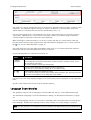
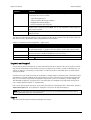
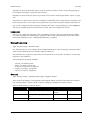
Explanations about the individual options can be found in descriptions of the corresponding page types,
from chapter Home page, on page 147 and following.
Explanations about the layout options for products can be found in Product type details - Layout, on page
124.
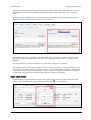
Since there is no space here to describe each function individually, we recommend that you try them out to
learn how they work. You can return to the original state of your work at any time using the Undo function.
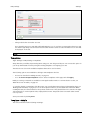
You can also configure the layout using the datasheet view of the corresponding page, on the Layout tab.
The various available variants are listed there in a table, with a short explanation of each.
Language
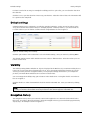
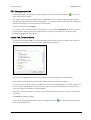
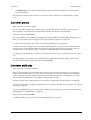
Here you can configure the language of the content that you want to edit for the individual pages. When
you select a language, the current page is displayed in the corresponding language and you can edit the
texts in this language. See also Language Dependencies, on page 29.
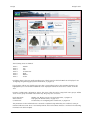
Datasheet view
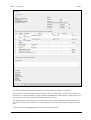
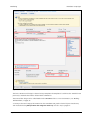
Page: Content >> Pages – Datasheet view
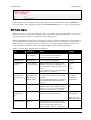
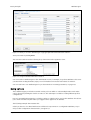
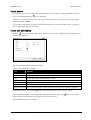
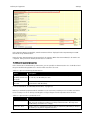
In a datasheet view, you can configure all the available parameters for the current page. Select this view to
enter and edit data that cannot be edited in page preview mode.
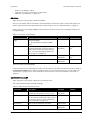
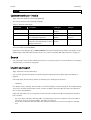
The parameters are grouped into tabs, which are described below. The specific descriptions of each page
type refer to any exceptions.
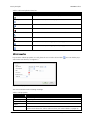
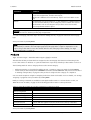
The following tabs are always available:
-
General; see General, below
Pages; see Pages, on page 145
Products; see Products, on page 146
Images; see Images, on page 147
Layout; see Layout, on page 147
General
Page: Content >> Pages – Datasheet view >> Pages >> [page] >> General
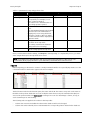
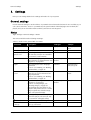
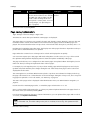
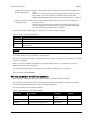
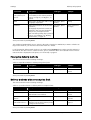
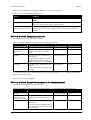
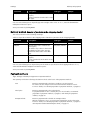
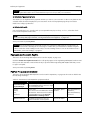
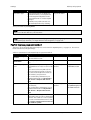
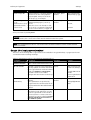
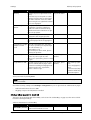
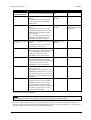
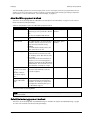
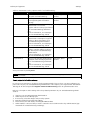
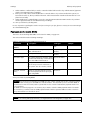
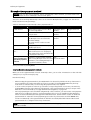
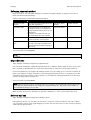
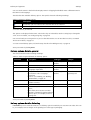
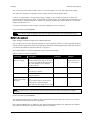
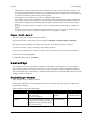
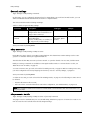
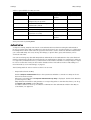
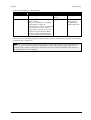
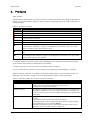
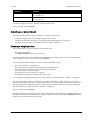
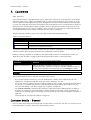
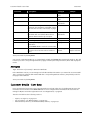
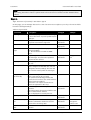
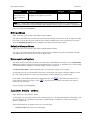
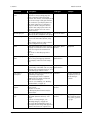
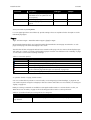
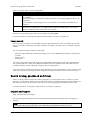
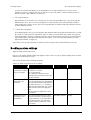
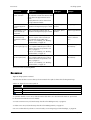
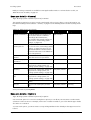
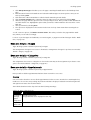
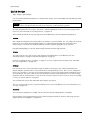
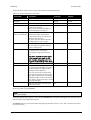
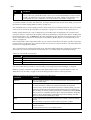
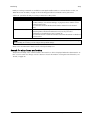
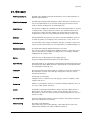
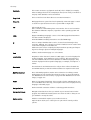
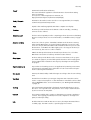
There are general settings for each page type. All available settings are listed in the table below. Depending on the page type, a specific selection of these settings are displayed and must be edited.
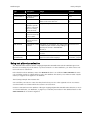
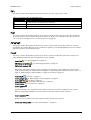
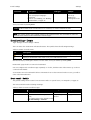
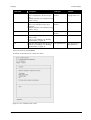
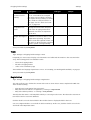
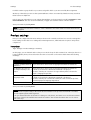
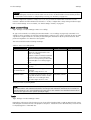
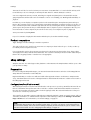
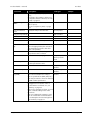
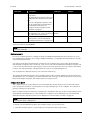
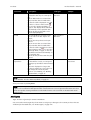
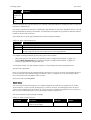
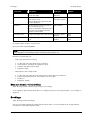
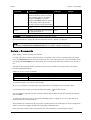
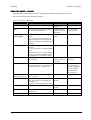
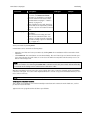
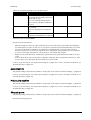
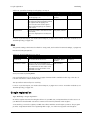
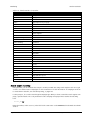
Table 89: Entry fields for general properties
Field name
Description
Field type
Example
ID
Unique ID for the corresponding page
Entry field, alphanumeric
Equipment
Page type; see Page types, on page
Display
Type
140
Visible
See Visibility, on page 31
User guide for Web site administrators
Option button
Page 143