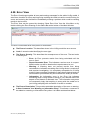
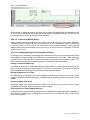
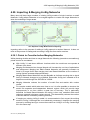
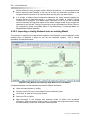
1
114 | View Reference
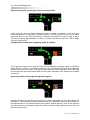
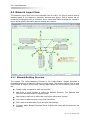
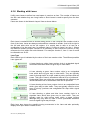
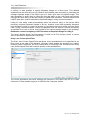
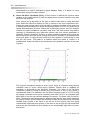
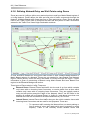
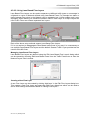
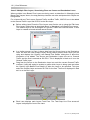
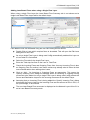
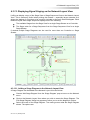
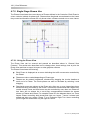
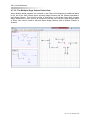
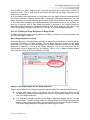
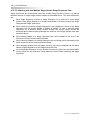
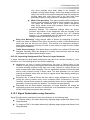
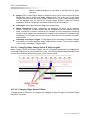
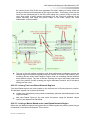
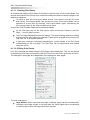
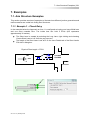
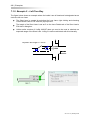
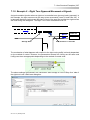
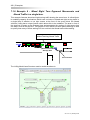
Release the mouse button while pointing at the Destination Lane.
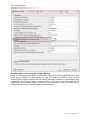
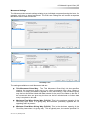
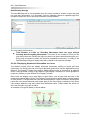
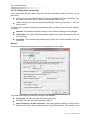
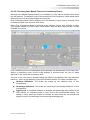
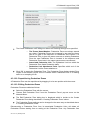
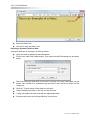
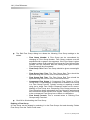
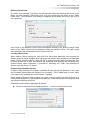
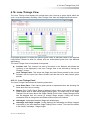
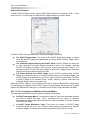
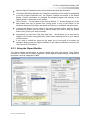
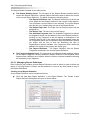
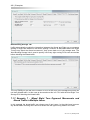
Choose ‘Change Flow Details...’ from the popup menu to display the ‘Specify Lane
Based Flow Details’ dialog box.
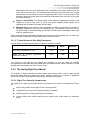
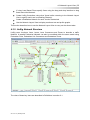
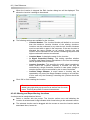
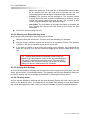
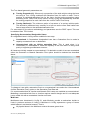
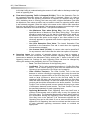
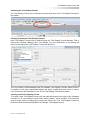
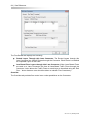
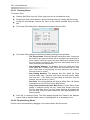
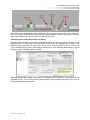
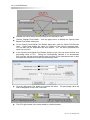
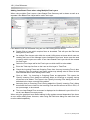
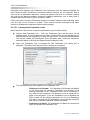
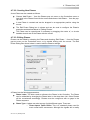
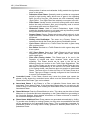
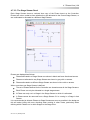
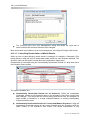
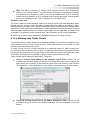
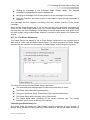
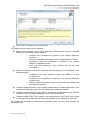
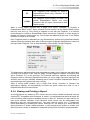
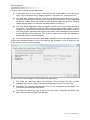
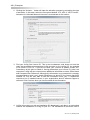
On the ‘Specify Lane Based Flow Details’ dialog box, click the ‘Switch PCU/Percent
value...’ button and change the option to ‘Percent of flow leaving upstream lane’.
You can also tick the ‘Remember this as a default ... etc.’ tick box to remember this
option for next time.
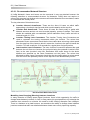
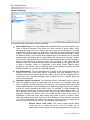
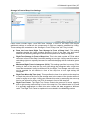
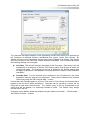
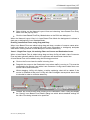
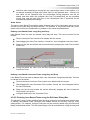
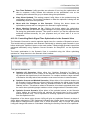
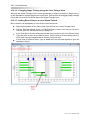
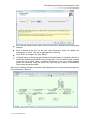
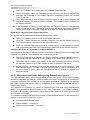
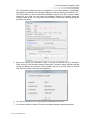
In the ‘Specify Lane Based Flow Details’ dialog box you can now enter the flow as a
percentage value of 75%. Ticking the ‘Automatically maintain % on downstream
lane’ tick box will also ensure that the stop line flow of the downstream lane is also
automatically maintained to match that percentage value.
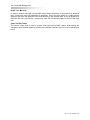
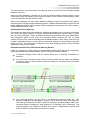
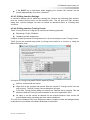
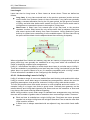
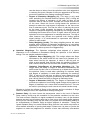
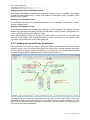
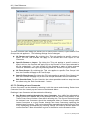
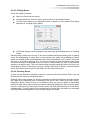
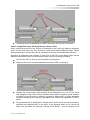
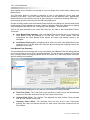
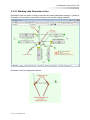
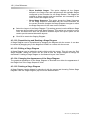
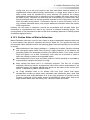
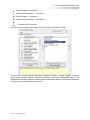
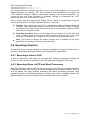
Click the ‘Add Lane Flow’ button to complete the action. The percentage value will
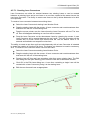
now be displayed on the Lane Connector.
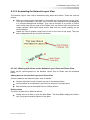
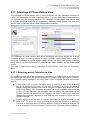
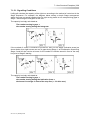
The 25% right turners can now be added in a similar manner.
Ver. 3.2.10 | January 2013