1
2.3 The LinSig User Interface | 15
2.3. The LinSig User Interface
The LinSig model is edited using a sophisticated graphical user interface that has been
developed to ensure data can be quickly entered and edited. The user interface also aims to
allow the user to control the amount of information displayed at any one time, providing
choice between a data display that is very dense but shows a lot of information at a glance,
and a less dense display that is neater but shows less information at once.
2.3.1. Useful User Interface Concepts
When editing the LinSig model a number of standard concepts apply. These are:
Data Items. A data item is a generic term for the different types of data edited in
LinSig. For example, Arms, Lanes, Lane Connectors, Zones, Routes, Controllers,
Phases, Stages etc are all 'Items'.
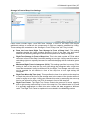
Selecting an Item. Clicking on an item in a LinSig View will select it. The selected
item will be shown in red. Many menu commands require you to first select an item
before choosing that command. For example, before choosing the command ‘Edit
Lane’ you must have selected a Lane. Menu commands that cannot be carried out
because an Item has not been selected are shown in grey and cannot be chosen. In
some instances, more than one item can be selected at once by holding the control
(Ctrl) key or shift key down whilst selecting the Items. Multi-select can also be carried
out in the Network Layout View by dragging a multi-select rectangle with the mouse
whilst holding control (Ctrl) down. All items in the rectangle will be selected.
Pop-Up Context Sensitive Menus. Clicking on a View with the right mouse button
will display a 'pop-up' menu containing a choice of commands relevant to the item
clicked on. All commands displayed on pop-up menus are also available on the
LinSig main menu. Not all Views will have a pop-up menu.
Editing an Item by double clicking. An Item can always be edited by selecting it
and choosing to edit it from the main menu or pop-up menu. Alternatively, for some
items, as a shortcut, you can double click the item to edit it. This does not apply
where there may be more than one way to edit an item.
Using a wheel-mouse. If you have a wheel mouse LinSig will use the wheel for
zooming graphical views and scrolling through lists. The use of a wheel mouse is
strongly recommended as they are inexpensive and make zooming graphical views
very easy. If you are used to applications which zoom in the opposite direction to
LinSig when using the mouse wheel its direction can be reversed in ‘Program
Options’.
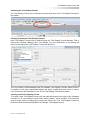
Undo. Any command can be undone by choosing ‘Undo’ from the edit menu. Any
number of previous commands can be undone and if necessary redone. The Undo
History View can also be used to display the sequence of commands Undo will undo.
Undo is only available for the duration of the editing session and cannot undo past
the point when a LinSig model was opened.
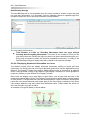
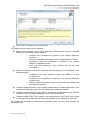
Error View. The Error View lists any errors and warnings in the LinSig model being
edited. Each error is listed together with its location and severity allowing you to get
an overview of any problems which require attention. This helps to avoid issues such
as inadvertently forgetting to enter the Saturation Flow for a Lane and not spotting
the problem until after results have been used. Please remember though that the
Error View is an aid – it is not an excuse to neglect proper scrutiny of your work and
results. i.e. No errors in the Error View does not imply your model is correct.
Ver. 3.2.10 | January 2013