1
7.1 Arm Structure Examples | 311
who would supply an Activation Code. Do not send this code to JCT – the old PC
being deactivated will use the new PCs Installation ID to provide the Activation Code
for the new PC.
3. Make a careful note of this Installation ID for use in the next step.
On the Old PC:
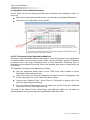
1. Choose ‘About LinSig’ from the ‘Help’ menu.
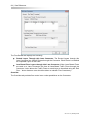
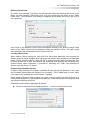
2. Click the ‘Transfer Licence’ button.
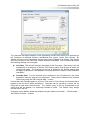
3. Enter the Installation ID from the new PC as provided above.
4. An activation code for the new PC is provided. Make a note of this activation code.
LinSig on the old PC has now been deactivated and can only be used as
demonstration software.
On the New PC:
1. Either take up where you left off the new PC above or if LinSig has been closed
follow the activation procedure as described above in ‘Activating LinSig for the first
time’ up to the point where an activation code is required.
2. Enter the Activation Code provided from the old PC.
3. Click ‘Continue’. LinSig should now report that the new PC has been successfully
activated, and provide details of the activated licence.
4. Check that the licence details are as expected.
5. LinSig is now correctly licensed on the new PC.
A.4.3. Product Activation for Unlimited Networked PC Licences
For users with Unlimited Networked PC Licences (UNPCL) it is not necessary to activate
each PC individually, instead workstations obtain a licence from a central licence server,
which authorises them to run LinSig. This benefits users by removing the need to handle
large lists of Installation IDs and Activation codes, and also avoids the security risk of JCT
handing out a potentially unlimited number of individual PC activations for LinSig, which may
inadvertently migrate away from the licensed site.
A.4.3.1. Installing LinSig on Workstations
LinSig is installed on each workstation the same way as for non-networked installations as
detailed above in ‘Installing LinSig’. However, Product Activation does NOT need to be
carried out on each Workstation. If desired the LinSig CD may be copied to a networked
server and LinSig installed over the network, however setup must be run on each
Workstation whether locally or using a remote installation system such as SMS.
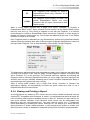
A.4.3.2. Installing and Activating the Licence Server
The Licence Server installation files are located in the ‘LicServer’ folder on the LinSig
installation CD. The Licence Server can run on Windows Vista, Windows Server 2003/2008,
Windows XP and Windows 2000. To install the Licence Server, run ‘setup.exe’ from the
relevant subfolder, and follow the on-screen prompts.
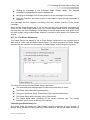
Once the Licence Server has been installed, it needs to be activated to give out LinSig
licences to Workstations. This process is carried out using the Licence Server Administration
Utility that is located on the Windows ‘Start’ menu, under ‘JCT Consultancy LinSig Licence
Server’, on the Licence Server PC. This utility allows an administrator to activate the Licence
Server for LinSig using a similar procedure to that described above for activating an
Ver. 3.2.10 | January 2013