Download mStore User Guide
Transcript
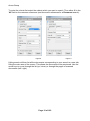
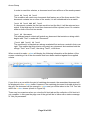
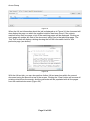
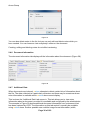
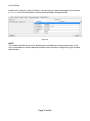
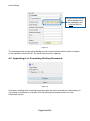
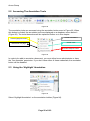
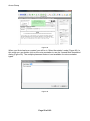
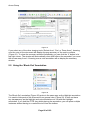
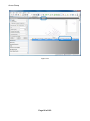
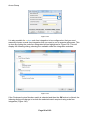
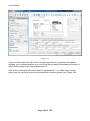
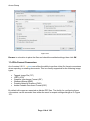
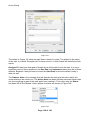
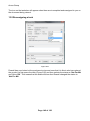
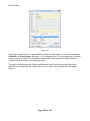
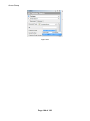
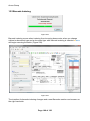
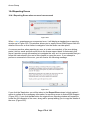
Arena Group If you pick ‘Select Annotation’ from the annotation menu, you can edit the rubber stamp text by double clicking on the annotation. You will also be able to move or delete the rubber stamp annotation. NOTE Rubber stamp annotations cannot be resized, even though they display resizing ‘grab handles’ as in Figure 100. Also the multiple placement feature is not available for rubber stamp annotations. 5.7 Moving and Resizing Annotations Figure 101 Annotations can be amended after creation by using the ‘Select Annotation’ tool. This allows you to change the size of the annotation (with the exception of rubber stamps), and its position on the document. If you have just created an annotation on a document, the ‘Select Annotation’ tool will automatically be selected for you. If you are wanting to amend an existing annotation, you will need to drop down the annotation button on the toolbar, and pick ‘Select Annotation’ from the list (Figure 83). Once you have selected the tool, click on an annotation on the document. You will see 8 small squares, or ‘grab handles’ appear; these handles are used to change the size of the annotation. To change the size of an annotation simply drag these squares to change the size of the annotation in that direction (e.g. Dragging the top-middle or bottom-middle handles will allow you to change the height). To move an annotation simply click anywhere within the annotation and drag it around the screen. Page 65 of 183