1
Amazon Elastic Compute Cloud User Guide for Linux
View Amazon EC2 Metrics
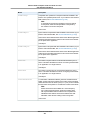
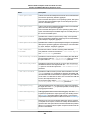
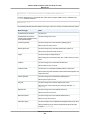
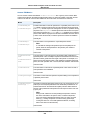
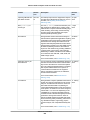
Metric
Description
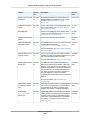
DiskWriteOps
Completed write operations to all ephemeral disks available to the
instance in a specified period of time. If your instance uses Amazon
EBS volumes, see Amazon EBS Metrics (p. 539).
Note
To calculate the average I/O operations per second (IOPS)
for the period, divide the total operations in the period by
the number of seconds in that period.
Units: Count
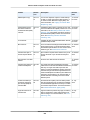
DiskReadBytes
Bytes read from all ephemeral disks available to the instance (if your
instance uses Amazon EBS, see Amazon EBS Metrics (p. 539).)
This metric is used to determine the volume of the data the application
reads from the hard disk of the instance. This can be used to determine the speed of the application.
Units: Bytes
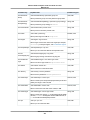
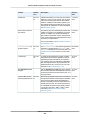
DiskWriteBytes
Bytes written to all ephemeral disks available to the instance (if your
instance uses Amazon EBS, see Amazon EBS Metrics (p. 539).)
This metric is used to determine the volume of the data the application
writes onto the hard disk of the instance. This can be used to determine the speed of the application.
Units: Bytes
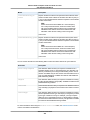
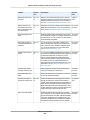
NetworkIn
The number of bytes received on all network interfaces by the instance. This metric identifies the volume of incoming network traffic
to an application on a single instance.
Units: Bytes
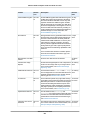
NetworkOut
The number of bytes sent out on all network interfaces by the instance. This metric identifies the volume of outgoing network traffic
to an application on a single instance.
Units: Bytes
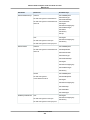
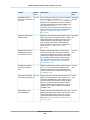
StatusCheckFailed
A combination of StatusCheckFailed_Instance and StatusCheckFailed_System that reports if either of the status checks has failed.
Values for this metric are either 0 (zero) or 1 (one.) A zero indicates
that the status check passed. A one indicates a status check failure.
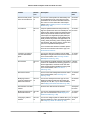
Note
Status check metrics are available at 1 minute frequency.
For a newly launched instance, status check metric data
will only be available after the instance has completed the
initialization state. Status check metrics will become available within a few minutes of being in the running state.
Units: Count
API Version 2015-04-15
321