1
Celestia User’s Guide
j)
23 of 40
Hold down the [Shift] key and press one of the [Arrow] keys (e.g. [ Shift+→ ] . You will “orbit”
around the object in view, either left/right, or up/down. This is convenient to see all of an object quickly.
Note. The speed with which the view turns when you press the above keys is initially set at a particular value
(120) in one of the files that Celestia uses to operate. That file is called celestia.cfg, and can be found in the main
(root) directory of the Celestia folder. If you find that your view is turning too fast or too slowly for your taste
when you press a movement key, that document can be opened by you and the Rotate Acceleration (turning
speed) of the above keys can be lowered or increased. To do so, double-click on the file. If a menu comes up
asking you which program you wish to use to open the document, choose “WordPad” (for Windows systems) or
the proper plain text editor for MAC and Linux systems. When open, locate the line “RotateAcceleration 120”
and change the number either higher (to turn even faster) or lower (to turn more slowly). For example,
RotateAcceleration 35 will result in your view turning more slowly when you hit a movement key. Some users
prefer the increased control it gives them, particularly if they use the Celestia spaceship.
NEW - You will also find that a variety of other commands in the celestia.cfg file can be changed by you to alter
the way Celestia does things. Read the document’s text directions and make any changes you wish. After
changing, save the change by clicking the File and SAVE menu choices, and close the document, then relaunch
Celestia.
k) [Right-Click + Left-Click + Drag] – (press all together) - your position will advance toward or recede
away from the object.
l)
[Ctrl + left Drag] – same as (k) above.
m) [Roll Center Mouse Wheel] (if you have one) forward or backward – same as (k) above.
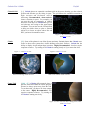
n) Press the [End] key on the keyboard. This is the same as (k) but using the keyboard only. Your position
above any object will rapidly recede away. Hold down the key and you can move light years away.
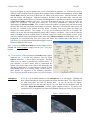
o) Press the [Home] key on the keyboard. Your selected object will rapidly advance toward you.
The above five keys resemble a “zoom” ability. However, they don’t magnify an image; they just
reposition you toward or away from it. Because this feature operates exponentially, you can move
smoothly and rapidly from a distance of one meter to one million light years away from a Celestia object
without sacrificing precision at small distances, or experiencing long time delays traveling long distances.
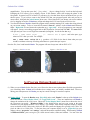
p) Press the [ Shift + * ] on the keyboard. This is a Lookback command. It will reverse your view so that
instead of looking forward, you will look behind you (a rearview window). It is very stimulating when
flying from one planet to another or traveling in your spaceship. You can see forward and then examine
your journey from the rear view, watching the planet or moon you just left recede from you.
Joystick Control [F8]
23) You can also control your movement via a joystick (Windows only). The commands for joystick control of
Celestia are listed in the back of this document, in the Keyboard and Mouse Command Summary. Press
the [ F8 ] key to turn Joystick control on or off.